
Omalibre
The AI native bookshelf for Omarchy
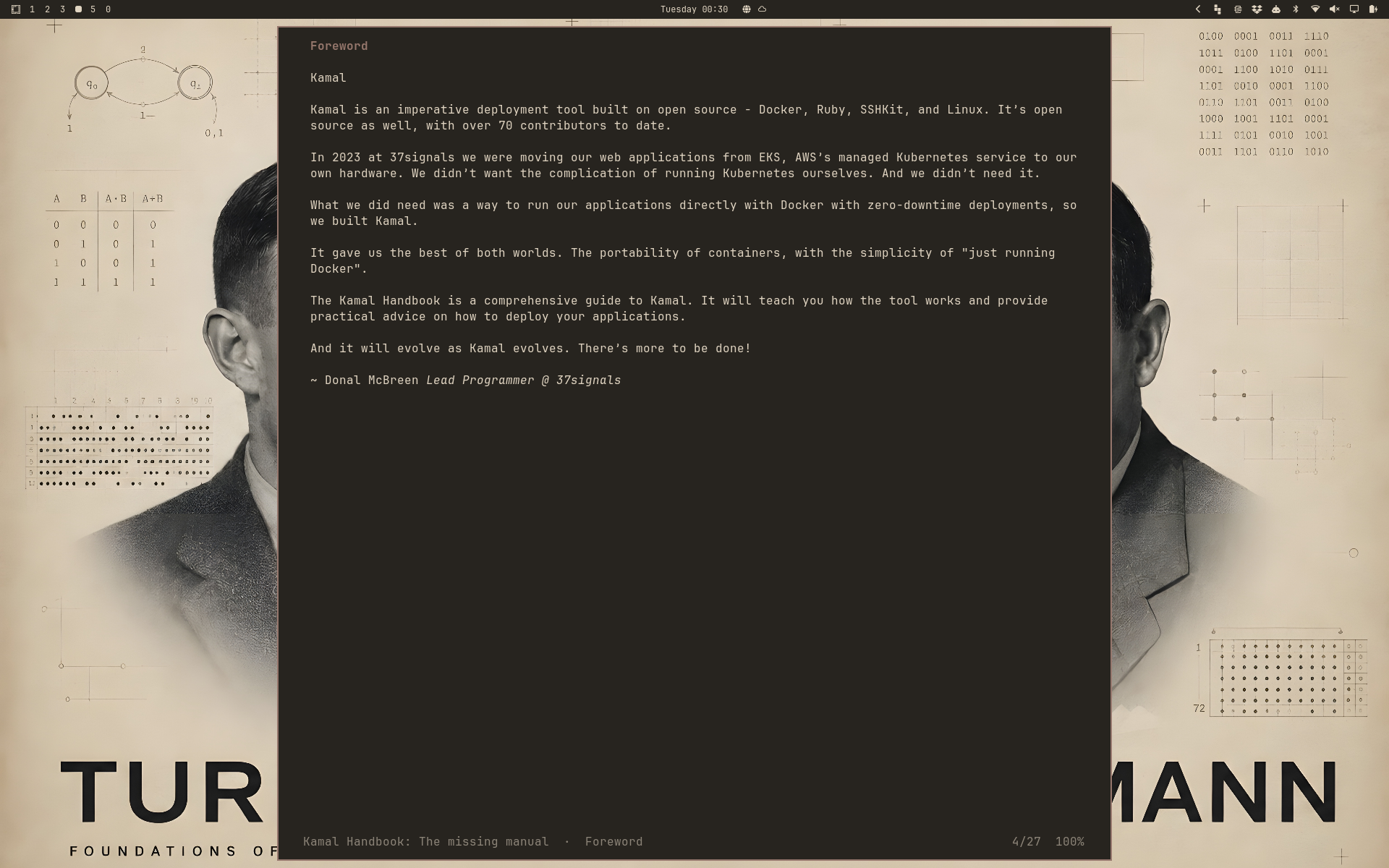
Read your ebooks in the terminal, and keep your library in order while you do. Vim keys, highlights and notes that survive across machines, pictures where your terminal can show them, and a page that takes on every theme you switch to. Ask Claude about any book on the shelf, including what you wrote in the margin, and search the whole library by meaning once you add qmd.
Install
On Omarchy, add the plugin and let the bar do the rest:
omarchy plugin add https://github.com/AlexZeitler/omalibre.git --enable
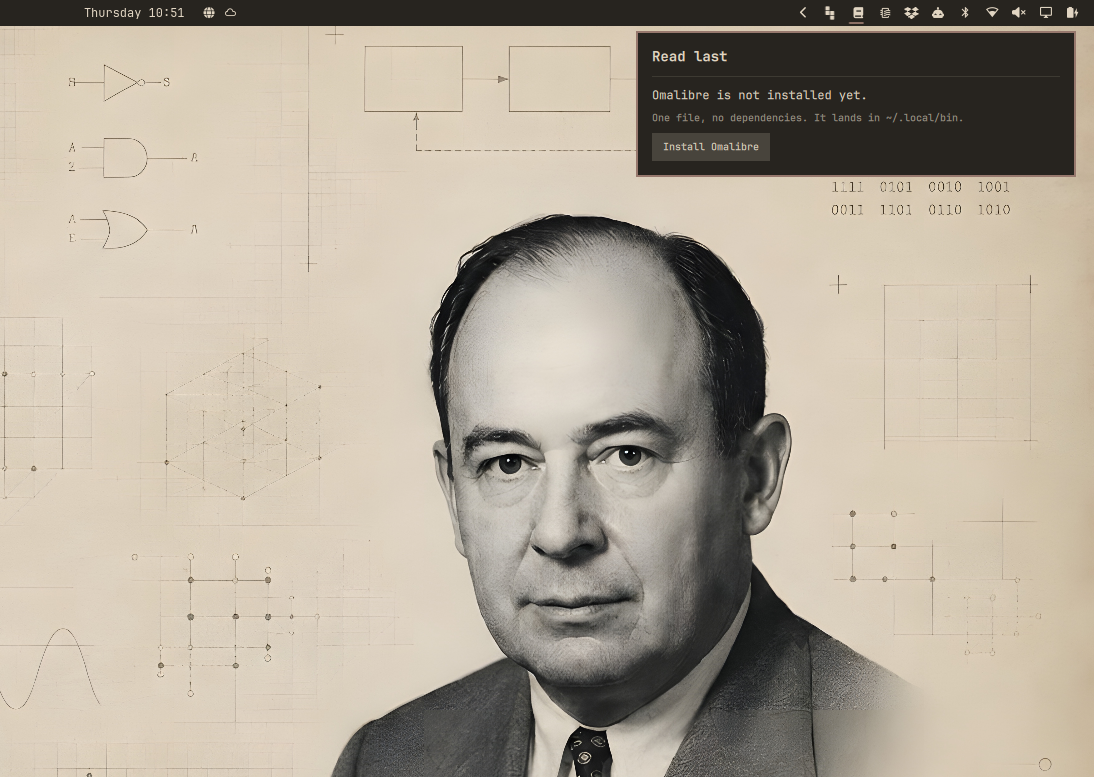
That puts a book icon in your bar. Open it and it offers to fetch Omalibre if it is not there yet. See In the Omarchy bar.
What it fetches is a 64-bit Linux build with no dependencies at all, so the age
of your distribution does not matter. It lands in ~/.local/bin. If your shell
cannot find omalibre afterwards, that directory is not on your PATH.
The plugin checks the release signature before it unpacks anything, and installs nothing if the check fails. See Verifying a release.
Or build it yourself
You need Rust:
mise use -g rust@latest # or: sudo pacman -S rust
Then:
cargo install --git https://github.com/AlexZeitler/omalibre
mise reshim                  # only if you installed Rust with mise
This puts omalibre in ~/.cargo/bin.
On Omarchy there is nothing else to do. The first start hooks Omalibre into your theme, and from then on it follows every theme you switch to, while you read. Elsewhere it uses built-in colours.
Working from a clone, ./install-theme.sh links the colour template instead of
copying it, so git pull keeps it current.
Verifying a release
Every release is signed. The public key is not published beside the release,
where a rewritten release could replace it, but shipped inside the plugin at
omarchy/omalibre-releases.asc:
E064 746F EC7E CFB6 695D 629B F626 526A D10C 2854
The plugin runs this check for you. By hand it is:
cd "$(mktemp -d)"
base=https://github.com/AlexZeitler/omalibre/releases/latest/download
curl -fL -O "$base/omalibre-x86_64-linux.tar.gz"
curl -fL -O "$base/omalibre-x86_64-linux.tar.gz.asc"
curl -fL -O https://raw.githubusercontent.com/AlexZeitler/omalibre/master/omarchy/omalibre-releases.asc

gpg --dearmor < omalibre-releases.asc > release-key.gpg
gpgv --keyring "$PWD/release-key.gpg" \
  omalibre-x86_64-linux.tar.gz.asc omalibre-x86_64-linux.tar.gz
gpgv says Good signature or it fails. It reads only the keyring given to
it and leaves your own alone.
In the Omarchy bar
The plugin puts your reading one click away:
omarchy plugin add https://github.com/AlexZeitler/omalibre.git --enable
That puts a book icon in your bar. Is Omalibre not installed yet, the panel says so and fetches it for you.
From then on the panel lists the five books you read last, newest first, with the author and when you last had them open. Type in the box to search the whole library by title, author, series or tag. Click a book and it opens in a terminal, at the page and line where you stopped.
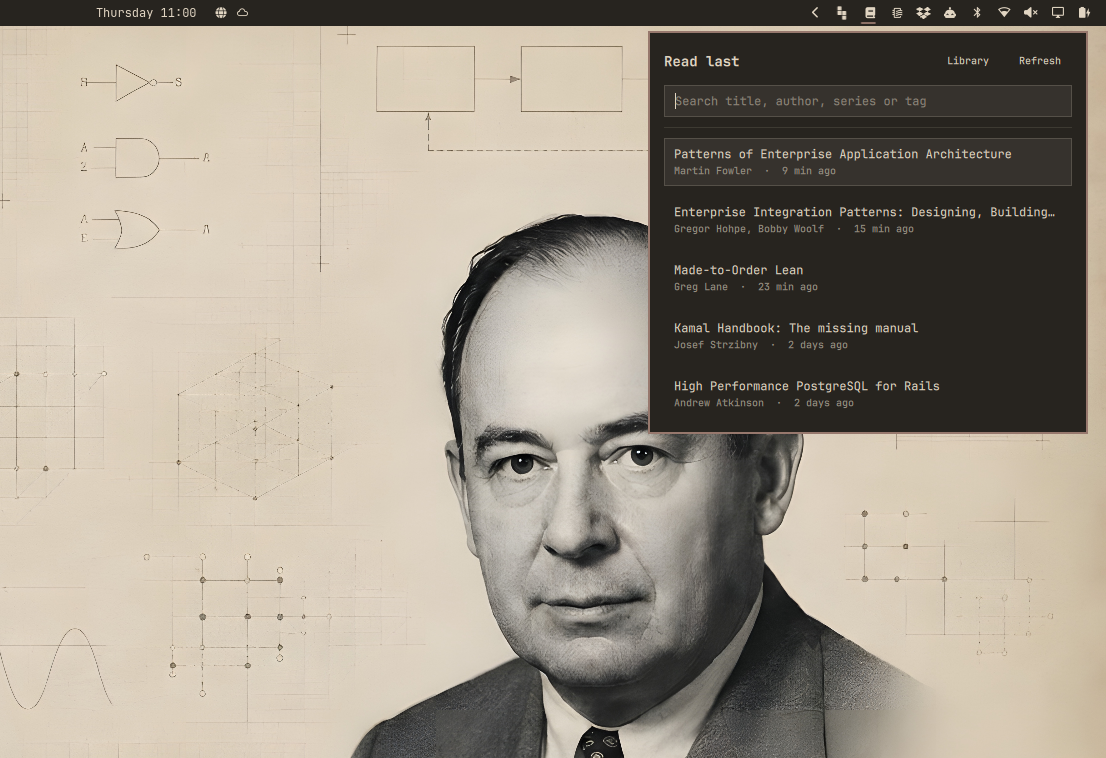
The box has the keyboard from the start. Arrow keys walk the list, Enter
opens the book under the cursor, Escape closes the panel.
Library at the top opens the reader on the library itself, for when the book
you want is not among the five and you would rather browse than type.
Is a newer release out, the panel names both versions and offers Update.
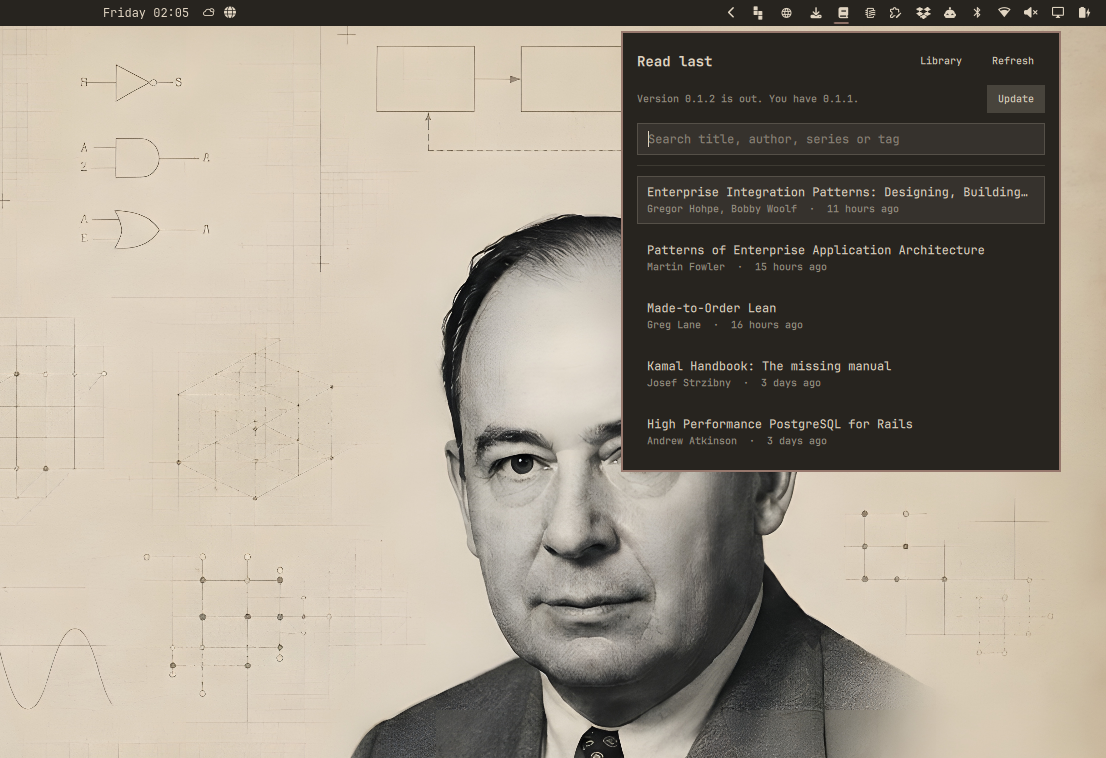
The update takes the same route the first install takes, so the signature is checked before anything is unpacked.

Which version is out the panel reads off the redirect behind releases/latest,
which costs one request and no API budget. A machine that cannot reach GitHub
says nothing about updates and lists your books as usual.
omarchy plugin update is a different thing: it updates the plugin, not the
reader. Both are wanted when both moved on.
One case the button cannot reach: a copy from cargo install lives in
~/.cargo/bin, and the update always writes to ~/.local/bin. The installer
says so when it finds both, because from there your PATH decides which one
starts.
Move the icon where you want it:
omarchy bar move alexzeitler.omalibre --section left
Start reading
Point Omalibre at your books once:
omalibre --scan ~/Books
It looks through the directory and every directory below it, and remembers every EPUB it finds. Then open the library:
omalibre
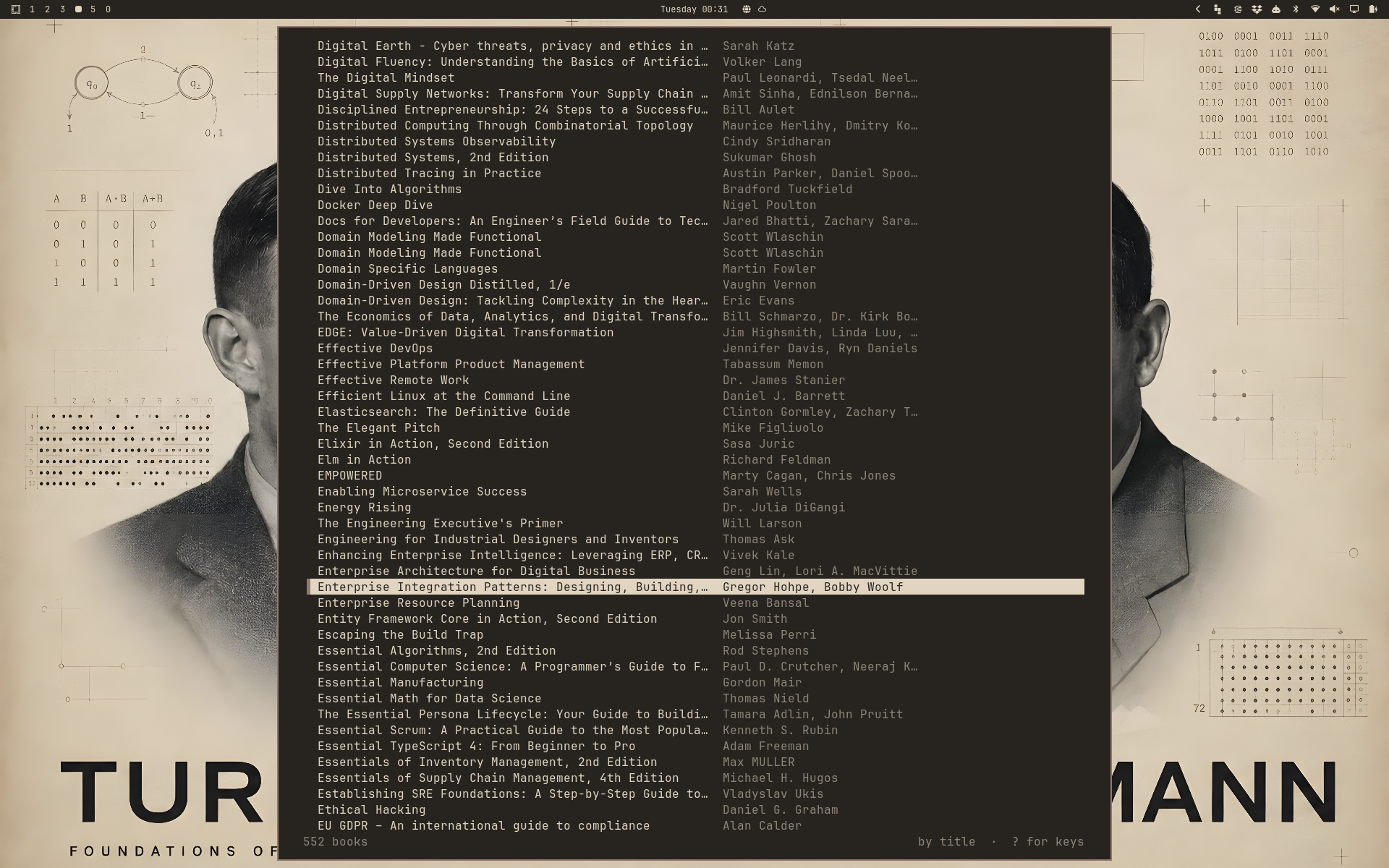
Pick a book with j and k, open it with Enter. Next time you open that book
it continues where you stopped, on the right page and the right line.
To read a single file without adding it to the library, name it:
omalibre ~/Downloads/some-book.epub
Keys
Press ? at any time for the full list. The ones you need first:
| Key | What it does |
|---|---|
j k |
one line down, up |
Space Backspace |
one page down, up |
L H |
next chapter, previous chapter |
t |
table of contents |
/ |
search this book, n and N step through |
i |
put a cursor in the text |
q |
back to the library |
Q |
quit |
Highlight and take notes
Press i to put a cursor in the text, then v to start selecting. Move with
h l w b, or take whole lines with V. Then:
yhighlights the passagemfollowed byy g b r ppicks yellow, green, blue, red or purpleawrites a note in your editor
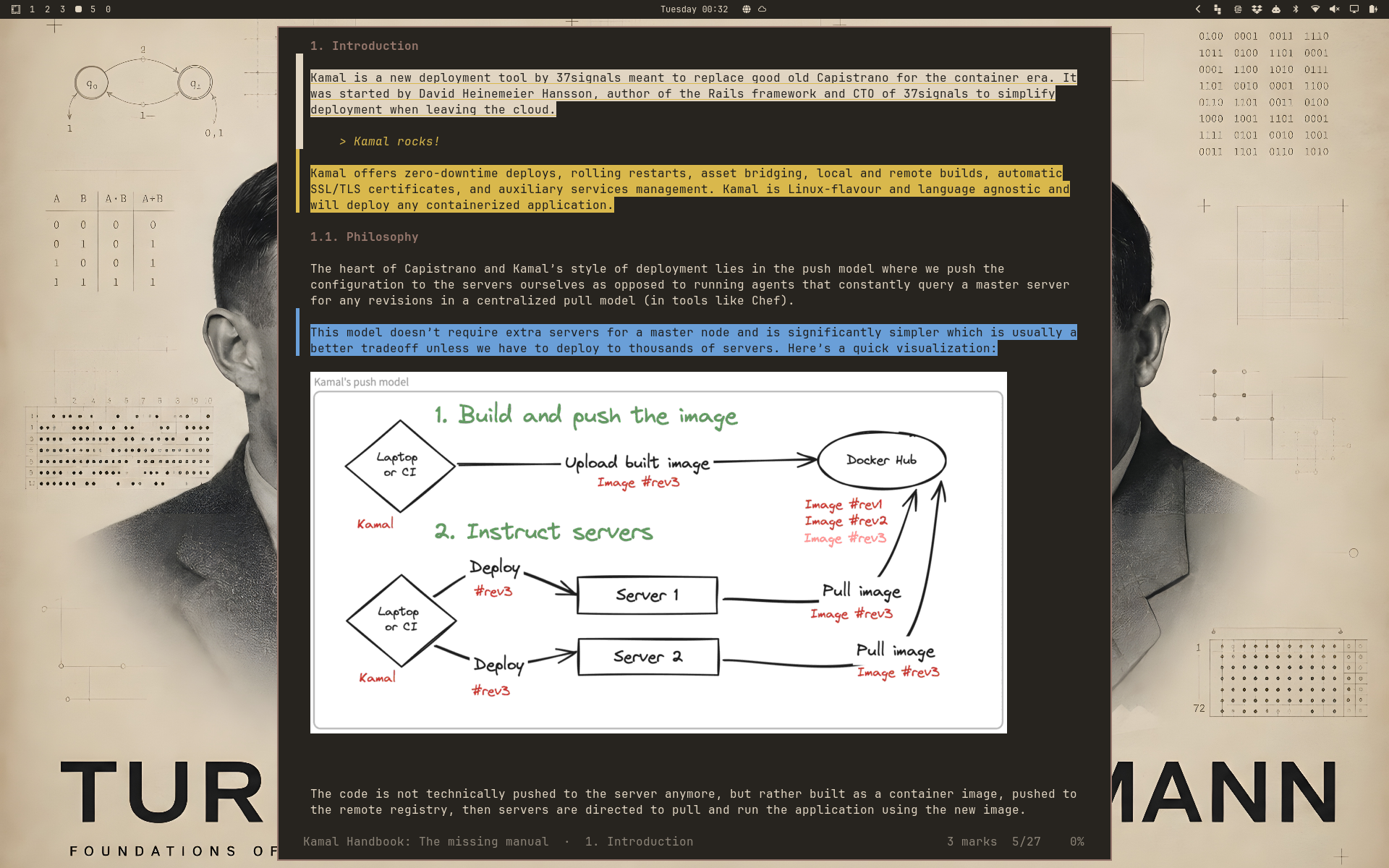
A passage with a note reads inverted and shows the note underneath, so you see what you thought about it while you read. A plain highlight is coloured. The narrow column left of the text marks both, which helps when you are scrolling past.
With the cursor on a marked passage, e changes the note, d deletes, and m
with a colour recolours it. A lists everything you marked in the book, and
Enter there jumps to the passage.
Your notes are yours: they live in a plain text file, one line per change, and nothing is stored inside your book files.
Follow links
Footnotes and cross references work. With the cursor on a link, Enter follows
it and Ctrl-o brings you back to where you were, exactly on the link you came
from. Books whose links are subtly broken usually still work.
Search the whole library
omalibre --find "optimistic locking"
You get a list of hits with book, chapter and the sentence that matched. Enter
opens the book right there.
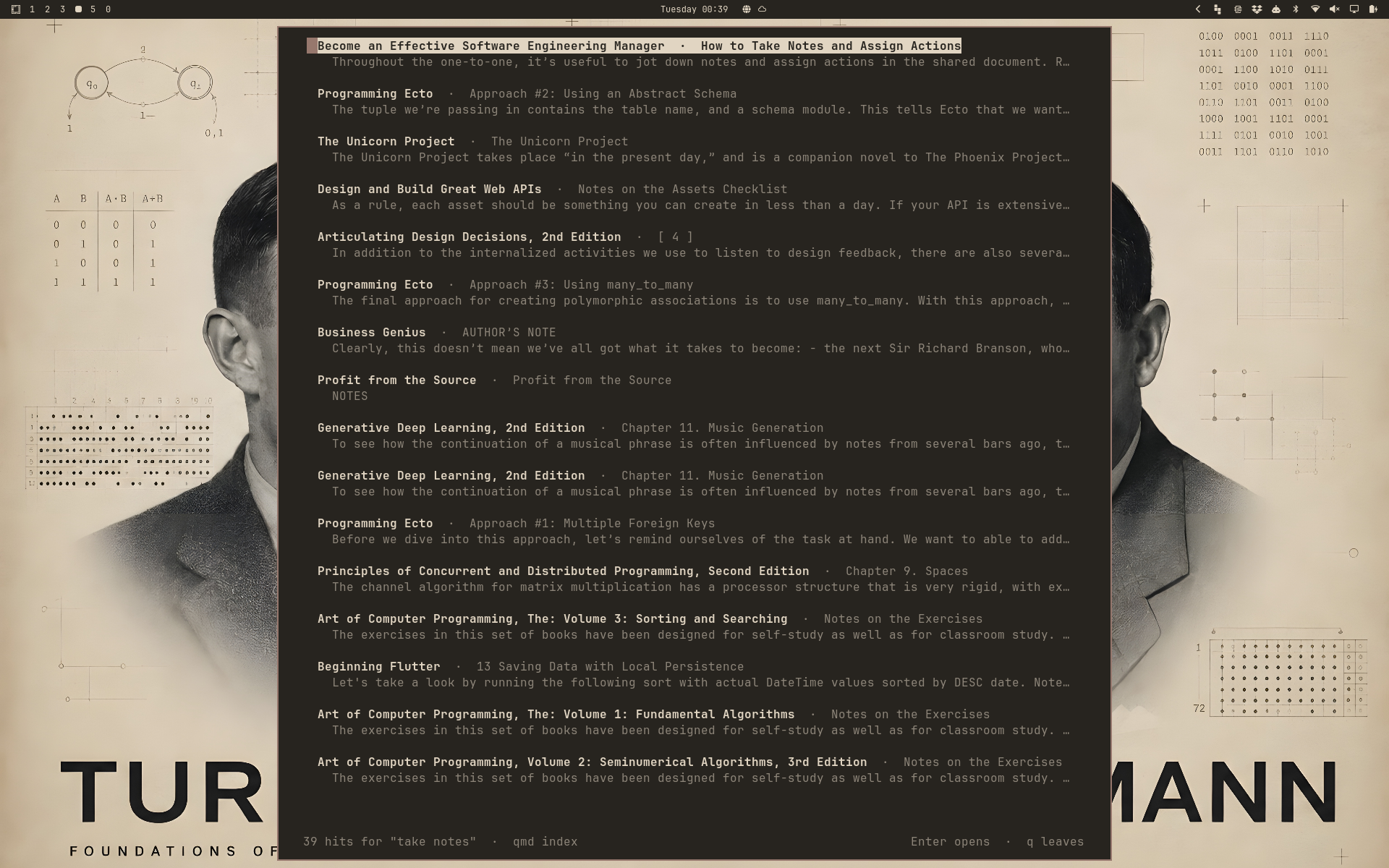
This works out of the box. If you install qmd, the search gets faster and starts finding things by meaning rather than by wording:
omalibre --export --reindex --embed
Pictures
Diagrams and screenshots appear in the text. How sharp they are depends on your terminal: Ghostty and kitty show them pixel-perfect, foot nearly so, and everything else falls back to coloured blocks, which is coarse but always works. Omalibre asks your terminal at startup and picks the best it can do.
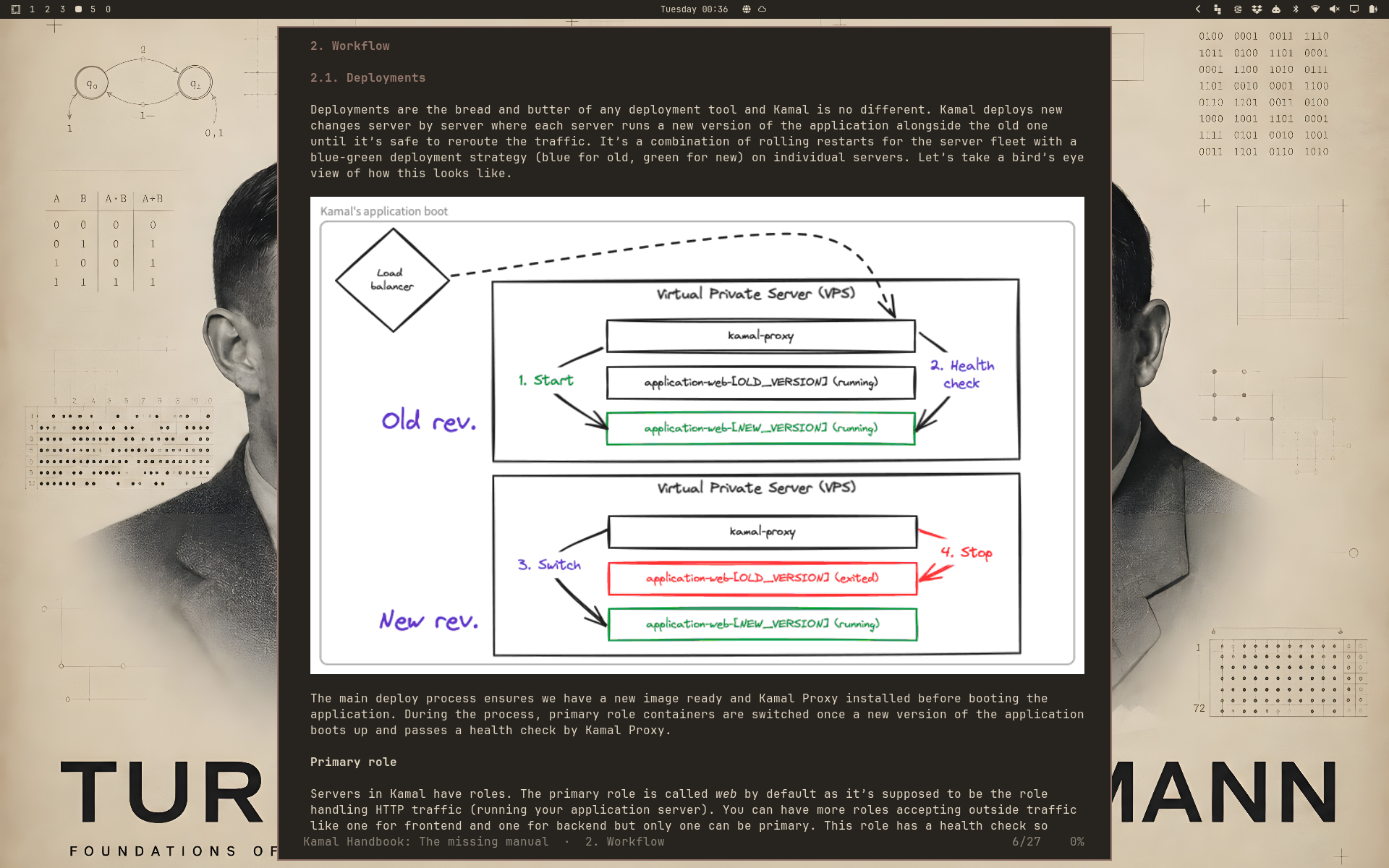
Inside tmux, pictures always use the coarse mode. That is not a shortcoming of your terminal: tmux manages the screen itself and would leave pictures behind when you scroll.
Formulas
Technical books carry their mathematics as MathML, and a terminal has no way to
stack one part of a formula over another. Omalibre sets it on one line instead.
Indices become real characters wherever there is one, so (Q_a)^n arrives as
(Qₐ)ⁿ rather than as (Qa)n, where the exponent would read as part of the
number.
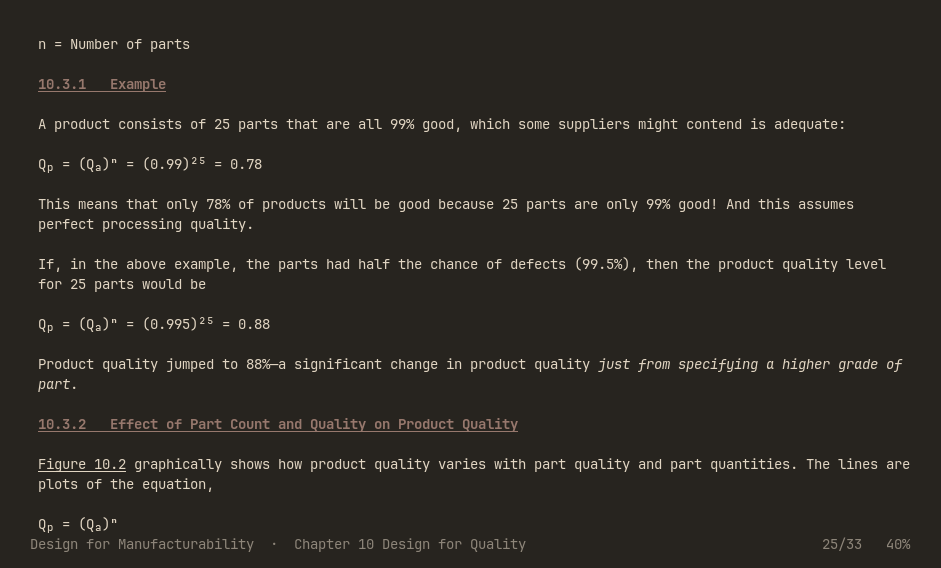
Where a character has no raised or lowered form, the index is written out:
e^(−λt). That is longer, but it never hides which part is the index. The same
goes for a subscript in running prose, so R<sub>s</sub> reads as Rₛ.
Keep your place across machines
Reading positions and notes live in one directory. Point it at a synchronised folder and every machine you read on stays in step:
# ~/.config/omalibre/config.toml
journal_dir = "~/Dropbox/omalibre/journal"
Each machine writes only its own file there, so nothing can collide, and no conflict copies appear. Where two machines disagree about a page, the later one wins.
Books themselves are recognised by their content, not by their path. Move a file, rename it, reorganise your shelves: your notes and your place stay with the book.
Settings
~/.config/omalibre/config.toml, written with comments on first start:
# Reading width in columns. Leave out to use the whole window.
max_width = 66

# How pictures are drawn: kitty, sixel or half-blocks.
# Left out, your terminal is asked.
images = "sixel"
Ask Claude about your books
Omalibre can hand your library to Claude, including the notes you wrote:
claude mcp add omalibre --scope user -- omalibre --mcp
Then you can ask things like "what did I highlight in the Kamal Handbook", "where did I stop in which book", or "find where this book explains snapshots". Claude reads the library through Omalibre, so what it sees is always current.
Bear in mind that chapter text sent this way leaves your machine.
Library housekeeping
omalibre --scan ~/Books      # add new books, notice moved ones
omalibre --list              # the library on the command line
omalibre --list --filter pg  # only the books that match
omalibre --recent            # the five you read last
Add --json to --list, and --recent prints JSON anyway: that is how the
bar widget asks.
Scanning again is cheap and never overwrites anything you corrected by hand.
What it needs, and what it writes
The bar widget is one QML file plus two shell scripts and a public key,
running inside omarchy-shell. It links against nothing. It calls omalibre
for its rows, omarchy-launch-tui to open a book, and, only when you press the
install button, curl, gpg, gpgv and tar. GnuPG is already there: pacman
itself depends on it. The book icon wants a Nerd Font, which the Omarchy bar
already uses. The reader is a statically linked binary and needs nothing at
all at runtime. qmd is optional and only for
search by meaning.
The widget writes nothing of yours. The install button downloads into
~/.local/bin, and only on that press, and only after the release signature
checks out. See Verifying a release.
On its first start the reader writes two files and overwrites neither, so a file you edited or linked yourself stays as it is:
~/.config/omalibre/config.toml, the commented settings file~/.config/omarchy/themed/omalibre.toml.tpl, the colour template, and only where Omarchy is installed
Where it did place that template, it applies your current theme once more so the colours render straight away. That re-runs the theme you already have; it changes neither your choice nor your background.
Removing it
omarchy plugin remove alexzeitler.omalibre
That takes the widget off the bar and deletes the clone. The reader is one
file, so rm ~/.local/bin/omalibre, or cargo uninstall omalibre if you
installed it that way.
What you wrote stays behind until you say otherwise. Mind the first line: the journal holds every reading position and every note you took.
rm -rf ~/.local/share/omalibre                   # journal and read model
rm -rf ~/.config/omalibre                        # settings
rm ~/.config/omarchy/themed/omalibre.toml.tpl    # colour template
License
MIT, in LICENSE and in the plugin's manifest.json.
Not there yet
- Editing metadata: series, tags and ratings can be stored, but there is no editor for them yet. Most books carry no series information of their own.
- MOBI, AZW3 and PDF are not read yet, only EPUB.
- A few books with genuinely broken markup lose individual chapters. The rest of such a book stays readable.