
Super Productivity Omarchy Plugin
A beautiful Omarchy shell plugin that integrates Super Productivity with your Omarchy desktop environment. Manage tasks, track time, and stay productive without leaving your workflow.
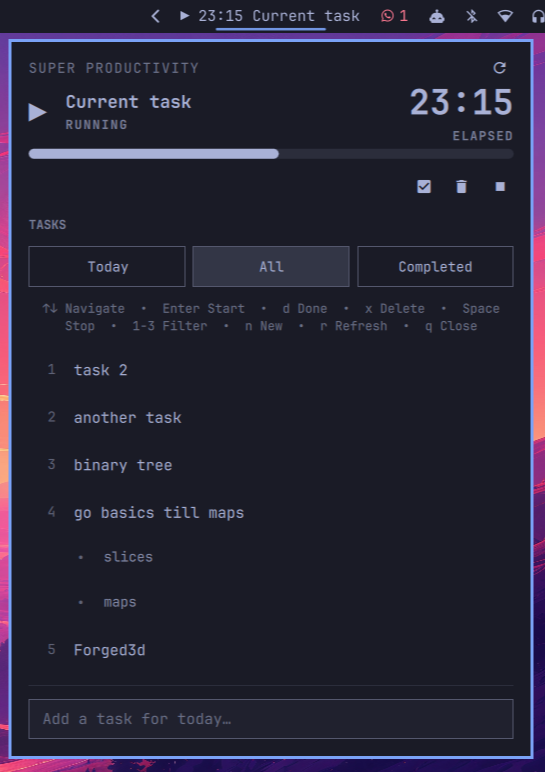
Features
📋 Task Management
- View Today's Tasks - See all tasks planned for today
- Filter Tasks - Switch between Today, All, and Completed views
- Start/Stop Timer - Track time on tasks with a single click
- Complete Tasks - Mark tasks as done directly from the panel
- Delete Tasks - Remove tasks you no longer need
- Add New Tasks - Quick task creation from the panel
🎯 Subtask Support
- Parent tasks display with their subtasks nested underneath
- Subtasks are slightly indented with bullet points for visual hierarchy
- Start timers on either parent tasks or subtasks
- All actions (complete, delete, start) work on both levels
⏱️ Time Tracking
- Live Timer Display - See elapsed time updating every second in both bar and panel
- Elapsed/Remaining Toggle - Click the time display to switch between elapsed and remaining time
- Progress Bar - Visual indicator when task has a time estimate
- Negative Time Support - Shows when you've exceeded your estimate
⌨️ Keyboard Navigation
Navigate efficiently without touching your mouse:
- ↑/↓ or j/k - Navigate through tasks
- Enter - Start timer on selected task (or complete if already running)
- d - Mark selected task as done
- x - Delete selected task
- 1/2/3 - Switch between Today/All/Completed filters
- Space - Stop current timer
- n - Focus on "Add task" input field
- r - Refresh task list
- q - Close panel
- Escape - Close panel or unfocus input field
🎨 Visual Design
- Follows Omarchy's design language
- Hover effects and keyboard cursor highlighting
- Action buttons appear on hover or selection
- Clean, minimal interface that doesn't distract
Requirements
- Omarchy Linux desktop environment
- Super Productivity app running
- Super Productivity REST API enabled (Settings > Misc > Enable local REST API)
curlandpython3(python3 ships with Omarchy)
Installation
Via Omarchy Plugin Manager
omarchy plugin add https://github.com/Apsinghsa/super-productivity-omarchy-plugin.git --enable
Manual Installation
# Clone to your Omarchy plugins directory
git clone https://github.com/Apsinghsa/super-productivity-omarchy-plugin.git ~/.config/omarchy/plugins/apsingh.super-productivity

# Enable the plugin
omarchy plugin enable apsingh.super-productivity

# Restart the shell
omarchy restart shell
Removal
Via Omarchy Plugin Manager
omarchy plugin remove apsingh.super-productivity
Manual Removal
# Remove the plugin directory
rm -rf ~/.config/omarchy/plugins/apsingh.super-productivity

# Restart the shell
omarchy restart shell
Configuration
The plugin appears in your Omarchy bar. You can customize its position in ~/.config/omarchy/shell.json:
{
  "bar": {
    "layout": {
      "right": [
        {
          "id": "apsingh.super-productivity"
        }
      ]
    }
  }
}
| Key | Type | Default | Description |
|---|---|---|---|
apiToken |
string | (token file) | Override the REST API token |
pollIntervalSec |
integer | 15 | How often to poll the API (seconds, minimum 5) |
maxTitleLength |
integer | 32 | Max current-task title length in the bar |
Security
Plugins run unsandboxed with your user permissions. The token file grants full access to your Super Productivity data — do not share it.
The token is never placed in a process argument list (readable by other local processes via /proc). curl reads it from a private config file published by sp-secure.py, which performs every access through held, owner-validated no-follow descriptors (openat2 with RESOLVE_NO_SYMLINKS/O_NOFOLLOW, fstat owner and mode checks, fsync, descriptor-relative atomic rename into a verified 0700 directory) and refuses the operation when that boundary cannot be established; the token source itself is opened the same way and must be a regular file. Token file reads and API responses are size- and time-bounded. Tokens are validated as 8-128 characters of [A-Za-z0-9_.-] before use, so no quote, newline or control character can inject curl config directives. API responses are sanitized into a bounded schema (max 200 tasks, 50 subtasks, capped field lengths, control and markup characters stripped) before reaching the UI, and API text is rendered as plain text.
Usage
Bar Widget
The bar widget shows:
▶icon when no task is running▶ MM:SS Task Titlewhen a task timer is active- Click to open the task panel
- Right-click to stop the current timer
Task Panel
Click the bar widget to open the panel:
- Current Task Section - Shows the active task with timer and controls
- Filter Buttons - Switch between Today/All/Completed tasks
- Task List - Scrollable list with hover actions
- Add Task Input - Quick task creation at the bottom
Time Display Toggle
When a task has a time estimate:
- Click on the time display (in panel) to toggle between elapsed and remaining time
- Both the panel and bar widget update together
- A small label shows "ELAPSED" or "REMAINING" to indicate the current mode
Keyboard Shortcuts
Press any key to see available shortcuts:
- Navigation:
↑↓orjk - Actions:
Enter,d,x,Space - Filters:
1,2,3 - Other:
n,r,q,Escape
How It Works
The plugin communicates with Super Productivity via its local REST API:
- Base URL:
http://127.0.0.1:3876 - Authentication: Bearer token from Super Productivity settings
- Endpoints used:
GET /status- Get current task and statusGET /tasks- List tasks with filtersGET /tasks/:id- Get specific task detailsPOST /tasks/:id/start- Start timer on taskPOST /task-control/stop- Stop current timerPATCH /tasks/:id- Update task (mark as done)DELETE /tasks/:id- Delete taskPOST /tasks- Create new task
Troubleshooting
Plugin not showing in bar
# Check if plugin is enabled
omarchy plugin list --json | jq '.[] | select(.id == "apsingh.super-productivity")'

# Enable if needed
omarchy plugin enable apsingh.super-productivity

# Restart shell
omarchy restart shell
Cannot connect to Super Productivity
- Make sure Super Productivity is running
- Enable REST API in Super Productivity: Settings > Misc > Enable local REST API
- Check that the token file exists:
~/.config/superProductivity/local-rest-api-token - Test the API manually:
TOKEN=$(cat ~/.config/superProductivity/local-rest-api-token)
curl -H "Authorization: Bearer $TOKEN" http://127.0.0.1:3876/status
Timer not updating
- The plugin syncs every 30 seconds by default
- Use
rkey to manually refresh - Check Super Productivity is still running
Development
The plugin is written in QML for the Omarchy Quickshell environment:
BarWidget.qml- Bar widget with timer displayPanel.qml- Task panel UI and logicSpApi.qml- REST API clientmanifest.json- Plugin metadata
To modify the plugin:
# Edit files in ~/.config/omarchy/plugins/apsingh.super-productivity/
# Changes auto-reload, or restart shell:
omarchy restart shell
Contributing
Contributions are welcome! Feel free to:
- Report bugs
- Suggest features
- Submit pull requests
License
MIT License - See LICENSE file for details
Credits
- Super Productivity - The amazing task management app
- Omarchy - The beautiful Linux desktop environment
- Built with ❤️ for the Omarchy community