
OMARCHOMANDER
OMARCHOMANDER is a file manager plugin for the Omarchy shell. It shows two directory panels, a command line, and a row of function keys. The keyboard commands agree with the commands of Norton Commander.
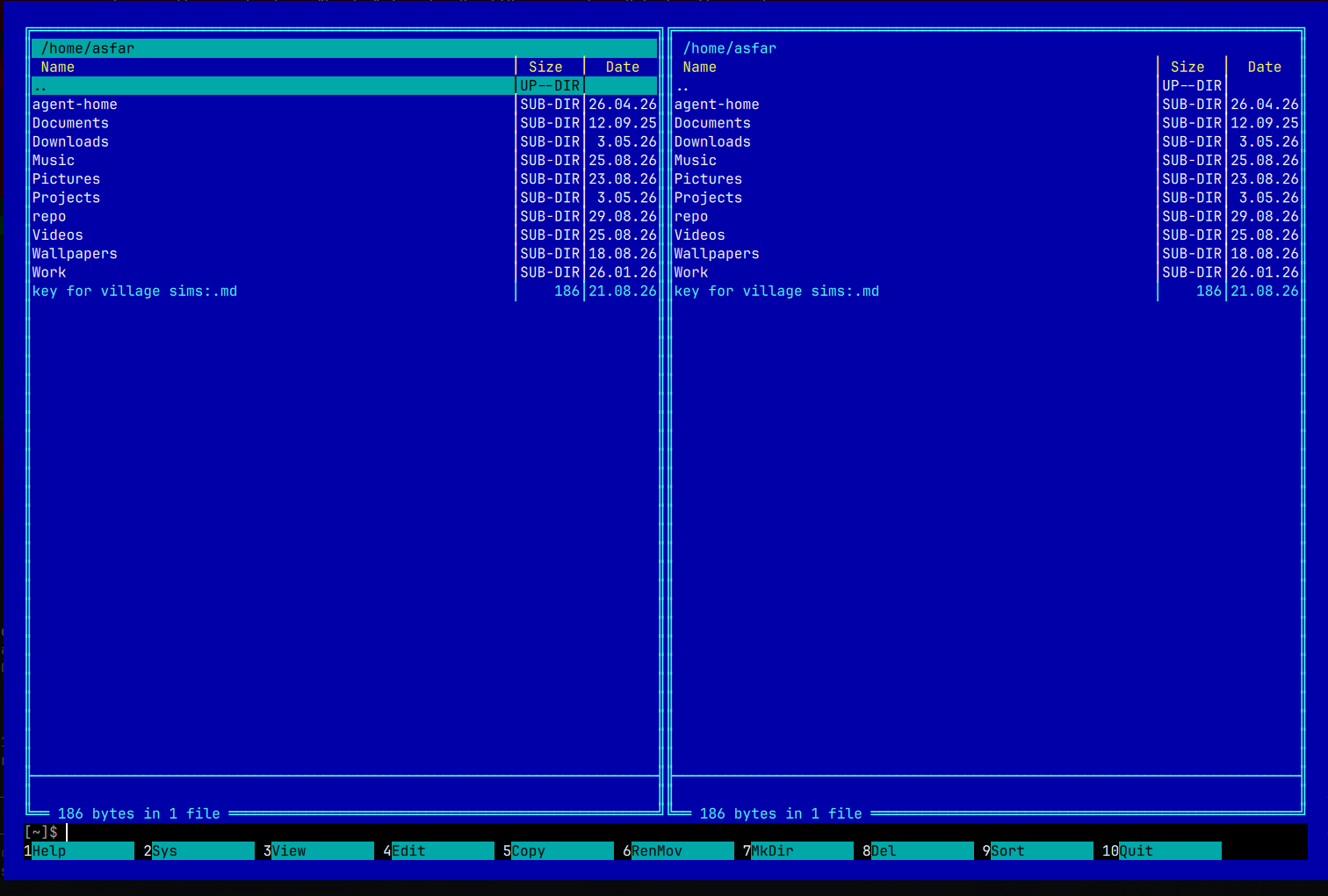
Functions
- Two directory panels. Each panel can sort, filter, and select files.
- File operations: copy, move, rename, make directory, move to trash, permanent delete. Each operation shows its progress and asks before it overwrites or deletes data.
- F8 moves files to the freedesktop.org trash (
$XDG_DATA_HOME/Trash). Other file managers can restore these files. Shift+F8 deletes files permanently after a confirmation. - F3 shows the content of a file as text, or as hexadecimal data for a binary file. F4 opens the file in the configured Omarchy editor.
- Ctrl+L shows system information in the second panel: CPU, cores, load, RAM, swap, disk, and uptime.
- A command line below the panels. Text you type goes to the command line.
Enter runs the command in the directory of the active panel. The command
output shows on the Ctrl+O screen. The command
cdchanges the directory of the active panel. - The panel directories, sort orders, and the hidden-file setting persist across sessions.
Installation
Run these commands:
omarchy plugin add https://github.com/asfarsadewa/omarchy-omarchomander.git
omarchy plugin enable asfarsadewa.omarchomander
The plugin adds a folder icon to the bar. Click the icon to open the file
manager. The installation does not add a keyboard shortcut. To add one, put
this line in ~/.config/hypr/bindings.conf:
bindd = SUPER SHIFT, N, File manager, exec, omarchy-shell omarchomander toggle
The plugin has no external dependencies. It uses the Python 3 standard library, which Omarchy includes.
Removal
Run this command:
omarchy plugin remove asfarsadewa.omarchomander
This removes the plugin files and the bar icon. The plugin state file
remains at ~/.local/state/omarchomander/state.json. Delete it if you do
not want to keep it. Files in the trash remain in the trash.
Keyboard commands
| Keys | Function |
|---|---|
↑ ↓ PgUp PgDn Home End |
Move the cursor. A mouse click also moves the cursor. |
Tab |
Change the active panel. |
Ctrl+U |
Exchange the two panels. |
Backspace |
Go to the parent directory (with an empty command line). |
Enter |
Enter a directory, or open a file with the default application. |
Ins / Ctrl+T |
Select or deselect the file at the cursor. |
+ / - / * |
Select all, select none, invert the selection (with an empty command line, or on the keypad). |
Ctrl+S |
Filter the active panel. Type to narrow the list. Esc removes the filter. Enter keeps it. |
Ctrl+H |
Show or hide the hidden files. |
Ctrl+R |
Read the directories again. |
F1 |
Show the help screen. |
F2 / Ctrl+L |
Show system information in the second panel. |
F3 |
Show the file at the cursor (text or hexadecimal). |
F4 |
Open the file at the cursor in the Omarchy editor. |
F5 |
Copy the selected files to the given path. The path of the second panel is the initial value. |
F6 |
Move the selected files to the given path. A name without / renames the file. Shift+F6 sets the current name as the initial value. |
F7 |
Make a directory. |
F8 / Del |
Move the selected files to the trash, after a confirmation. |
Shift+F8 / Shift+Del |
Delete the selected files permanently, after a confirmation. The confirmation preselects No. |
F9 |
Set the sort order of the active panel: name, extension, time, size, or none. |
Ctrl+Enter |
Put the name of the file at the cursor on the command line. |
Ctrl+E / Ctrl+X |
Go through the command history. |
Ctrl+O |
Show or hide the command-output screen. |
F10 / Esc |
Close the file manager. Esc first clears a typed command, then closes an open screen. |
File operations
- When a target file exists, the operation stops and asks: Overwrite, All,
Skip, Skip all, or Abort.
Enterselects Skip. The question shows the size and time of both files. - The progress dialog shows the current file, the file count, and the byte
count.
Ccancels the operation.Eschides the dialog; the operation continues.F10closes the file manager; the operation continues and the bar icon shows the progress. - When an operation reports errors, the full error list is available on the Ctrl+O screen.
- A move on one filesystem is a rename. A move to a different filesystem copies the data first and then removes the source. A trash operation to a different filesystem also copies the data first.
- Copied directories keep their permissions and modification times.
The command line
The command line is not a terminal. A command gets no terminal and no standard input. The output is limited to 400 lines. A command stops after 30 seconds. A background process that a command starts continues to run; the file manager stops waiting for its output shortly after the command exits.
Architecture
The QML layer only paints. A Python backend (directory omarchomander/,
standard library only) holds the panel state, the cursor rules, the
selection, the rendering, and all file operations. The backend and the shell
communicate with one JSON object per line on stdin and stdout.
Tests
Run:
./scripts/test
The test suite needs only the Python standard library. It covers the directory listing, the renderer, the panel rules, the file operations with their conflict and cancel paths, the trash, the viewer, the system information, and the command dispatch.
License
MIT