
Cameras for Omarchy
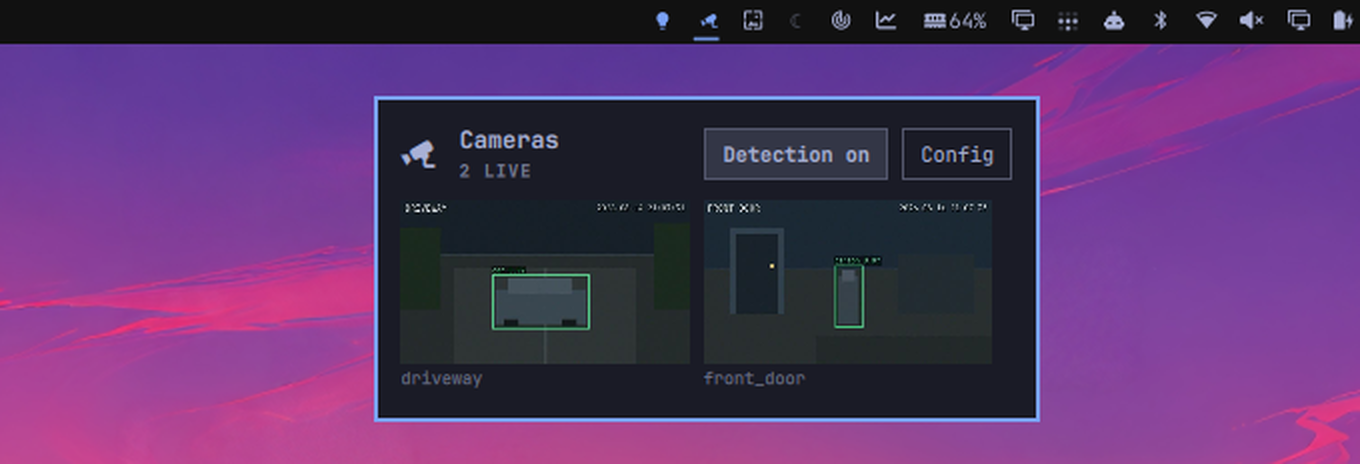
Watch your cameras without leaving the Omarchy bar. The plugin plays one camera as live video with the rest as thumbnails below it, lists what was detected while you were away, opens any camera full size in mpv, and pops up a preview the moment Frigate detects something. Cameras come from Frigate, from ONVIF discovery on the local network, or from both.
Install
omarchy plugin add \
  https://github.com/chameleonbr/omarchy_cameras.git \
  --enable \
  --yes
The widget starts on the right side of the bar and can be moved with Omarchy's bar customization controls. Restart the shell once after installing:
omarchy restart shell
The plugin calls curl, mpv, jq, secret-tool, python3 and xdg-open.
Omarchy ships most of them; curl and python3 normally arrive as
dependencies of something else:
sudo pacman -S --needed curl python jq mpv libsecret xdg-utils
Anything missing is named at the top of Settings rather than failing quietly.
Live video in the popup additionally needs Qt's multimedia module, which Omarchy does not depend on:
sudo pacman -S --needed qt6-multimedia qt6-multimedia-ffmpeg
Without it nothing breaks — the large camera stays a still that refreshes on a timer, exactly as before, and Settings says which package is missing.
Set up
Select the bar icon, then Settings. Switch on the sources you have — each one's settings appear only once it is on, so an ONVIF-only setup never has to read about restreams.
Frigate. Enter the server URL. Everything else is read from Frigate itself: the camera list, the go2rtc restream port, and the MQTT broker. Fill in a login only if your Frigate asks for one.
ONVIF cameras. Fill in the camera login, then either Search the network or type an address under Add one by address. Adding a camera reads its RTSP URL over ONVIF, so the address never has to be typed by hand. The login is stored per camera, so cameras with different credentials are added one at a time.
Passwords go to the system keyring, never to the config file.
Use
- Select a small tile to move that camera into the large frame at the top. The large one plays as live video where it can; the others stay stills.
- Select the large frame to open that camera in mpv. Press
fthere for fullscreen,qto close. - Under the grid, Recent detections shows the last events Frigate kept, and keeps up with new ones while the popup is open. Selecting one opens that frame, box and all, in the browser.
- Select Detection on/off to arm or disarm motion alerts. While armed the bar icon takes the theme's accent color.
- Middle-click the bar icon to arm or disarm without opening anything.
- Right-click the bar icon to open Frigate in the browser (it refreshes instead when no Frigate is configured). The icon dims while Frigate is not answering.
| Key | Action |
|---|---|
1–9, 0 |
enlarge that camera (0 is the tenth) |
| arrows | move between cameras |
Enter |
enlarge the selected camera, or open it when it is already enlarged |
R |
refresh |
S |
show or hide Settings |
Esc |
close |
For a keybinding, omarchy-shell shell toggle avila.cameras '{}' opens the
grid on the focused monitor, and omarchy-shell avila.cameras view <name>
jumps straight to one camera.
Motion alerts
Off by default. Once armed, a small preview of whichever camera tripped appears for a few seconds and then goes away; selecting it opens that camera full size, and right-clicking it dismisses just that preview. Several detections stack, oldest on top.
Silencing notifications silences these too: while the bar's indicator is on, no preview appears and any preview already on screen goes away. Detections during that time are dropped rather than queued — a still of something that has already left the frame is not worth showing later.
The preview is the still Frigate saved for the event, with its bounding box and label drawn on. Alerts fire while the detection is still happening rather than after it ends, so the preview arrives in seconds instead of after the subject has left.
Settings → Motion alerts sets which labels count, which monitor, which corner, how long it stays and how wide it is. Changing the monitor, corner or width rehearses the placement, so you can see the spot without waiting for something to walk past a camera.
Settings → MQTT is optional and only makes alerts faster: Frigate publishes a detection the instant it makes one. Measured against a live camera, 0.6-0.7s instead of 3.9-9.1s. Only the broker password is needed — everything else comes from Frigate. HTTP polling keeps running whenever the broker is not connected, so a wrong password costs latency, not alerts.
Remove
omarchy plugin remove avila.cameras --yes
Settings and stored passwords are left behind. To remove those too:
rm -f ~/.config/omarchy/cameras.json
rm -f ~/.local/state/omarchy/cameras-last-event
secret-tool clear service omarchy-cameras
Removing the plugin never touches Frigate or the cameras themselves.
Configuration file
~/.config/omarchy/cameras.json holds everything the settings screen writes. It
is watched, so hand edits apply without a restart.
{
  "sources": { "frigate": true, "onvif": false },
  "frigate": { "url": "http://nvr.lan:5000", "rtspPort": 8554, "user": "" },
  "alerts": {
    "enabled": false,
    "labels": ["person"],
    "monitor": "",
    "position": "top-center",
    "durationSec": 12,
    "width": 320,
    "useMqtt": false
  },
  "onvif": []
}
frigate.rtspPort is only a fallback: the real port is read out of Frigate's
own camera inputs. alerts.monitor is a connector name as the compositor
reports it (DP-1, HDMI-A-1); empty means the first screen. onvif[] is
written by the settings screen, but hand-editing is fine —
{"name": …, "rtsp": …, "user": …, "ptz": true|false, "xaddr": …}.
Live video, thumbnail columns and refresh interval live on the bar widget entry in
~/.config/omarchy/shell.json, or in Setup > Plugins.
How it works
Wayland has no window embedding, so either the pixels are produced inside the
omarchy-shell process or the video is a separate window. The plugin uses each
where it fits: thumbnails are JPEGs refreshed inside the shell, and the focused
view is a floating mpv window. Nobody watches nine streams at once, and
decoding nine of them to fill 170px tiles would spend a lot of CPU on pictures
too small to read.
Frigate cameras play the go2rtc restream where one exists and Frigate's MJPEG endpoint otherwise, because asking for a restream that is not there just yields a dead window. ONVIF cameras play their own RTSP stream, and their thumbnails come from one mpv per visible camera, held open and asked for a frame on a timer: ONVIF does define a snapshot endpoint, but cameras that advertise one and then refuse every request are common enough that it cannot be relied on.
Searching for ONVIF cameras means parsing XML from whatever answers on the local network, so the parser caps the response size and refuses any payload that declares a DTD — a few hundred bytes of nested XML entities otherwise expand to megabytes in memory. A camera also does not get to choose the scheme of its own stream URL; only RTSP and HTTP are accepted, so nothing can point the player at a local file.
Searching for ONVIF cameras probes every address on the local subnet as well as the multicast group. The multicast reply arrives with no matching outbound flow, so a default-deny firewall drops it and many Wi-Fi access points never forward it between clients; a direct probe is an ordinary tracked exchange.
Development
omarchy plugin add clones from git, which is awkward while working on the
plugin. Symlink the checkout instead:
ln -s ~/src/omarchy_cameras ~/.config/omarchy/plugins/avila.cameras
omarchy plugin validate ~/src/omarchy_cameras
omarchy-shell shell rescanPlugins
omarchy plugin enable avila.cameras
Editing QML does not update the running widget, symlinked or not. Run
omarchy restart shell after each change.
node test_cameras.js   # camera lists, stream selection, event filtering
python3 test_mqtt.py   # MQTT packet framing and event payloads
python3 test_onvif.py  # WS-Security digest, SOAP parsing, credentials
python3 test_thumbd.py # runtime directory ownership and symlink checks
omarchy-shell avila.cameras status reports what the plugin currently sees;
mqtt "" and discovery do the same for the broker and the last search.
Security and license
Passwords are never written to cameras.json. Frigate, MQTT and per-camera
ONVIF passwords go to the system keyring under service=omarchy-cameras, and
reach the helper scripts over stdin rather than argv, which any process on the
machine can read.
A camera URL carries its password in the userinfo, so it is never an argument
either: mpv is handed the URL as a playlist on an anonymous pipe, both for the
viewer and for thumbnails, and the list of cameras to watch also arrives on
stdin. Nothing about a camera shows up in /proc.
MQTT is used over TLS whenever Frigate says its broker speaks it — the plugin
reads tls_ca_certs, tls_client_cert, tls_client_key and tls_insecure
out of Frigate's own config, and treats port 8883 the same way, so there is
nothing extra to configure. Certificates are verified. This matters because
MQTT's connect packet carries the password as plain text: on a broker without
TLS anyone on the path can read it, and the settings screen says so.
The same warning appears when a Frigate login is set on an http:// URL. That
one the plugin cannot fix — whether the server offers HTTPS is up to the
server — so it is a warning rather than a refusal, since a Frigate on plain
HTTP over a home LAN is an ordinary setup. ONVIF is unaffected either way: its
WS-Security authentication sends a hash of the password, never the password.
cameras.json never holds a password, but it does hold camera addresses and
usernames, so it is kept at mode 600.
Thumbnails and cookies are written under $XDG_RUNTIME_DIR, which is per-user
and 0700. There is no fallback to /tmp: the helpers refuse to run rather than
put camera frames on a predictable path in a world-writable directory, and the
subdirectory is checked for ownership, mode, and not being a symlink before
anything is written to it.
MIT licensed.