
Ultra Docker
One cell per container, coloured by state, sitting in the icon area of the bar. CPU and memory cycle beside it. Clicking gets you stacks, restart and logs — and hands anything deeper to lazydocker, already scoped to the stack you clicked.

That is a whole development machine — every container, every stack — in about the width of two icons.
Reading it
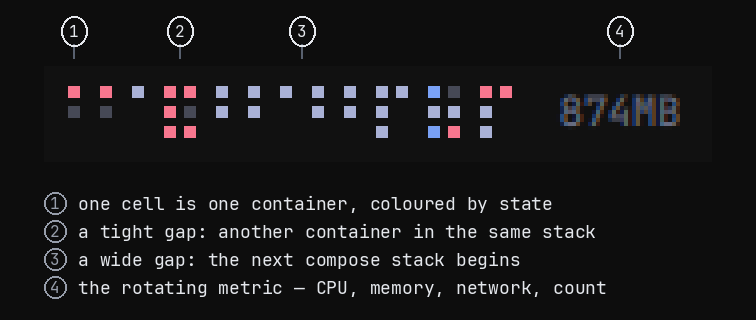
① A cell is a container. Not a stack, not a service — one running thing, one square. The count is the shape, so you never read a number to know how much is up.
The colour is the state, and there are only four, because a legend you have to recall is a legend that does not work:
| Colour | Meaning |
|---|---|
| foreground | running, healthy or without a healthcheck |
| accent | unhealthy, restarting or paused |
| urgent | exited with a non-zero code, or dead |
| dimmed | stopped cleanly, or created and never started |
② and ③ — the gaps carry the grouping. Containers of one compose stack fill their own columns top to bottom, and a wider gap marks where that stack ends. That is the whole reason you can point at a stack in a strip this small: without the wider gap, adjacency is not separation and the mosaic is just confetti.
Cells never move when a container changes state. The order is (project, service, name) and nothing sorts by health, because a cell that jumps when
something breaks destroys the one thing the mosaic is for — knowing which cell is
which without reading anything.
④ The label is one metric at a time, rotating. Pick which ones with the
metric* settings; scroll the widget to skip ahead without waiting. It reserves
the width of the widest value it can show, so the bar never shifts as the number
changes.
Nothing appears on hover. The mosaic is the summary; a tooltip would be a second, worse copy of the popup.
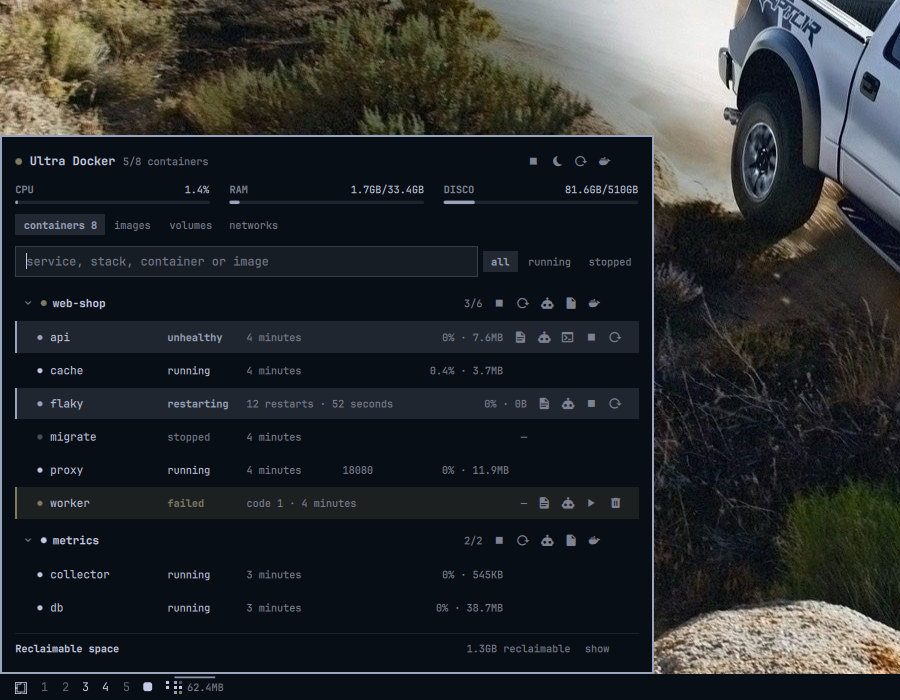
Click it and you get the rest:
Why a mosaic
docker ps on a development machine does not fit on a screen. The machine this
was written on runs 25 containers across 7 compose projects; a container stuck
in Restarting sits there unnoticed for hours.
So the widget shows no number you have to read. The shape tells you how many containers there are, the colours tell you how they are doing, and the one cell that pulses is the one that needs you.
Cell size is the lever that matters. A smaller cell does not merely shrink the mosaic — it fits another row into the same bar, and the width falls away much faster than the cell does. On a 26px bar with 25 containers in 7 stacks:
| Cell | Rows | Width |
|---|---|---|
| 7px | 2 | 128px |
| 5px | 3 | 83px |
| 3px | 4 | 61px |
Cells are sized on the device pixel grid. If you run with QT_SCALE_FACTOR
set — 0.85 here — a cell that is a whole number of logical pixels is a fraction
of a real one, and the renderer draws some cells a pixel wider than others. The
sizes are chosen so that the cell, the gap and the pitch are all whole device
pixels, which is what makes every cell come out identical.
How wide it may get is a budget, not a container count. Past maxWidth the
mosaic collapses to one cell per stack, and past that to a single block. This is
also what makes a short bar work: fewer rows fit, the detailed view would sprawl,
and it collapses on its own instead of eating the bar.
Every cell is the same size, and a row with fewer cells is centred rather than stretched — a wider cell would look like it meant something (a bigger stack? more containers?) when it means nothing. Position and colour carry the information; size and shape carry none.
The popup is allowed to reorder; the mosaic is not. Degraded stacks sort to the top of the list, because a list is something you read. A shape is something you recognise, and it only works if it stays where you left it.
Install
omarchy plugin add \
  https://github.com/chameleonbr/omarchy_ultra_docker.git \
  --enable \
  --yes
Requires docker. lazydocker is optional; the buttons that open it are only
useful if you have it installed.
On Omarchy's default, your user is deliberately not in the docker group.
That group is passwordless root — a container can bind-mount / and rewrite the
host — so Omarchy stopped granting it by default, and its warning names plugins
as one of the risks. This one agrees with that, and works on the default rather
than asking you off it:
| Without daemon access | With it | |
|---|---|---|
| the mosaic | a message saying so, and the two ways to fix it | live |
| open lazydocker | omarchy-launch-docker-tui, which prompts |
scoped to the stack you clicked |
| daemon start/stop | hidden — starting it would not hand you the socket | shown |
To get the live mosaic, pick one:
- Rootless Docker — recommended. The daemon runs as you in a user
namespace, so there is no root to escalate to. This plugin never names a
socket path; it shells out to
docker, which followsDOCKER_HOST, so it works with no configuration here. Setup > Security > Sudoless Docker— Omarchy's own opt-in. Convenient, and it is passwordless root for everything running as you. The panel has a button that takes you straight there when it has no access; it opens Omarchy's menu route, and Omarchy is what shows the warning, asks, and reboots. This plugin never runs it for you, and ships nousermod,gpasswd,setfacl,sudoorpkexecanywhere.
Using it
In the bar
| Action | What happens |
|---|---|
| left click | popup with stacks, containers and actions |
| middle click | lazydocker for the whole daemon |
| right click | your web UI if you set one, otherwise a refresh |
| scroll | jump to the next metric without waiting for the rotation |
Set primaryAction to lazydocker if you would rather have left click skip
the popup entirely.
In the popup
Stacks come first if they are degraded. A stack starts, stops and restarts as a unit, or opens lazydocker scoped to itself.
Each container offers only what its state allows — no start button on something
already up, no remove on something running — from logs, a shell, unpause,
start/stop, restart, remove, and one button that hands its log to your coding
agent. Published ports are clickable and open http://localhost:<port>.
A stack action names its containers, not compose. It used to shell out to
compose up -d, which meant telling compose where the project lived — and the
only record of that is a label, which the image writes rather than you. Pointing
compose -f at a file an image chose and then asking it to bring the stack up
hands container creation to whoever built that image. The container ids come
from the listing that drew the stack, so they always exist, and restarting
exactly those containers is what "restart stack" means. down is never run: it
would delete the containers and their networks.
Reclaiming disk
At the bottom of the popup, what Docker is holding that you could get back, broken out by kind, each with its own button and its own confirmation:
| build cache | docker builder prune -f — rebuilt on the next build |
| dangling images | docker image prune -f — untagged layers from rebuilds |
| unused images | docker image prune -a -f — pulled again when needed |
| stopped containers | docker container prune -f — their logs go too |
| volumes | listed, never pruned from here |
Two details other panels get wrong and this one does not:
The number next to "unused images" belongs to prune -a, not prune.
docker system df reports as reclaimable every image no container is using —
which is what image prune -a removes. Plain image prune takes only dangling
layers and frees far less. Showing one number and running the other command
makes the panel a liar, so they are separate rows.
Dangling images show a dash, not 0B. system df has no row for them, and
printing zero would read as "nothing to do" when there may be plenty.
Volumes are shown and never pruned. Everything else on that list can be
rebuilt or pulled again. A volume is the one thing that is somebody's data, and
a one-click button is the wrong shape for deleting it. Use docker volume prune
in a terminal if you mean it.
Notifications
When a container turns unhealthy, starts looping on restart, or exits with an error, you get a desktop notification — and one quiet one when it recovers.
It compares snapshots rather than following the event stream, because events fire for every intermediate step of a restart and the only thing worth interrupting someone for is where the container ended up. The first read after the shell starts is silent, so a restart never announces everything at once. A container someone stopped cleanly and started again is not a recovery, and says nothing.
Do Not Disturb is respected. Silence someone asked for is silence, so
nothing here bypasses it — not even the ones marked critical. To stop them
entirely, turn the notifications setting off.
Asking the agent
The robot button on a container captures its recent log and opens your default Omarchy agent on it, with the facts that usually explain a container that will not stay up: state, exit code, restart count, health, image, and the compose stack it belongs to.
The log goes to a file under $XDG_RUNTIME_DIR/omarchy-docker/ and the prompt
points at it — a few hundred lines of container output does not belong in argv,
and every agent reads files. The agent starts in the stack's own directory when
compose recorded one, so the compose file it may need to edit is right there.
The prompt asks it to diagnose and to change nothing without asking first.
Set your agent with omarchy default agent <name> — without one the button says
so rather than failing quietly.
It also works by hand:
bin/omarchy-docker-ask-agent <container-id> [name] [tail]
About the lazydocker buttons
lazydocker's CLI takes -p <project> and -f <file> and nothing else — there
is no way to open it focused on one container. So this plugin offers exactly
what lazydocker actually supports:
- the whole daemon, from the bar or the popup header
- one compose stack, using the
working_dirandconfig_filesthat compose writes onto every container it starts
Container-level views that lazydocker cannot give you use plain docker instead:
logs open docker logs -f, the shell opens docker exec -it with a fallback
from bash to sh.
Every one of these goes through omarchy launch or focus tui, so clicking the
same button twice focuses the window that is already open instead of stacking
another terminal on your workspace. Each scope gets its own window id, so the
lazydocker you opened for one stack and the one you opened for another are two
windows that stay out of each other's way.
Where the windows open
Clicking a bar widget does not move keyboard focus, so a terminal launched from one lands on whichever monitor happened to be focused — often not the monitor you clicked. Every launch focuses the widget's own screen first, so the window appears where you asked for it.
IPC
The same actions are reachable from a Hyprland binding:
omarchy-shell avila.ultra-docker toggle
omarchy-shell avila.ultra-docker toggleOn DP-1     # on one specific monitor
omarchy-shell avila.ultra-docker lazydocker
omarchy-shell avila.ultra-docker stack web-shop
omarchy-shell avila.ultra-docker refresh
Settings
The gear in the panel header opens the settings screen, on top of the panel. Every option is on it, with its explanation next to it, and each one applies as you change it — there is no save button and no restart. A row that is no longer at its default grows a small reset arrow; the header says how many settings have moved and can put all of them back.
Open it straight from a keybinding:
omarchy-shell avila.ultra-docker settings
The panel opens in command mode — nothing has a text cursor in it, so the letters are shortcuts:
| Key | What it does |
|---|---|
f or / |
Find: moves into the search field |
s or , |
Settings, and back again |
r |
Refresh |
1 … 9 |
Jump to a section — the tabs in the list, the groups in the settings |
Tab / Shift+Tab |
Next / previous section |
Esc |
One step back: out of the field, then settings, then the filter, then the panel |
Once you are in the search field every key is a character again; Esc hands
the keyboard back, keeping the filter.
The screen is built from the plugin's own manifest, so it is never out of date
with what the widget actually reads. Everything it writes lands in the widget's
entry under bar.layout in ~/.config/omarchy/shell.json, which you can still
edit by hand or from the CLI if you prefer:
omarchy bar set avila.ultra-docker palette ocean
omarchy bar set avila.ultra-docker metricCount true --json   # --json for numbers and booleans
The options worth knowing about:
| Setting | Default | Why you might change it |
|---|---|---|
groupBy |
auto |
force one cell per container, or per stack |
cellSize |
4 | smaller cells buy rows, and rows buy width |
maxWidth |
160 | where auto gives up and collapses to stacks |
groupStacks |
true | off drops the stack blocks for plain balanced rows |
stackGap |
3 | how far apart the stack blocks sit |
palette |
theme |
fixed cell colours instead of the theme's — traffic, ember, ocean, violet, mono, or custom |
paletteCustom |
— | three hex values for custom, in order: healthy, warning, broken |
stackOrder |
failed |
how the popup lists stacks: failed first, name A–Z, or running first |
| metric checkboxes | cpu, mem | one per metric — CPU, memory used, memory %, network in, running count — untick them all to hide the label |
statsIntervalMs |
30000 | docker stats is slow; see below |
statsOnBattery |
false | sample CPU and memory on battery too |
hideProjects |
— | stacks you never want to see |
dockerUrl |
— | a web UI to open on right click — Portainer, Dozzle, whatever you keep |
stackOrder is the popup's list only. The bar mosaic stays alphabetical
whatever it is set to: a cell that jumps when a container breaks is a cell you
have to read, and the mosaic exists so you do not have to.
Cell colours follow the active Omarchy theme by default and change with it. Picking a named palette opts out of that — a decision that red means broken regardless of the wallpaper.
A note on cost
docker stats --no-stream took 2.1 seconds for 20 containers on the machine
this was built for. That is why container state and container metrics are on
completely separate clocks:
- state follows the
docker eventsstream, so it is live and costs nothing while nothing is happening - metrics run on their own slow timer, never on the event path, never twice at once, and not at all while no widget is on screen or while you are on battery
If you make statsIntervalMs small, you are asking your machine to spend two
seconds of docker doing bookkeeping that often. It is your call, but the default
is 30 seconds for a reason.
Development
node test_docker.js
217 checks, no framework, no network, no daemon. fixtures/ holds real
docker ps and docker stats output; the tests run against that.
See CLAUDE.md for how the pieces fit and what has already bitten.
Language
English and Portuguese, following LANG by default. Set language to en or
pt to override. Anything untranslated falls back to English rather than
showing the key.
Security
The plugin runs entirely as you. There is no root, no setuid, and it never elevates on its own: reads are allowed to fail, and the only prompt you will ever see comes from clicking something that opens a terminal, through Omarchy's own wrapper.
It can do what you can do, and nothing more. If you have not granted daemon access, that is very little, and the widget says so instead of pretending.
Deliberate choices, rather than accidents:
-
Nothing elevates on a timer. The widget polls the daemon on a schedule; a polkit prompt raised on that schedule would be a password dialog on the plugin's clock rather than yours. Elevation happens only when you click something, and only through
omarchy-launch-docker-tui. -
The plugin ships no privilege escalation. Nothing here runs
usermod,gpasswd,sudoorpkexec, and nothing runs Omarchy's opt-in command for you. There is a test asserting all of that. -
Nothing destructive without a named confirmation. Removing a container and every prune button state what will be removed and how much, because "are you sure?" teaches people to click yes.
-
Volumes are never pruned from the panel.
-
No forced removal. Remove is offered only on containers that are already stopped; a button that quietly runs
rm -feventually deletes something someone was using. -
Image labels are treated as hostile.
com.docker.compose.projectand.serviceare rendered as the stack and service names, and any image can set them to anything — a pulled image is not a trusted source. Every label-derived string is rendered as plain text, so a crafted one cannot be interpreted as markup, and every one that reaches a shell is quoted. -
A label is not a path.
com.docker.compose.project.working_dirand.config_filesare labels too, so an image can name any directory it likes and a plainLABELline in a Dockerfile is enough — running the image is the whole precondition. Every label-derived path is validated before use, and the agent handoff additionally requires a real directory, not a symlink, owned by you, that actually holds a compose file. -
Container logs are written with
umask 077into a directory checked to be yours, because logs routinely carry connection strings and tokens. The file is created rather than truncated, so it is always one this run made. The agent handoff writes there; nothing else reads it. -
Untrusted text never poses as an instruction. The agent handoff quotes labels and points the agent at a log the container wrote. Both are fenced, flattened to one bounded line, and preceded by a note telling the agent they are data that may be pretending otherwise.
-
Everything the daemon prints is bounded before it is read, not after it is parsed — each one-shot command runs under
head -cso the shell never holds an unbounded payload, and the long-lived event stream asks for two fields rather than the labels it does not need. Logs are bounded by bytes as well as by lines:--tailcounts lines, and one line has no length.
Found something? Open an issue.
License
MIT