
WLED for Omarchy
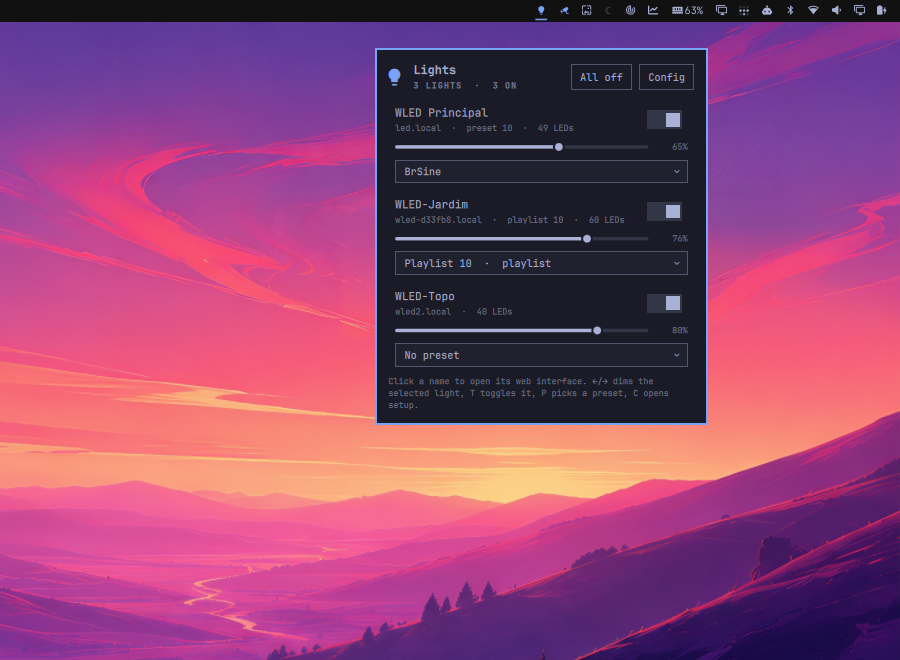
Control your WLED lights without leaving the Omarchy bar. The plugin finds the lights on your network, shows which are on and how bright, applies the presets saved on each one, and opens a light's own web interface when you want everything else.
Install
omarchy plugin add \
  https://github.com/chameleonbr/omarchy_wled.git \
  --enable \
  --yes
The widget starts on the right side of the bar and can be moved with Omarchy's bar customization controls. Restart the shell once after installing:
omarchy restart shell
The plugin shells out to curl, jq and avahi-browse. Omarchy ships jq and
avahi; curl usually arrives as a dependency of something else, so a lean
install can be missing it. Anything missing is named at the top of the setup
screen.
sudo pacman -S --needed curl jq avahi
sudo systemctl enable --now avahi-daemon
Add your lights
Select the bulb in the bar, then select Config — a fresh install opens there. Select Search the network and add anything that answers.
The search asks mDNS for _wled._tcp and then asks every light already added
which others it can see. WLED devices find each other over UDP broadcast, which
reaches across the access points that quietly drop multicast between wireless
clients — so the second search finds lights the first one cannot.
A light the search misses can be typed in by address: 192.168.1.40 or
wled-a1b2c3.local, with or without the http://.
Addresses are stored in ~/.config/omarchy/wled.json. Nothing else is: names,
power, brightness and presets all come from the lights themselves.
Use
- Use the switch beside a light to turn it on or off.
- Drag the slider to set brightness.
- Select the dropdown to apply a preset saved on that light. Playlists are in the same list, marked as such.
- Select a light's name to open its web interface in its own window.
- Select All off or All on to switch every light at once.
- Middle-click the bar icon to do the same without opening anything.
- Right-click the bar icon to refresh.
The bar icon lights up in the theme's accent color while anything is on.
Presets are in the panel because they are named by whoever saved them and are what a light is normally switched between. Everything else — effects, palettes, segments, LED settings — is what the web interface is for: that UI is served by the light itself and matches that light's build.
| Key | Action |
|---|---|
↑ ↓ |
move between lights |
← → |
dim or brighten |
T |
turn the light on or off |
P |
pick a preset |
Enter |
open the web interface |
R |
refresh |
C |
show or hide setup |
From a script or a keybind
Lights answer to the name set on the device or to their address.
omarchy-shell avila.wled status
omarchy-shell avila.wled toggleLight Kitchen
omarchy-shell avila.wled brightness Kitchen 40
omarchy-shell avila.wled presets Kitchen          # 1=Solid, 2=Drip, 10=Evening (playlist)
omarchy-shell avila.wled preset Kitchen Evening   # by name or by number
omarchy-shell avila.wled pick Kitchen             # opens the panel with the list down
omarchy-shell avila.wled allOff
omarchy-shell avila.wled web Kitchen
omarchy-shell avila.wled add 192.168.1.40
In ~/.config/hypr/bindings.lua:
o.bind("SUPER + SHIFT + L", "Toggle the desk light", "omarchy-shell avila.wled toggleLight Desk")
o.bind("SUPER + SHIFT + O", "All lights off", "omarchy-shell avila.wled allOff")
Remove
omarchy plugin remove avila.wled --yes
omarchy restart shell
Removing the plugin leaves your lights exactly as they are — it never writes to
them on the way out. The list of addresses stays behind in
~/.config/omarchy/wled.json so a reinstall finds them again; delete it if you
want that gone too:
rm ~/.config/omarchy/wled.json
How it works
Everything is WLED's JSON API:
/json/si for state and info, POST /json/state to change something.
Polling has two speeds — every 3 seconds while the panel is open, once a minute otherwise. The bar icon says whether anything is lit, so it cannot wait for someone to open the panel, but a minute-old answer is plenty for one glyph.
Commands are fire-and-forget: the control moves immediately and a poll 700ms later replaces the guess with what the light actually did. A light that ignored the command shows its real state rather than a comfortable lie.
Toggling sends WLED's own {"on":"t"} rather than the opposite of the last
known state. A keybind fired at an idle desktop works from an answer that may
be a minute old; letting the light flip itself is the only version of "toggle"
that is right in that case.
Presets come from /presets.json, a light's whole scene library — 25KB to
carry a dozen names — so it is filtered through jq and fetched only when it
has changed. WLED reports when it last changed in every state response
(info.fs.pmt), which makes "are the presets still current?" a number already
in hand rather than a request on a timer.
Security and license
The plugin talks only to the lights you added, over plain HTTP on your own network, and stores nothing but their addresses. It holds no credentials — WLED has none to hold.
MIT licensed.