
OmaqBT
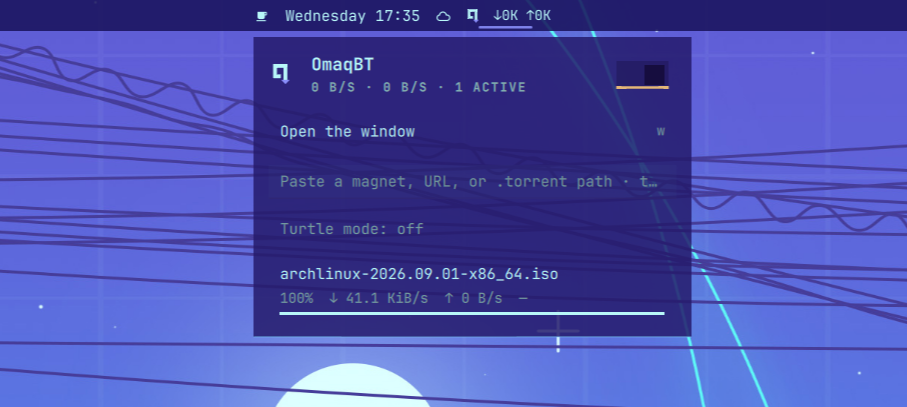
A themed Omarchy Quattro bar widget for qBittorrent. The mark shows live ↓/↑ speeds while anything is transferring, and a desktop notification fires when a download finishes. Left-click the mark for a quick popup: watch live transfers, add a magnet or a .torrent file, start or stop, remove a torrent, and set file priorities. For everything else, open the window, a full view with the torrent table, Search, RSS and Settings. Right-click starts or stops everything. The official Qt app stays as an escape hatch.
OmaqBT talks to qbittorrent-nox on your existing ~/.config/qBittorrent library through the local Web API. It does not talk to any host other than 127.0.0.1.
License: MIT.
Install
omarchy plugin add https://github.com/Aweiward/omaqbt.git --enable
If qbittorrent-nox is missing, open the widget and click Install qBittorrent-nox. That runs pkexec omarchy pkg add qbittorrent-nox (Arch extra, polkit password prompt) and then starts the user service omaqbt-nox.service. It will not remove desktop qbittorrent if you already have it.
Close the Qt qBittorrent window before starting the daemon. Stop the daemon before opening the Qt app. They share one profile and must not run at the same time.
Connect Mullvad before you start the daemon if you want traffic bound to the VPN. The bind only happens when wg0-mullvad is already up. If nox starts with Mullvad down, it stays unbound until the next start.
omarchy bar move aweiward.omaqbt --section right
Usage
The popup
- Left click: open or close the popup
- Right click: start or stop all torrents
- Middle click: refresh
- Esc: close the popup
Under the header sits an Open the window row with a w hint. w, Enter on the row, or a click closes the popup and opens the window (or brings it up if it is already open).
While a torrent is downloading or seeding, compact ↓/↑ speeds appear next to the bar mark (horizontal bars only; hover for exact rates). When a download reaches 100% between two polls, a desktop notification fires through notify-send. Already-finished torrents never re-notify, including on shell restart.
If Mullvad (or QBT_BIND_IFACE) is up but the running daemon is not bound to it, the mark shows the warning badge and the popup offers Restart daemon to bind. Restarting writes the bind keys and brings the daemon back on the tunnel.
Clicking a magnet: link in a browser opens the popup, or the window when it is open (after the browser’s own “open xdg-open?” prompt, if any). The torrent is added so metadata can load, then stopped. The confirm row shows the name (and size when known). Enter starts it. Esc cancels and deletes it. Paste, y, and drag-drop are unchanged.
List keys: j/k move, Enter opens the torrent's detail, Space start/stop, o open the save folder, x remove (keep files, no confirm), X delete files (asks first), t start/stop all, s cycle sort (default → speed → eta → added), z turtle mode, a/p/c/* filter, / magnet field, y add clipboard magnet, r refresh. On detail: y copy magnet, m move, e recheck. While a browser magnet is waiting, Enter starts it and Esc cancels it (unless the paste field is focused).
The field takes a magnet, a .torrent URL, or a local .torrent path (/…, ~/…, or file://…). Once it holds something addable, a Save to… field and an Add stopped row appear: Enter adds and starts, Add stopped adds without starting, and the save path overrides qBittorrent’s default when filled. Dropping a .torrent file or magnet link onto the open popup adds it too. From a terminal, qbt add also accepts --category <name>.
Typing anything that is not addable filters the list by name; Esc clears the filter first, then closes.
File view keys: j/k move, Enter cycle priority, Space start/stop, Backspace, Left or h back. On the files section x skips the file under the cursor. Elsewhere in the detail view x removes the torrent (keep files) and X deletes its files (asks first).
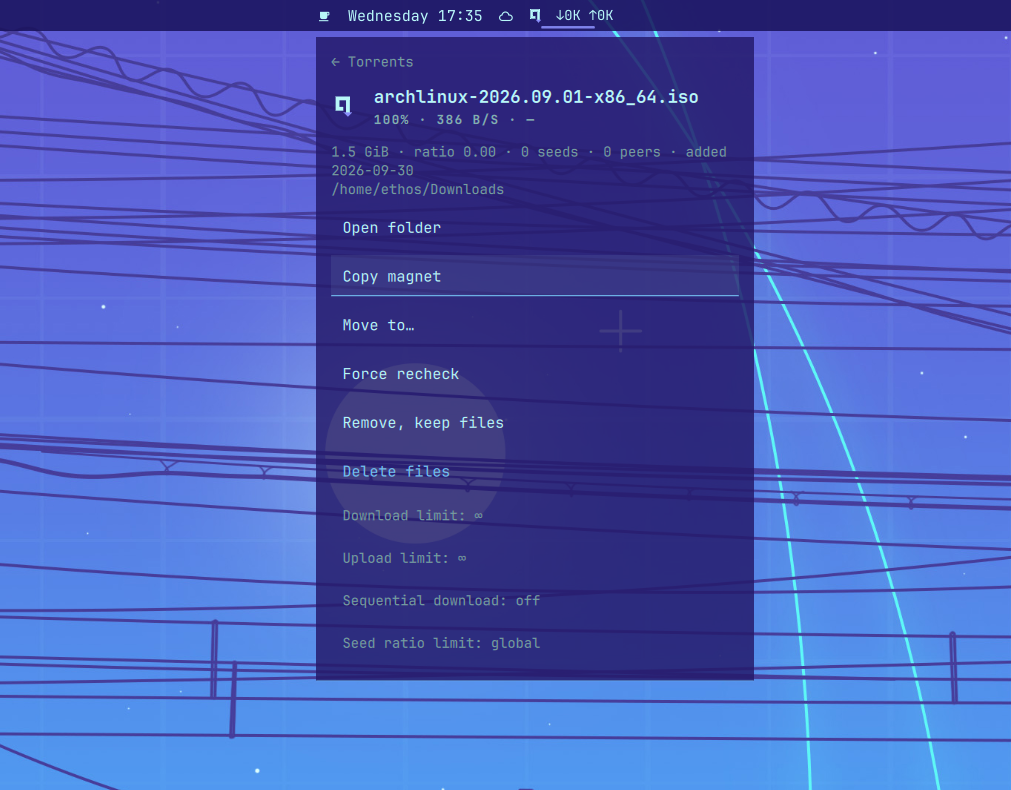
On a torrent’s detail view, Copy magnet (y) writes the magnet to the clipboard. Move to… (m) opens a path field prefilled with the current save folder; Enter moves the files there (qBittorrent setLocation), Esc cancels the field. Force recheck (e) starts a hash check immediately. Those three keys do nothing on the list (y there still adds from the clipboard).
Turtle mode (z, or the row in the list) toggles qBittorrent’s alternative speed limits; the header shows “turtle” while it is on. Configure the alternative rates themselves in qBittorrent.
On a torrent’s detail view, size, ratio, seeds/peers, the added date, and the save path sit under the title, followed by Open folder, Copy magnet, Move to…, Force recheck, Remove, keep files and Delete files. Below the file list controls, clickable rows cycle the per-torrent download/upload limit (∞ → 8M → 4M → 1M → 256K), toggle sequential download, and cycle the seed ratio limit (global → 1.0 → 2.0 → none). Open folder (o) opens the save path in your file manager. Remove takes it out of the list and leaves the download on disk. Delete asks first, then removes the torrent and its files.
The window
The window is a separate, full-size view. Open it from the popup (the Open the window row or w), or from a terminal:
omarchy-shell shell toggle aweiward.omaqbt
That command toggles, so run it again to close the window.
Keybind. To open it from the keyboard, add this line to ~/.config/hypr/bindings.conf:
bindd = SUPER SHIFT, Q, OmaqBT window, exec, omarchy-shell shell toggle aweiward.omaqbt
Pick another key if Super+Shift+Q is taken.
The window shows one view at a time: the torrents (the default), Settings, Search and RSS. From the torrents:
Fopens SearchNopens RSS,opens Settings:opens the command palette?opens help
Inside RSS, R opens Rules, the auto-download rules.
? lists each view's keys. Esc steps back out of a view.
Configure
The only plugin setting is refreshIntervalSec (default 5) on the widget entry in ~/.config/omarchy/shell.json.
OmaqBT polls through qbt-serve, a small long-lived Python helper (standard library only, no build step) that the shell starts once and shares across every bar, including one bar per monitor. It keeps one WebUI session and asks qBittorrent only for changes. If it can't run, the widget falls back to polling with qbt status. refreshIntervalSec sets its poll rate, and it polls every 250 ms while a browser magnet is waiting.
The polling runs as a plugin service, so while the plugin is enabled it keeps polling, handling browser magnets, and sending finish notifications even if the widget isn't placed on the bar. Disable the plugin to stop it.
Starting the daemon writes these keys under [Preferences] in ~/.config/qBittorrent/qBittorrent.conf if you click Install or Start daemon:
WebUI\Enabled=true
WebUI\Address=127.0.0.1
WebUI\LocalHostAuth=true
WebUI\AuthSubnetWhitelistEnabled=false
WebUI\APIKey=<generated if missing>
WebUI\Port=<existing port, or 8080>
OmaqBT signs in to the Web API with qBittorrent's API key. It reads the key from qBittorrent.conf, keeps that file readable only by you, and never puts the key on a command line, so other accounts on your machine can't use the Web API without it. Older OmaqBT versions turned localhost login off. If your daemon was set up that way, OmaqBT secures it automatically: it writes the keys above and restarts the daemon once. If qBittorrent ever refuses the key, the popup shows Restart daemon. Other tools that relied on the old localhost bypass (scripts, *arr apps) now need the API key or a Web UI login. Tracker URLs, magnets and download links, which can carry a private tracker's passkey, stay off command lines too: the widget hands them over on stdin. There are two exceptions. A magnet your browser opens reaches qbt magnet-inbox on its command line for the moment it takes to save it to the inbox. And when you download a search result through its plugin, qBittorrent itself runs the plugin's downloader (nova2dl.py) with the link on its command line, as it does from its own interface.
The browser Web UI at http://127.0.0.1:<port> now asks for a username and password. If you haven't set a password, qbittorrent-nox prints a temporary one each time it starts; read it with journalctl --user -u omaqbt-nox. Sign in with it, then set your own under Tools → Options → Web UI.
If wg0-mullvad is present (or QBT_BIND_IFACE is set), starting the daemon also writes under [BitTorrent]:
Session\Interface=<iface>
Session\InterfaceName=<iface>
Session\InterfaceAddress=
That binds the tunnel interface, not a single relay IP, so a Mullvad city change does not stall announces.
Nothing else in that file is rewritten by the plugin. The window's views write to qBittorrent when you change something there: preferences in Settings, feeds and rules in RSS, categories, speed limits, and search plugins. qBittorrent saves those changes itself. The plugin never stores a Web UI password.
Remove
omarchy plugin remove aweiward.omaqbt
Restore the Qt magnet handler before removing the plugin:
qbt magnet-uninstall-handler
qbt here is the helper in the plugin checkout. That points magnet: back at org.qbittorrent.qBittorrent.desktop when the Qt app is installed, and removes ~/.local/share/applications/omaqbt-magnet.desktop.
If the plugin is already gone:
xdg-mime default org.qbittorrent.qBittorrent.desktop x-scheme-handler/magnet
That disables the widget and deletes the plugin checkout. It does not uninstall qbittorrent-nox, stop omaqbt-nox.service, delete torrents, or revert the Web UI keys above, so localhost login stays on and the API key stays in qBittorrent.conf. It also does not restore the magnet handler unless you ran uninstall first.
To stop the daemon yourself:
systemctl --user stop omaqbt-nox.service
Requirements
- Omarchy 4 (Quattro) /
omarchy-shell qbittorrent-nox5.2+ (installed from the popup if missing)- On PATH for the helper:
curl,jq,python3 notify-send(libnotify) for completion notifications; without it they are skipped silentlyxdg-open(xdg-utils) for Open folderpkexeconly when installing the package from the popup (no TTY forsudo)systemctl --userforomaqbt-nox.service
What this plugin does on your system
- Runs
qbtfrom the plugin folder. That helper is the only process that talks HTTP, and only to127.0.0.1. - Installs the Arch extra package
qbittorrent-noxthroughomarchy pkg addwhen you click Install. Privilege ispkexec, not a sudoers rule. - Writes
~/.config/systemd/user/omaqbt-nox.serviceand enables it as your user. - Writes the localhost Web UI keys listed under Configure, including an API key when there isn't one. It stops the daemon first so qBittorrent does not overwrite those keys on exit.
- If
wg0-mullvadis up, also writes the[BitTorrent]interface keys so qBittorrent binds the tunnel, not a single relay IP. - Stores sync state in
$XDG_RUNTIME_DIR/omaqbt/(private, mode 700). If that variable is unset it falls back to a uid-scoped/tmp/omaqbt-<uid>, created withumask 077, and refuses to write through a symlink or a directory it does not own. - Sends a desktop notification through
notify-sendwhen a download completes, and when a browser magnet arrives but the popup could not open. - On widget load, writes
~/.local/share/applications/omaqbt-magnet.desktopand claimsx-scheme-handler/magnet. Chromium may still ask to open xdg-open; that is a browser prompt, not a bug in this plugin. - Stores pending browser magnets in
${XDG_STATE_HOME:-$HOME/.local/state}/omaqbt/(not the runtime rid dir). - Writes the qBittorrent preferences you change in the window's Settings view, and its RSS feeds and rules. Once you turn a rule on, and auto-download on, RSS can add torrents by itself.
- Apart from the RSS rules you turned on, and the one restart that secures a daemon set up by an older OmaqBT, it does not add torrents, delete files, or start the daemon unless you click or press the matching control, or click a
magnet:link that this handler claimed.
Dev
npm test
npm run test:qml
python3 -m unittest discover -s tests -p 'test_*.py'
tests/actions.sh
tests/api-contract.sh
tests/magnet-handler.sh
tests/serve-parity.sh
npm run lint:qml
node tools/gen-settings-schema.js --check
omarchy plugin validate .
npm run test:qml turns off Qt's incremental garbage collector (QV4_GC_TIMELIMIT=0), because a Qt 6.11 bug could leave a newly created QML object empty.
tests/api-contract.sh talks to a fixture HTTP server. It does not start qbittorrent-nox, add a real torrent, or delete files on disk.