
Screen Time
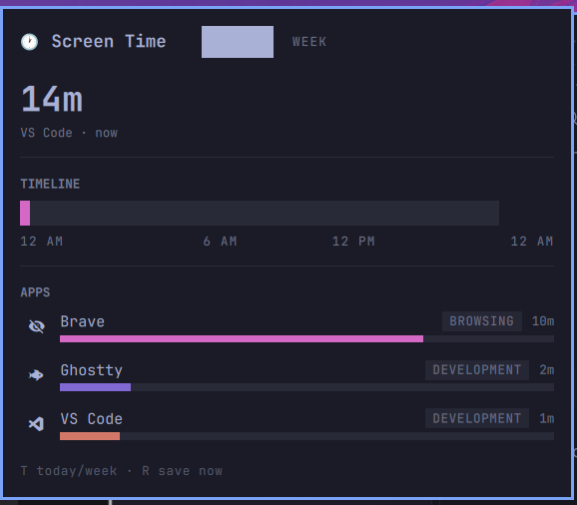
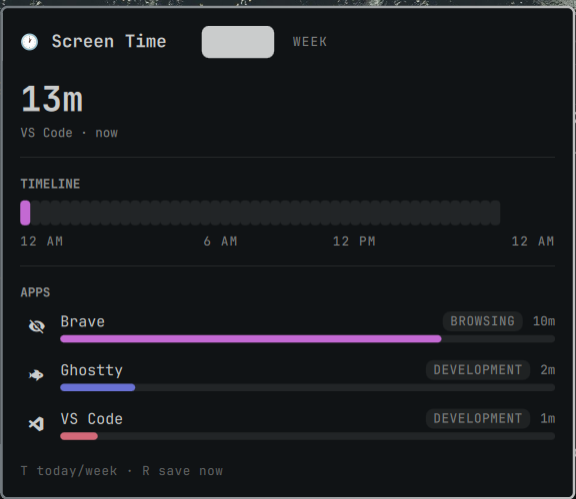
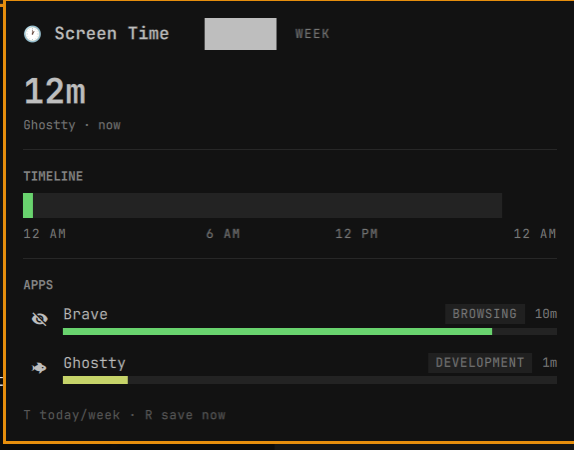
A macOS-style Screen Time panel for the Omarchy Quattro bar: a glanceable total in the bar, and a detail panel with a 24-hour timeline and a ranked per-app breakdown — plus a seven-day overview. All tracking is local; nothing leaves your machine.
Features
- Bar total — today's screen time (minutes-level, e.g.
1h 50m), updated on a slow cadence so it doesn't tick every second. - 24-hour timeline — a stacked bar of your day; each slot is colored by the app you were using, hover for the time and total.
- Per-app breakdown — ranked by time, with category chips and proportional bars, colored per app (theme-aware, derived from the accent hue).
- Week view —
Ttoggles a seven-day bar chart and aggregated app totals. - Multi-browser — Firefox, Chrome, Chromium, Brave, LibreWolf, Zen, Vivaldi (and siblings) are tracked separately, and the active page is recovered from the window title so each browser doesn't collapse into one bucket.
- Respects your time — idle time (configurable threshold) and the lock screen are excluded. No multi-monitor split; the focused window on the active seat is what counts.
Preview
The panel follows your Omarchy theme. Shown across a few:
| Tokyo Night | Solitude | Matte Black |
|---|---|---|
 |
 |
 |
Install
From this repo (or any git URL) into the Omarchy plugin directory:
omarchy plugin add https://github.com/bivekk51/screentime.git --enable --yes
Until published, you can drop the folder in manually:
cp -r bivekk51.screentime ~/.config/omarchy/plugins/
omarchy plugin enable bivekk51.screentime
omarchy bar move bivekk51.screentime --section right
Usage
- Click the bar item to open/close the panel.
Esccloses it. Tswitches Today / Week.Rforces a save.- Right-click or middle-click saves now.
Remove
omarchy plugin remove bivekk51.screentime
This only unloads the plugin and deletes its code under
~/.config/omarchy/plugins/. Your usage history is kept separately under
~/.local/state/bivekk51.screentime/ so removing and reinstalling doesn't lose
data; delete that directory to wipe it completely:
rm -rf ~/.local/state/bivekk51.screentime
Configure
Settings live inline in ~/.config/omarchy/shell.json under the widget entry
(omarchy bar set bivekk51.screentime <key> <value>):
| Key | Type | Default | Meaning |
|---|---|---|---|
slotMinutes |
integer | 30 | Width of each 24h timeline segment (5–120). |
idleThresholdSec |
integer | 60 | Stop counting after this much idle time. |
excluded |
array | [] |
App IDs (window classes) to ignore, e.g. ["steam"]. |
Data
Per-day usage is written as JSON under:
~/.local/state/bivekk51.screentime/YYYY-MM-DD.json
Writes are atomic (temp file + rename) and flushed periodically, on app change, and when the shell exits, so totals survive restarts. To reset, delete the day file(s).
Architecture
manifest.json—bar-widgetplugin with inline settings (defaults/schema).BarWidget.qml— bar label; loads the panel and forwards open/close/toggle.Panel.qml— the detail view (hero total, timeline, app list, week view).Service.qml— tracking engine: samplesToplevelManager.activeTopleveleach second, accumulates into the active app, excluded idle/lock, and persists.Tracker.js— pure helpers (formatting, slot math, stable per-app colors).Categories.js— app-id → name/category/icon map, browser detection, and title→page parsing.store.sh— atomic JSON writer (reads the payload from stdin).
UI chrome uses the Omarchy theme tokens (Style, Color) so it follows your
theme; per-app segment colors are generated around the accent hue.
License
MIT — see LICENSE.