
Omarchy Minimizable Dock
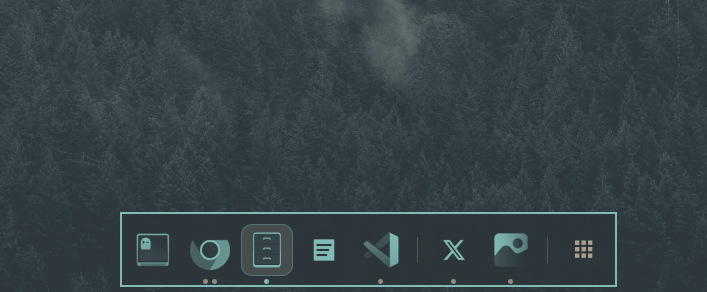
A dock for Omarchy — with theme-matching icons, pinning, minimizing and maximizing.
Hyprland has no minimize button. A window is on a workspace or it is closed, and there is nothing in between. This dock adds the missing state. Click the icon of the app you are in and its window leaves the screen. Click again and it is back, exactly where it was. Nothing stops in between: the video keeps playing, the build keeps running.
The dock also looks like part of your desktop, not an add-on. Every icon is redrawn in your theme's own colours, so the dock follows every theme change instead of showing a row of clashing vendor logos. Pin the apps you use daily; everything else appears while it runs.
It works out of the box. Install it from the Omarchy menu and the dock comes up with your terminal, browser and file manager already pinned. It runs inside the shell Omarchy already starts, so there is no new process, no dependency, and nothing to configure.
The dock
The dock sits at the bottom of the screen. It holds two sets of icons. First your pinned apps, in the order you choose. These stay in place even when the app is closed. Then any app that is running but not pinned. The button at the far right opens Omarchy's app menu.
Small dots under each icon show that app's windows, up to four:
| Dot | Meaning |
|---|---|
| accent | this window is focused |
| filled | window is open |
| hollow | window is minimized |
| none | pinned, not running |
The icon dims when every window of an app is minimized. The focused app's icon is outlined.
By default the dock hides itself. Move the pointer to the bottom of the screen
to bring it back. It also stays up on an empty workspace, and peeks for a moment
after you minimize a window. Set "autohide": false to keep it on screen. In
that mode it reserves its height and windows tile above it.
A fullscreen window covers the dock, as it covers Omarchy's bar. Set
"showInFullscreen": true and the dock rises above fullscreen instead: move the
pointer to the edge and it comes up over the window, then drops back to its
usual place when the window leaves fullscreen. It is off by default because the
strip along the screen edge that summons the dock rises with it, and in a game
or a video player that is exactly where you do not want one.
Minimizing windows
Minimizing moves the window to a hidden workspace called special:minimized.
The window keeps running there. The dock is how you get it back. It remembers
which workspace the window came from and returns it there, not to wherever you
happen to be.
A left click on an icon resolves in this order:
- The app is not running. Launch it.
- The app holds focus. Minimize the focused window.
- The app has a window on screen. Focus the one you used last.
- Every window of the app is minimized. Restore the one minimized last.
On screen always beats minimized. While an app still has a visible window, a click switches to it instead of pulling one out of the minimized workspace. Click again to bring back the next window.
Install
Open the Omarchy menu with SUPER + SPACE. Type plu and pick
Plugins → Add Plugin. Paste this URL:
https://github.com/bogdart/omarchy-minimizable-dock.git
Omarchy warns you that plugins are unsandboxed code and asks you to confirm. It then installs the plugin and offers to enable it. Nothing in this repo runs during install and it never asks for your password.
To remove it, use the same menu: Plugins → Remove Plugin. Disable Plugin turns it off without deleting it.
<details> <summary>From a terminal</summary>omarchy plugin add https://github.com/bogdart/omarchy-minimizable-dock.git --enable
omarchy plugin update bogdart.dock
omarchy plugin disable bogdart.dock
omarchy plugin remove bogdart.dock
Mouse
| Action | Result |
|---|---|
| left click | launch, focus, or minimize, as listed above |
| middle click | open a new window |
| right click | menu: window list, new window, restore all, minimize all, pin, close |
| scroll | step through that app's windows |
| hover | list of that app's windows by name |
| drag | move a pinned icon to change its place |
In the hover list, left click switches to a window or restores it, right click minimizes it, and middle click closes it. The list stays open after a right or middle click so you can act on several windows.
Keyboard shortcuts
The plugin adds no keybindings. Omarchy does not let a plugin edit your Hyprland
config, so add them yourself if you want them. Paste into
~/.config/hypr/bindings.lua and run hyprctl reload:
o.bind("SUPER + M", "Minimize window to dock", hl.dsp.window.move({ workspace = "special:minimized", follow = false }))
o.bind("SUPER + CTRL + M", "Restore last minimized window", "omarchy-shell dock restore")
o.bind("SUPER + D", "Toggle dock", "omarchy-shell dock toggle")
Delete the lines to remove them. Two more are available:
o.bind("SUPER + ALT + M", "Restore all minimized windows", "omarchy-shell dock restoreAll")
o.bind("SUPER + ALT + D", "Peek at the dock", "omarchy-shell dock peek")
Minimize and restore work from the mouse without any of these.
Configuration
The dock reads its own entry in ~/.config/omarchy/shell.json under
plugins[]. Edits apply without a restart.
{
  "id": "bogdart.dock",
  "position": "bottom",
  "autohide": true,
  "iconSize": 40,
  "monochrome": true,
  "pinned": ["com.mitchellh.ghostty", "chromium"]
}
| Key | Default | What it does |
|---|---|---|
position |
bottom |
bottom or top |
autohide |
true |
hide the dock until the pointer reaches the screen edge |
showInFullscreen |
false |
let the dock come up over a fullscreen window |
iconSize |
40 |
icon size in logical pixels, 20 to 96 |
opacity |
0.92 |
background opacity |
monochrome |
true |
redraw icons in one theme colour. false uses the apps' own icons |
monochromeColor |
frame |
which colour to use, frame or foreground |
onlyCurrentWorkspace |
false |
show only windows on the current workspace. Minimized windows always show |
appsButton |
true |
show the app menu button |
pinned |
detected | desktop entry ids, in dock order. Left out, the dock pins this system's terminal, browser, and file manager. Right-click an icon to pin or unpin |
aliases |
detected | window class to desktop entry id, for windows with no entry of their own |
ignore |
[] |
extra window classes to keep out of the dock |
The dock always hides org.quickshell, org.omarchy.screensaver, input methods
such as fcitx and ibus, and any window that reports no app id.
Icons are redrawn in one theme colour and cached under
~/.cache/bogdart.dock/icons/. A theme change renders a new set. An icon that
cannot be rendered keeps its original. Removing the plugin leaves the cache
behind. Delete it with rm -rf ~/.cache/bogdart.dock.
Commands
omarchy-shell dock state           # position, autohide, item count, minimized count
omarchy-shell dock minimize        # minimize the active window
omarchy-shell dock restore         # restore the most recently minimized window
omarchy-shell dock restoreAll      # restore every minimized window
omarchy-shell dock minimized       # list minimized windows
omarchy-shell dock toggle          # hide or show the dock
omarchy-shell dock peek            # reveal briefly
omarchy-shell dock activate <app>  # act as if that icon were clicked
Requirements
Omarchy with the Quickshell shell, and Hyprland 0.56 or newer. ImageMagick renders the monochrome icons. Without it the dock uses the apps' own icons. Nothing is bundled and nothing is vendored.
License
MIT. See LICENSE.