
Monitor Desk
Your displays. One place.
Resolution, refresh rate, scale, rotation, power and layout for every monitor, in one panel for Omarchy. Every change is a verified before you keep it, and reverts by itself if you don't.
Formerly Monitor Switcher. Same plugin ID (case.monitor-switcher),
commands, settings and shortcuts, so updating is seamless.
Install · Rotate a display · Use the panel · Keyboard · Command line · What's new in 3.2
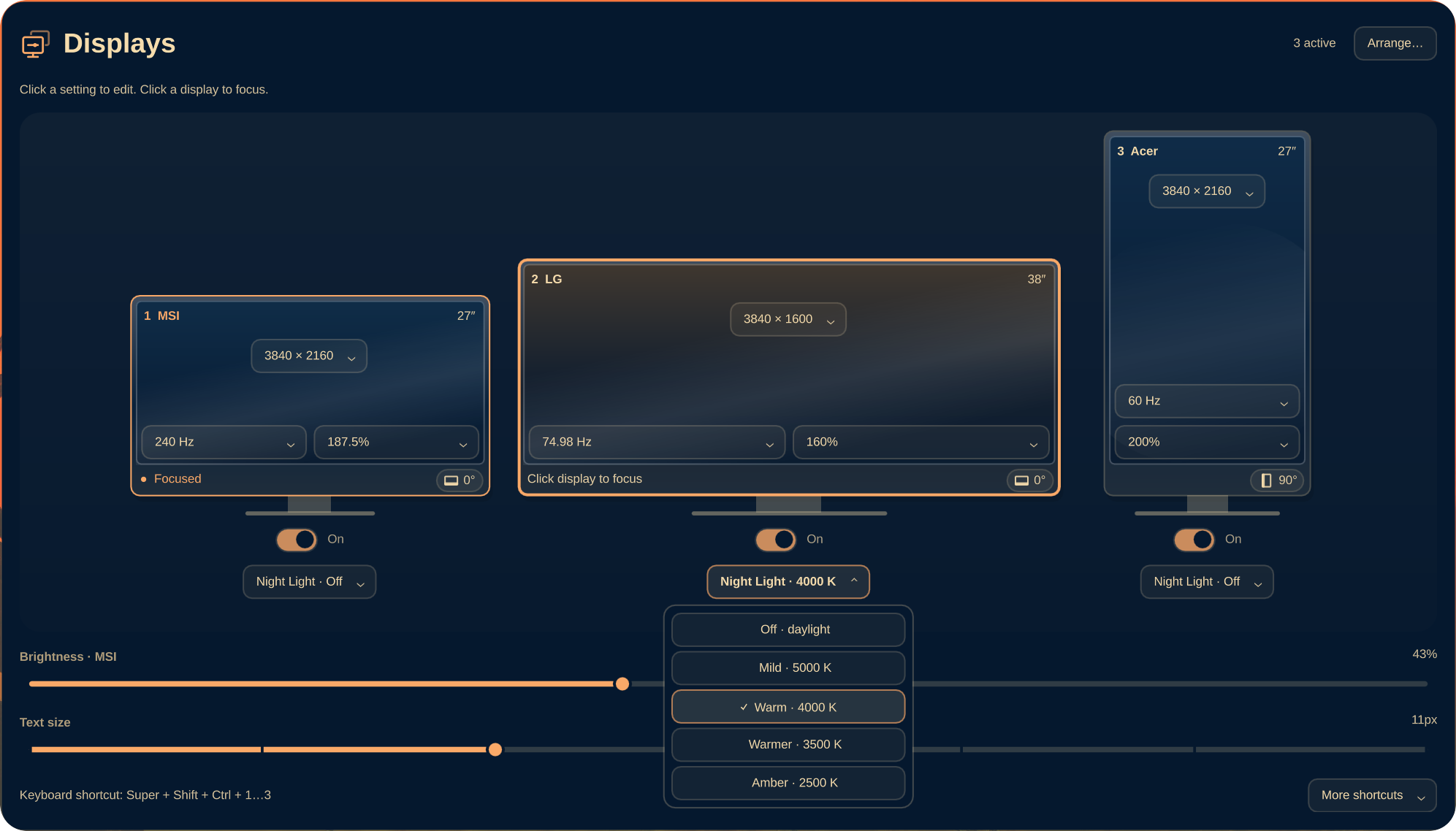
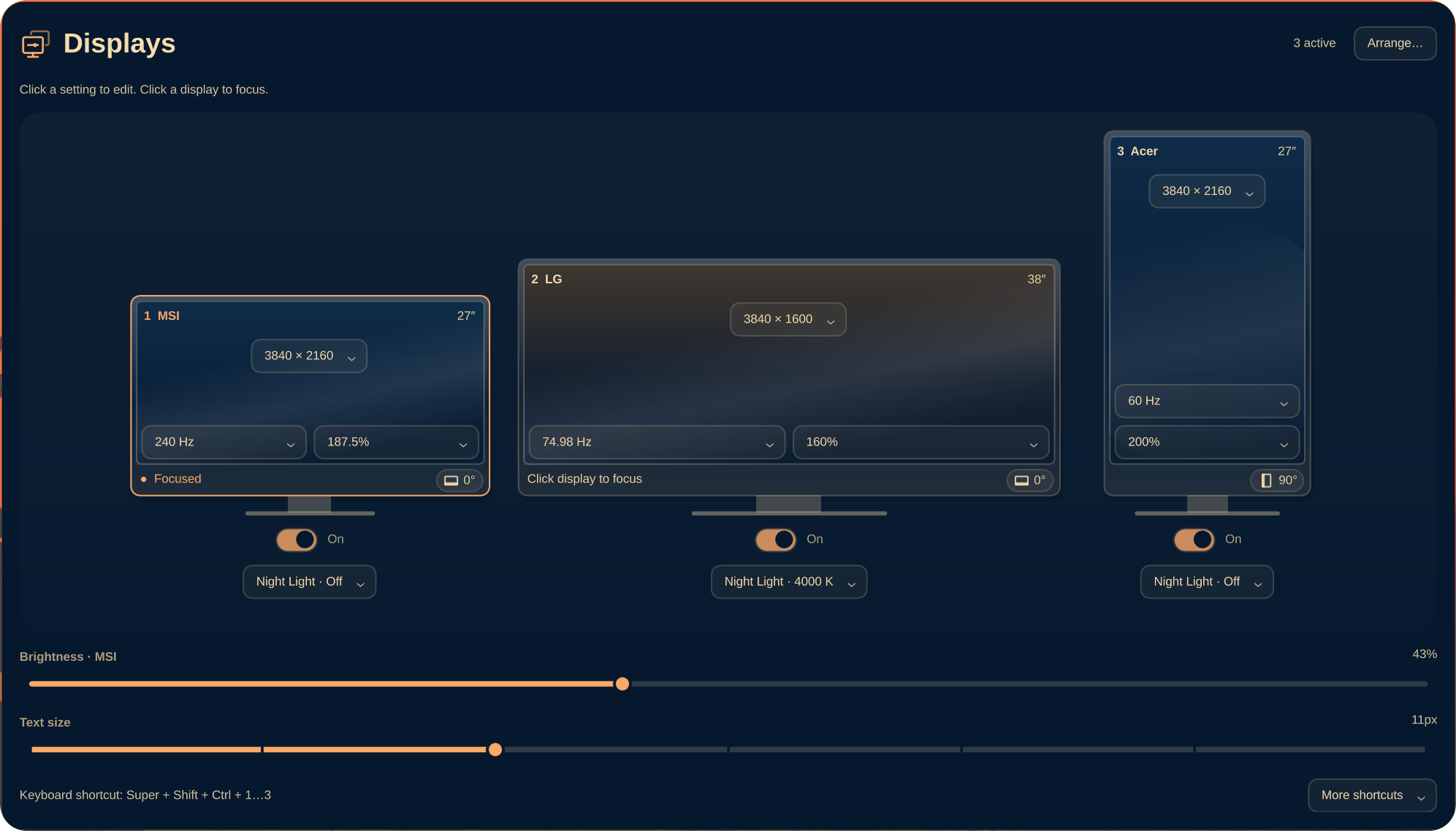
<a href="preview.png"><img src="preview.png" alt="Monitor Desk open on an Omarchy desktop: MSI and LG in landscape, the Acer in portrait, with resolution, refresh rate, scale, rotation, power, Night Light, brightness and text size." width="1000"></a>
- Click to edit. Resolution, refresh and scale sit right on each display.
- Turn it portrait. New in 3.2: rotate from the button on each monitor's chin.
- Drag to arrange. Snap screens together to match your desk.
- Try it first. Display changes are verified and revert in 20 seconds unless you keep it.
- Night Light per monitor. Warm one screen and leave another in daylight.
- Switch it on. A power toggle under every monitor; the last one is protected.
- Recover your desk. Restore the last verified layout for the monitors you have plugged in.
Settings persist across reloads and reboots. Colors follow your theme.
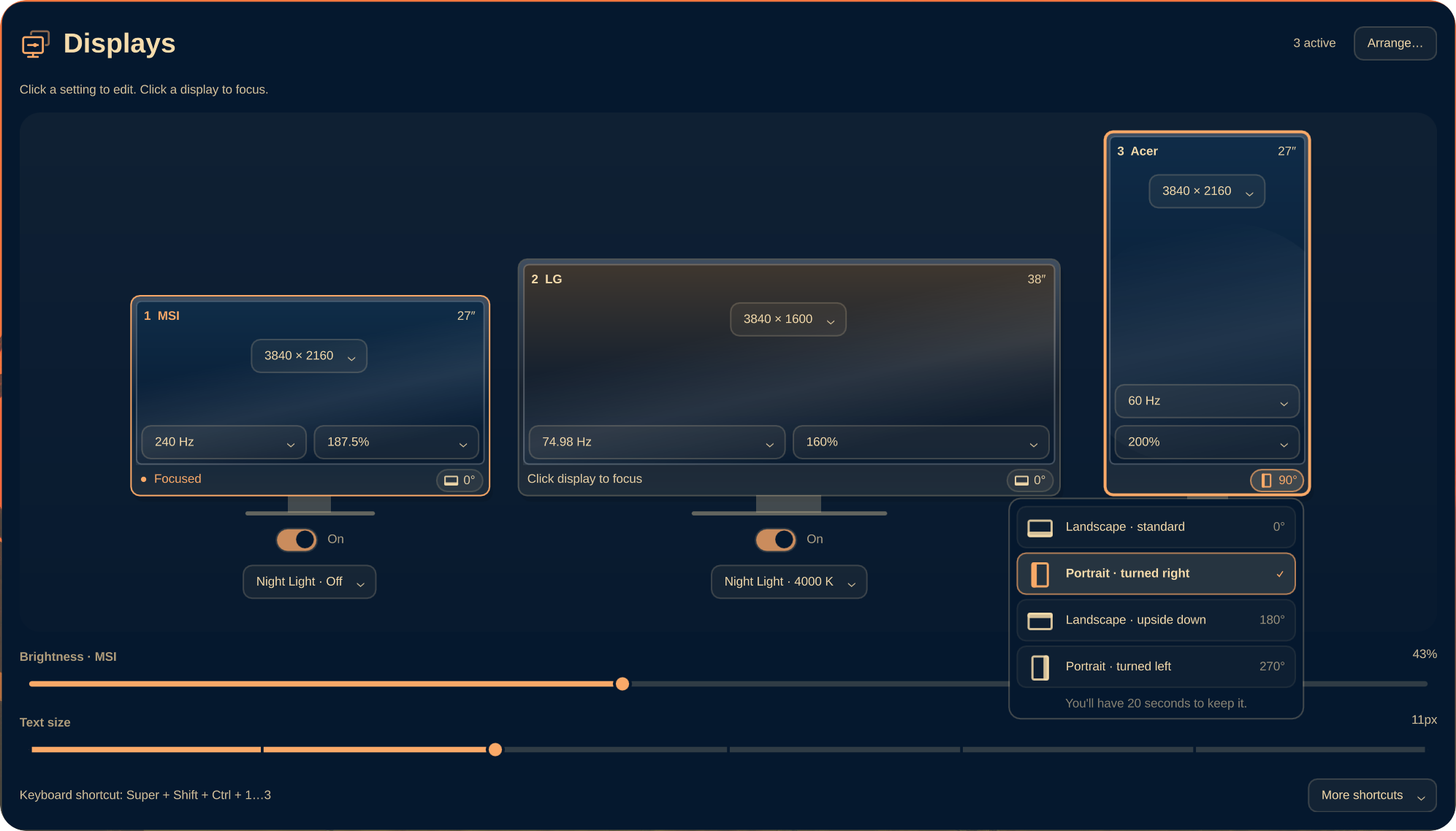
Portrait, in one click.
Click the small monitor button on a display's chin (or press O), pick an
orientation, and watch the card turn. Screens next to it slide over so your
pointer still crosses cleanly. Keep it, or do nothing and it reverts in 20 seconds.
<a href="preview-rotation.png"><img src="preview-rotation.png" alt="Rotation menu opened from the Acer's chin button on an Omarchy desktop: Landscape standard, Portrait turned right (checked), Landscape upside down and Portrait turned left." width="1000"></a>
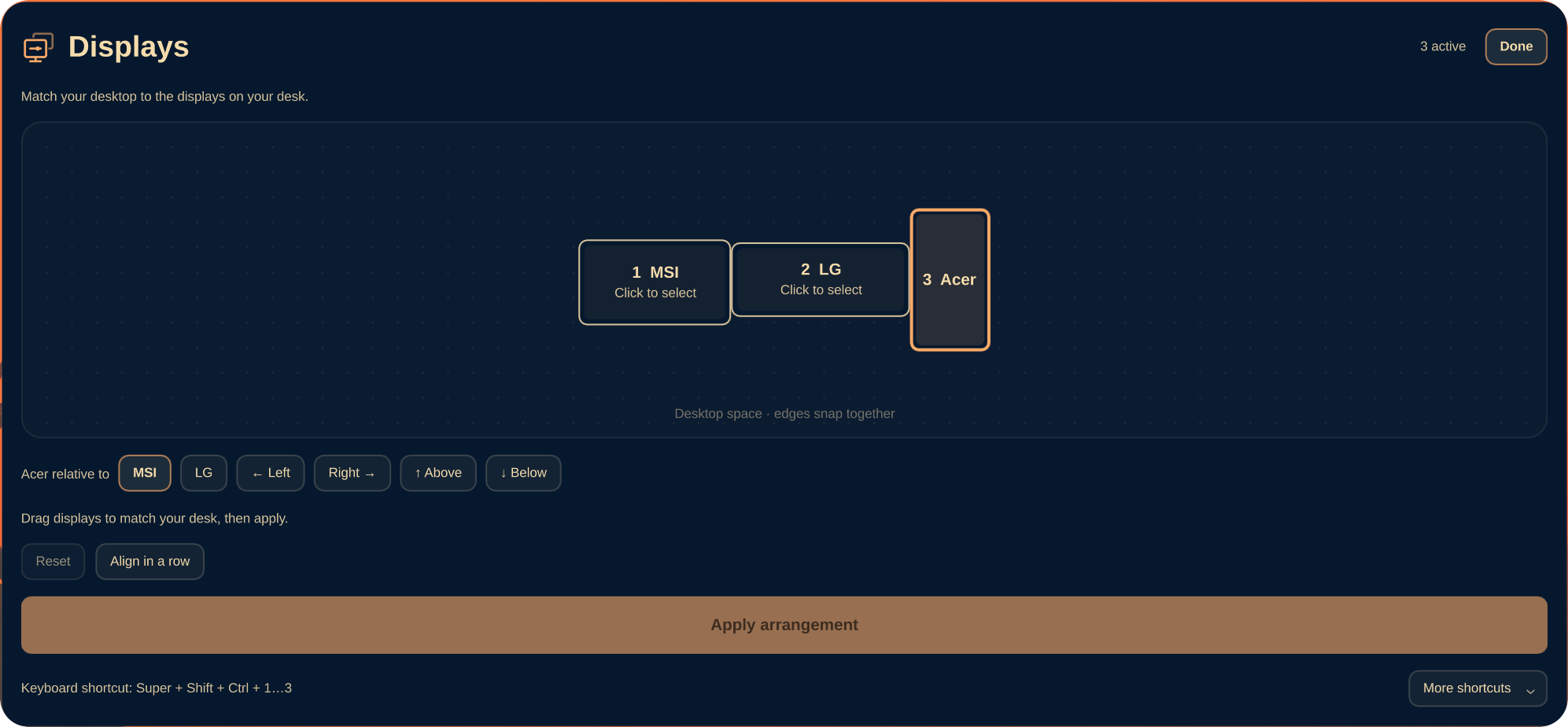
A place for every display.
Drag portrait and landscape screens into position, or choose left, right, above or below. Preview the layout, apply it, and keep it if it feels right.
<a href="preview-detail.png"><img src="preview-detail.png" alt="Arrangement view on an Omarchy desktop: MSI, LG and the portrait Acer as tiles in desktop space, with placement buttons and Apply arrangement." width="1000"></a>
Night Light for each monitor.
Each monitor keeps its own saved temperature. Its menu opens directly from its toggle, while the monitor details stay visible. See the Night Light menu →
Full-size captures: Main panel · Rotation · Arrangement · Night Light
This is an unofficial fork of Omarchy's omarchy.monitor widget, originally
vendored from Omarchy 4.0.0 under MIT. It is not affiliated with or supported by
Omarchy. Please report plugin issues to
this repository.
See UPSTREAM.md for attribution and maintenance notes.
Install
Requires Omarchy 4.x with its Lua-based Hyprland configuration and Quickshell.
The backend uses Bash, jq, coreutils and util-linux tools supplied by Omarchy.
Per-monitor Night Light also needs Python 3 and compositor support for
wlr-gamma-control-v1 and wl_output version 4. No Python packages are required.
omarchy plugin add https://github.com/amoltyagi/omarchy-monitor-switcher --enable
omarchy plugin disable omarchy.monitor
The second command avoids duplicate display widgets; it only changes your bar
layout. Restore the built-in widget with omarchy plugin enable omarchy.monitor.
The two plugins have separate IPC targets, but the built-in widget's runtime-only
changes can conflict with this plugin's persisted settings.
On first use, the plugin adopts connected monitors and their current geometry and scale. Preferred-mode entries resolve to an advertised mode matching that geometry, preserving the running refresh rate when possible. Use the Hz chip to choose a different advertised rate.
Use the panel
Click the monitor icon in the bar to open the panel.
| Control | Behavior |
|---|---|
| Monitor screen | Focus that desktop; editing a setting never changes its target |
| On/Off switch | Persistently toggle that monitor; the last usable screen is protected |
| Rotation button (chin) | Choose landscape, portrait (either way) or upside down, then Keep within 20 seconds |
| Resolution / Hz / scale chip | Click, choose a supported value, then Keep within 20 seconds |
| Arrange… | Preview positions by dragging or using placement buttons, then Apply |
| Night Light | Open a menu anchored to its toggle (above when space is tight); choose Off or 2500–5000 K while monitor details remain visible |
| Restore working layout… | Under More shortcuts; preview the last verified layout for this connected monitor combination |
| Brightness | Adjust the focused monitor when brightness control is available |
| Text size | Adjust shell/GTK text size through Omarchy's text-size command |
| More shortcuts | Expand optional keyboard guidance; ? also toggles it |
| Wheel/touchpad scroll | Scroll the panel without changing values |
The gallery fits the host screen in logical coordinates and wraps to fewer columns when its controls would otherwise be crowded. Subtle casing and screen gradients provide depth while preserving readable labels and focus borders.
When a disabled monitor returns to an occupied saved position in a horizontal row, the switcher reopens its slot and shifts monitors to its right. For example, after joining 1 and 3, enabling 2 restores the 1–2–3 row. For other arrangements, it uses the nearest free adjoining edge. Failed changes restore the previous configuration; explicit overlapping arrangement edits are still rejected.
Each chip targets its own monitor, even when another desktop has focus. Brightness targets the focused monitor. Hz describes the compositor's display mode, not measured application FPS. Off/modeless screens identify saved settings explicitly instead of presenting them as live values.
During a display trial, other layout changes are blocked. Keep saves the choice; Revert restores the previous configuration immediately. Failed rollback reloads are retried. If a watchdog is interrupted, the next backend invocation recovers its expired trial.
Confirmation state stays in sync across panels. Selecting the current value does not start a trial, and focusing another monitor remains available. A normal timeout or an already-finished preview is not shown as a red error.
Keyboard Controls
| Key | Action |
|---|---|
Up/Down or k/j |
Select displays, controls or picker options |
Left/Right or h/l |
Walk selections or adjust brightness/text size |
| Enter/Space | Focus the selected display, choose an option, or activate Keep/Revert |
m / r / s |
Open resolution / refresh / scale for the selected display |
t |
Open Night Light for the selected display |
o |
Open rotation for the selected display |
p |
Toggle the selected display |
a |
Open/close Arrange |
? |
Expand/collapse More shortcuts |
| Escape | Close the picker, return from Arrange, then close the panel |
| Tab/Shift+Tab | Move between shell panels |
In Arrange, arrows place the selected display relative to the reference display;
n selects the next display and Enter applies the preview. All monitor numbers
match config order, regardless of their current physical position.
To toggle displays without opening the panel, add bindings to
~/.config/hypr/bindings.lua. Numbers follow config order, not connector names:
o.bind("SUPER + SHIFT + CTRL + 1", "Toggle display 1",
  os.getenv("HOME") .. "/.config/omarchy/plugins/case.monitor-switcher/bin/monitor-switcher toggle 1")
o.bind("SUPER + SHIFT + CTRL + 2", "Toggle display 2",
  os.getenv("HOME") .. "/.config/omarchy/plugins/case.monitor-switcher/bin/monitor-switcher toggle 2")
o.bind("SUPER + SHIFT + CTRL + 3", "Toggle display 3",
  os.getenv("HOME") .. "/.config/omarchy/plugins/case.monitor-switcher/bin/monitor-switcher toggle 3")
Descriptions also appear in Omarchy's SUPER+K keybindings sheet. Adjust the
plugin path if you installed it under a different ID.
Command line
The plugin ID and command keep their original monitor-switcher names, so
existing keybinds, scripts and configs continue to work.
The executable lives inside the plugin; installation does not add it to PATH.
Use its full path, or enable the short command for the current shell:
export PATH="$HOME/.config/omarchy/plugins/case.monitor-switcher/bin:$PATH"
Commands accept an output name (DP-3), case-insensitive alias (MSI), or
1-based config-order number (1):
monitor-switcher state                   # monitor table and overlap warnings
monitor-switcher state --json            # metadata, modes and pending trial
monitor-switcher toggle 1
monitor-switcher enable MSI
monitor-switcher disable DP-2
monitor-switcher scale MSI 1.875          # round to a Hyprland-compatible scale
monitor-switcher scale-trial MSI 1.875    # same setting with Keep/Revert
monitor-switcher focus LG                # focus without changing monitor power
monitor-switcher mode MSI 2560x1440@239.85 # try an exact advertised mode
monitor-switcher refresh MSI 240         # begin trial; prints confirmation token
monitor-switcher rotate Acer 90          # rotation trial: 0, 90, 180, 270, next, prev
monitor-switcher confirm <token>         # keep the trial mode
monitor-switcher revert <token>          # restore previous settings
monitor-switcher apply                   # apply the saved layout
monitor-switcher recover                 # try the last verified layout for this monitor set
Refresh requests must match an advertised rate, e.g. 74.98 rather than 75
when the monitor advertises 74.98. Only connected, active monitors can start
a refresh trial.
Rotate a display
Click the small monitor button on a display's chin (or press o) and choose an
orientation. The card reshapes, the screen turns, and Keep saves it. If a
sideways pointer makes that awkward, do nothing: it reverts after 20 seconds.
Labels describe which way you physically turn the monitor, so choose
Portrait · turned right after turning it clockwise.
A turned screen changes its desktop footprint, so the switcher treats it like a pivot stand: in a row the screen keeps its left edge and centres vertically, and displays to its right slide over to stay touching (columns work the same way, downward). In other layouts it pivots about its centre, or takes the nearest free touching edge. If no valid layout exists, rotation is refused before anything changes; use Arrange first. Half turns (0°↔180°) move nothing.
monitor-switcher rotate Acer 90      # 0, 90, 180, 270; next/prev turn by 90°
monitor-switcher rotate 3 t5         # raw Hyprland transform 0–7 (4–7 mirror)
Degrees keep any mirroring configured in transform; the panel offers only
the four unmirrored rotations. Touchscreen and tablet input mapping is not
rotated by this plugin.
Arrange displays
Click Arrange…, turn on at least two displays, and drag their rectangles to match your desk. Edges snap together. Alternatively select a display, choose a reference, and use Left/Right/Above/Below. Align in a row previews the saved config order. Apply arrangement starts a verified 20-second trial.
The map shows logical desktop space (resolution divided by scaling), so its proportions can differ from the physical-size illustrations in the overview. Overlaps and disconnected islands are rejected to keep pointer travel usable.
monitor-switcher plan                    # compute layout without applying it
monitor-switcher move LG 2048x0          # pin an origin in logical pixels
monitor-switcher move LG above MSI       # left-of, right-of, above or below
monitor-switcher swap MSI LG             # swap pack-order entries; clear their pins
monitor-switcher pack                    # clear all pins; pack left-to-right
monitor-switcher arrange '[{"output":"DP-3","x":0,"y":0},{"output":"DP-2","x":2048,"y":0}]'
Geometry comes from configured resolution, scale and rotation, not a temporary
live fallback. plan does not apply a layout, but may update config metadata.
Use this plugin or another monitor-layout manager, not both: tools writing
rules for the same output can overwrite each other.
Night Light and recovery
Night Light is independent for each active monitor. Click its toggle to open the temperature menu; the other displays keep their own settings. The menu opens above the toggle when there is not enough room below. Off restores that output's original gamma; the cool illustration means no plugin warming, not an additional blue filter. Preferences follow the monitor identity when available and reapply on reconnect or shell restart. An unavailable or conflicting gamma controller produces a visible error. A separate global Night Light, such as hyprsunset, still affects every monitor and can compound this plugin's warming.
Successful applies and confirmed trials save the latest verified layout for up to eight connected monitor combinations. Restore working layout… starts a normal Keep/Revert trial; plugging in monitors does not automatically switch profiles. A failed trial never replaces the verified snapshot. Rollback keeps its backup until the surviving monitors match the previous working state. Power changes continue even if disabling a monitor destroys its panel.
Configuration
Edit ~/.config/monitor-switcher/config.json, then run monitor-switcher apply.
Array order determines packing and shortcut numbers:
[
  { "output": "DP-3", "alias": "MSI", "scale": 1.875, "mode": "3840x2160@240" },
  { "output": "DP-2", "alias": "LG", "scale": 1.25, "mode": "3840x1600@74.98" },
  { "output": "DP-1", "alias": "Acer", "scale": 1.875, "transform": 0 }
]
| Field | Default | Meaning |
|---|---|---|
output |
Required | Connector name from hyprctl monitors all |
alias |
Monitor model | Display name and optional CLI identifier |
scale |
Current scale | Per-monitor scale factor |
mode |
preferred |
Hyprland mode, such as 3840x2160@240 |
transform |
0 |
Rotation/reflection; 1 is 90°, 2 is 180°, 3 is 270°; 4–7 add mirroring. Set with rotate or the panel |
position |
Automatic packing | Optional pinned origin, such as 2048x0 |
mode_w, mode_h |
Managed | Geometry snapshots for preferred mode; do not edit manually |
identity |
Managed | EDID make/model/serial used for unambiguous connector changes |
Each connector must appear only once. The backend reports duplicate entries instead of generating competing rules. Temporary FALLBACK outputs are not adopted. A modeless output remains visible with a recovery status; it does not hide the other monitors.
Keep a wildcard fallback in ~/.config/hypr/monitors.lua for unmanaged outputs,
rather than competing explicit rules:
hl.monitor({ output = "", mode = "preferred", position = "auto", scale = 1 })
| State file | Purpose |
|---|---|
~/.config/monitor-switcher/night-light.json |
Per-monitor Night Light preferences |
~/.local/state/monitor-switcher/working-layouts.json |
Last verified layout for up to eight monitor combinations |
~/.config/monitor-switcher/config.json |
Monitor order and settings |
~/.local/state/monitor-switcher/state.json |
Disabled outputs |
~/.local/state/monitor-switcher/refresh-pending.json |
Temporary trial and rollback backup |
~/.local/state/omarchy/toggles/hypr/monitor-switcher.lua |
Generated rules sourced on reload |
File access is guarded and bounded; writes are staged and atomically renamed. Layout commands are serialized. Refresh trials back up both config and generated rules, validate reload results, and verify the active mode before confirmation.
Update
For a regular Git-managed installation:
omarchy plugin update case.monitor-switcher
The updater shows the diff, fast-forwards after confirmation, and validates locally. Marketplace verification is a separate exact-commit snapshot; it does not pin an installed plugin to that commit.
Maintainers: bump manifest.json, update CHANGELOG.md and root
preview.png, then push. The marketplace's daily refresh can pick up new metadata
and previews. To verify the new snapshot, submit the
Verify or update a listed plugin form
with the full new HEAD SHA and action Verify and publish a newer upstream
commit. Passing automation still requires marketplace-maintainer approval.
See the marketplace update guide.
Development
For live development, link the repository into the user plugin directory:
ln -s ~/Work/omarchy-monitor-switcher ~/.config/omarchy/plugins/case.monitor-switcher
omarchy plugin validate ~/Work/omarchy-monitor-switcher
omarchy restart shell
Validate using the real repository path, not the installed symlink. Backend edits apply on the next invocation. Restart the shell if QML changes do not appear. Never modify packaged Omarchy files.
node --test tests/*.test.js
PYTHONDONTWRITEBYTECODE=1 python3 -m unittest discover -s tests -p 'test_*.py'
bash -n bin/monitor-switcher bin/monitor-action
QT_QPA_PLATFORM=offscreen QT_QUICK_BACKEND=software QT_QPA_PLATFORMTHEME= \
  /usr/lib/qt6/bin/qmltestrunner -input tests/ui -import tests/ui/imports
Backend tests use temporary HOME directories and a fail-closed compositor stub, not live displays. They cover mode selection, fractional rates, pending trials, watchdog recovery, rollback, concurrency, unsafe paths and layout guards. Model tests cover refresh matching, gallery proportions, exact scale stops and arrangement snapping/connectivity. Offscreen QML tests exercise the actual interactive components with isolated theme tokens: dragging, per-card targeting, wheel behavior and pending power switches. They never call a live monitor backend.
Before shipping, inspect the live gallery and keyboard navigation, confirm that
scrolling cannot edit values, and check that toggles survive a reload. IPC state:
omarchy-shell case.monitor-switcher state. See UPSTREAM.md before
syncing changes from Omarchy's widget.
Uninstall
Confirm or revert any pending refresh trial before removing the plugin.
omarchy plugin enable omarchy.monitor
omarchy plugin remove case.monitor-switcher
rm -f ~/.local/state/omarchy/toggles/hypr/monitor-switcher.lua
hyprctl reload
Restore any explicit monitor rules you need in ~/.config/hypr/monitors.lua.
License
MIT. See LICENSE for plugin code and LICENSE.upstream for the Omarchy-derived widget code.