
Office 365 Mail & Calendar for Omarchy
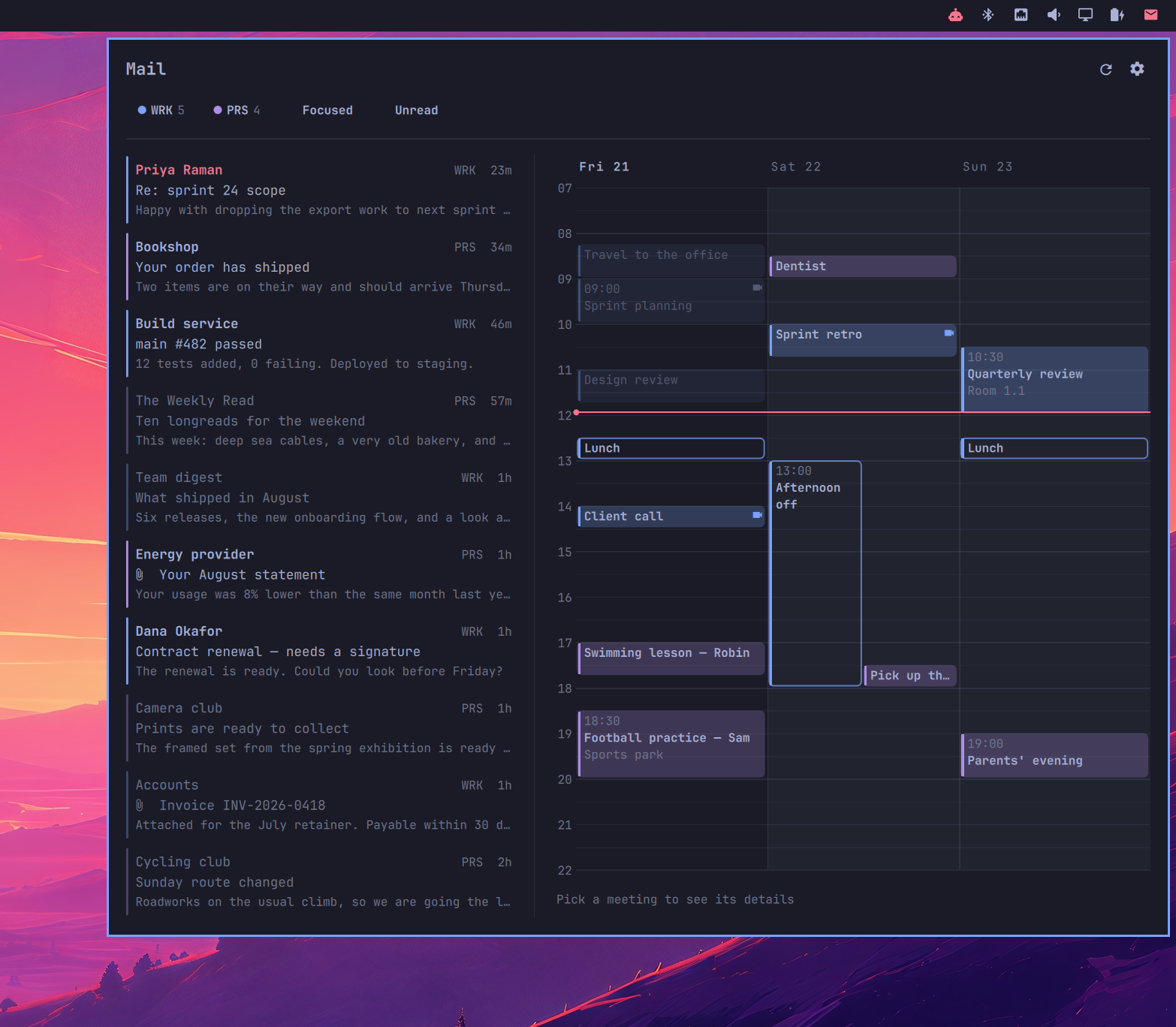
An Omarchy bar widget showing unread Outlook mail and your upcoming agenda, side by side in one popup.
A widget can carry one mailbox or several. With several, mail and calendars merge into one overview and a coloured rail on each row says which mailbox it came from. Add the widget more than once when you would rather keep a mailbox on its own icon - the two styles mix freely.
Works with Microsoft 365 (work/school) and Outlook.com (personal) accounts.
Install
omarchy plugin add https://github.com/keesschollaart81/omarchy-office365.git --enable
Then add an instance to the bar.layout section of
~/.config/omarchy/shell.json. The bare minimum is the id - click the widget
and it opens straight on the form that adds your first mailbox:
{ "id": "caseonline.omarchy.office365", "label": "MAIL" }
Or write the mailboxes out by hand:
{
  "id": "caseonline.omarchy.office365",
  "label": "MAIL",
  "mails": 5,
  "calendar": "3day",
  "accounts": [
    { "account": "work", "short": "WRK", "color": "blue" },
    { "account": "personal", "short": "PRS", "color": "magenta",
      "webUrl": "https://outlook.live.com/mail/" }
  ]
}
Click the widget and press Sign in next to a mailbox. The device code is copied to your clipboard and shown in a notification, the sign-in page opens in your browser, and you paste the code there. (Opening the browser closes the popup, which is why the code does not only live in it.) Each mailbox signs in once, on its own, and a notification tells you which address arrived.
Everything after the first mailbox can be added from the gear - there is no need to come back to this file.
Requirements: Omarchy with the Quickshell-based shell, python3 (standard
library only - nothing to install).
Settings
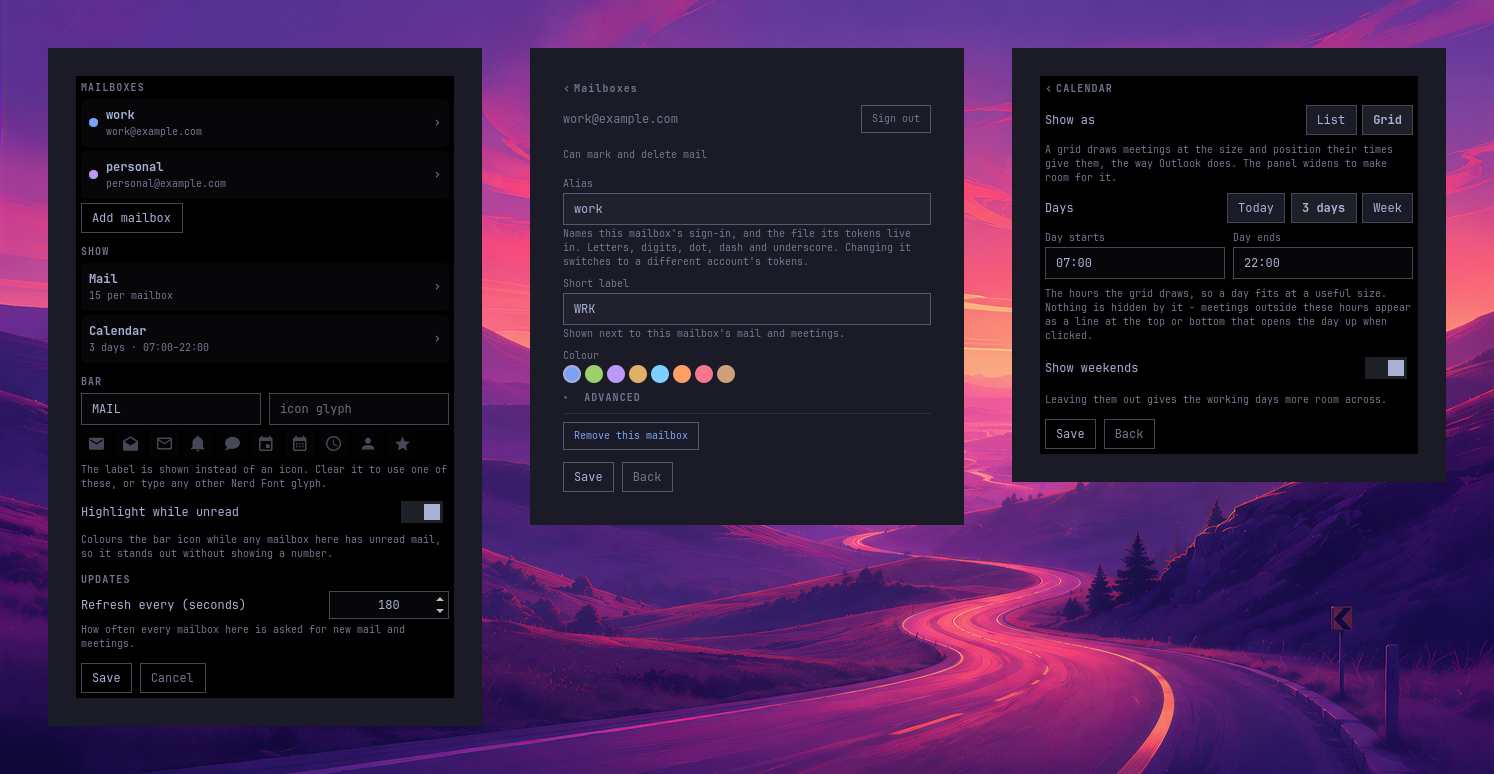
Click the gear in the popup. It opens an index of pages rather than one long form:
- Mailboxes - add or remove one, and open a mailbox to sign it in or out, pick its colour, or set its web address, focus match and app registration
- Mail - how many messages, whether to start on Focused, the body preview line, and whether opening a message marks it read
- Calendar - list or grid, how many days, the hours a grid draws, weekends
- Below those, the bar label or icon and how often to check for new mail
Save writes straight into this widget's entry in shell.json and the bar picks
it up immediately.
Every key can also be edited by hand in the widget's entry in shell.json, so
two instances can differ completely.
Widget-level keys:
| Key | Default | What it does |
|---|---|---|
accounts |
- | The mailboxes this widget carries; see below. A widget with none opens on the form that adds one. |
icon |
|
Nerd Font glyph shown in the bar - one for the whole widget. The settings form offers a few to pick from. |
label |
- | Short text shown instead of the icon, e.g. MAIL. |
mails |
5 |
How many mail rows the panel shows (1–25). Each mailbox is fetched to this depth once per combination of the panel's filters - newest, newest unread, newest Focused, and newest that are both - so the list fills to this number whichever mailbox the newest mail is in, and whichever filters are on. A query the server refuses leaves its own view short, and says which one. |
dedupeEvents |
true |
Show a meeting you were invited to from two mailboxes once, carrying both colours. Matched on the invitation's own identifier, so two people's simultaneous "Lunch" stay two meetings. |
calendar |
3day |
Agenda range: 1day, 3day or week. |
agendaView |
list |
list or timeline - a day-grouped list, or a drawn time grid. |
dayStart |
07:00 |
Top of the grid. |
dayEnd |
22:00 |
Bottom of the grid. |
showWeekends |
true |
Draw Saturday and Sunday in the grid. |
refreshIntervalSec |
180 |
How often to poll Microsoft Graph (60–3600). |
tintOnUnread |
true |
Highlight the bar icon while unread mail is waiting. When the mailbox will not say how many are unread, the panel shows 3+ rather than 3, and ? rather than claiming none. |
previewLine |
true |
Show a line of the message body under each subject. Off gives a two-line row. |
focusedByDefault |
false |
Open with the Focused filter already on, hiding Outlook's Other mail. |
unreadByDefault |
false |
Open with the Unread filter already on, for a widget you keep as an inbox rather than a record of everything that arrived. |
markReadOnOpen |
false |
Mark a message read once you open it in the panel. Needs permission to change mail, per mailbox. |
instance |
written for you | Identifies this widget among several. Written the first time you save, and read back on the next save so two widgets holding the same mailbox never write into each other's settings. Nothing to set by hand. |
Per-mailbox keys, inside an accounts entry:
| Key | Default | What it does |
|---|---|---|
account |
- | Required. Unique alias for this mailbox, e.g. work. Sign-in state is stored per alias, in a file named after it, so an alias may only hold letters, digits, dot, dash and underscore - anything else is refused rather than stripped, since work/a and work-a reduced to the same filename would share one mailbox's tokens. |
short |
from alias | Two or three letters shown next to each of this mailbox's rows. |
color |
auto | A theme colour name - blue, green, magenta, yellow, cyan, orange, red, brown - or a #rrggbb. Resolved from your theme, so it re-tunes when you switch themes. |
webUrl |
https://outlook.office.com/mail/ |
Opened when you click the popup header. Use https://outlook.live.com/mail/ for Outlook.com. |
openCommand |
- | Argv array for opening links, with {url} substituted, so each mailbox opens in its own browser profile. It also opens that mailbox's sign-in page, which is what makes the right account come up. Edit in shell.json - it is a command with arguments, so the settings form leaves it alone. |
focusMatch |
- | Window class/title regex. When set, clicking the header focuses that window instead of opening the web app. |
clientId |
bundled | Your own Entra app registration, for tenants that require one. |
authority |
common |
common, organizations, consumers, or a tenant id. |
A fuller widget: three mailboxes merged, each opening its links and its sign-in page in its own Edge profile, and focusing that profile's window.
{
  "id": "caseonline.omarchy.office365",
  "label": "MAIL",
  "mails": 5,
  "calendar": "3day",
  "accounts": [
    { "account": "work", "short": "WRK", "color": "blue",
      "openCommand": ["microsoft-edge-stable", "--profile-directory=Profile 1", "{url}"],
      "focusMatch": "msedge-outlook.office.com__mail_-Profile_1" },
    { "account": "family", "short": "FAM", "color": "cyan",
      "openCommand": ["microsoft-edge-stable", "--profile-directory=Profile 3", "{url}"],
      "focusMatch": "msedge-outlook.office.com__mail_-Profile_3" },
    { "account": "personal", "short": "PRS", "color": "magenta",
      "webUrl": "https://outlook.live.com/mail/",
      "openCommand": ["microsoft-edge-stable", "--profile-directory=Default", "{url}"] }
  ]
}
A widget written with a single top-level account string instead of an
accounts list still works, and is read as a one-mailbox list. It is only
rewritten if you save from the settings form.
Filtering
The pills under the title are both the legend for the row colours and the
controls for what is shown, and they appear only once there is mail to filter.
While a mailbox is fetching for the first time the panel shows placeholder
rows at its full width instead, so nothing shifts under the pointer when the
data lands. Click a mailbox to see only its mail and meetings -
the others fade - and click it again, or another one, to change your mind.
Unread narrows the mail list to what you have not read yet, and
Focused hides what Outlook sorted into Other. Press u and f to
toggle them from the keyboard, and set focusedByDefault to open on Focused
every time.
Both fill the list to mails: each mailbox is fetched three ways - newest,
newest unread, and newest Focused - so whichever way you narrow it, there is
enough to show.
Filters are a way of looking at the panel now rather than a setting: closing and reopening it starts from the whole picture again.
The agenda
The right-hand column is a day-grouped list by default, and can be a drawn
time grid instead - hours down the side, days across, meetings at the size and
position their times give them. Switch with Show as on the settings form's
Calendar page, or "agendaView": "timeline". The grid is the one at the top of
this page.
The grid draws whatever range calendar is set to. The panel widens to make
room for it - a week is a wide popup - so that mail and calendar are always
both on screen, and it is capped at four fifths of the display.
Colour still means which mailbox, so blocks are tinted rather than filled: a meeting from two mailboxes carries both colours down its edge. Meetings marked free in Outlook are drawn as an outline, so a birthday blocking six hours does not read as six hours of meetings. The past is dimmed rather than hidden, and a line marks the current time.
Hours bounds what the grid draws - 07:00 to 22:00 by default - so a day fits at a useful size. Nothing is hidden by it: anything outside appears as a line at the top or bottom saying how many, which opens the day up when clicked, for as long as the panel stays open. All-day and multi-day events sit in a band above the grid, spanning the days they cover.
Clicking a meeting selects it and describes it in the bar underneath rather than opening it straight away, since a grid is too dense to be sure of a click. Escape clears the selection.
Teams meetings
A meeting with an online link gets a Join button - on its row in the list,
and in the bar under the grid once it is selected. On the grid itself a small
camera marks the blocks you can join. Joining opens the link through that
mailbox's openCommand, so it lands in the browser profile that is already
signed in as the right person.
Reading a message
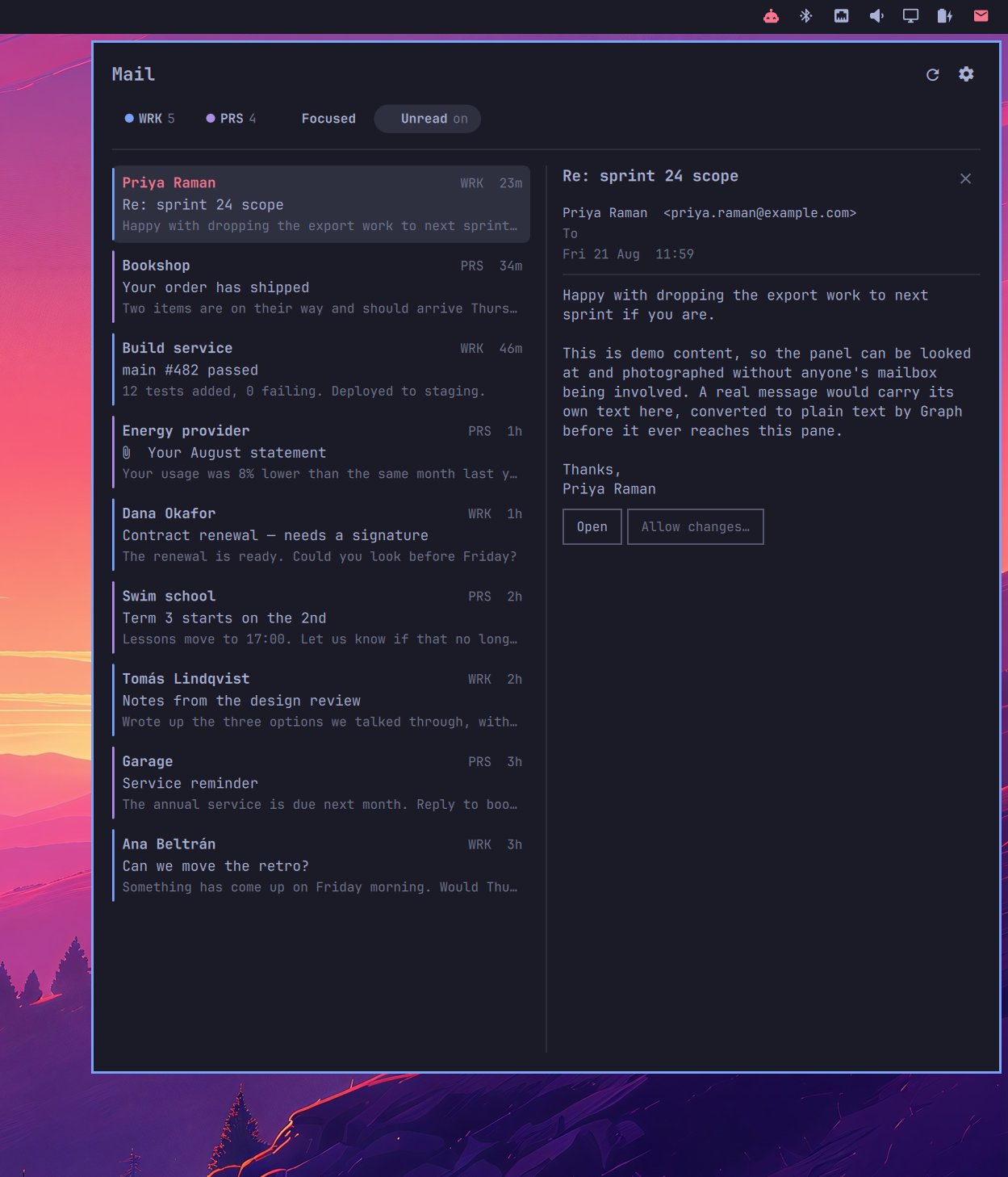
Clicking a mail opens it in the right-hand column, in place of the agenda: sender, recipients, when it arrived, and the message as plain text. Open hands it to Outlook - the browser profile you gave that mailbox, if you set one. Click the message again, the ✕, or press Escape to go back to the agenda.
Bodies are fetched one at a time, only when you open a message, and long ones scroll inside the pane rather than stretching the popup.
Mark read / unread and Delete sit next to Open, but only for a mailbox that has granted permission to change mail - see below. Delete moves the message to Deleted Items, so it stays undoable from Outlook, and opens whichever message takes its place in the list so you can keep going down it.
Keyboard
Give a widget an IPC name and a keybinding can summon it:
{ "id": "caseonline.omarchy.office365", "ipcTarget": "mail", "...": "..." }
-- ~/.config/hypr/bindings.lua
o.bind("SUPER + N", "Mail", "omarchy-shell mail toggle")
The name is yours to choose and must be unique across widgets; without one
the widget registers no handler at all, so several of them cannot collide.
open, close and toggle are all accepted.
Once the panel is up:
| Key | What it does |
|---|---|
| ↑ ↓ (or k / j) | Move through the mail list |
| Enter or Space | Read the message under the cursor |
| f | Show only Outlook's Focused mail, or stop |
| u | Show only unread, or stop |
| Delete, Backspace or x | Delete it - the mailbox must allow changes |
| Escape | Close the reading pane, then the panel |
| Tab | Move to the next bar panel |
Interactions
- Left click - open the popup (mail left, agenda right)
- Right click - focus the mailbox's app window, or open Outlook on the web
- Middle click - refresh now
- Click a mail - read it in the right column
- Trash icon on a row - delete without opening it first
- Click an event - open it in Outlook, or select it when the agenda is a grid
- Join - open a Teams meeting, in that mailbox's browser profile
- Click the header - same as right-clicking the bar icon
Sign-in and your data
Sign-in uses the OAuth 2.0 device code flow against Microsoft Graph and
asks for read-only scopes: Mail.Read, Calendars.Read, User.Read.
There is no password and no client secret anywhere.
Marking mail read or unread, deleting it, and markReadOnOpen need more than
that, so a mailbox only gets Mail.ReadWrite if you ask for it: Allow
changes…, on a message or on that mailbox's settings page, signs that one
mailbox in again with the wider scope. Every other mailbox stays read-only,
and a widget you never grant anything to can never change your mail.
Refresh and access tokens are
stored per account under ~/.local/state/omarchy/office365/, written
0600 in a 0700 directory. Nothing is sent anywhere except Microsoft
Graph - no telemetry, no third-party service.
graph.py is the only component that ever touches a token; the QML widget
just renders the JSON it prints.
To sign an account out, use the sign-out button in the popup, or:
python3 ~/.config/omarchy/plugins/caseonline.omarchy.office365/src/graph.py remove --account work
Bring your own app registration
The bundled client id is a multi-tenant public-client registration, and it is safe to ship in the open: in a device-code public-client flow a client id is an identifier, not a secret. There is no client secret anywhere in this plugin, because this kind of app is not allowed one.
It is published by a verified publisher, Case Online, so the consent screen shows the verified badge rather than an unverified-publisher warning, and a tenant that blocks unverified apps will still accept it.
Some organizations would nonetheless rather own the registration themselves, for consent control, conditional access or auditing. Create one in Entra ID:
- Supported account types: accounts in any organizational directory and personal Microsoft accounts, if any of your mailboxes are Outlook.com ones
- Allow public client flows: enabled - device code will not work without it
- Delegated Graph permissions:
User.Read,offline_access,Mail.Read,Calendars.Read, andMail.ReadWriteas well if you want to mark or delete mail from the panel - No redirect URI and no client secret - the device code flow uses neither
Or with the Azure CLI, signed in to the tenant that should own it:
az ad app create \
  --display-name "Omarchy Office 365 Mail & Calendar" \
  --sign-in-audience AzureADandPersonalMicrosoftAccount \
  --is-fallback-public-client true
Then add the delegated Graph permissions, and set "clientId" (and
"authority" if you want to pin a tenant) on each mailbox that should use it.
Switching client ids means signing that mailbox in again: tokens belong to the
client id that obtained them.
Removing it
omarchy plugin remove caseonline.omarchy.office365
That unloads the plugin and deletes its widgets from your bar layout,
mailbox list and all - worth a copy of ~/.config/omarchy/shell.json first if
you might come back.
Tokens live outside the plugin folder and are left alone, so reinstalling does not mean signing in again; your mailboxes just need adding to a widget once more. To take the tokens too:
rm -rf ~/.local/state/omarchy/office365
Signing a mailbox out through the panel also revokes nothing at Microsoft's end; remove the app's access under My Account -> Apps & devices if you want that as well.
Development
The plugin's own code lives in src/; manifest.json, the README and the
previews sit at the top so the folder reads as a plugin rather than a pile of
QML. Clone the repo somewhere and symlink it into place:
ln -s "$PWD" ~/.config/omarchy/plugins/caseonline.omarchy.office365
omarchy plugin validate .
The shell's plugin watcher does not follow symlinks pointing outside
~/.config, and omarchy-shell shell rescanPlugins will not pick those edits
up either - run omarchy restart shell after each change.
The harness
Restarting the bar and reopening a popup for every change is far too slow for
laying out a calendar grid, so dev/ renders the plugin's own components
against fixture data instead:
dev/showcase.sh             # regenerate the images in this README
dev/run.sh                  # start it, rendered offscreen
dev/shot.sh out.png         # ask it to draw itself into a PNG
dev/shot.sh out.png 7       # ... as a week
node dev/test-model.js      # the layout maths, with no window at all
python3 dev/test-python.py  # aliases, and which widget a save lands in
showcase.sh drives the real panel through each scenario with demo data,
finds it by photographing the screen with the panel shut and open and taking
the difference, and pastes it onto the wallpaper so nothing you had open is in
frame. It puts your shell.json back on the way out, including if it fails.
Both test suites are quick and neither needs a display, so run them before sending anything. They cover the parts that fail quietly rather than loudly: overlap packing, positions on the days the clocks change, which mailbox an alias names, and which widget entry a save writes into.
It renders offscreen, so there is no window to be occluded, sent to another
workspace, or dropped on top of what you were doing - and it draws its own
screenshots rather than being photographed off the display. dev/shell.qml
also has an IPC target for switching range, hours, selection and page:
STAGE=$(dev/link.sh)
qs -p $STAGE/shell.qml ipc call dev page settings
qs -p $STAGE/shell.qml ipc call dev page problems   # a half-working mailbox
qs -p $STAGE/shell.qml ipc call dev hours 06:00 23:00
qs -p $STAGE/shell.qml ipc call dev save fail       # a save the write refused
Commons and Ui are linked in from the shell, so it draws with the same Style,
Color and controls as the real panel. Quickshell will only import modules
from inside its own config folder, so link.sh assembles one - under
$XDG_RUNTIME_DIR, not in the repo, because Omarchy refuses to load a plugin
folder containing symlinks and building it here would make
omarchy plugin validate fail on your own checkout.
The fixtures in dev/Fixtures.js are deliberately awkward - overlapping
meetings, all-day events, blocks running outside the working day, one meeting
arriving from two mailboxes, two different meetings that look identical, and a
mailbox that answered without its calendar - since a real account offers those
combinations only on a bad week, and some of them not on demand at all.
Useful while iterating:
# what the widget renders, straight from the helper (--demo for synthetic data)
python3 src/graph.py fetch --account work --account personal --mails 5 --days 3 | python3 -m json.tool

# QML errors from the running shell
journalctl --user -f | grep -i office365
License
MIT