
Alternative Clock
A second clock for the Omarchy bar. It sits beside the clock you already run and shows what time it is somewhere else — one zone or several — with a panel that lists each zone's time, date, and distance from your local time.
It does not replace or modify your existing clock widget. It is an ordinary bar widget that you place next to one.
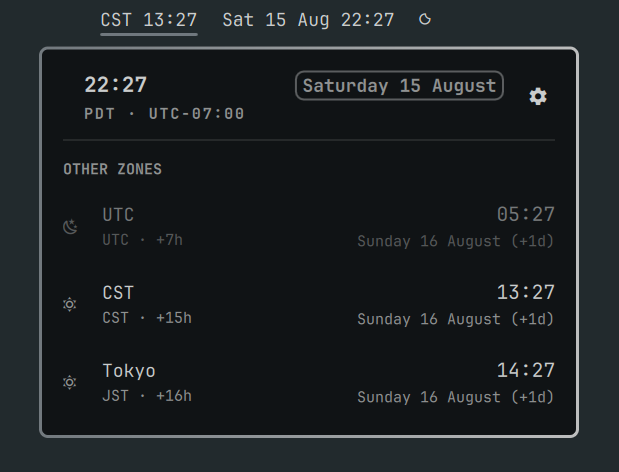
[ ☰ ] [ 1 2 3 ]      Thu 15 Aug 14:32   NYC 17:32 · Tokyo 06:32
                     └── your clock      └── this plugin
Requirements
- Omarchy Quattro (
omarchy-shell) - The system time-zone database, plus
dateandtestfrom coreutils
Nothing else is downloaded, built, or written outside your own shell configuration.
Install
omarchy plugin add https://github.com/chagel/omarchy-alternative-clock.git --enable
Then place it in the bar. To put it directly after an existing clock widget:
omarchy plugin enable chagel.alternative-clock center --after omarchy.clock
--section left|center|right, --index N, --before <id> and --after <id>
all work; so does dragging the widget along the bar once it is visible.
Remove
omarchy plugin remove chagel.alternative-clock
That deletes the plugin folder and drops its entry from the bar layout. If you
edited ~/.config/omarchy/shell.json by hand, remove the widget's entry from
bar.layout as well.
Configure
The quickest way is the gear in the panel: open the clock and click it to get a settings page that lists your zones and searches the system's own zone table.
| Control | What it does |
|---|---|
| Switch | Whether that zone appears in the bar. Off means panel only. |
| Pencil | Rename the zone for the bar — Asia/Shanghai can read as SH. |
↑ ↓ |
Reorder, which is the order the bar reads. |
✕ |
Remove the zone. |
| Search | Add a zone: type a city and pick it, or press Enter for the top match. |
Every change is written straight back to shell.json. Switching every zone off
leaves a clock glyph in the bar rather than an empty widget, so the settings
page never becomes unreachable.
Everything is editable by hand too. Settings live on the widget's own entry in
bar.layout inside ~/.config/omarchy/shell.json:
{
  "id": "chagel.alternative-clock",
  "zones": [
    "America/New_York",
    { "zone": "Asia/Tokyo", "label": "HQ" },
    { "zone": "Europe/Berlin", "bar": false }
  ],
  "format": "HH:mm"
}
| Key | Default | What it does |
|---|---|---|
zones |
"UTC" |
The zones to show. A single name, a comma-separated string, a list of names, or a list of objects. Up to 8. |
format |
"HH:mm" |
Time format for the bar label. |
verticalFormat |
"HH\nmm" |
Bar label format on a vertical bar. |
panelFormat |
"HH:mm" |
Time format inside the panel. |
panelDateFormat |
"dddd d MMMM" |
Date format inside the panel. |
showLabels |
true |
Show each zone's label next to its time in the bar. |
separator |
" · " |
Text between zones in the bar label. |
emptyText |
|
Bar label when every zone is switched off the bar. |
nightStart |
21 |
Hour at which a zone starts counting as night. |
dayStart |
7 |
Hour at which it stops. |
refreshMinutes |
30 |
How often each zone's UTC offset is re-checked. |
A zone with no explicit label is named after its city: America/New_York
becomes New York. Each entry may be a plain name or an object with label
(the name shown in the bar) and bar (false keeps it in the panel only).
Only what differs from the default is written back, so a plain list of names
stays a plain list of names.
Interactions
| Gesture | Effect |
|---|---|
| Left click | Open the panel with every configured zone |
| Right click | Walk the bar label through the built-in formats |
| Middle click | Rotate which zone leads the bar label |
| Gear in the panel | Add, remove, reorder, rename, and show or hide zones |
Right and middle click both write the result back to shell.json, so what the
bar shows and what the config stores stay the same thing.
In the panel, the gear opens settings, s toggles it, r refreshes, and Esc
closes.
The zone catalogue comes from zone1970.tab in the system time-zone database.
If that file is missing, the search reports it and you can still type a full
zone name and press Enter — it is checked against the system before it is
added.
Format tokens
A subset of Qt's date format vocabulary, plus two tokens a foreign zone needs:
| Token | Meaning | Example |
|---|---|---|
HH H |
Hour, 24-hour | 06, 6 |
hh h |
Hour, 12-hour | 06, 6 |
mm m |
Minute | 14 |
ss s |
Second | 09 |
AP ap |
AM/PM marker | AM, am |
dddd ddd |
Weekday name | Sunday, Sun |
dd d |
Day of month | 16, 16 |
MMMM MMM |
Month name | August, Aug |
MM M |
Month number | 08, 8 |
yyyy yy |
Year | 2026, 26 |
ZZZ |
Zone abbreviation | JST |
ZZ |
Zone offset | +09:00 |
Weekday and month names follow your locale. Single quotes escape literal text
the way they do in Qt formats, so HH'h'mm renders as 06h14 and '' is one
apostrophe.
How time zones are resolved
Qt's QML engine ships no Intl, and its Date.toLocaleString silently ignores
a timeZone option rather than rejecting it — a clock built on that would
confidently render your local time under another city's name. So this plugin
asks the only component on the machine that knows the real rules: the system
time-zone database.
A zone is resolved by running date once with TZ set to that zone. The zone
name is passed as an environment value, never as part of a shell string. The
resulting UTC offset and abbreviation are cached, and the times you see are
computed from that offset — so the widget does no work between refreshes
beyond arithmetic.
Only a daylight-saving transition can change the answer, so re-asking is rare:
every zone is resolved at startup, a newly added one when it appears, and all
of them every refreshMinutes and whenever the panel is opened. Renaming a
zone, hiding it, reordering, or cycling the label format re-probes nothing.
Two consequences worth knowing:
- A zone that is not in the database is shown as unknown time zone rather than silently falling back to UTC.
- A daylight-saving change in a displayed zone is picked up at the next
refresh, so it can be up to
refreshMinuteslate. Opening the panel always refreshes first. LowerrefreshMinutesif that matters to you.
Commands
omarchy-shell alternative-clock toggle       # open or close the panel
omarchy-shell alternative-clock open
omarchy-shell alternative-clock close
omarchy-shell alternative-clock settings     # open straight onto the settings page
omarchy-shell alternative-clock refresh      # re-read the clock and re-probe zones
omarchy-shell alternative-clock cycleFormat  # same as right click
omarchy-shell alternative-clock cycleZone    # same as middle click
Development
The time math and label formatting live in Model.js, kept free of Qt and of
locale data so they can be tested on their own:
node --test
BarWidget.qml owns the bar label and the zone probing, Panel.qml is a
read-out of the same rows plus the settings page, and SettingsView.qml is
pure presentation — it reads state and emits intent, never writing
shell.json itself.
To work on the plugin against a live shell, keep the folder in
~/.config/omarchy/plugins/chagel.alternative-clock/. Note that editing a .qml
file is not enough on its own: the QML engine caches compiled components by
URL, so the running shell keeps the version it started with. Apply changes
with:
omarchy restart shell
omarchy-shell shell rescanPlugins re-runs discovery, which is enough for a
newly added or removed plugin folder but not for edited QML.
License
MIT.