
Controller Control
Map game controller button combos to desktop shortcuts and commands, as an Omarchy shell plugin.
Press L + R to take a screenshot. Press START to open the Omarchy menu.
Hold SELECT + START to lock the screen. Any chord, any action.
Works with any controller Linux already recognises — Xbox, DualShock and
DualSense, 8BitDo, Switch Pro, and generic USB or Bluetooth pads. If it shows
up in /dev/input, this can bind it. Nothing is hardcoded to a particular
model: the defaults match any gamepad, and the button names come from the
kernel rather than from a per-device database.
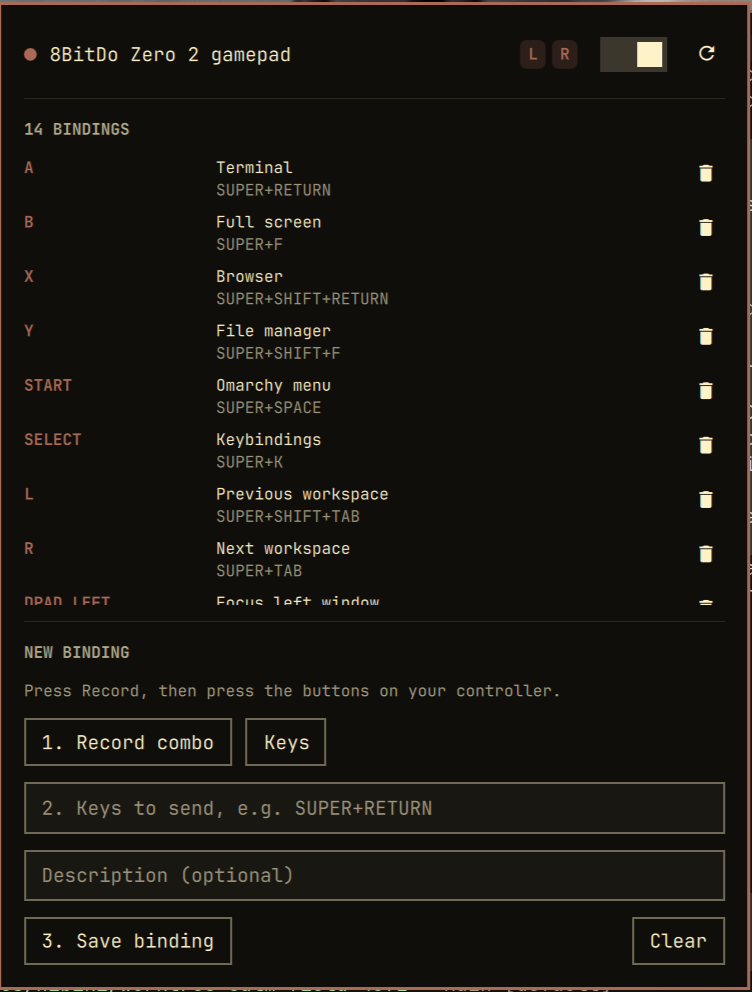
The panel lists what every combo does and what it sends. The pills beside the switch are the buttons being held right now, so the pad answers while your hands are on it.
Why it exists
Omarchy already has 200+ keybindings. This does not try to replace them: a
binding can simply type an existing shortcut, so A -> SUPER+RETURN opens a
terminal through the keybinding you already have. Nothing is duplicated.
Install
omarchy plugin add https://github.com/perminder-klair/omarchy-controller-control.git --enable
From a local checkout instead:
./tools/install-plugin.sh
omarchy plugin enable co.klair.controller-control
tools/install-plugin.sh is a developer convenience for working on the plugin
from a git checkout: it copies the tree into
~/.config/omarchy/plugins/co.klair.controller-control, runs
omarchy plugin validate, and asks the shell to rescan. It is never run by
omarchy plugin add, and installing from the marketplace does not execute it.
There is nothing to compile and nothing to pip install — the engine is pure
Python standard library, which is also why the plugin needs no install hook.
Requirements
External dependencies: none. The engine is pure Python 3 standard library
— no pip packages, no compilation, no install hook. It uses python3, which
Omarchy already ships.
Two permissions, both stock on an Omarchy install:
- Your user must be in the
inputgroup to read/dev/input. Check withid. /dev/uinputmust be writable, forkeysactions.
controller-control doctor verifies both and tells you what is missing.
Pairing a controller
Any pad that pairs with Linux works. Over Bluetooth:
bluetoothctl
> scan on
> pair <MAC>
> trust <MAC>      # so it reconnects on its own next time
> connect <MAC>
Then confirm the kernel sees it:
controller-control devices
Xbox Wireless Controller pairs and works out of the box on a stock Omarchy install. DualSense / DualShock 4 likewise. Wired USB pads need no pairing at all — plug them in and they appear.
8BitDo pads
8BitDo controllers boot into whichever mode they were last used in, and the mode decides whether Linux sees them at all. Hold the combination while powering on:
| Hold on power-on | Mode | Linux over Bluetooth |
|---|---|---|
START + B |
D-input | works |
START + X |
X-input | intended for the 2.4G dongle / Windows |
START + A |
macOS | works |
START + Y |
Switch | works |
In D-input these pads report the d-pad on the left stick axes rather than
the hat, so set device.dpad_source to "stick" — see
D-pad source.
Usage
The bar widget shows a controller glyph — solid when a pad is connected, dim when not, and it pulses whenever a binding fires. Click it to open the bindings panel; middle-click toggles the pad off and on without opening anything.
The panel header carries the master switch, along with the buttons you are holding right now, so you can watch the pad answer while your hands are on it.
To add a binding: press Record combo, then press the buttons on the controller. Firing is muted while recording, so capturing a combo cannot also run whatever that combo is currently bound to. Then type the keys or command, and save.
Everything is also available from the CLI:
controller-control doctor          # check permissions, config, and the pad
controller-control devices         # what the kernel sees
controller-control monitor         # print button tokens as you press them
controller-control learn           # record one combo and print its token
controller-control list            # show configured bindings
controller-control bind "L + R" --keys SUPER+RETURN --description Terminal
controller-control bind START --exec 'omarchy menu'
controller-control unbind "L + R"
controller-control test "L + R"    # run a binding's action now
controller-control disable         # stop everything firing, keeping bindings
controller-control enable
controller-control toggle
controller-control pause           # transient mute, not written to the config
controller-control pause --resume
The binary lives inside the plugin folder; add it to your PATH with:
export PATH="$HOME/.config/omarchy/plugins/co.klair.controller-control/bin:$PATH"
Uninstall
omarchy plugin disable co.klair.controller-control
omarchy plugin remove co.klair.controller-control
Disabling stops the daemon and takes the widget off the bar; removing deletes
the plugin folder. Neither touches your bindings, which live outside the
plugin at ~/.config/controller-control/. Delete that directory too if you
want it gone completely:
rm -rf ~/.config/controller-control
Nothing else is left behind: no system files, no services, no udev rules, and
the only runtime artefact is a pid file under $XDG_RUNTIME_DIR that goes
when the daemon stops.
What it writes
Only its own files, and only when you ask:
| Path | When |
|---|---|
~/.config/controller-control/config.json |
when you add, remove or toggle a binding |
$XDG_RUNTIME_DIR/controller-control.pid |
while the daemon is running |
It does not modify your Hyprland config, your keybindings, or any other
application's settings. Adding the widget to the bar is done by
omarchy plugin enable, which is Omarchy's own command and only runs when you
invoke it.
Button names
Buttons are named by the Linux/evdev convention, which follows the Xbox
layout: A is the south face button, B east, X north, Y west. This is
what an Xbox, DualSense or generic pad reports, and it is why the tokens are
named this way rather than after any one manufacturer. Also
available: L, R, L2, R2, SELECT, START, MODE, THUMBL,
THUMBR, DPAD_UP/DOWN/LEFT/RIGHT, and stick directions such as
LSTICK_LEFT.
Nintendo-layout pads (8BitDo, Switch Pro) put A on the right and B on the
bottom — the opposite of where evdev expects them. Whether that matters
depends on the firmware: an 8BitDo Zero 2 in D-input is label-faithful, so
it sends the code for A when you press the button printed "A" and nothing
needs swapping. Other pads and other modes are not guaranteed to do this.
So: don't reason about it, measure it. controller-control learn (or the
panel's Record combo) reports exactly what your pad sends. If your pad
turns out to be position-faithful instead, set device.layout to "nintendo"
to relabel the face buttons in the UI so they match the plastic.
D-pads arrive as a hat axis and analog triggers as an axis; both are translated into ordinary button tokens for you.
D-pad source
Nearly every controller reports its d-pad on the hat axis, which arrives as
DPAD_UP/DOWN/LEFT/RIGHT. Some — 8BitDo pads in D-input mode — send it on the
left stick axes instead, where it arrives as LSTICK_*.
Capability sniffing cannot tell these apart: an 8BitDo Zero 2 advertises a hat it never uses and declares its d-pad axes with an analog 0–255 range, so its descriptor looks exactly like a pad with a real stick. Rather than guess wrong, this is a setting:
"device": { "dpad_source": "stick" }
That renames the stick events to DPAD_*, so the ordinary d-pad bindings work
unchanged. It is safe on such pads because they have no separate analog stick
to lose.
The default is "hat", and nothing in the shipped defaults binds an analog
stick — on a pad that has one, nudging it to change the volume or move window
focus would be a nasty surprise.
To find out which yours uses, run controller-control monitor and press the
d-pad.
Aliases
Any token can be renamed, which is the escape hatch for a pad that reports something unusual:
"device": { "aliases": { "THUMBL": "SELECT", "L2": "L" } }
Configuration
~/.config/controller-control/config.json:
{
  "version": 1,
  "enabled": true,
  "device": {
    "match": [],
    "exclusive": false,
    "layout": "auto",
    "dpad_source": "hat",
    "aliases": {}
  },
  "settings": {
    "combo_window_ms": 45,
    "hold_ms": 450,
    "repeat_delay_ms": 400,
    "repeat_interval_ms": 110
  },
  "bindings": [
    { "combo": "START", "keys": "SUPER+SPACE", "description": "Omarchy menu" },
    { "combo": "L + R", "exec": "omarchy capture screenshot" },
    { "combo": "DPAD_UP", "keys": "VOLUMEUP", "repeat": true },
    { "combo": "SELECT + START", "keys": "SUPER+CTRL+L", "hold": true }
  ]
}
Bindings take either keys (typed on a virtual keyboard, so Hyprland
handles it exactly like a real shortcut) or exec (a shell command). Options:
repeat— fire again while held, for volume and brightness.hold— only fire after a long press, for anything destructive.enabled: false— keep a binding around without it firing.
enabled is the master switch. Turning it off keeps every binding and
keeps the pad connected — nothing fires until it goes back on. It is what the
panel toggle and controller-control disable write.
device.match is a list of case-insensitive substrings matched against
the device name. It defaults to empty, which matches any gamepad — narrow it
when you own several pads and only want one of them driving the desktop. A
keyboard-shaped device (an 8BitDo in keyboard mode) is only picked up when you
name it explicitly, so an empty list can never latch onto your real keyboard.
device.exclusive grabs the pad so nothing else — games, Steam, the
browser — sees it. Off by default, so a controller can drive your desktop and
still work in games.
The daemon reloads on SIGHUP, which is what the panel and
omarchy-shell controller reload use, so edits apply without dropping the
Bluetooth connection.
How chords are resolved
- Bindings fire on press, never on release, so letting go of
L + Rcannot also triggerR. - When the buttons held could still grow into a longer binding, the decision
waits
combo_window_ms. When no longer binding could match, it fires instantly — single presses have no added latency. - A binding that has fired is latched until one of its own buttons is released, so holding a chord does not retrigger it.
This means A and A + B can coexist: tapping A fires A, and pressing
both fires only A + B.
IPC
omarchy-shell controller status    # JSON: running, connected, enabled, paused, …
omarchy-shell controller reload    # re-read the config
omarchy-shell controller restart   # bounce the daemon
omarchy-shell controller disable   # master switch off
omarchy-shell controller enable
omarchy-shell controller toggle
The daemon publishes its pid to $XDG_RUNTIME_DIR/controller-control.pid so
the CLI can signal a daemon the shell started. It is verified against /proc
before anything is sent to it — a pid file can go stale and the number be
recycled, and signalling the wrong process is the kind of mistake that stays
invisible until it does damage.
Architecture
omarchy-shell (Quickshell)
├── Service.qml      runs the daemon, parses its JSON event stream, IPC
├── BarWidget.qml    connection glyph, pulses on fire
└── Panel.qml        bindings editor with press-to-record capture
        │
        └── bin/controller-control daemon
                └── engine/   pure-stdlib evdev reader + chord recogniser
The daemon reads /dev/input/event* directly and emits one JSON object per
line, which is what the QML layer consumes. keys actions are typed on a
uinput virtual keyboard, so the compositor treats them as a real keyboard.
Device inspection is cached per device node: opening an input node blocks for around 20ms in the kernel, so re-inspecting every node to spot a hotplug would stall the daemon's timers. Listing the nodes is a sub-millisecond glob, and only genuinely new nodes are opened.
Tests
python3 -m unittest discover -s tests -v
44 tests, no dependencies. The end-to-end suite fabricates a synthetic gamepad over uinput and drives the real daemon process against it, so chord resolution, hotplug, disconnect, repeat, and hold are all covered without touching real hardware.
License
MIT