
Hop
Your SSH machines, in the Omarchy bar. Pick one and it opens in your default terminal, runs the startup script you gave it, and leaves you at a prompt.
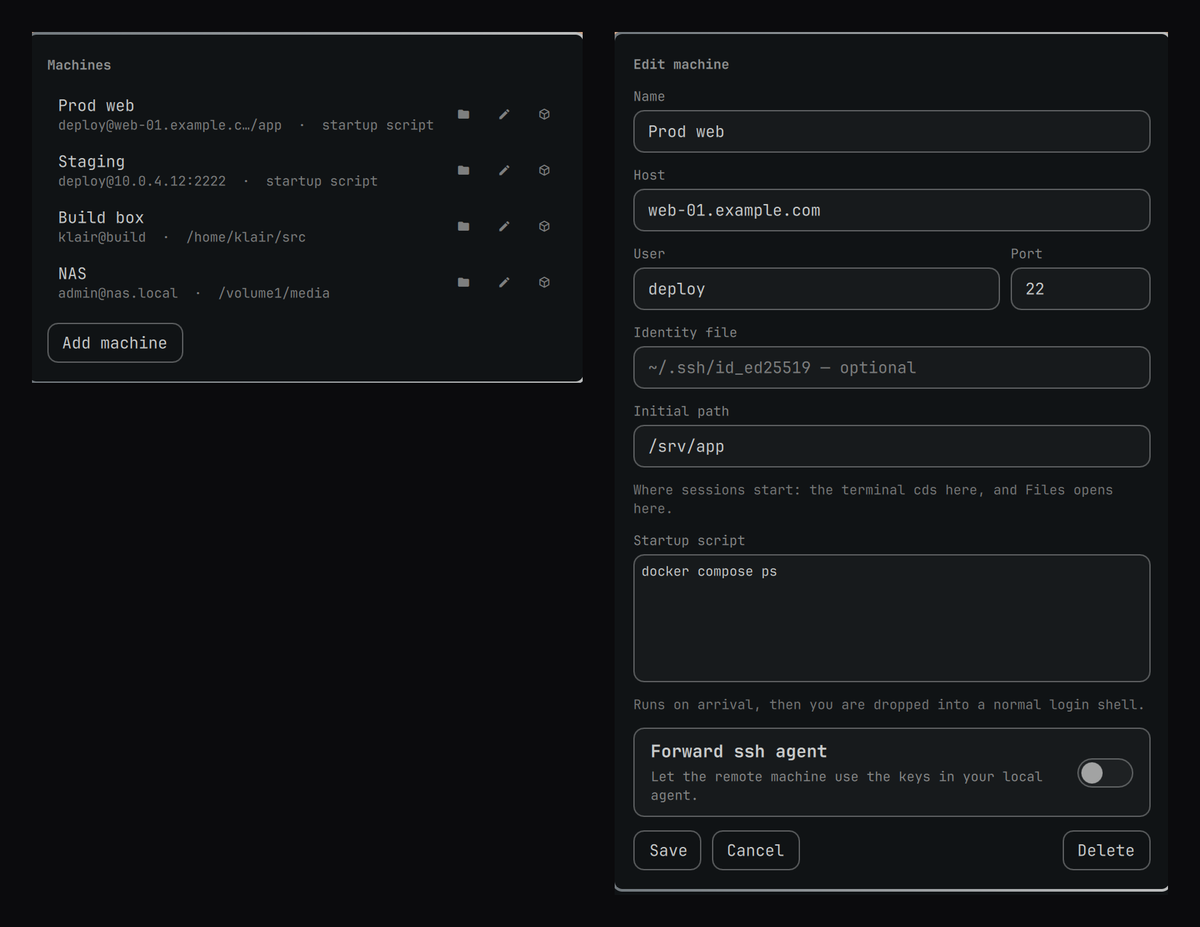
What it does
- A bar icon listing every machine you have saved.
- Click one and
sshruns in the terminalxdg-terminal-execwould pick — the same one every other Omarchy launcher uses. - Sessions can keep running on the machine. Turn on Keep the session
running and the session lives in a tmux session named after the machine:
close the window, lose wifi, reboot your laptop, and opening the machine
again puts you back in front of the same work rather than starting over.
Needs
tmuxon the remote side; without it you get an ordinary session. - Sessions outlive the bar. The window is handed to systemd rather than kept as a child of the shell process, so restarting the shell, updating Omarchy, or opening a second machine leaves the sessions you already have alone.
- Each machine can carry a startup script: a shell snippet that runs the
moment you arrive (
cd /srv/app && docker compose ps,tmux attach, whatever). When it finishes you are dropped into a normal login shell rather than disconnected. - Adding, editing and removing machines happens in the panel, or from the
hopCLI, or by editing one JSON file.
What it deliberately does not do
It never stores a password. The terminal it opens gets a real tty, so ssh
prompts you there exactly as it would if you had typed the command yourself.
That keeps keys, agents, ProxyJump, Match blocks and everything else in
~/.ssh/config working, and it means this plugin has no secret to leak — the
machine list is just hostnames.
If you want passwordless logins, the answer is ssh-copy-id, not a plugin
holding your password inside a long-lived desktop process.
Requirements
Everything here ships with Omarchy; the list is for completeness.
openssh |
The sessions. |
jq |
The CLI reads and writes the store with it. |
python |
Safely opens, validates and size-caps the store before parsing. |
nautilus + gvfs |
Only for the Files button. Without them the rest still works. |
Install
omarchy plugin add https://github.com/perminder-klair/omarchy-hop.git --enable
Omarchy clones it to ~/.config/omarchy/plugins/co.klair.hop/ and asks before
enabling it, so you can read the code first. Updating is a fast-forward pull:
omarchy plugin update co.klair.hop
Removing it
omarchy plugin remove co.klair.hop
That disables the plugin and deletes the checkout. Nothing else is touched —
no system files, no units, no ~/.ssh. Your machine list survives in
~/.config/hop/hosts.json, so reinstalling picks up where you left off;
delete that directory too if you want it gone.
Hacking on it instead of just using it? See CONTRIBUTING.md.
Using it
Click the icon in the bar. Add machine opens the form:
| Field | Notes |
|---|---|
| Name | What the bar shows. Defaults to the host. |
| Host | Hostname, IP, or a Host alias from ~/.ssh/config. |
| User | Leave empty to let ssh_config decide. |
| Port | 22 unless you say otherwise. |
| Identity file | Optional -i. ~ is expanded. |
| Initial path | Where sessions start: the terminal cds here, and Files opens here. |
| Startup script | Runs on arrival, then hands you a login shell. |
| Forward ssh agent | -A. Off by default — only turn it on for machines you trust. |
In the list, each machine carries three buttons: the folder opens it in Files
over SFTP, the pencil edits it, and the last one copies the exact ssh
command to your clipboard.
Browsing a machine in Files
The folder button hands Nautilus an sftp:// URL, so browsing is gvfs's job,
not a mount this plugin manages. It gets its own connection and its own auth
prompt — you can browse a machine without a terminal session open, and
closing one does not disturb the other. gvfs ships with Omarchy, so there is
nothing to install.
gvfs does not expand ~ and cannot know what the remote home is, so with no
initial path set Hop sends /home/<user> (or /root, or / when no user
is configured). Set Initial path on any machine where that guess is
wrong — a NAS, a BSD box, a container.
Startup scripts run in a login shell
ssh host "some-command" normally runs that command in a shell that is
neither a login shell nor interactive, so nothing on the far side that builds
PATH — /etc/profile, ~/.profile, ~/.bashrc, mise/asdf/nvm shims,
~/.local/bin — has run yet. Tools you use every day come back as
command not found.
Hop runs your script through $SHELL -lc instead, so it sees the same
environment an interactive login would, and the session you are handed
afterwards inherits it. If something still is not found, it is genuinely
missing from your login PATH on that machine — check with
hop connect <name> and echo $PATH.
From the terminal
Everything the panel does goes through bin/hop, so it is all available
without the bar:
hop list
hop add --host 10.0.0.5 --name "Prod web" --user deploy --init 'cd /srv/app'
hop set <id> --port 2222
hop set <id> --persist      # keep it running in tmux (--no-persist undoes it)
hop connect "Prod web"      # opens a terminal, same as clicking
hop files "Prod web"        # opens Files over SFTP
hop uri "Prod web"          # prints the sftp:// URL instead of opening it
hop command "Prod web"      # prints the ssh command instead of running it
hop rm "Prod web"
--init-file some-script.sh is there for startup scripts long enough that you
would rather keep them in a file.
Keeping a session alive
--persist runs the session inside tmux new-session -A -D -s hop-<id> on
the remote machine. The consequences worth knowing:
- The session is named after the machine's id, not its name, so renaming a
machine in the panel does not strand the session you are working in. Run
tmux lson the machine to see them. - The startup script runs when the session is created. Reattaching does not run it again, so whatever it launched is not started a second time.
- Reattaching detaches any other client, which is what makes a window killed mid-session let go of it rather than hold it at its old size.
- On a machine without
tmuxyou get an ordinary session instead, rather than an error in a window that is about to close.
From a keybinding
The shell exposes an IPC target, so a machine is one hotkey away:
bindd = SUPER SHIFT, S, Prod web, exec, omarchy-shell hop connect "Prod web"
bindd = SUPER SHIFT, F, Prod web files, exec, omarchy-shell hop files "Prod web"
Window rules
Sessions launch with app-id org.omarchy.hop, so Hyprland can treat them
differently from an ordinary terminal:
windowrule = workspace 4, class:^(org\.omarchy\.hop)$
Where things live
| Path | What |
|---|---|
~/.config/hop/hosts.json |
The machine list. Plain JSON, safe to edit or sync. |
bin/hop |
The CLI the panel drives. |
bin/hop-read-store |
The bounded, descriptor-validated, field-checked store reader. |
Everything the bar reads goes through bin/hop-read-store, which caps how
many machines a store may hold and checks every field's type, length and range
before the shell sees it. Hand-edit the file if you like — an entry that does
not fit is dropped with a note on stderr rather than shown.
The store holds no secrets, but it is created 0600 inside a 0700
directory anyway — a list of which machines you have and who you log in as is
not something to hand out either.
License
MIT.