
omarchy-context-switcher

Video: https://x.com/darcybrown/status/2093173484436218016
Group your workspaces into named contexts — Personal, Work, Gaming, Infra, whatever fits how you actually work — each with its own set of workspaces, its own browser profile, and its own one-click launch menu.
Flip between entire "modes" of work with a single key: switch to Work and all your work windows, apps, and work browser profile are one key away. Switch back to Personal and your home workspaces, personal bookmarks, and default browser are waiting. You can create as many contexts as you want — a client, a hobby, a side project, a machine — and hop between them freely.
Why you'd want it
- One workspace per task, organized by context. Each context owns a block of slots (e.g. 1–10). Jump straight to a slot, move a window to one, or cycle through them without ever getting lost in a sea of workspaces.
- Per-context browser profile. Launch any web app or the whole browser in the right profile automatically — each context picks its own profile, so one client's sites open in that client's browser profile and your personal sites in your default. No more mixing work and personal tabs.
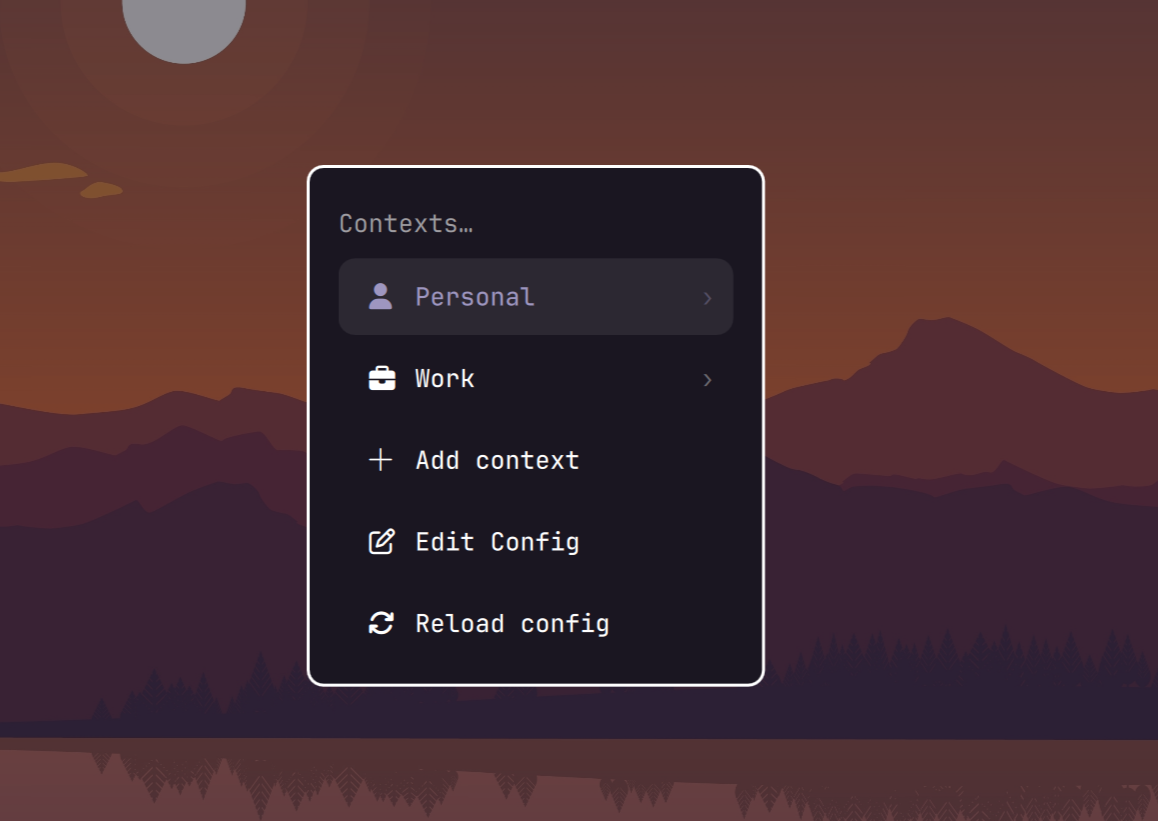
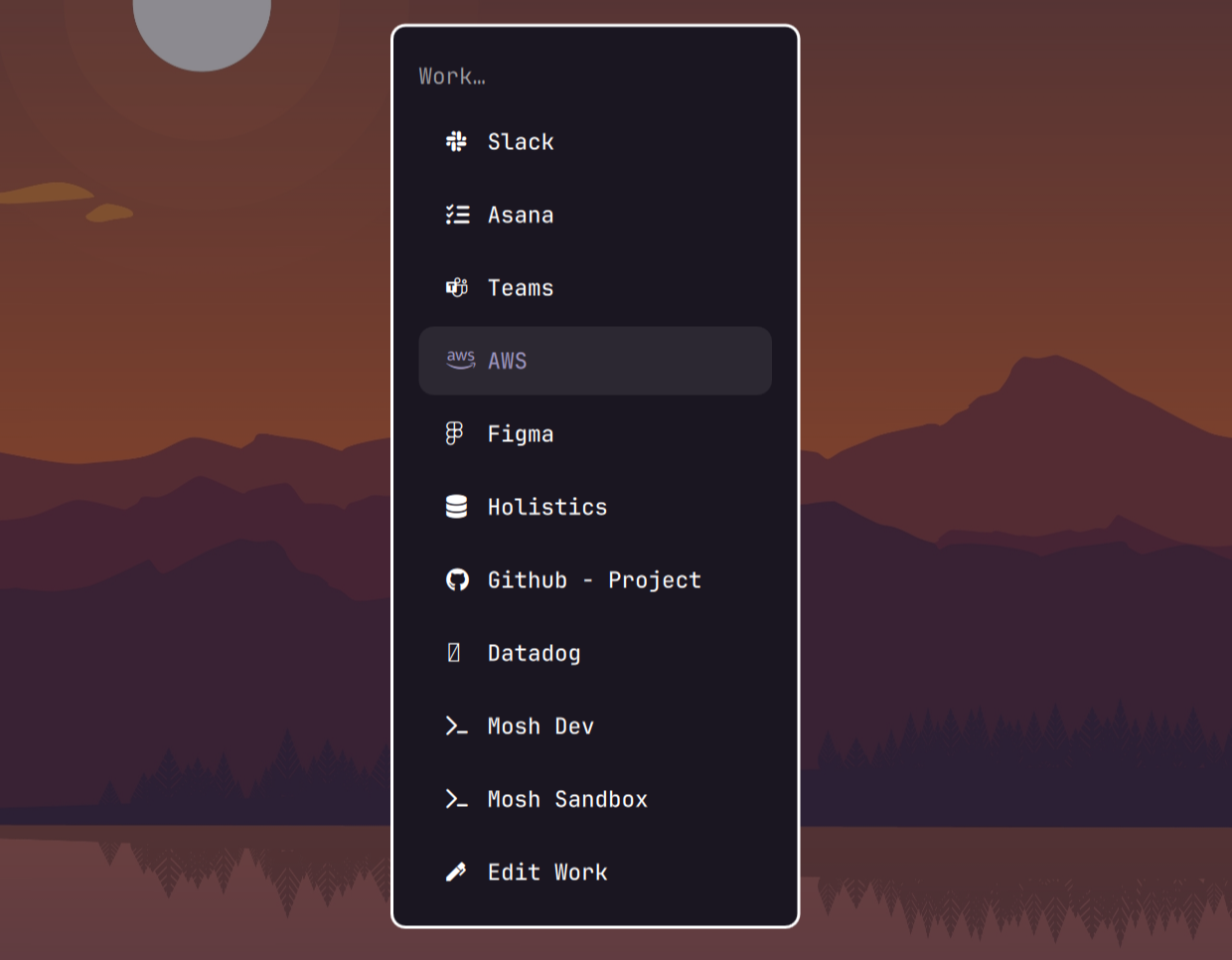
- Everything launches from the searchable system menu. Contexts, apps, SSH sessions, and terminals are a type-and-Enter away, and each context carries its own curated menu of what you use.
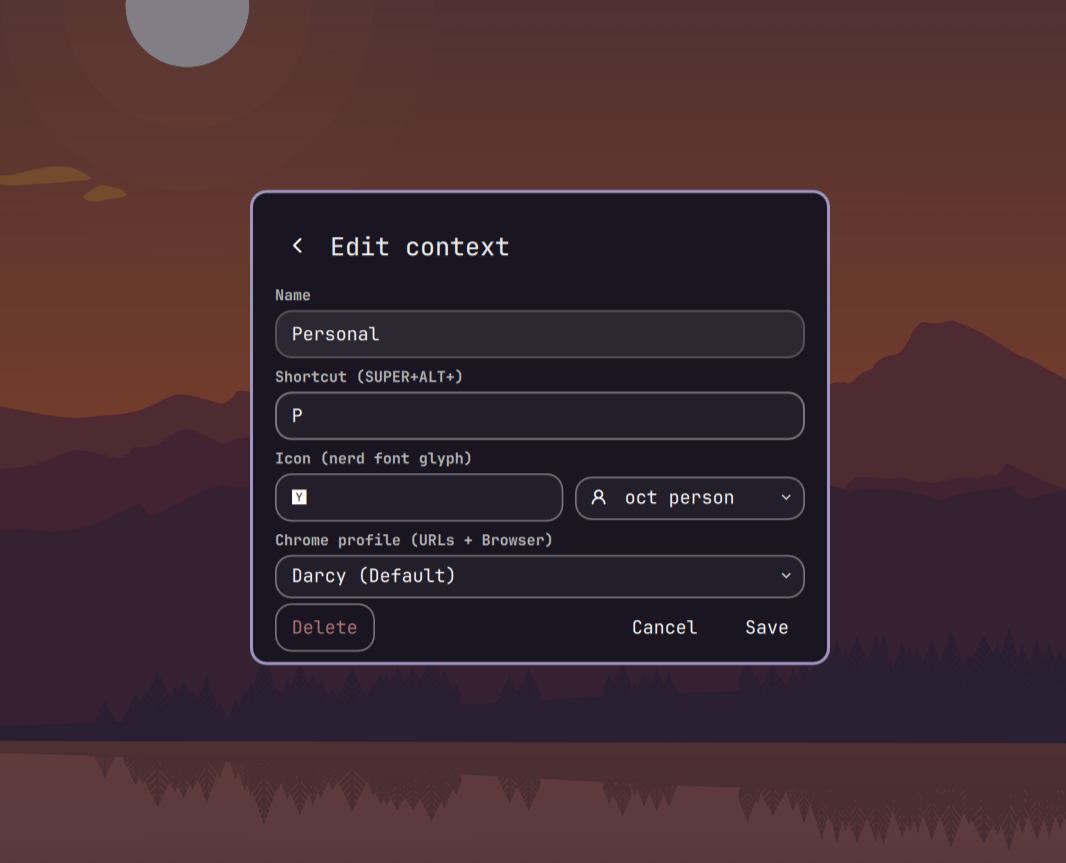
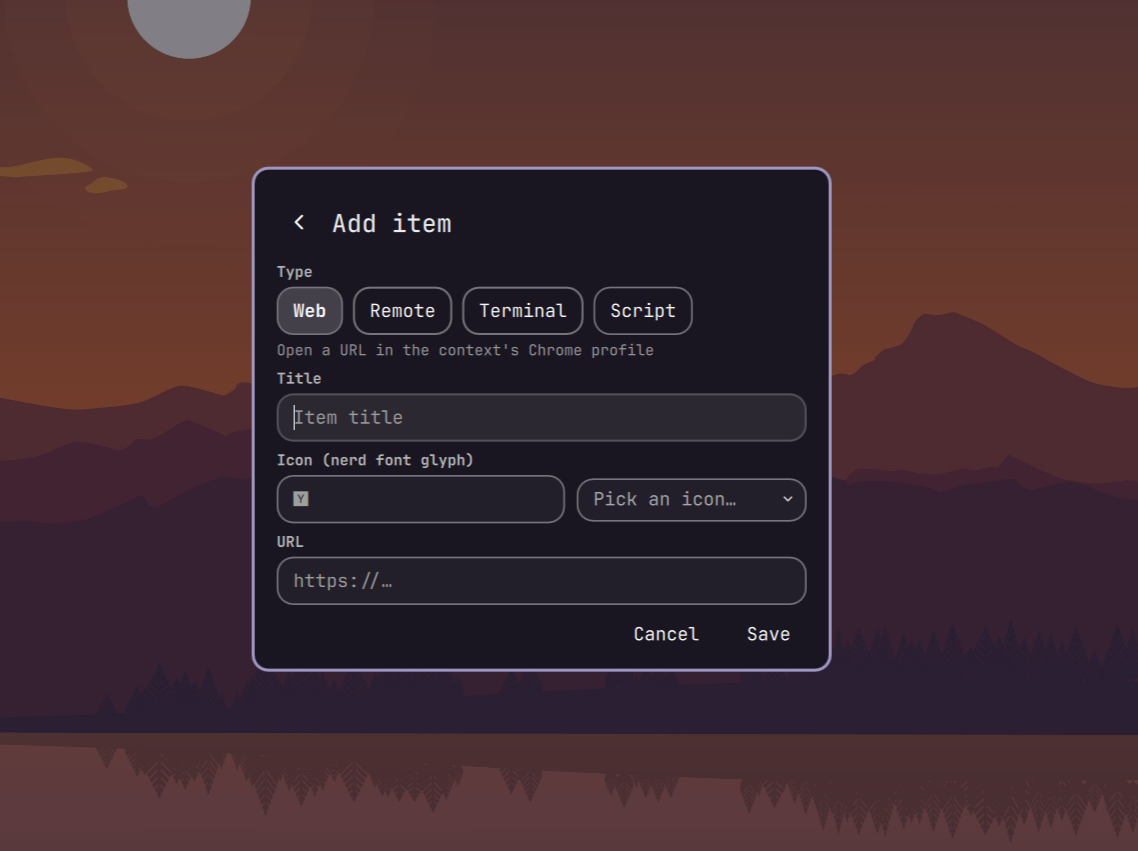
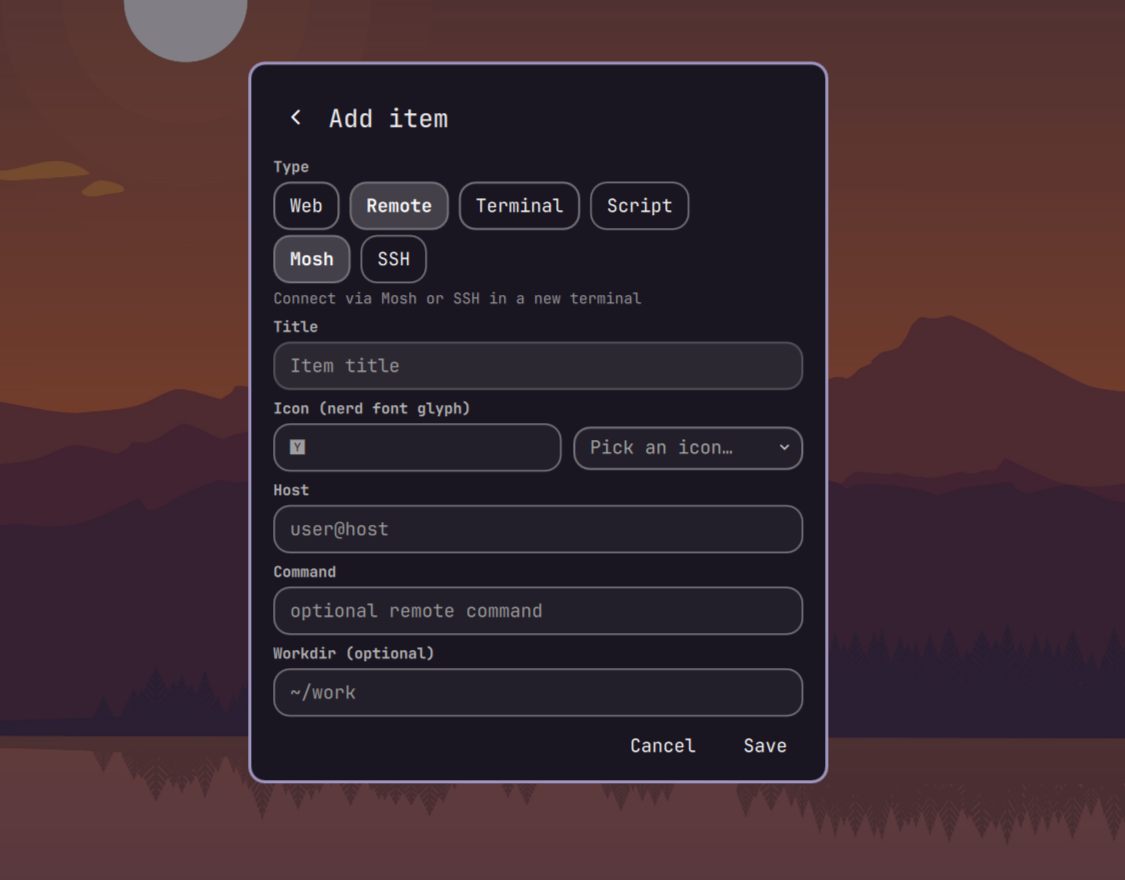
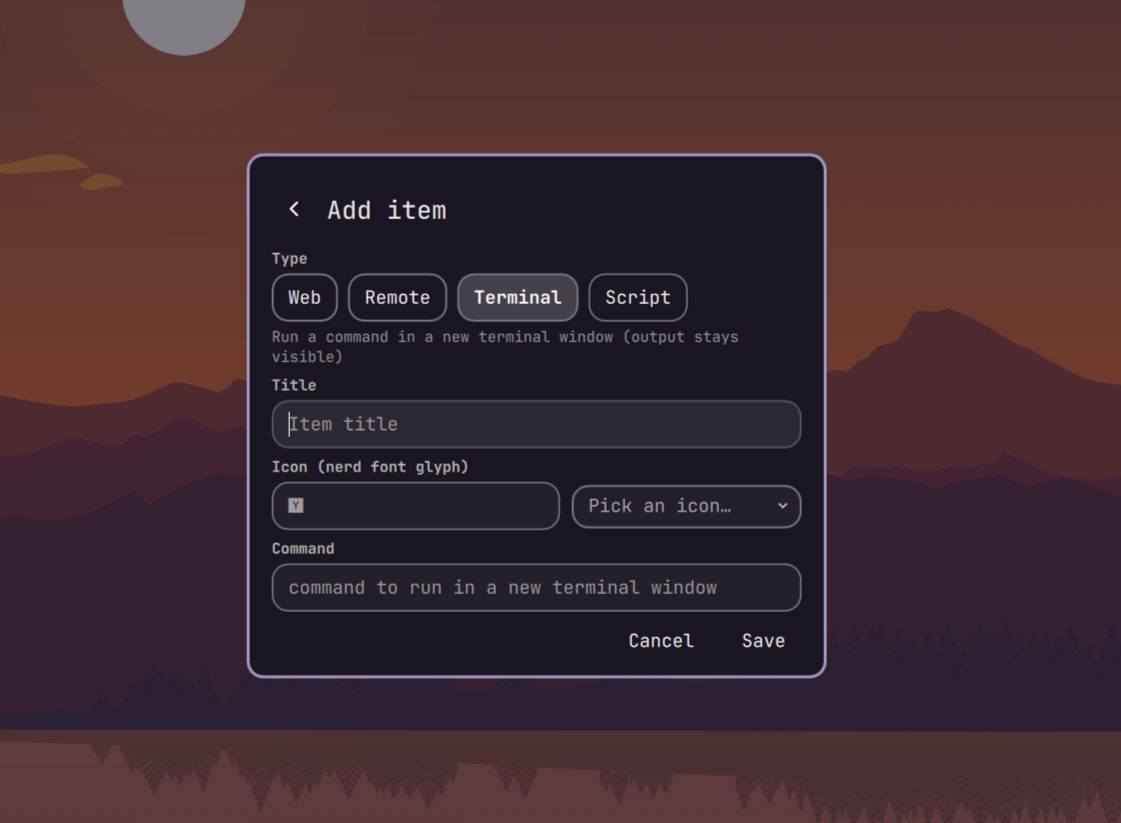
- Manage it without touching config files. Add/edit/delete contexts and items, set profiles, and reorder launch items right from the menu.
How it fits together
- Bar widget — shows the active context name and its slot occupancy. Click the name for the context menu; click a slot to go there; right-click to jump to the next context.
- Searchable context menu — a "Contexts" section in the system menu. Drill into a context to launch any of its items (web app, browser, SSH/Mosh, terminal, or script), or use its Edit menu to change details, add/reorder items, or edit an item.
- Contexts are per-monitor — each display can be in its own context, so you can be in a work context on one screen while keeping Personal on another.
Get started
Install as an omarchy plugin:
omarchy plugin add git@github.com:darcy/omarchy-context-switcher.git --enable --yes
omarchy bar put context-switcher --section left
This installs the plugin, wires up the keybindings, adds the "Contexts" menu, and places the widget on your bar.
If you've cloned the repo,
./install.shdoes the same thing directly.
Daily driving
Super+Alt+.— open the context pickerSuper+Alt+<shortcut>— jump straight into a context's menu (e.g.Super+Alt+Wfor Work; pick any letter per context)Super+1..0— go to a workspace slot in the current contextSuper+Shift+1..0— move the active window to a slot in current contextSuper+Tab/Super+Shift+Tab— cycle workspaces in current context
Configuration
The plugin reads ~/.config/context-switcher/config.json. In most cases you
won't touch it — use the Edit menus instead — but it's plain JSON if you
prefer to hand-edit (or omarchy-context edit-json opens it for you).
{
"version": 1,
"slots": 10,
"default_chrome_profile": "Default",
"contexts": [
{
"id": "personal",
"name": "Personal",
"icon": "",
"shortcut": "P",
"menu": [
{
"label": "Instagram",
"icon": "",
"type": "web",
"url": "https://instagram.com/"
},
{
"label": "Bank",
"icon": "",
"type": "web",
"url": "https://bank.com/"
},
{
"label": "Family Calendar",
"icon": "",
"type": "web",
"url": "https://calendar.com/"
}
]
},
{
"id": "work",
"name": "Work",
"icon": "",
"shortcut": "W",
"menu": [
{
"label": "Slack",
"icon": "",
"type": "web",
"url": "https://mywork.slack.com"
},
{
"label": "Asana",
"icon": "",
"type": "web",
"url": "https://app.asana.com/1/"
},
{
"label": "Teams",
"icon": "",
"type": "web",
"url": "https://teams.cloud.microsoft/"
},
{
"label": "AWS",
"icon": "",
"type": "web",
"url": "https://us-west-2.console.aws.amazon.com/console/home"
},
{
"label": "Figma",
"icon": "",
"type": "web",
"url": "https://www.figma.com/files/team/1"
},
{
"label": "Github - Project",
"icon": "",
"type": "web",
"url": "https://github.com/darcy/omarchy-context-switcher"
},
{
"label": "Datadog",
"icon": "",
"type": "web",
"url": "https://us1.datadoghq.com/dashboard/"
},
{
"label": "Mosh Dev",
"icon": "",
"type": "mosh",
"host": "192.168.1.101",
"herdr": "darcy@192.168.1.101",
"workdir": "~/Work/dev"
},
{
"label": "Mosh Sandbox",
"icon": "",
"type": "mosh",
"host": "192.168.1.102",
"herdr": "darcy@192.168.1.102",
"workdir": "~/Work/sandbox"
}
]
}
]
}
Each context has a name, a one-letter shortcut, an optional Chrome profile,
and a menu of launch items. Each item has a label, a Nerd Font icon,
and a type — web (url), mosh/ssh (host), terminal/script
(command), submenu (nested items) — plus the fields that type needs.
A remote command runs on connect, and workdir changes there first
(cd <workdir> && <command>). A workdir with no command keeps an
interactive shell in that directory (&& exec bash), so a bare connect
lands you in the right folder.
Your config is never overwritten. The plugin only creates
~/.config/context-switcher/config.jsonon first run when it doesn't exist; if you already have one (or have hand-edited it), it's left untouched and your contexts and edits are preserved across updates.The system menu is never clobbered either. The plugin (re)generates only its own
contexts*routes in~/.config/omarchy/extensions/omarchy-menu.jsoncand preserves every other key — anything you add to the menu extension yourself survives regenerations, and disabling/removing the plugin strips only thecontexts*entries.
Removal
Temporarily disable (removes the generated keybindings and menu section, restores the default workspace widget, but keeps your config and data):
omarchy plugin disable context-switcher
Fully remove the plugin:
omarchy plugin remove context-switcher
Agent skill (opt-in)
The plugin bundles an agent skill — SKILL.md, a config-first guide for
understanding and managing contexts — at
~/.config/omarchy/plugins/context-switcher/skills/context-switcher/.
It is not installed into any agent's skill directories by default: linking it would make plugin-authored instructions auto-discoverable by Claude Code, Codex, Pi/Opencode, and Gemini, which is an explicit trust expansion you should choose deliberately.
omarchy-context-switcher skill status   # where the skill is (not) linked
omarchy-context-switcher skill link     # expose it to coding agents (opt-in)
omarchy-context-switcher skill unlink   # remove those links again
link prints exactly what it is about to do before linking, and unlink
only ever removes links that point at this plugin's own skill dir. Review
SKILL.md first if you want to know what agents will load.
External dependencies
External dependencies
- A Chromium-based browser (Chromium, Chrome, Brave, Edge, …) as your default web browser, for per-profile web-app and Browser launches.
jq— used for atomic config edits.mosh/ssh— for remote items (optional; only if you use them).- The Omarchy Nerd Font (ships with Omarchy) for the menu/bar icons.
License
MIT — © 2026 Darcy Brown.
Notes
- The
omarchy.*namespace is reserved for first-party plugins, so this plugin is idcontext-switcher(repoomarchy-context-switcher). legacy/holds the original pre-Quattro bash implementation for reference.