
Copy Tracker

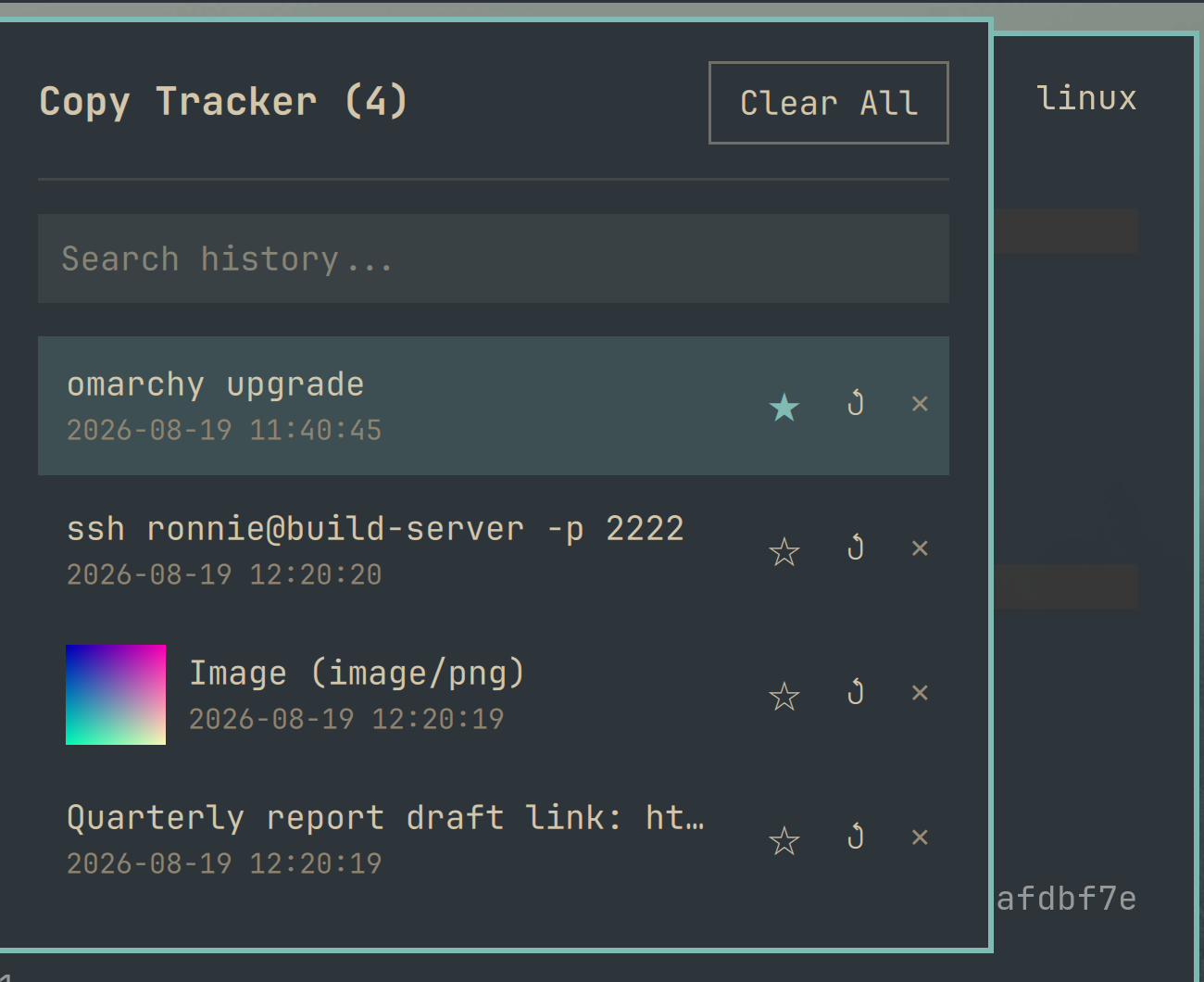
A clipboard history plugin for the Omarchy shell bar. Every copy action — text or image — is logged as a row in a local SQLite database as it happens. Click the bar icon to browse the history, search it, pin the entries you don't want to lose, and pick an entry to paste it straight into whatever you were typing in, or delete entries you don't need.

Install
Option 1 — omarchy plugin add (recommended):
omarchy plugin add https://github.com/Macs9319/CopyTracker.git --enable
You'll be prompted to pick a bar section (left/center/right) for the icon.
Option 2 — manual clone:
git clone https://github.com/Macs9319/CopyTracker.git ~/.config/omarchy/plugins/copytracker
omarchy plugin enable copytracker right
Either way, the shell picks up the plugin without a restart — edits under
~/.config/omarchy/plugins/ hot-reload automatically. New plugins sometimes need a full
shell restart (not just a hot reload) to size the bar icon correctly the first time:
omarchy restart shell
Usage
Click the bar icon to open the history panel:
| Action | Effect |
|---|---|
| Type in the search box | Filter entries whose content contains the text |
| Click the search box's ✕ | Clear the search |
| ↓ / ↑ (or j / k) | Move the selection through the list, auto-scrolling to keep it in view |
| Enter or Space | Paste the selected entry into whatever's behind the panel, and close it |
| Click anywhere on an entry (or its ↺) | Same — copy that entry to the clipboard, paste it, and close the panel |
| Click an entry's ⧉ (or press c) | Copy that entry to the clipboard without pasting or closing the panel |
| Click an entry's ☆/★ (or press p) | Pin/unpin that entry |
| Click an entry's ✕ | Delete that entry |
| Esc | Close the panel |
| Clear All | Delete the unpinned history (with a confirmation) |
Arrow/j-k navigation is only active while the search box isn't focused, so those letters can still be typed into a search query normally.
Selecting an entry closes the panel, puts it on the clipboard, and sends a Shift+Insert paste into whatever window regains focus — the same mechanism (and ~150ms delay to let focus settle) the built-in clipboard history plugin uses. Text and images are both tracked, images show a thumbnail in the list. Copies flagged as sensitive (e.g. from a password manager) are skipped, and copying something already in the history bumps it back to the top instead of adding a duplicate row.
Pinned entries (★) stay at the top of the list, survive "Clear All", and are exempt from the 1000-entry cap — they're only removed if you delete them individually.
Bind it to a key
The plugin doesn't ship a keybind — wire one up yourself in ~/.config/hypr/bindings.lua:
o.bind("SHIFT + GRAVE", "Copy tracker", "omarchy-shell shell toggle copytracker")
(GRAVE is the backtick/tilde key; check omarchy menu keybindings --print first in case your
chosen combo is already bound to something else.)
Requirements
- Omarchy (Quickshell-based shell)
sqlite3,wl-clipboard(wl-copy/wl-paste),jq, andwtypeonPATH(all ship by default on Omarchy)
Storage
- Database:
~/.local/state/omarchy/copytracker.db(tableclips:id,type,content,mime,pinned,created_at) - Images: saved by content hash under
~/.local/state/omarchy/copytracker-images/; the database row stores the file path. Copying the same image twice reuses the existing file instead of duplicating it - History is capped at the most recent 1000 entries
- Deleting an entry (individually, via Clear All, or by aging out past the 1000-entry cap) also removes its backing image file — unless another surviving entry still points at the same file, in which case the file is kept until the last reference to it is gone
Uninstall
omarchy plugin remove copytracker
Delete ~/.local/state/omarchy/copytracker.db and ~/.local/state/omarchy/copytracker-images/
if you also want to wipe the stored history.
How it works
Panel.qml is a single Omarchy shell plugin (bar-widget kind) built on the shell's Panel
base component. Two background wl-paste --watch processes (one for text, one for images)
call track.sh, which owns the SQLite schema and every read/write query. The panel shells out
to track.sh list (optionally with a search query, debounced as you type) to populate the
popup and to track.sh copy/paste/delete/clear/pin/unpin for actions — no QML-side
clipboard or database logic beyond that. Keyboard navigation runs through the shell's PanelKeyCatcher, which tracks
a selectedIndex and keeps it in view by walking the selected delegate's position via
Repeater.itemAt() (a plain Column + Repeater list has no ListView.positionViewAtIndex).
Development
tests/track_test.sh covers track.sh's SQL-escaping and row-capping logic (no external test
framework, runs against a throwaway database):
./tests/track_test.sh
License
MIT — see LICENSE.