
Android Mirroring — Omarchy plugin v0.1
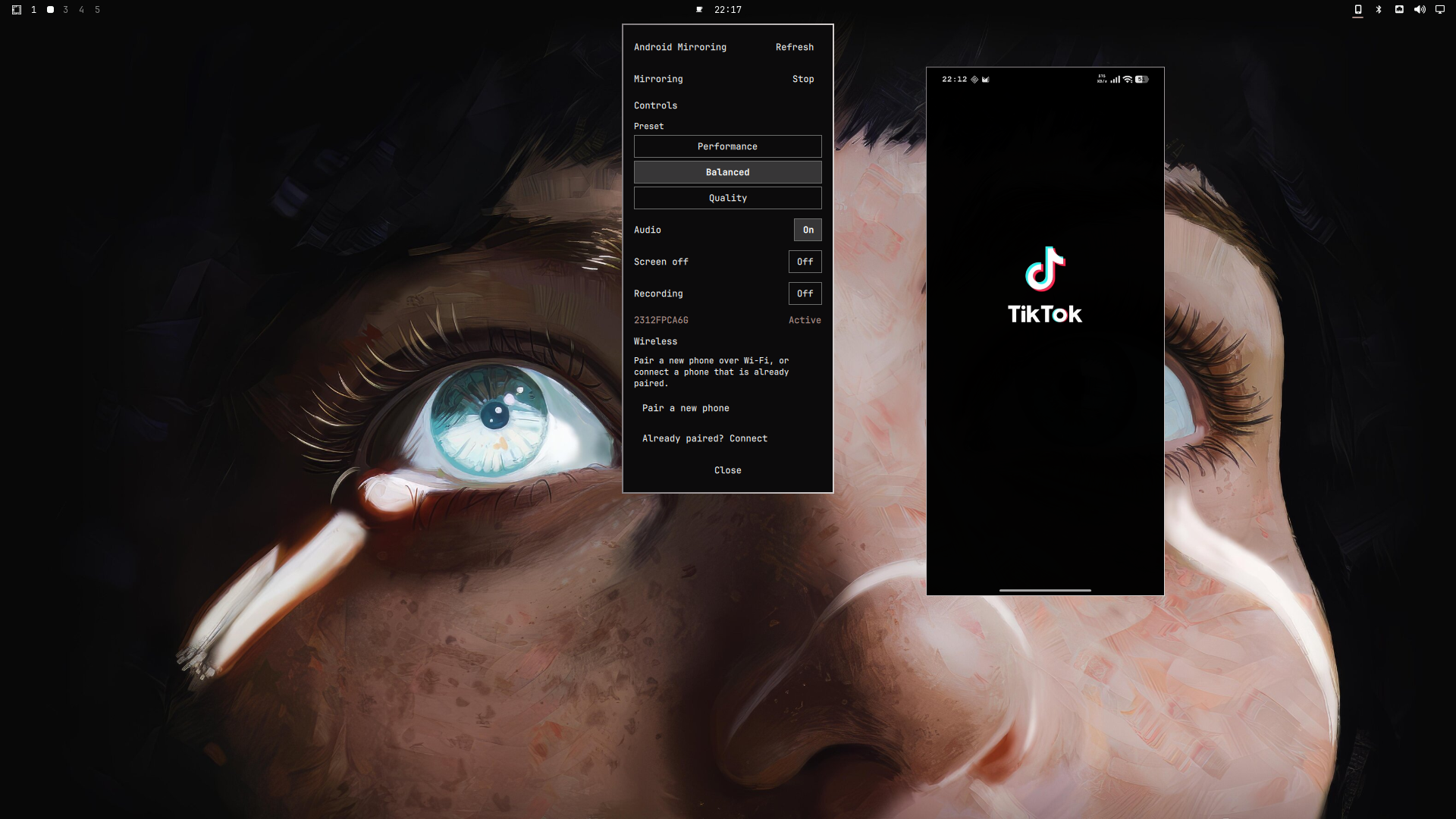
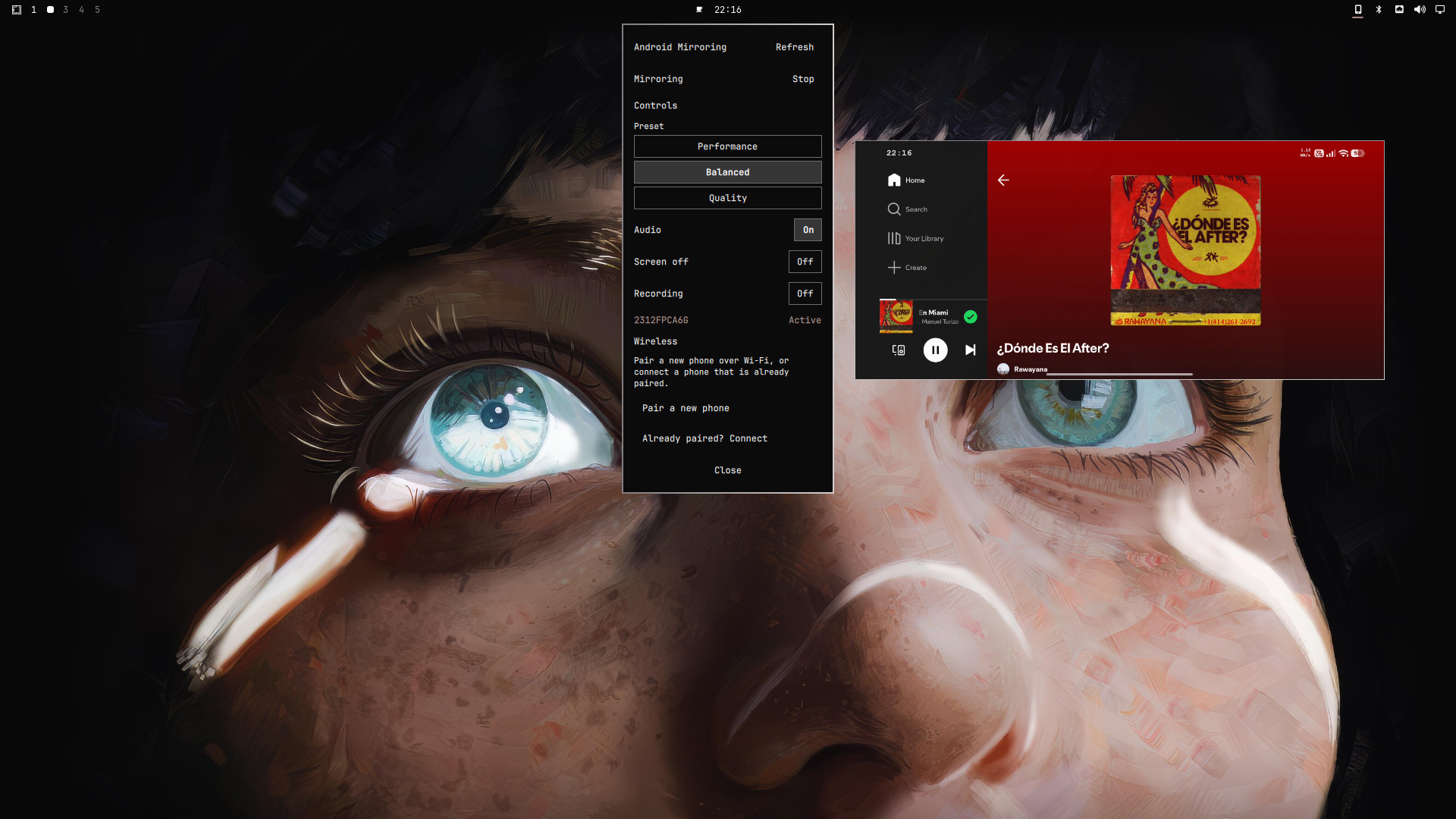
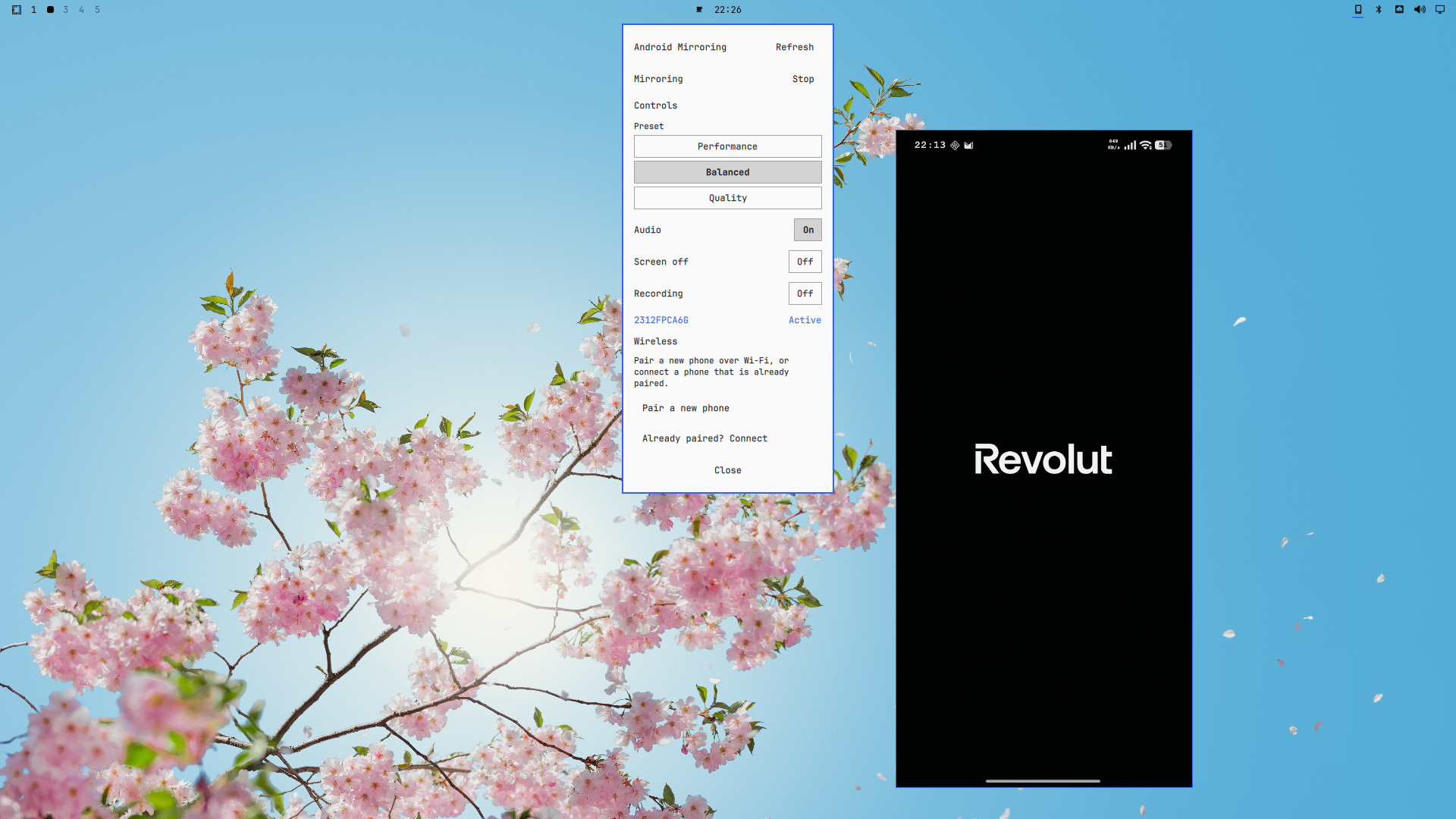
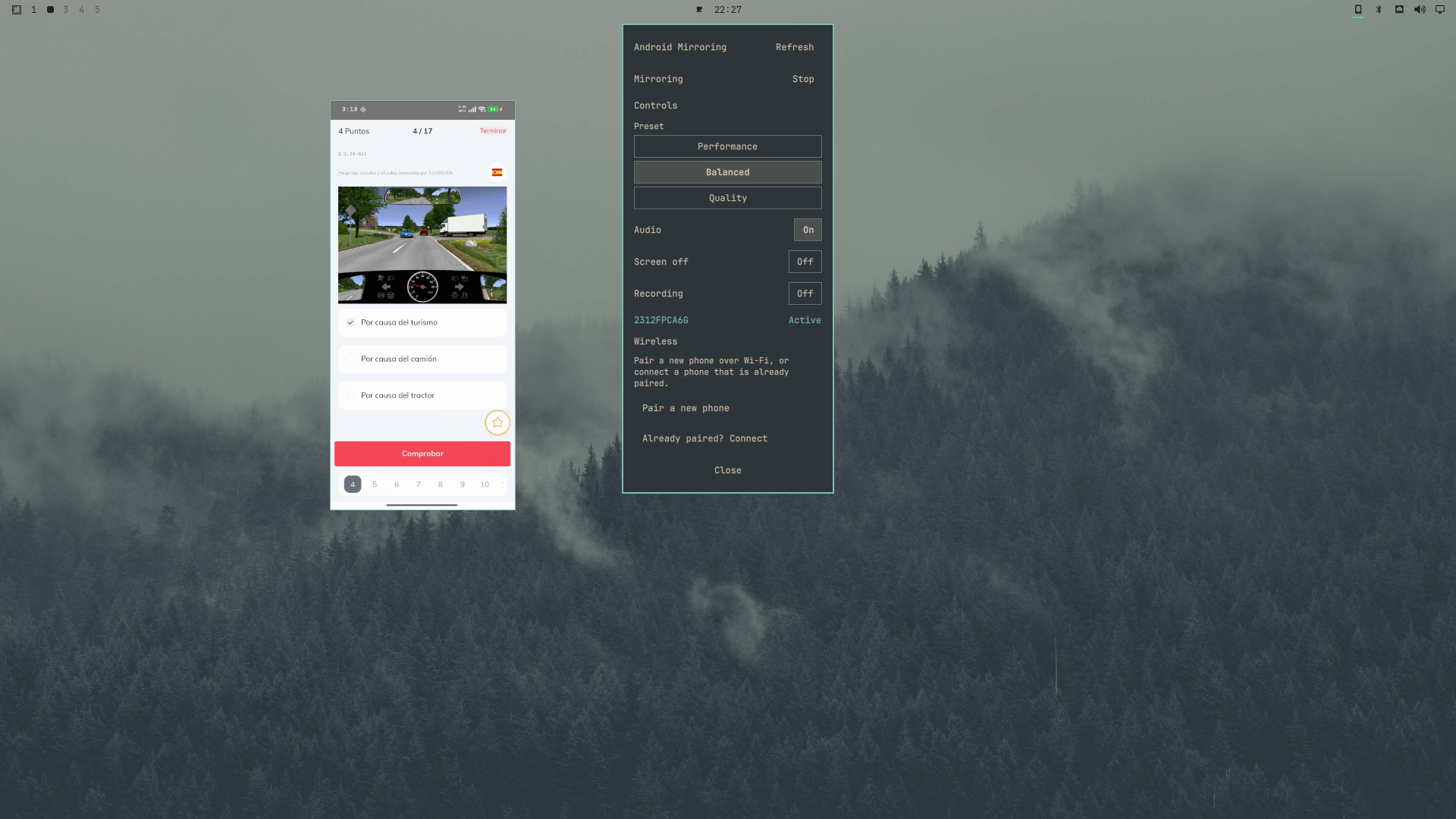
A third-party Omarchy Quattro plugin that adds an Android device mirroring widget to the Omarchy shell. It discovers Android phones and tablets over USB or Android 11+ Wireless Debugging and launches the upstream scrcpy mirroring engine under a Quattro-native Hyprland floating window.
This product is the Omarchy-native interface, device/session layer, and integration. It is not a fork or reimplementation of scrcpy.
Features
- USB device discovery via
adb devices -l. - Android 11+ Wireless Debugging pair/connect flow with a masked six-digit pairing code.
- Saved wireless device metadata for one-tap reconnect after an Omarchy shell restart.
- Update Address flow for wireless endpoints that change port.
- Three mirroring presets: Performance, Balanced (default), and Quality.
- Audio On/Off.
- Screen off On/Off.
- Session recording On/Off with timestamped
.mp4files. - Quattro-native panel theming and a thin, theme-aware border on the floating phone window.
- Tracked scrcpy/ADB processes — only the plugin's own processes are stopped.
Requirements
Verified target environment:
- Omarchy 4.0.0-1
- Hyprland 0.56.2
- Quickshell 0.3.0
- scrcpy 4.1
- android-tools 37.0.0 (adb 1.0.41)
Device requirements:
- USB: Android 5.0 (API 21) or newer with Developer options and USB debugging enabled.
- Audio forwarding requires Android 11 (API 30) or newer, matching upstream scrcpy support.
- Wireless: Android 11 or newer with Wireless Debugging enabled.
Dependencies
The plugin calls the system scrcpy and adb binaries directly. Install them
with the Omarchy package manager before installing the plugin:
omarchy pkg add scrcpy android-tools
scrcpyis the upstream mirroring engine.android-toolsprovides the ADB client. Thescrcpypackage depends onandroid-tools, but listing both keeps the setup explicit.
These are ordinary system packages. The plugin does not install them automatically, and the plugin should not be run as root.
Installation
Install from the public GitHub repository:
omarchy plugin add https://github.com/camburalex/android-mirroring-omarchy.git --enable
If you are installing from a fork or a local copy, replace the URL with your public repository URL. The plugin must come from a public GitHub repository before it can be submitted to omarchyplugins.com.
--enable performs the native install and enable step, so no manual rescan is
required. If you need to manually reload plugins during development or
troubleshooting, you can run:
omarchy-shell shell rescanPlugins
Validate the installed plugin:
omarchy plugin validate ~/.config/omarchy/plugins/dev.android-mirroring
Update
omarchy plugin update dev.android-mirroring
Hyprland integration
The plugin ships a hyprland.lua rule that floats, centers, and applies a
thin border to the plugin-owned scrcpy phone window while inheriting the
active Omarchy theme. This rule is not installed automatically.
Add the following guarded loader to your ~/.config/hypr/hyprland.lua,
after require("default.hypr.omarchy") (so the o.window helper is
available):
do
    local path = (os.getenv("HOME") or "")
        .. "/.config/omarchy/plugins/dev.android-mirroring/hyprland.lua"
    local file = io.open(path, "r")

    if file then
        file:close()
        dofile(path)
    end
end
The guard checks for the plugin directory, so Hyprland still loads cleanly if the plugin is removed later. Apply and validate the change:
hyprctl reload
hyprctl configerrors
Do not edit /usr/share/omarchy/; only edit your user-owned
~/.config/hypr/hyprland.lua.
The rule matches windows where class = "^scrcpy$" and
initial_title = "^Android Mirroring$". The fixed title is set by the
plugin via --window-title=Android Mirroring so user-launched scrcpy
sessions keep their default titles and are not affected.
USB setup and use
- On the Android device, enable Developer options.
- Enable USB debugging.
- Connect the device to the computer with a USB cable.
- Approve the "Allow USB debugging?" prompt that appears on the phone.
- Open the Android Mirroring bar widget and press Refresh.
- When the device row shows USB · Ready, press Mirror.
Some devices, especially Xiaomi-family devices, may require the additional USB debugging (Security Settings) option for keyboard and mouse input injection, sometimes followed by a reboot. This is vendor-specific and separate from ordinary USB debugging. If the mirror image appears but input does not work, check that option in the phone's developer settings.
Wireless mirroring (Android 11+)
The wireless flow uses Android's Wireless Debugging. The plugin never stores the six-digit pairing code.
First-time pairing
- Open the Android Mirroring bar widget.
- In the Wireless section, press Pair a new phone.
- On the Android device, enable Wireless Debugging (Settings → Developer options).
- Note the main Wireless debugging IP address and port shown on that screen.
- Enter that address and port in the plugin as the Wireless IP & port, then press Next: Pair device.
- On the Android device, tap Pair device with pairing code. Keep the popup open until pairing finishes.
- In the plugin, enter the Pairing IP & port and the Pairing code shown in the popup, then press Pair & Connect.
- If pairing succeeds, the plugin automatically runs
adb connectand refreshes the device list. The phone appears as Wireless · Ready.
Already paired?
- In the plugin, press Already paired? Connect.
- Enter the main Wireless debugging IP address and port.
- Press Connect.
Pairing normally persists, but Android may require pairing again if the trust relationship is revoked or forgotten.
Reconnecting after a restart
Saved wireless phones appear in the device list as Wireless · Unavailable
when they are not currently reachable. Press Reconnect to run
adb connect <last-known-endpoint>.
Update Address
Android may change the wireless debugging port. Press Update on a saved row, enter the new main endpoint, then press Connect. The saved record is updated without requiring a new pairing.
Important notes:
- The main Wireless debugging endpoint and the popup pairing endpoint are usually different ports. Both are required for first-time pairing.
- The six-digit pairing code is a transient credential. It is written to ADB stdin and is never saved, logged, or shown again.
- Pairing normally persists, but Android may require pairing again if the trust relationship is revoked or forgotten.
- Wireless Debugging must be enabled whenever the user wants to connect or use a wireless mirroring session. It may be turned off between sessions and must be re-enabled before reconnecting.
- QR pairing is not supported in v0.1.
- Wireless liveness detection and the final M6 release validation were performed with IPv4-style ADB endpoints. IPv6 wireless endpoints are not guaranteed in v0.1.
Usage
- Open the Android Mirroring bar widget from the Omarchy bar.
- Press Refresh to list connected devices.
- Select a Preset, toggle Audio, Screen off, and Recording as desired.
- Press Mirror on a USB · Ready or Wireless · Ready device.
- scrcpy opens in a floating phone window. Press Stop in the widget or close the scrcpy window to end the session.
The widget closes automatically once the plugin confirms scrcpy has started, so pre-start validation and recording-preparation errors remain visible.
Presets
| Preset | max size | bit rate | max FPS | Use case |
|---|---|---|---|---|
| Performance | 1024 | 4 M | 30 | Lower latency on slower networks or older PCs. |
| Balanced | 1600 | 8 M | 60 | Default. Good balance of quality and latency. |
| Quality | 2560 | 16 M | 60 | Sharper image on fast networks. |
The default is Balanced. Presets reset to Balanced when the Omarchy shell restarts.
Audio, Screen off, and Recording
- Audio: forwards the Android device audio to the computer when On.
- Screen off: turns off the physical device screen while mirroring. Input continues to work through the scrcpy window.
- Recording: saves the mirrored session to an
.mp4file. The directory is the standard user Videos/Movies location with anAndroid Mirroringsubfolder (usually~/Videos/Android Mirroring). File names are timestamped and look likeandroid-mirroring-YYYYMMDD-HHMMSS-XXXXXX.mp4.
If scrcpy fails before it starts writing, the reserved .mp4 placeholder is
removed. If recording is On, the selected Audio state is included in the
recording.
Theming and window behavior
The bar widget uses the standard Omarchy panel theme tokens
(Style, Color.foreground, Color.accent, Color.urgent).
The scrcpy phone window is launched with SDL_VIDEODRIVER=x11, which runs it
under XWayland on the verified Omarchy target. This was chosen because current
hardware testing showed that XWayland correctly resizes the outer floating
window when the phone rotates between portrait and landscape. Native Wayland
behavior may vary by device and environment.
The Hyprland rule sets a 1 px border, floating, centered layout. Border color and rounding are inherited from the active Omarchy theme automatically.
Configuration
The plugin has no separate user-editable application configuration file. The one manual integration step is the guarded Hyprland loader described above. Saved wireless devices are plugin-managed state, not a configuration file; they are stored in the Quickshell state directory, typically:
~/.local/state/quickshell/by-shell/<shell-id>/dev.android-mirroring.saved-devices.json
Pairing codes, passwords, and unknown fields are never persisted. You may delete this file to remove all saved wireless history.
Troubleshooting
| Symptom | Likely cause and fix |
|---|---|
"scrcpy not found" or scrcpy missing |
Run omarchy pkg add scrcpy android-tools and restart the shell. |
adb devices -l not found |
android-tools is missing or not on PATH. Install with omarchy pkg add scrcpy android-tools. |
| Device shows Authorization required | Accept the USB debugging prompt on the phone. Re-plug the cable and press Refresh if needed. |
| No devices detected | Enable USB debugging or Wireless Debugging. Check the cable. Run adb devices -l directly. |
| Wireless pairing fails | The pairing popup expired (reopen it), the address or code is wrong, or the phone and computer are not on the same network. |
| Saved phone shows Wireless · Unavailable | The wireless debugging port may have changed. Use Update to enter the new endpoint and Connect. |
| Mirror image appears but input does not work | Some devices, especially Xiaomi-family devices, may require the additional "USB debugging (Security Settings)" option for input injection, sometimes followed by a reboot. Check the phone's developer/security settings. |
| Hyprland rule not applied | Run hyprctl reload and hyprctl configerrors. Ensure the guard block was added after require("default.hypr.omarchy"). |
| Session shows "Mirroring ended unexpectedly" | scrcpy exited with an error. Check adb devices -l, scrcpy output, and the diagnostics list below. |
Diagnostics
If something is not working, gather this information:
omarchy plugin validate ~/.config/omarchy/plugins/dev.android-mirroring
omarchy-shell shell ping
omarchy-shell shell listPlugins
adb devices -l
scrcpy --version
adb version
hyprctl configerrors
Do not share pairing codes, saved device state, or unrelated personal files when asking for help.
Uninstall
Remove the plugin:
omarchy plugin remove dev.android-mirroring
The scrcpy and android-tools packages are system dependencies and are not
removed automatically. The saved device state file in Quickshell's state
directory is also not deleted by omarchy plugin remove; remove it manually if
you want a clean state.
The small guarded Hyprland loader block in
~/.config/hypr/hyprland.lua becomes inert after the plugin is removed and
does not break Hyprland. If you want to remove it entirely, delete the
do ... end block that opens ~/.config/omarchy/plugins/dev.android-mirroring/hyprland.lua.
Brief architecture
The plugin runs as a bar-widget inside the existing omarchy-shell
Quickshell process:
Omarchy bar widget
  → qml/DeviceManager.qml (adb discovery)
  → qml/WirelessManager.qml (wireless pair/connect)
  → qml/SavedDeviceStore.qml (persisted known devices)
  → qml/ScrcpyBackend.qml (tracked scrcpy process)
  → qml/BarWidget.qml (panel UI and options)
  → external scrcpy rendering window
  → hyprland.lua (floating phone window rules)
For v0.1 the video stream is not embedded, proxied, or redecoded. The
plugin builds a safe scrcpy argv, launches it as a tracked Quickshell
Process, and lets scrcpy own the video, audio, and input.
Attribution
Created and maintained by @camburalex.
This plugin is an independent Omarchy integration and is not a fork or reimplementation of scrcpy. scrcpy is developed by Genymobile, Romain Vimont, and contributors and is licensed under the Apache License 2.0. It is installed separately and is the upstream external mirroring backend.
License
This plugin's own original code is released under the MIT License. See LICENSE.
scrcpy remains under its own Apache License 2.0 and is not covered by this project's MIT license.
Roadmap
Post-v0.1 ideas:
- QR-code wireless pairing.
- Improved device discovery and reconnect.
- Richer keyboard/focus navigation in the panel.
- Optional future backend research; a custom Android backend is not a near-term promise.