
Pane Manager
An Omarchy shell plugin for managing tiled panes from the bar. Resize them by dragging the divider with your mouse, see where a dragged pane will land before you drop it, set the border thickness and corner style, and put a mangled layout back the way it was.
Features
Drag the divider to resize
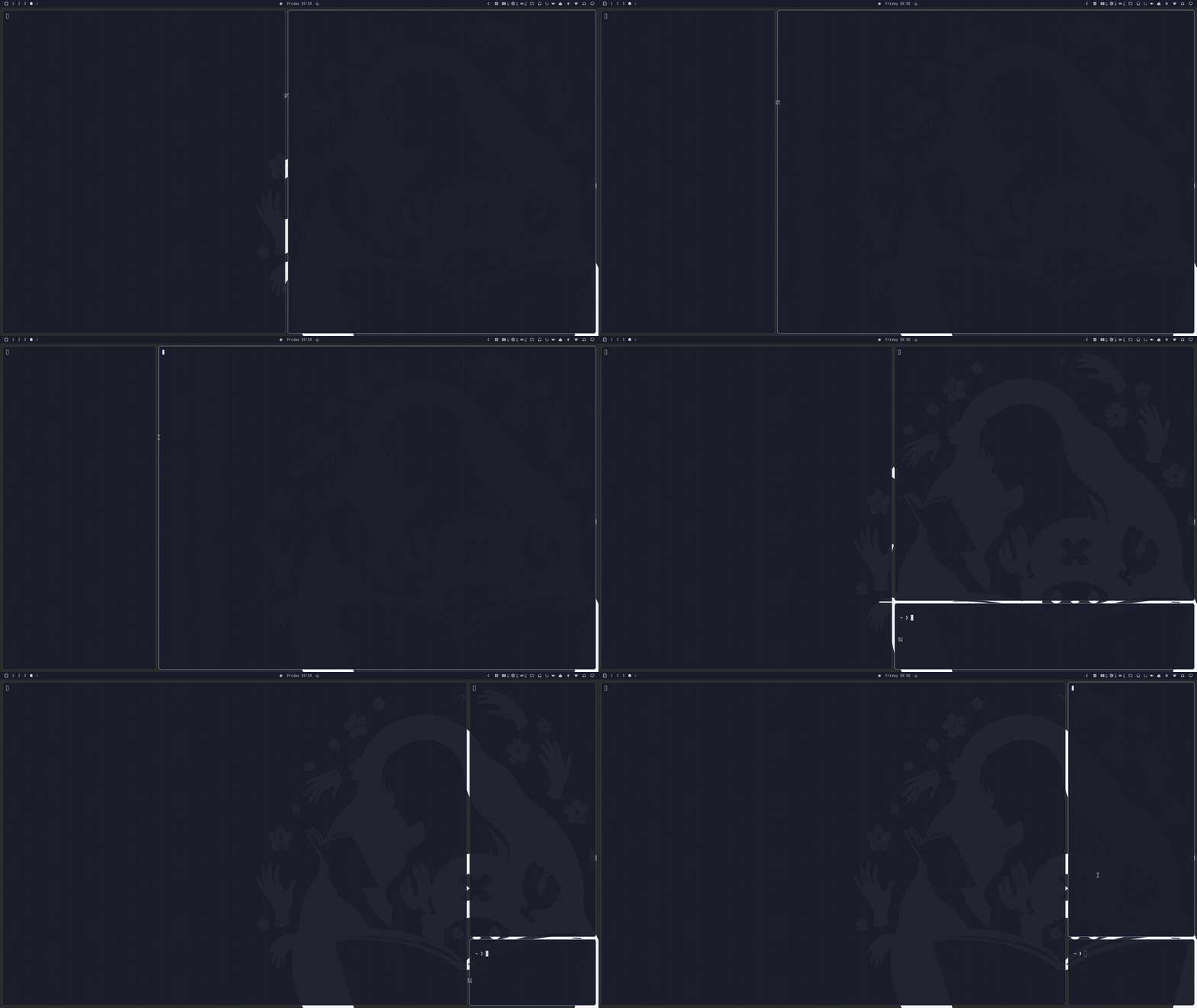
Turns on general:resize_on_border, so the boundary between two panes is a
handle you can grab with the mouse — no modifier held, the way panes work in an
IDE. The grab area is configurable, and the cursor changes shape over it so the
affordance is discoverable.
See where a dragged pane will land
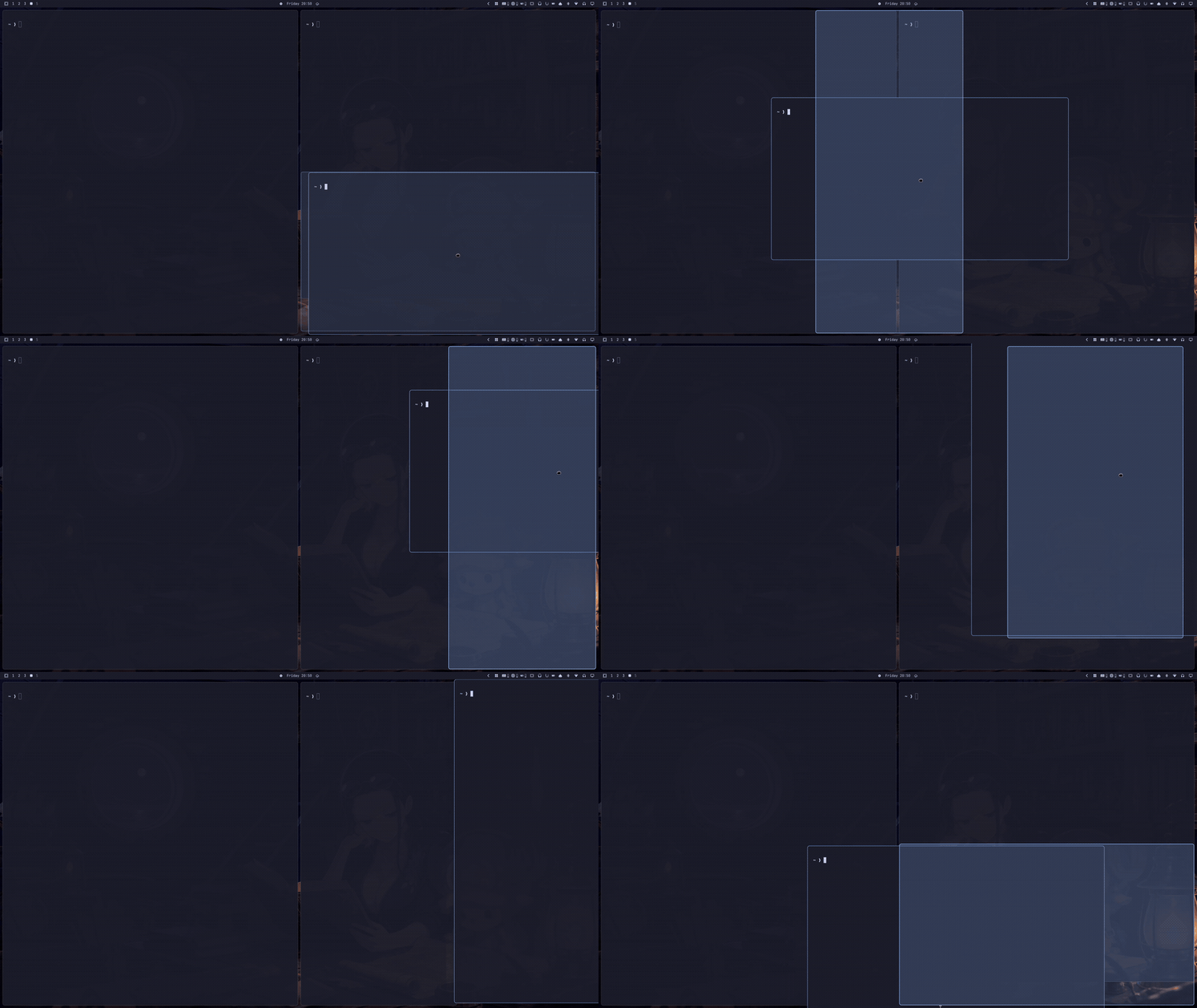
SUPER + dragging a pane over another one tiles it above, below or beside the
target. Hyprland picks the side from your cursor but draws nothing to say which,
so the result is hard to predict. Pane Manager shades the half the pane is about
to take, live, while you drag.
Open a pane where the mouse is
Dropping a pane already follows your cursor. Opening one does not: Hyprland splits the focused pane on a side your config picked, and Omarchy picks right/bottom, so the mouse has no say. Open to any side makes the two the same operation — a new pane splits whatever is under the mouse, on the side the mouse is nearest.
It is one row over two Hyprland options, dwindle:smart_split and
dwindle:use_active_for_splits, because neither is the behaviour on its own:
the first decides the side, the second decides whether the pane under the cursor
is the one being split at all. Set only the first and a new pane still lands on
the focused pane, which is the surprise the row exists to remove.
Pick the layout
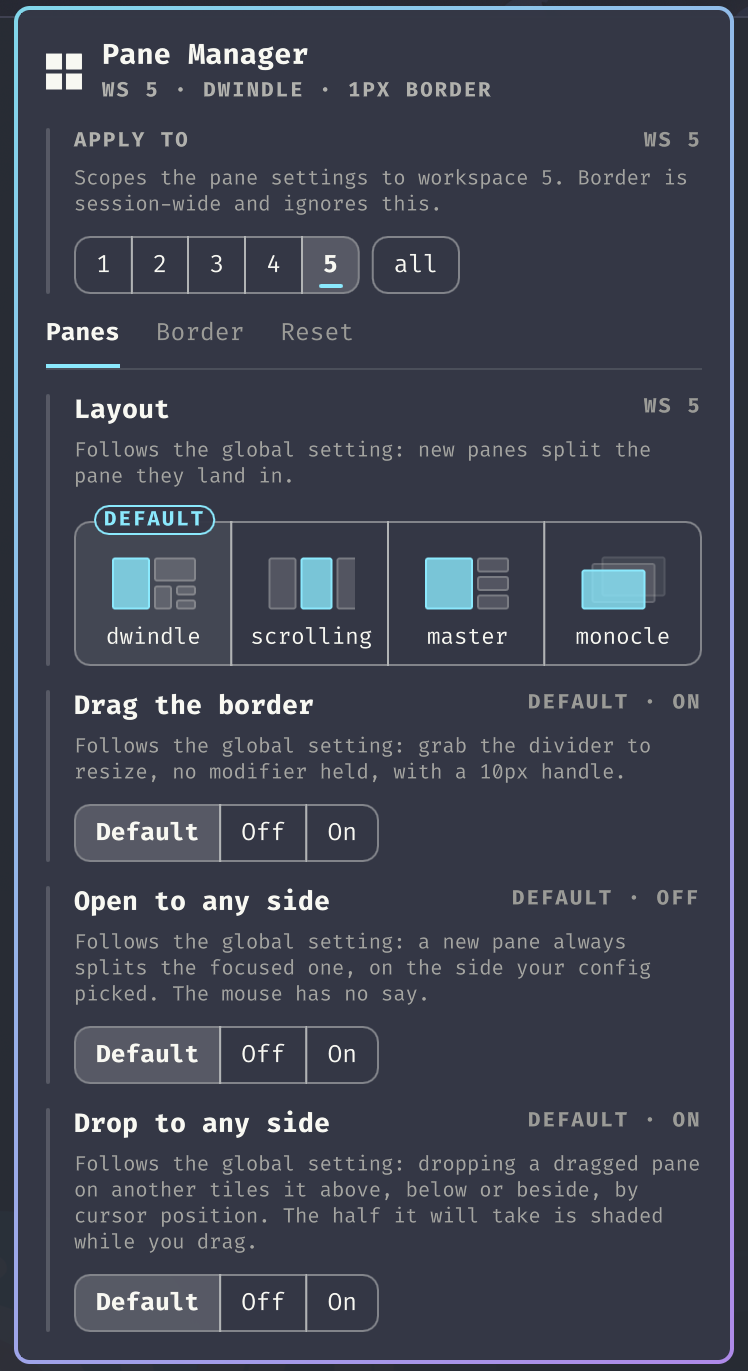
Hyprland ships four tiled layouts, and the Layout row shows all four as
small drawings: dwindle splits the pane a new one lands in, scrolling is a
niri-like row that scrolls sideways, master keeps one big pane with the rest
stacked beside it, monocle shows one pane at a time. The row applies to the
scope in Apply to; bin/pane-manager layout scrolling --workspace does just
the active workspace, for a keybinding.
Splitting is dwindle's, so on any other layout the panel turns off what depends on it — the drop indicator, Open to any side and Drop to any side. Drag the border is layout-agnostic and keeps working, and the two resets stay available: they are the way back.
Hyprland tracks the layout per workspace, so the row writes the same
per-workspace rules as Omarchy's own
omarchy-hyprland-workspace-layout-toggle, in
~/.local/state/omarchy/workspace-layouts/<id>.lua. The two agree, and the
choice survives a reload.
Per workspace, or everywhere
The four behaviour switches — Scrolling layout, Drag the border, Open to any side and Drop to any side — are answered per workspace on top of a global value, and Apply to at the top of the panel says which of the two you are editing:
allwrites the global value: what every workspace falls back to. Setting it drops the workspaces' own answers, so what the panel shows is what you get everywhere.ws <id>writes an override for that workspace alone. The chips list the workspaces you have open, and a·marks the one you are on — you can set up ws 3 from ws 1.
That is what the third state on each switch is for. Default is not a value
but the absence of one: at workspace scope it hands the answer back to the
global setting — the badge says which, DEFAULT · ON — and at global scope it
hands it back to ~/.config/hypr/. The scope always opens on the workspace you
are in, because a sticky all is how you change every workspace believing you
are changing one.
Only the layout is per workspace in Hyprland itself. resize_on_border and
dwindle:precise_mouse_move are single global options, so a per-workspace value
means "write this when the workspace takes focus" — the plugin does exactly
that, on every workspace change, without reloading anything. The border
thickness, corner radius and grab area are not scoped at all: they are chrome
rather than behaviour, and Hyprland has no per-workspace notion of them either.
The choices live in ~/.local/state/omarchy/pane-manager/, as global.json and
overrides.json, next to a config.json snapshot of what ~/.config/hypr/
asked for — hyprctl getoption answers with the value in force rather than the
configured one, and these are the options the plugin overwrites, so read live it
would drift into "whatever was applied last" and Default would stop meaning
anything. The snapshot is taken while the values are untouched, and again after
every reload. Reset all workspaces deletes the lot.
Border thickness and corners
Width in px and Square/Round corners, applied as you change them.
Undo a mangled layout
Resizing a dwindle tree has no built-in undo. Two buttons put things back, for the current workspace or all of them: they drop any layout override, reload your Hyprland config, and restore the default split ratios — so they double as a way back from anything the panel changed.
Why
Hyprland already ships modifier-driven mouse resize, and Omarchy binds it out of the box:
| Binding | Action |
|---|---|
SUPER + drag left button |
Move window |
SUPER + drag right button |
Resize window |
What it leaves off is general:resize_on_border, which lets you grab the
divider between two tiled panes directly, the way panes work in an IDE. This
plugin turns that on from the bar, puts the border chrome that goes with it in
the same place, and — because a resized dwindle tree has no built-in undo —
gives you a way to reset the split ratios.
Dropping a dragged pane has the same gap. Hyprland can tile it above, below or beside the target depending on where your cursor is, but it draws nothing to say which, so the result feels like a coin toss. This plugin shades the half the pane is about to take, live, while you drag — see Drop indicator.
The panel
Left-clicking the bar icon opens it. Apply to sits above three tabs — Panes, Border and Reset — because it scopes the pane settings and would be easy to set and forget inside one of them. The panel reopens on the tab you left it on, until the shell restarts.
- Apply to —
ws <id>orall: where the four switches in Panes write. See Per workspace, or everywhere.
Panes
- Layout —
dwindle,scrolling,masterormonocle, written as workspace rules. At workspace scope the tile of the global layout carries aDEFAULTpin, and choosing it drops the workspace's own answer rather than pinning it. Off dwindle, what reads a split tree goes quiet: the drop indicator stops drawing, and Open to any side and Drop to any side grey out and read off — though the Hyprland options under them are untouched and come back with dwindle. - Drag the border —
general:resize_on_borderon and off, with the grab area from the settings. Off here means off, not "hand everything back": the two resets are what returns the border chrome to~/.config/hypr/. - Open to any side —
dwindle:smart_spliton anddwindle:use_active_for_splitsoff, together. Off, a new pane always splits the focused one on the side your config picked. On, it splits the pane under the mouse, on the side the mouse is nearest. Off writes Hyprland's own default back for the second option rather than a snapshot of yours; a config that turnsuse_active_for_splitsoff by hand gets it back from a reset. - Drop to any side —
dwindle:precise_mouse_move. Off, a dropped pane only ever tiles left or right. On, it tiles above and below too, by cursor position, and the landing spot is shaded while you drag. Gates both halves at once: the overlay stays quiet whenever this is off.
Border, session-wide: Hyprland keeps one border for every workspace, so this tab ignores Apply to.
- Thickness — border width in px (
general:border_size) - Corners — Square or Round (
decoration:rounding). The shell mirrors this into its own chrome but only re-reads it at startup and on a theme change, so the plugin nudgesStyle.scheduleRefresh()after every change — otherwise the panel telling you "Square" would still be drawn with round corners itself.
Reset
- Reset this workspace / Reset all workspaces — drop the overrides,
reload the config, then restore the default split ratios.
--alldrops the global values too, so it is the way back to~/.config/hypr/in full. They stay enabled on every layout, because they are the way back to the config's.
The border chrome is runtime-only, and the resets clear the rest, so they remain the reliable way back to your configured state.
Install
omarchy plugin add https://github.com/momoi-labs/omarchy-pane-manager.git --enable
To remove it:
omarchy plugin remove dev.momoi-labs.pane-manager
Removal takes the bar widget and the drop indicator with it and leaves nothing
behind: everything the plugin changes is set at runtime, so the next Hyprland
reload already has your own ~/.config/hypr/ values back. Anything you chose to
persist there (see below) is yours and stays until you remove it yourself.
Requirements
Omarchy 4 (Quattro) or newer, plus two things an Omarchy install already has:
| Dependency | Used by |
|---|---|
jq |
bin/pane-manager, for reading Hyprland's JSON |
python3 |
bin/drop-indicator, which talks to Hyprland's sockets directly |
No other external dependencies, and nothing is fetched at runtime.
Persisting the settings
The three behaviour switches are persisted in the plugin's own store, and the layout also as workspace rules where Omarchy keeps them. The border thickness, corner radius and grab area are runtime-only.
Your config is still what everything falls back to — it is what Default at
global scope, and both resets, land on. So it is worth putting the state you
want as a starting point in ~/.config/hypr/looknfeel.lua:
hl.config({
  general = {
    resize_on_border = true,
    -- Pixels beyond the drawn border that still count as the handle. Larger is
    -- easier to grab; too large starts stealing clicks near a pane's edges.
    extend_border_grab_area = 10,
    -- Cursor changes shape over the handle, so the affordance is discoverable.
    hover_icon_on_border = true,
    -- Omarchy ships 2.
    border_size = 1,
  },

  decoration = {
    -- Omarchy ships 0, i.e. square.
    rounding = 8,
  },

  dwindle = {
    -- A dropped pane picks its side from the cursor, so it can land above and
    -- below as well as beside. The drop indicator stays dark while this is off.
    precise_mouse_move = true,
  },
})
Settings
In ~/.config/omarchy/shell.json:
{ "id": "dev.momoi-labs.pane-manager", "grabArea": 10, "roundedRadius": 8, "maxBorderSize": 12 }
| Key | Default | What it does |
|---|---|---|
grabArea |
10 |
Grab area in px applied when the switch turns resizing on |
roundedRadius |
8 |
Corner radius applied by the Round option |
maxBorderSize |
12 |
Upper bound of the thickness field |
CLI
The helper is usable on its own — handy for a keybinding:
BIN=~/.config/omarchy/plugins/dev.momoi-labs.pane-manager/bin/pane-manager
$BIN state                # JSON: what Hyprland reports now, plus the store
$BIN set <key> <value> [--workspace [id] | --all] [--grab <px>]
$BIN apply [--grab <px>]  # write what the active workspace asks for
$BIN border <px>          # global
$BIN corners <px>         # global; 0 = square
$BIN reset [--all]        # overrides, config, then split ratios
set takes layout (dwindle, scrolling, master, monocle, default), and drag,
dropside and openside (on, off, default), and defaults to --all. So
a keybinding that flips just the workspace you are on is:
$BIN set layout scrolling --workspace
apply is what the panel runs on every workspace change, to write the global
options that workspace asked for. You only need it by hand if you drive the
store from somewhere else.
These still work, for keybindings written against 1.0:
$BIN enable [grabArea]    # = set drag on --all
$BIN disable              # = clears drag, and reverts border chrome to config
$BIN toggle [grabArea]
$BIN dropside <bool>      # = set dropside on|off --all
$BIN layout <dwindle|scrolling|master|monocle> [--workspace | --all]
Drop indicator
With dwindle:precise_mouse_move on, dragging a pane and dropping it on another
tiles it above, below, or beside the target depending on where the cursor is —
but Hyprland draws nothing to say which. This plugin shades the half the pane is
about to occupy, live, while you drag.
Two things make that possible without a compositor plugin:
- Drag detection with no polling. Hyprland publishes no drag event, but
dragging a tiled window flips it to floating for the duration of the drag
(
DragController.cpp,changeFloatingModeinupdateDragWindow/dragEnd), and that flip is announced on socket2 aschangefloatingmode. Drag start and end arrive as push events; the cursor is only polled in between. A manual float toggle is told apart from a drag by the fact that a drag first centres the window on the cursor. - The landing side is reproducible.
DwindleAlgorithm.cppdecides it from the cursor against the target box's centre, with the box's own diagonals as the threshold.bin/drop-indicatormirrors that, and the indicator paints the result — the half the new pane gets — rather than the triangles that pick it.
Because that rule is mirrored rather than queried, it is pinned to a Hyprland
version in the helper (HYPRLAND_RULE_VERIFIED_ON). If the compositor changes
how it decides, the indicator lies, which is worse than showing nothing — so it
is worth rechecking on major Hyprland updates.
The shaded rectangle takes its corner radius from decoration:rounding, so the
preview has the shape the pane will actually get rather than the shell theme's.
The overlay's input region is empty, so it can never swallow the drag it draws.
What this plugin does not do
Moving panes with the mouse is already Hyprland's, and there is no modifier-free version of it to add: a tiled pane has no titlebar to grab, so the modifier is what tells the compositor you mean the window rather than its contents. Omarchy binds it out of the box:
| Binding | Action |
|---|---|
SUPER + drag left button |
Move / swap the pane under the cursor |
SUPER + SHIFT + arrows |
Swap the focused pane in a direction |
SUPER + J |
Flip the split direction (the panel's button) |
Tests
tests/run            # the helper, against a fake hyprctl; needs bash and jq
tests/run layout     # only the tests whose name matches
tests/live 2         # the panel, live: opens it on workspace 2 and screenshots it
tests/run gives every test an empty store and a fake compositor
(tests/fake/hyprctl) that answers queries from a JSON file and records every
call. Tests assert on the store the helper leaves behind and on what it asked
Hyprland to do. tests/live swaps the plugin symlink to this checkout,
restarts the shell, and puts both back; the screenshot is the check. See ADR
0004 for why the split.
Notes for hackers
Omarchy 4 runs Hyprland's Lua config parser, which retires the legacy hyprctl
forms. Anything poking at Hyprland from a plugin needs the new spelling:
| Legacy | Omarchy 4 |
|---|---|
hyprctl keyword general:border_size 2 |
hyprctl eval 'hl.config({ general = { border_size = 2 } })' |
hyprctl dispatch splitratio +0.1 |
hyprctl dispatch 'hl.dsp.layout("splitratio +0.1")' (one string, not separate args) |
| — | hyprctl dispatch 'hl.dsp.focus({ window = "address:0x…" })' |
Boolean options come back as .bool in hyprctl getoption -j; .int is null
for them. The full Lua API is stubbed at /usr/share/hypr/stubs/hl.meta.lua.
Three more things worth knowing before you script against Hyprland:
hyprctlexits 0 when a dispatcher fails. It printserror: …on stdout and returns success anyway, so aset -escript sails straight past a broken dispatch. Check the output.splitratiotakes a delta, and dwindle has noexact(at least through 0.56.2 —splitratio exact 1answersfailed to parse "exact" as a delta). There is no "set this node to 1.0" message. Ratios clamp to[0.1, 1.9]though, sosplitratio -5lands on a known 0.1 andsplitratio +0.9reaches the default. That two-hop is how the reset here works.fc-query's charset can lie about Nerd Font glyphs. It reportedU+F006E(nf-md-backup_restore) as covered by JetBrainsMono Nerd Font; it renders as tofu. Screenshot your widget before trusting a glyph.
License
MIT