
Omarchy One App Per Workspace
An Omarchy Quickshell plugin that keeps one tiled application on each Hyprland workspace.
Why Use It
Notebook screens have limited space, and sharing one workspace among several tiled applications reduces the room available to the current app. Keeping each workspace dedicated to one tiled application lets the current app use more of the display without being split or cluttered by other apps. It also makes workspace switching predictable, independent of the selected tiling layout.
[!IMPORTANT] This plugin is for Omarchy 4 (Quattro), where the desktop shell and bar use Quickshell. It is not intended for older Omarchy releases that use Waybar.
Behavior
- Starts enabled by default.
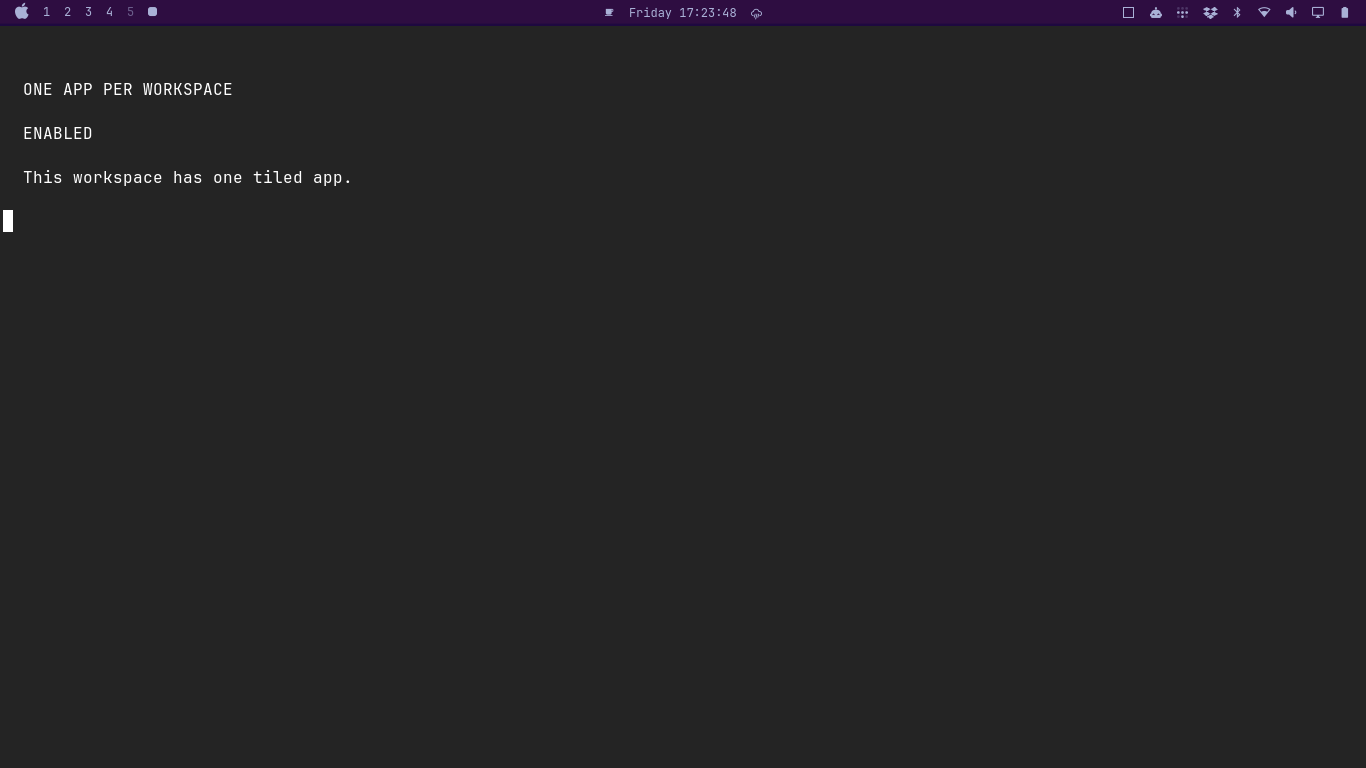
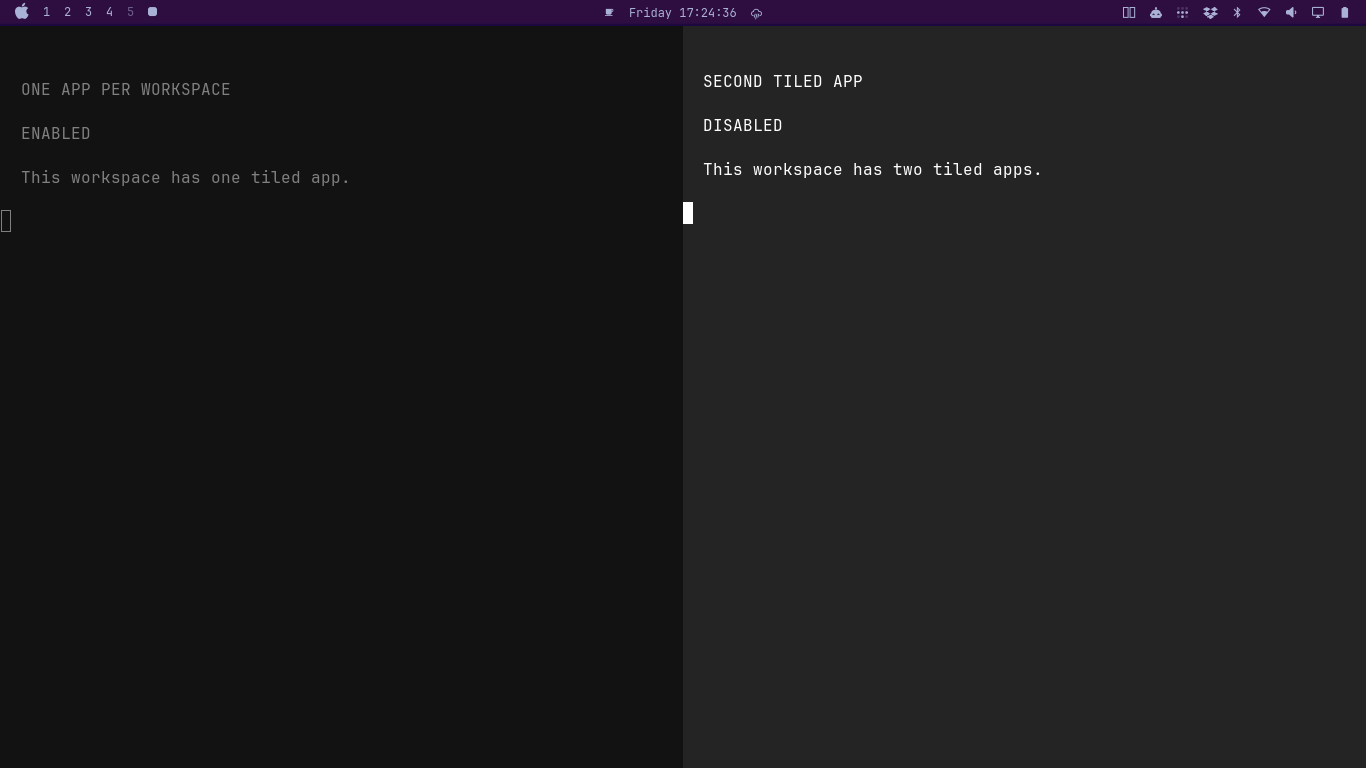
- Moves a newly opened tiled window to Hyprland's first empty workspace when the focused workspace already contains another window, and follows it there.
- When the focused normal workspace's last window closes, focuses the nearest occupied workspace before it, then the nearest one after it.
- Falls back to workspace 1 when no occupied workspace is available.
- Does not inspect, change, or depend on the selected Hyprland tiling layout.
- Does not move floating windows when they open.
- On Omarchy's Lua configuration mode, redirects a second tiled window before the active layout places it, so Dwindle and Scrolling do not visibly split the current workspace first.
- On Omarchy's Lua configuration mode, focuses the destination workspace during the close event, before the compositor removes the last window from the old layout, so the old workspace does not briefly reveal its wallpaper.
- With the regular configuration provider, keeps the delayed close fallback.
- Uses the existing
omarchy-shellservice and a small in-process Hyprland Lua hook without a helper daemon or a persistent Hyprland configuration change.
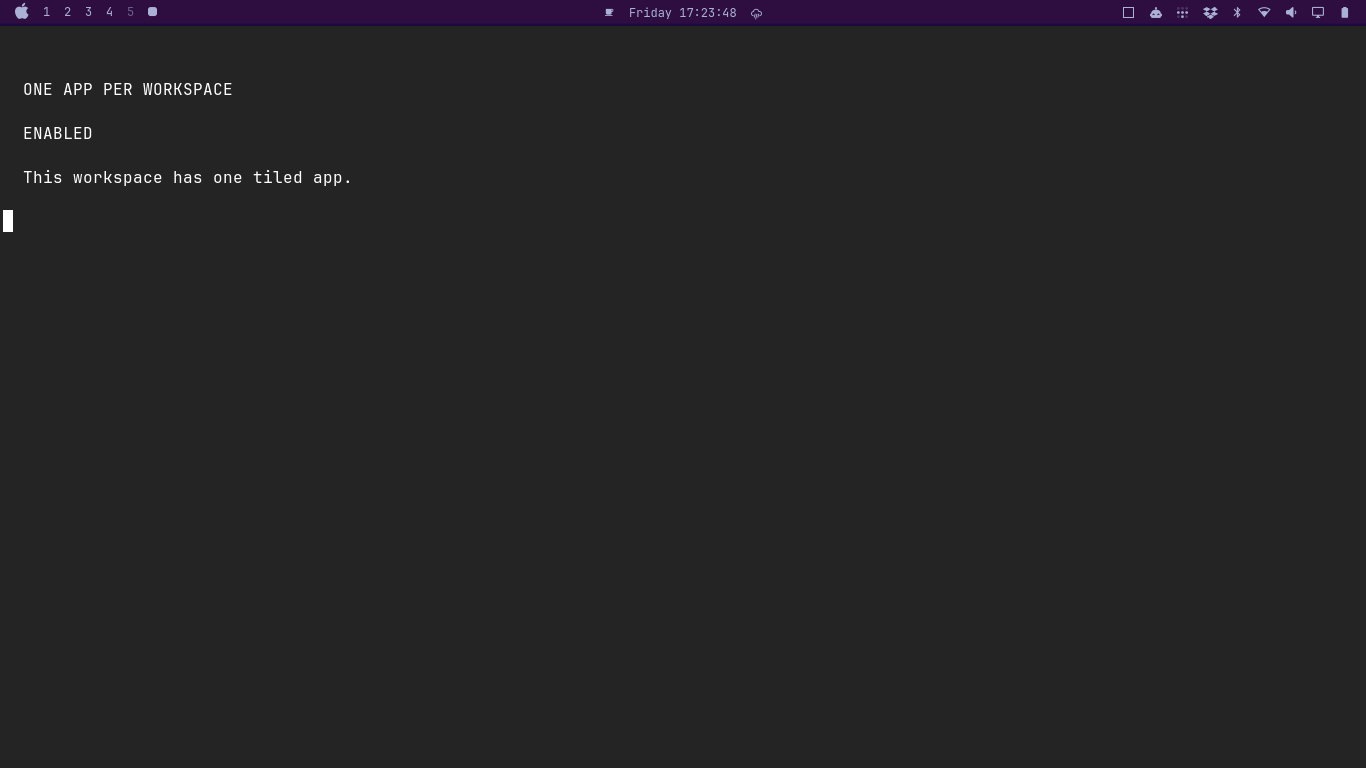
The bar icon is a square while the feature is enabled and two outlined tiles
while it is disabled. Click the icon to toggle the behavior. The setting is
stored in ~/.local/state/omarchy/toggles/one-app-per-workspace-off, so it is
preserved across shell restarts and reboots. The icon follows the active bar
theme and provides an action-specific tooltip. Toggling from the icon or
hotkey shows a short notification.
Screenshots
Requirements
- Omarchy 4 with the Quickshell bar
- Hyprland
Related Plugin
Users who want consistent floating behavior for selected windows may also find
ericvrp.omarchy-floating-window-overrides
useful alongside this plugin.
Install
omarchy plugin add https://github.com/ericvrp/omarchy-one-app-per-workspace.git --enable
The plugin manager places the icon in the right bar section by default. Move it to another section with:
omarchy bar move ericvrp.one-app-per-workspace --section right
An optional keybinding for toggling the feature is:
Super+Ctrl+Alt+O Toggle one app per workspace
Update
omarchy plugin update ericvrp.one-app-per-workspace
Disable Or Remove
Disabling the plugin removes its bar icon and stops its workspace handling:
omarchy plugin disable ericvrp.one-app-per-workspace
Remove it completely with:
omarchy plugin remove ericvrp.one-app-per-workspace
The feature toggle state is kept separately from plugin installation.
Development
Validate the manifest, model tests, and QML imports from the repository root:
omarchy plugin validate .
./test/one-app-per-workspace-test.sh
qmllint -I "$OMARCHY_PATH/shell" Service.qml
qmllint -I "$OMARCHY_PATH/shell" Widget.qml
Install the current working tree as a local plugin build:
./scripts/dev-install.sh
Use ./scripts/dev-install.sh --no-restart to update the installed files and
bar configuration without restarting the shell. Remove the local build with:
./scripts/dev-uninstall.sh
More development notes are in DEVELOPING.md.
License
Licensed under the MIT License.