
Transfer Manager
A file transfer queue that keeps running, and stays controllable, even if the file manager that started it crashes.
Why
A GTK file manager's built-in copy/move runs as threads inside its own process. If Thunar, Nautilus, or whatever else segfaults mid-transfer, the transfer dies with it, and there was never anything to pause, resume, or cancel from the outside anyway.
This project moves the actual work into a small standalone daemon,
filetransferd, supervised by systemd --user and independent of any file
manager or desktop shell. A Quickshell panel (built for
Omarchy) gives you a bar icon and a popup to monitor
and control the queue, but the daemon itself doesn't need it running to keep
transferring files.
Screenshots
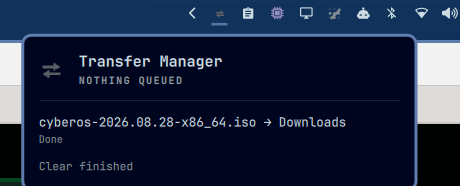
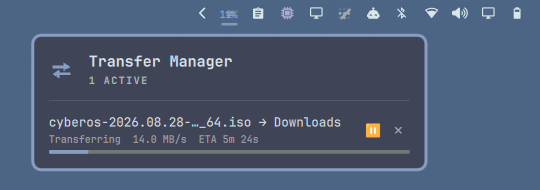
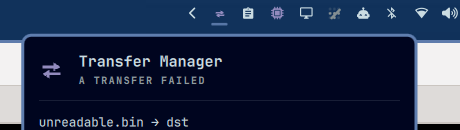
| Idle | In progress | Failed |
|---|---|---|
 |
 |
 |
What's here
| Piece | Purpose |
|---|---|
manifest.json, Panel.qml, Service.qml, Model.js, TransferIcon.qml |
The Omarchy Quickshell plugin: bar icon + popup panel, polls ftctl for status. Lives at the repo root because that's where Omarchy's plugin loader expects a manifest. |
daemon/filetransferd.py |
Runs queued copy/move jobs with rsync, one process tree per job, independent of any caller. |
daemon/ftctl.py |
CLI/client for the daemon: enqueue, list, pause, resume, cancel, reorder, clear. |
systemd/filetransferd.service.in |
Template systemd --user unit (auto-restarts the daemon on failure). |
integration/send-to-transfer-manager.sh |
Hands a file-manager selection to the daemon instead of letting the file manager copy it itself. |
install.sh / update.sh / uninstall.sh |
Set up, refresh, and remove the daemon-side pieces (see below). |
The bar icon
The icon is always shown, whether or not anything is transferring, and its color follows your active Omarchy theme rather than a fixed color:
- Idle (default): the theme's muted color.
- In progress: the theme's accent color, with a live percentage badge.
- Failed: the theme's urgent/error color, taking priority over "in progress" even if something else is currently running, since a failure is what needs your attention.
Hovering it shows a tooltip ("No ongoing transfer", how many transfers are active, or "A transfer failed"); clicking it opens the queue, which shows the same state in its header ("Nothing queued", "N active", or "A transfer failed") and per job in the list.
How the queue behaves
- One transfer runs at a time by default (
FILETRANSFERD_MAX_CONCURRENT, 1–4). - Pause freezes that job (
SIGSTOPon itsrsyncprocess) and immediately frees the slot, so the next queued job starts right away. - Resume puts a paused job back in front of the queue. If a slot is
free it picks up instantly (
SIGCONTon the same process, from the exact byte it stopped at); if not, it waits for one, without losing progress. - Cancel stops the job for good. rsync's
--partialand--partial-dirmean anything already copied is kept on disk rather than silently deleted, in case you want it. - The queue is persisted to disk and reloaded if the daemon restarts
(crash,
systemctl restart, reboot); anything that was mid-transfer just resumes where it left off.
Requirements
python3,rsyncsystemd --user- Quickshell via an Omarchy install, for the panel (the daemon and CLI work fine without it)
zenityandnotify-send, for the file-manager "send to" scripts
Install from the Omarchy plugin marketplace
omarchy plugin add https://github.com/DevInBlack001/arch-transfer-manager.git --enable
This clones the repo straight into ~/.config/omarchy/plugins/filetransfer
and registers the bar widget, which is the Quickshell panel's normal
install path. It does not set up the daemon, ftctl, or the file-manager
integration on its own (those aren't things the plugin loader knows how to
run), so also run the bundled installer once, from wherever it landed:
~/.config/omarchy/plugins/filetransfer/install.sh
Until that's run, the panel will show "Daemon unreachable", since it has nothing to talk to yet.
Updating a marketplace install:
omarchy plugin update filetransfer
This fast-forwards the panel's code, but a running daemon doesn't reload its own source file on disk by itself, so also run:
~/.config/omarchy/plugins/filetransfer/update.sh --yes
(update.sh re-runs the installer and restarts filetransferd for you;
--yes skips the confirmation prompts it would otherwise need for a fresh
conflict, safe here since you already own everything it's about to touch.)
Removing a marketplace install:
~/.config/omarchy/plugins/filetransfer/uninstall.sh
omarchy plugin remove filetransfer
Run the uninstaller first (it stops the daemon and removes ftctl, the
systemd unit, and the Nautilus scripts). omarchy plugin remove only
knows about the plugin folder itself, not the daemon-side pieces alongside
it.
Install from a manual git clone
git clone https://github.com/DevInBlack001/arch-transfer-manager.git
cd arch-transfer-manager
./install.sh
Then enable the panel from Omarchy's bar-widget picker, or:
omarchy plugin enable filetransfer
install.sh is safe to re-run (e.g. after git pull, or if you move the
repo); that's what update.sh uses it for. It never overwrites a file
it didn't create itself: every file it writes (~/.local/bin/ftctl,
~/.config/systemd/user/filetransferd.service, the Nautilus scripts, the
~/.config/omarchy/plugins/filetransfer link) is tagged with a marker
comment, and if something else is already at that path, it asks before
replacing it, or skips it automatically, unwritten, if run
non-interactively. It never touches ~/.config/omarchy/shell.json or any
other Omarchy configuration; enabling the bar widget is a separate step you
do yourself.
git pull --ff-only  # fetch the new source yourself first
./update.sh         # re-run install.sh against it, restart the daemon
./uninstall.sh      # stop the daemon, remove only what install.sh created
update.sh deliberately doesn't fetch anything itself: it only re-applies
install.sh against whatever is already checked out and restarts the
daemon. Fetching and applying are kept as two separate steps you each
choose explicitly, rather than one script silently pulling a moving
branch and immediately executing whatever it finds.
Both accept --yes/-y to skip confirmation prompts for scripted use; by
default (and always when not run from a real terminal) they ask before
touching or removing anything, and default to declining rather than acting.
Using it
Command line:
ftctl enqueue --copy /path/to/destination /path/to/file [more files...]
ftctl enqueue --move /path/to/destination /path/to/folder
ftctl list                 # JSON: every job, running/queued/paused/history
ftctl pause <job-id>
ftctl resume <job-id>
ftctl cancel <job-id>
ftctl reorder <job-id> <position>
ftctl clear                # drop finished/errored/cancelled jobs from history
From a file manager: in Nautilus, right-click a selection → Scripts →
Copy to Transfer Manager or Move to Transfer Manager; you'll be
prompted for a destination folder. For Thunar, add a Custom Action that
runs integration/send-to-transfer-manager.sh copy %F (and a second one
with move in place of copy).
From Quickshell: the bar icon is always there; click it to open the queue, with pause/resume/cancel per job.
Remote transfers
A source or destination can be a remote host instead of a local path, using rsync's own syntax:
ftctl enqueue --copy user@nas.local:/mnt/backups /path/to/file
ftctl enqueue --move /path/to/folder user@192.168.1.50:/srv/incoming
Either side (not both) can be remote; rsync itself can't transfer directly between two remote hosts in one hop, so that's rejected at enqueue time.
filetransferd never handles credentials, keys, or host trust itself,
that's entirely your system's own SSH. Since the daemon runs headless
(no terminal, no interactive prompt), it can only use whatever is
already set up before you enqueue a job. Do this once per host, from a
regular terminal, before using it with ftctl:
1. Trust the host key. The very first connection to any host needs a one-time yes/no host-key confirmation, which the daemon can't answer:
ssh user@host # accept the fingerprint; exit once connected
2. Make sure a default key gets offered. ssh only automatically
offers its default identity files (~/.ssh/id_ed25519, ~/.ssh/id_rsa,
etc.); it will silently skip a key stored anywhere else or under a
different name, and so will filetransferd. To add a default key to a
host's authorized_keys:
ssh-copy-id user@host
3. Using a non-default key file, or a specific user/port per host?
Put it in ~/.ssh/config instead of passing flags on the command line
(there's nowhere to pass -i through ftctl enqueue, since dest/
sources are plain rsync path specs):
Host host
  HostName 192.168.1.50
  User someuser
  IdentityFile ~/.lab-ssh/host_key
Once that's saved, plain ssh user@host (and therefore rsync, and
therefore the daemon) picks up the right key automatically, no different
from a default one.
4. Password-only auth (no key at all)? This needs a graphical
SSH_ASKPASS helper installed (e.g. ssh-askpass, seahorse,
x11-ssh-askpass) so the prompt has somewhere to pop up, since the
daemon has no terminal of its own. install.sh runs systemctl --user import-environment DISPLAY WAYLAND_DISPLAY SSH_ASKPASS for you; if
prompts stop appearing after a Hyprland/session restart, re-run that
command (or just restart the daemon after logging back in) to refresh
the daemon's copy of your session environment. Without an askpass helper
installed, a password-only host just fails with a clear SSH error in the
job's status instead of hanging.
Once steps 1-3 (or 1 and 4) are done for a host, ftctl enqueue jobs
against it need no further setup, exactly like any local transfer.
License
MIT, see LICENSE.