
Folder for Omarchy
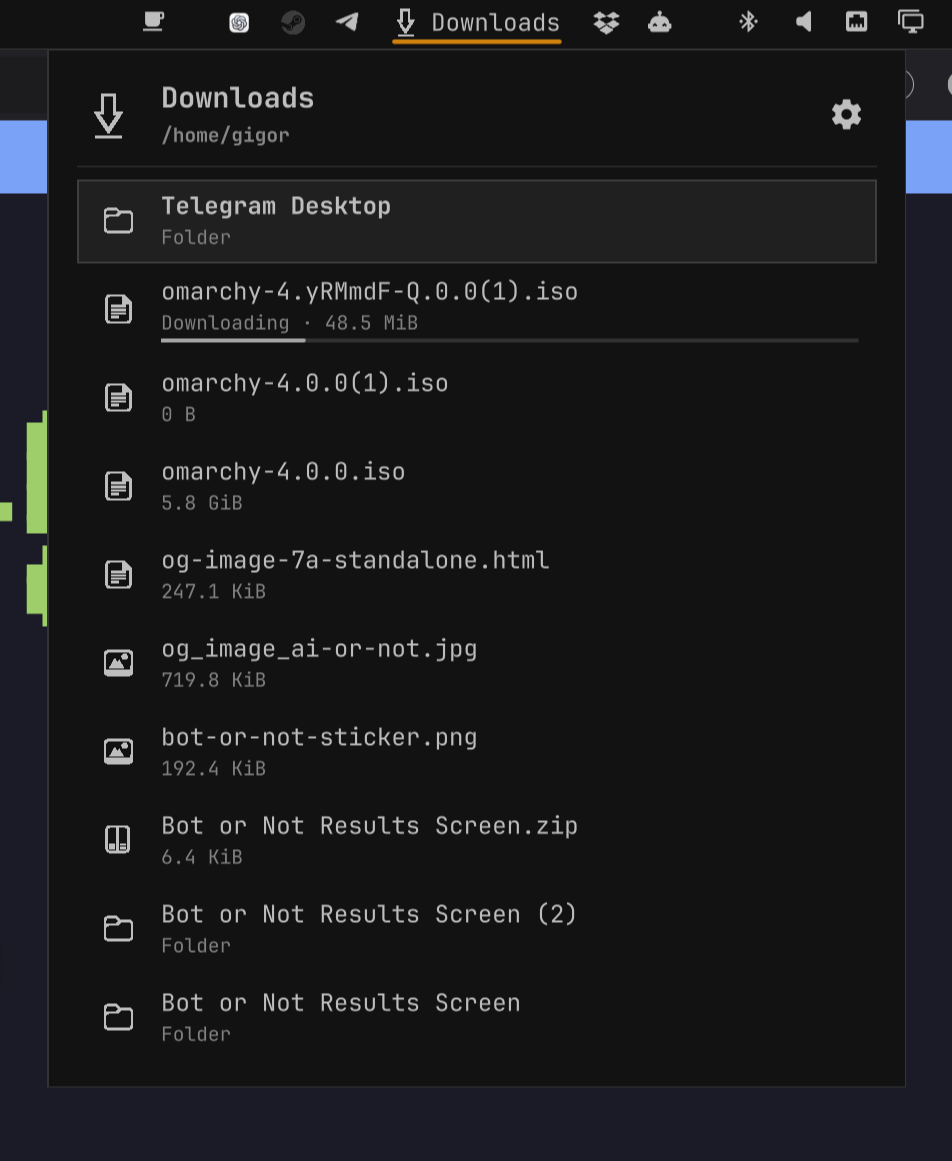
Folder is an Omarchy bar plugin for quick access to one local directory. It shows a folder button in the bar and opens a keyboard-focused list or tile view.
Each widget instance has its own root path and display settings. The popup can move into child directories, but it cannot move above its configured root.
Features
- More than one independent bar instance
- Automatic Nautilus-style symbolic icon, theme icon, or literal text icon
- Optional bar label
- Timed background refresh while the popup is open
- In-panel settings that save to the Omarchy shell configuration
- List and image-focused tile layouts with two item sizes
- Animated item and bar indicators for active downloads, with a brief complete state
- Hidden-file filter
- Natural sorting by name, modification time, creation time, size, or type
- Optional directories-first grouping
- Mouse and keyboard navigation
- GIO default-application file launch, including Nautilus archive extraction
- File URL and plain-path clipboard actions
- Native Qt/Wayland file drag
- Optional
dragon-dropaction when it is installed - Empty, invalid, missing, and permission error states
- Symbolic-link loop protection
Requirements
- Omarchy 4.0 or later
- Quickshell 0.3 or later
- Python 3, GIO, and GNU
timeoutfor bounded directory scans and file launch wl-copyfromwl-clipboardfor file URL clipboard data
The normal Omarchy installation already provides these components.
dragon-drop is optional. When it is installed, the item menu includes
Drag with dragon as an alternative to native Qt drag.
Install
Install from GitHub:
omarchy plugin add https://github.com/gigor/omarchy-folder.git --enable --yes
For a local checkout under ~/.config/omarchy/plugins/gigor.folder:
omarchy-shell shell rescanPlugins
omarchy plugin enable gigor.folder
The shell reloads saved plugin files automatically. Use the rescan command if a new manifest is not visible at once.
Configure
Open Omarchy bar settings and add Folder. The manifest permits multiple instances, so you can add separate widgets for Downloads, Documents, or any other local folder.
Settings are stored on each bar entry in ~/.config/omarchy/shell.json:
Open the Folder popup and select the cog to change the folder path, sorting, directory grouping, and hidden-item visibility. Use Omarchy's main bar settings for the bar icon, label, and refresh interval. Toggle and sort changes save at once. The folder path saves when you press Enter or move focus to another control.
{
  "id": "gigor.folder",
  "path": "~/Downloads",
  "icon": "auto",
  "show_icon": true,
  "label": "",
  "show_label": true,
  "mode": "list",
  "size": "medium",
  "sort_by": "modified",
  "sort_direction": "descending",
  "directories_first": true,
  "show_hidden": false,
  "refresh_interval_seconds": 2
}
| Setting | Default | Description |
|---|---|---|
path |
~/Downloads |
Absolute local path or a path that starts with ~/ |
icon |
auto |
Nautilus-style symbolic icon; a theme icon name or literal text overrides it |
show_icon |
true |
Show the icon |
label |
"" |
Bar label; an empty value uses the root folder name |
show_label |
true |
Show the label |
mode |
list |
Use the list or tiles layout |
size |
medium |
Use small or medium items |
sort_by |
modified |
name, modified, created, size, or type |
sort_direction |
descending |
ascending or descending |
directories_first |
true |
Keep folders before files |
show_hidden |
false |
Include names that start with . |
refresh_interval_seconds |
2 |
Rescan the open folder and check root download activity every 2–60 seconds |
If both display switches are false, the plugin keeps the icon visible. The bar button always has an activation target.
In auto mode, the plugin asks GIO for the folder's symbolic icon. This is the
same icon metadata that Nautilus uses. For example, ~/Downloads resolves to
folder-download-symbolic. If that icon cannot be loaded, the widget uses a
generic folder glyph. File and folder icons inside the popup also use symbolic
variants so that they fit the Omarchy shell.
The current metadata scan does not read filesystem birth time. The created
mode uses modification time as its documented fallback.
Files with common incomplete-download suffixes, including .crdownload,
.part, .download, .aria2, and .!qB, show an animated progress indicator
and their current size. The filesystem does not expose the expected final size,
so the indicator is intentionally indeterminate rather than a percentage.
The bar icon also becomes a spinner while the configured root folder contains an incomplete-download file. After the last marker disappears, it shows a check for 1.8 seconds and then restores the configured folder icon. This bounded check runs at the configured refresh interval, including while the popup is closed.
View layouts
List mode uses the existing two-line row at medium size. Supported image files show a cropped square preview in the icon slot. Small list rows use one line, a smaller icon, and less padding; they keep the normal file icons. List drag previews use a Small tile-sized crop for images. Other items use a toolbar- colored card with a compact icon and the file name.
Tile mode uses square cells. Supported image files fill and crop to the cell. Folders and other files show a vertical icon and file name. Small and medium tile sizes use five and three columns respectively. Image drag previews use the same square crop as their tiles.
Use
Mouse
| Action | Result |
|---|---|
| Primary click on the bar widget | Open or close the popup |
| Primary click on the header arrow | Go to the parent folder inside the root |
| Primary click on an item | Open the file or enter the folder |
Shift + primary click |
Select the range from the active item to the clicked item |
Ctrl + primary click |
Add or remove the clicked item from the selection |
| Secondary click | Open the item menu |
| Drag an item | Drag that item, or all selected items when it is selected |
The item menu contains Open, Copy, and Copy Path. It also contains
Drag with dragon when dragon-drop is available.
File activation uses GIO so that desktop MIME associations are applied. On a standard Omarchy installation, supported archive types such as ZIP are assigned to Nautilus. Opening one from this plugin therefore extracts it beside the archive, in the same way as opening it in Nautilus.
Keyboard
| Key | Result |
|---|---|
Down or J |
Select next item |
Up or K |
Select previous item |
Shift+Down or Shift+J |
Extend the selection to the next item |
Shift+Up or Shift+K |
Extend the selection to the previous item |
Home / End |
Select first / last item |
Enter or Space |
Open the selected item |
Backspace, Left, or H |
Go to the parent inside the root |
Right or L |
Enter the selected folder |
Ctrl+C or Super+C |
Copy the selected items as text/uri-list |
Ctrl+Shift+C or Super+Shift+C |
Copy the selected absolute paths as text/plain |
Escape |
Close the item menu, then close the popup |
Clipboard and drag
Copy sends an encoded local file:// URL as text/uri-list. Copy Path
sends the normalized absolute path to the system clipboard as text/plain,
with no shell quoting.
Native drag uses the Qt Quick Drag API with copy action support. The popup
uses a card-sized layer surface, so applications outside the card can receive
the drop while the drag source stays mapped. The drag provides these MIME
types:
text/uri-listtext/plain
Paths are always passed as argument data. The plugin does not join file names into shell commands.
Path behavior
~expands to the current home directory.- Redundant separators,
.segments, and lexical..segments are normalized. - Normal navigation stays inside the configured root.
- A symbolic link can point outside the root, but it does not change the root.
- Canonical directory history prevents symbolic-link navigation loops.
- Missing folders can recover when they become available and the popup reopens.
Security and resource limits
- File names, paths, labels, and messages are rendered as plain text. QML does not interpret filesystem text as HTML. Image previews load only the local URL of a file that has a supported image suffix.
- The scanner emits JSON records, so newlines and control characters in valid Linux file names cannot split fields or records.
- One scan returns at most 1,000 items and at most 2 MiB of data. The popup reports when it limits a listing.
- Folder and download checks have a three-second deadline. Directory scans have a five-second deadline. Automatic icon lookup has a three-second deadline and a 64 KiB output limit. Download checks inspect at most 1,000 direct children.
- Names that cannot be represented safely as Unicode are omitted.
Development
Run the automated checks:
bash tests/run.sh
The test suite covers path normalization, URL encoding, root boundaries, adversarial directory names, scan limits, plain-text rendering, download and image detection, view setting normalization, natural sorting, selection recovery, the 1,000-item sorting case, and hidden-file filtering.
Manual Wayland checklist
- Add two widgets with different root paths.
- Check the popup on top, bottom, left, and right bars.
- Open a file with spaces and non-ASCII characters in its name.
- Use
wl-paste --list-typesafter Copy and confirmtext/uri-list. - Paste Copy into a file manager.
- Paste Copy Path into a text editor.
- Drag one file into a GTK application.
- Drag one file into a Qt application.
- Test a missing path, a regular file path, and an unreadable directory.
- Test hidden files and every sort mode in both directions.
- Change each setting from the cog view and confirm it persists after a shell restart.
- Test a directory with at least 1,000 entries.
- Test a symbolic link to an outside folder and a symbolic-link loop.
Scope
Folder is not a full file manager. It does not create, rename, move, delete, trash, search, preview, archive, or edit files.
License
This project is available under the MIT License.