
Omarchy Side Panel
<p align="center"> <img src="assets/banner.png" alt="Omarchy Side Panel" width="100%"> </p>Omarchy Side Panel is a configurable edge surface for the plugin panels you use most. Organize them into named Side Panel pages, open the surface from the bar or its screen edge, and keep the workspace clear when you do not need it.
Requirements
- Omarchy with plugin support and a running Omarchy shell.
- Python 3 for automatic embedding of supported standard panels. No third-party Python packages are required.
Install
omarchy plugin add https://github.com/grigoryshulga/omarchy-side-panel.git --enable
The plugin id is gshulga.side-panel. If its icon is not visible after
installation, add Side Panel in Omarchy's bar-plugin settings.
To remove it:
omarchy plugin remove gshulga.side-panel
Get started
- Select the Side Panel icon in the bar.
- Hover the current Side Panel page title and choose Edit.
- Choose Add Plugin, search the catalog by name, id, or description, then select a plugin for the current page. Side Panel enables the plugin when necessary.
- Choose Done to leave Edit mode.
Hover the page title to reveal the pencil, then click it (or use Alt + R) to
rename the current Side Panel page. Create and remove pages in Edit mode; a
Side Panel always retains at least one page.
Using the Side Panel
- Hover the title to reveal ? Shortcuts, Settings, Edit, and Pin. The action name expands on hover.
- Pin keeps the Side Panel visible when focus changes, you click outside it,
or press
Escape. Pinning lasts only until the Side Panel is closed. - Without Pin, changing focus or clicking outside closes the Side Panel.
- In Edit mode, select a Side Panel item to focus it. Drag item headers to reorder items, use the item controls to expand or remove them, and drag their grips to resize them.
- The ordinary mouse wheel scrolls the hovered plugin panel. Hold
Altwhile scrolling anywhere in the Side Panel, or scroll directly over the page tabs withoutAlt, to move between Side Panel pages. - Choose how to open the Side Panel from its configured screen Edge: double-click, hover, or disable edge opening altogether.
Settings
The Settings page provides these controls:
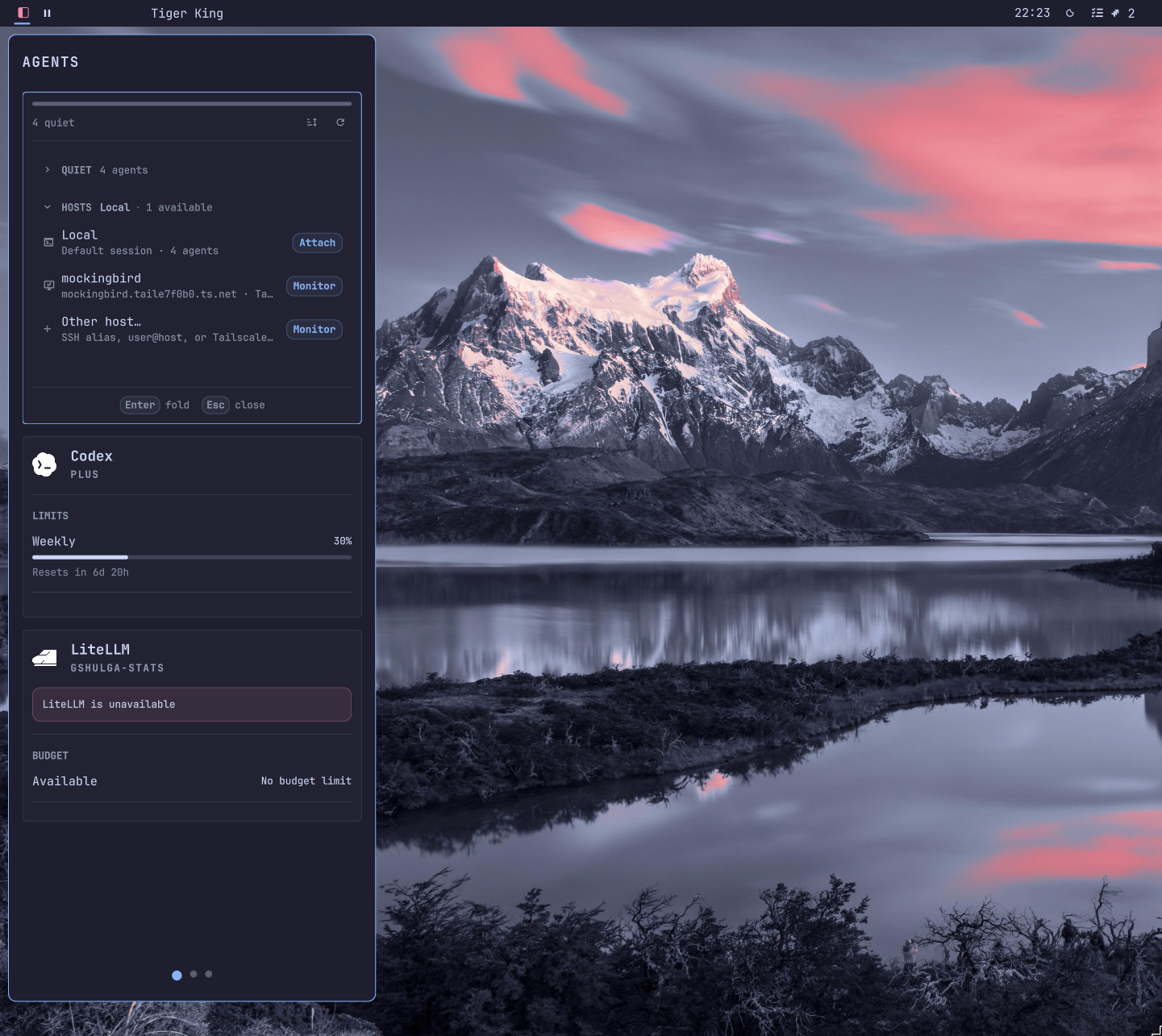
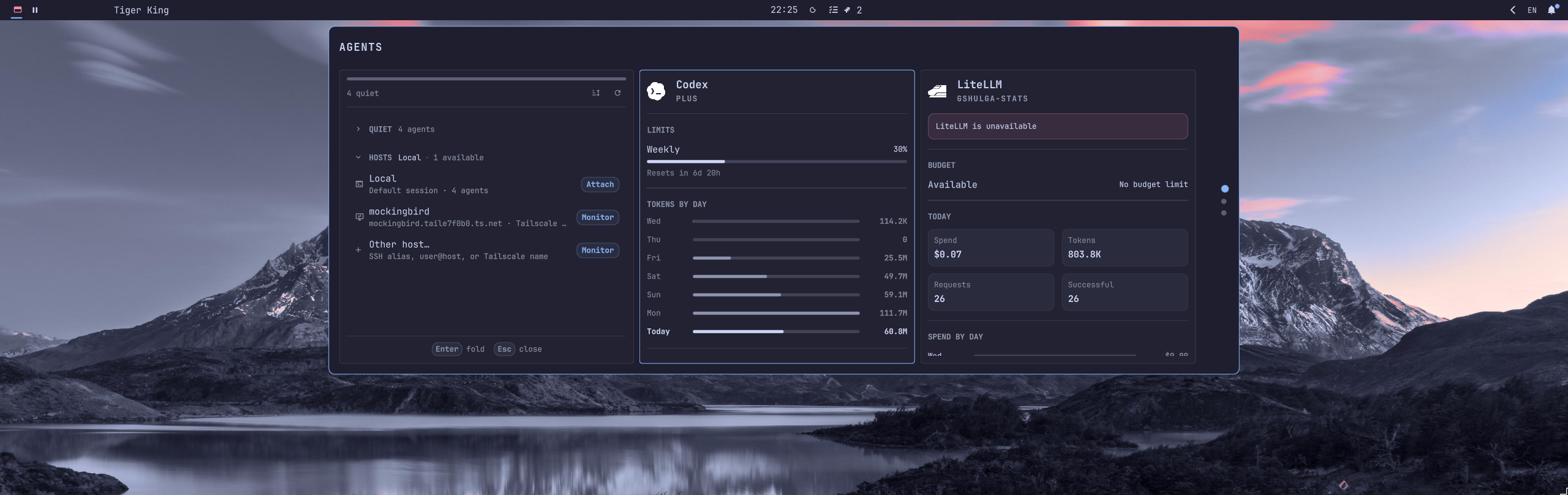
- Edge: left, right, top, or bottom.
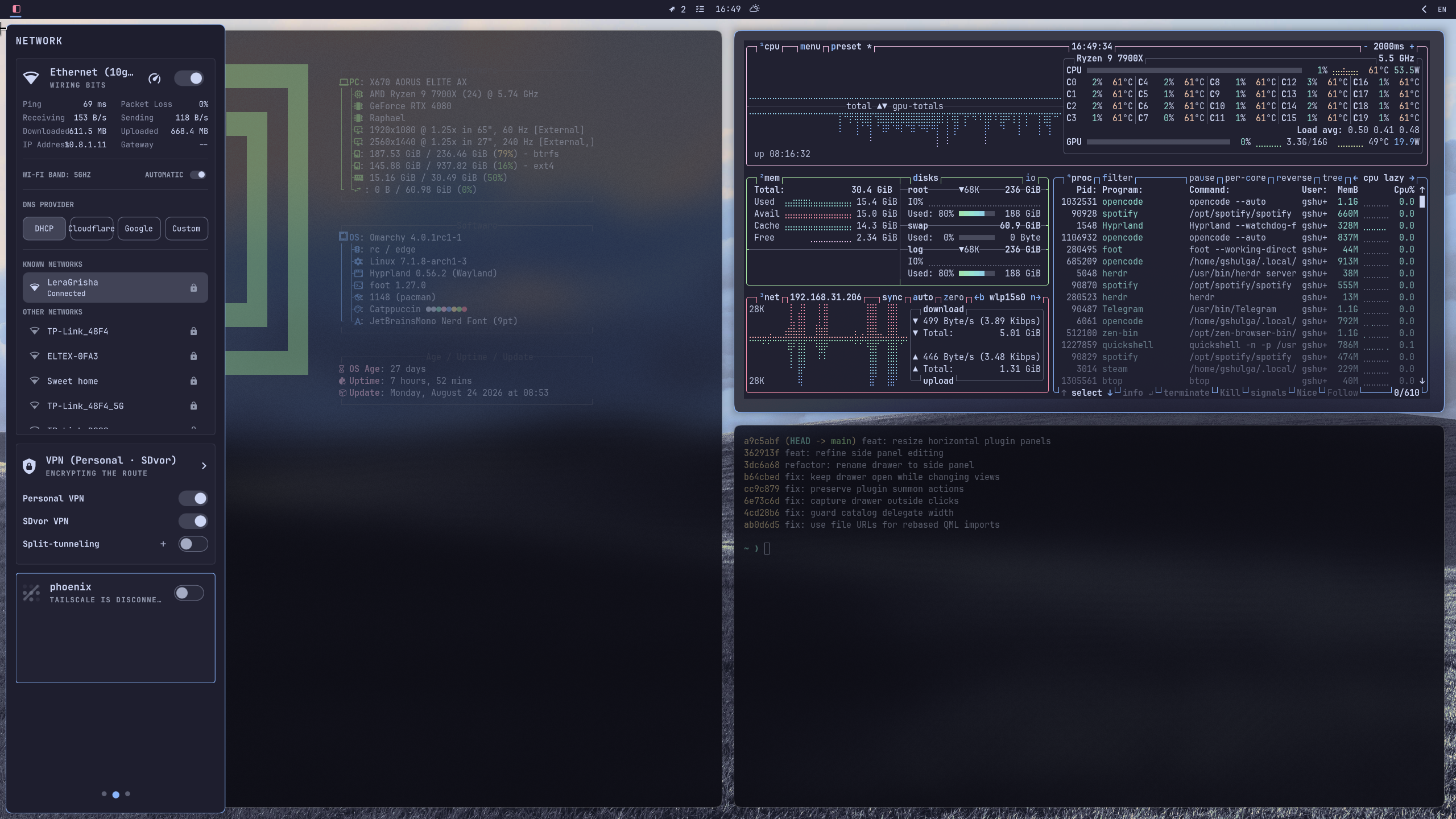
- Display mode: Overlay floats over windows; Reserve Space reserves edge space so windows use the remainder.
- Overlay alignment: on a left or right Edge, align the Side Panel to the top, center, or bottom; on a top or bottom Edge, align it to the left, center, or right.
- Resize Panel: enables the resize grips. Overlay has grips for both axes; Reserve Space exposes only the grip that changes the Side Panel's edge extent.
- Animate opening: enables or disables the slide-in animation.
- Open from screen edge: choose Double-click, Hover, or Don't open from screen edge. Hover is enabled by default.
- Reveal delay: the pointer dwell time before hover opening, from 0 to 2000 ms. The default is 250 ms.
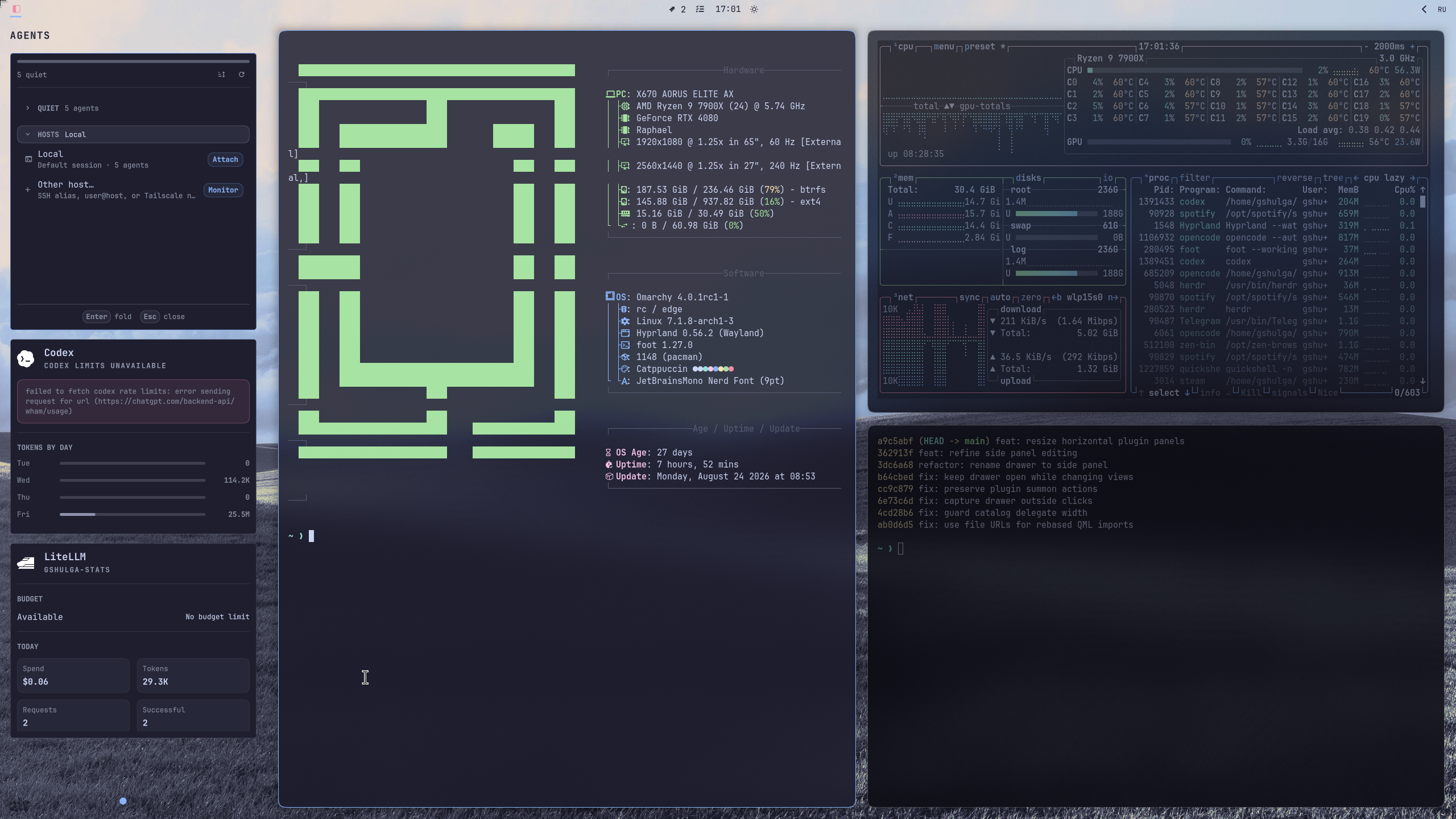
- Surface mode: Auto keeps the historic behaviour (the panel turns glassy only while it reserves space for a transparent bar); Framed always draws the opaque card; Glass always shows the desktop through the panel.
- Dim background: dims the desktop behind a floating (Overlay) panel. Hidden in Reserve Space mode, which already owns its screen strip.
- Blur background: asks Hyprland to blur the desktop behind the panel. Only applies in Reserve Space mode, where the panel's layer surface matches the panel footprint.
Side Panel corners and controls follow Omarchy's current Hyprland rounding setting automatically.
Edit mode also exposes per-item controls. Select an item to focus it, then use
the background toggle (▣/▢) in its header to hide that item's frame, or
Remove to delete it. Framed items still draw an accent outline while focused
so keyboard navigation stays visible.
Keyboard shortcuts
Select ? Shortcuts in the Side Panel for this reference at any time.
| Shortcut | Action |
|---|---|
Escape |
Close the add-plugin catalog, Settings, or shortcut help; otherwise close an unpinned Side Panel. |
Alt + ? |
Open or close shortcut help. |
Alt + S |
Open or close Settings. |
Alt + P |
Pin or unpin the Side Panel. |
Alt + E |
Enter or leave Edit mode. |
Alt + R |
Rename the current Side Panel page. |
Alt + 1 … Alt + 9 |
Switch to a numbered Side Panel page. |
Alt + Left / Alt + Right |
Previous or next Side Panel page outside Edit mode. |
Ctrl + Tab / Ctrl + Shift + Tab |
Focus the next or previous Side Panel item. |
In Edit mode:
| Shortcut | Action |
|---|---|
Alt + C |
Create a Side Panel page. |
Alt + X |
Remove the current Side Panel page. |
Alt + + |
Add a plugin. |
Alt + - |
Remove the focused Side Panel item. |
Alt + Space |
Expand or collapse the focused item. |
Alt + Up / Alt + Down, Alt + K / Alt + J |
Move the focused item on a left or right Edge. |
Alt + Left / Alt + Right, Alt + H / Alt + L |
Move the focused item on a top or bottom Edge. |
Alt + Ctrl + Up / Alt + Ctrl + Down, Alt + Ctrl + K / Alt + Ctrl + J |
Resize focused item height on a left or right Edge. |
Alt + Ctrl + Left / Alt + Ctrl + Right, Alt + Ctrl + H / Alt + Ctrl + L |
Resize focused item width on a top or bottom Edge. |
When an embedded page has Panel focus, its own keyboard controls receive input.
Plugin compatibility
Side Panel chooses the safest available integration for every selected plugin:
- A plugin with an explicit
sidePanelPageis loaded as an embedded page. - A supported conventional Omarchy
KeyboardPanelis copied to a disposable cache and adapted for the Side Panel. - If embedding is unavailable, Side Panel can open the enabled plugin's native panel instead.
The automatic copy lives under $XDG_CACHE_HOME/omarchy-side-panel/ and never
changes the installed plugin. It is safe to delete after uninstalling Side Panel
or when reclaiming disk space.
Side Panel starts the current Side Panel page first, then warms the remaining embedded pages incrementally. Once loaded, embedded pages remain available until the Side Panel closes, avoiding reloads while switching pages or windows.
Limits and data
Side Panel permits up to 12 Side Panel pages, 24 items per page, and 48 items in total. These limits keep persistent layout work and plugin loading bounded.
Its configuration is maintained by Omarchy. Saved state is bounded and stored under the XDG state directory. Side Panel is an unsandboxed plugin running with your user permissions, so add only plugins you trust.
For plugin authors
An explicit embedded page is the preferred integration. Add a sidePanelPage
entry point alongside the existing bar widget:
"entryPoints": {
  "barWidget": "BarWidget.qml",
  "sidePanelPage": "SidePanelPage.qml"
}
SidePanelPage.qml must be an ordinary Item or control that fills its parent.
It must not create a PanelWindow, manage an overlay, or depend on a bar-icon
anchor. Side Panel supplies sidePanel, sidePanelItem, bar, settings,
pluginId, and service when matching writable properties exist. Alternatively,
provide initializeSidePanel(context) to receive these values together.
import QtQuick

Item {
  property var service: null

  function initializeSidePanel(context) {
    service = context.service
  }
}
For supported automatic-embedding shapes, transformation rules, and safety boundaries, see Automatic embedding.
Preview
| Overlay on the left edge | Overlay on the top edge |
|---|---|
 |
 |
| Overlay mode | Glass surface |
|---|---|
 |
 |
Development
Run these checks from the repository root:
omarchy plugin validate .
python3 -m unittest discover -s tests -p 'test_*.py'
bash tests/adapter-smoke.sh
bash tests/qml-model.sh
qmltestrunner in the system PATH can point to Qt 5. The project uses Qt 6,
so the script explicitly selects the Qt 6 runner. The Side Panel lifecycle
test requires a Quickshell-hosted integration harness and is not runnable by
the standalone Qt test runner.
The QML suite requires Omarchy's QML imports and a graphical session.