
Overview Workspaces
0.1.12
- Win+number workspace shortcuts now use the workspace slots belonging to the currently focused monitor. They no longer always resolve against the first monitor in the combined Overview model.
- This applies consistently to MRU and native ordering modes, including each
monitor's
New workspaceslot.
0.1.11
- Added cross-monitor window dragging in Overview. While the workspace preview is open, drag a window from a card on one display to a workspace card on another display and release it there.
- Shows a temporary window proxy and highlights the destination workspace while dragging across displays.
- Resolves the destination by its owning monitor, so duplicate temporary workspace IDs remain unambiguous.
- Keeps the existing same-monitor drag behavior, thumbnail capture lifecycle, native mouse bindings, and plugin shortcut ownership unchanged.
0.1.10
- Added an MRU workspace-ordering switch. With MRU off, Overview and the top bar
use fixed native workspace numbers, and Win+number keeps its normal stable
meaning. With MRU on, Overview and Win+number follow recent-use order while
the top bar shows
WORKSPACEinstead of ambiguous numeric slots.
0.1.9
- Restored automatic Win/Super, Win+Tab, and optimized Win+number bindings on
Omarchy 4 by using its capability-scoped
barConfigAPI. - Kept compatibility with older Omarchy hosts without requesting access to the full shell configuration.
- Remove the raw Super-key listener when the plugin service is disabled or destroyed, so no Overview event observer remains behind.
- Restore native Win+number bindings when changing from optimized ordering to system ordering, preventing stale Overview slots after a later disable.
- Document the required Shell restart after updating an existing enabled copy;
Omarchy intentionally preserves
keepLoadedservices during plugin rescans.
0.1.8
- Added a guarded force-kill mode to Overview: press
Ctrl+Shift+X, then click a window to terminate only that client by address. - The mode hides the themed system cursor and shows the JetBrainsMono Nerd Font
close glyph
next to the pointer.Escapeor right-click cancels safely.
0.1.7
- System-native mode keeps Omarchy's Win+1…0 workspace binds instead of leaving those keys unbound.
- While Overview is open, the plugin temporarily guards Super+mouse move/resize so the native window operation cannot compete with preview dragging.
- System-native Overview no longer copies another monitor's workspaces into the current screen, and each monitor gets its own New workspace id.
- Search, lint, and menu paths follow
$OMARCHY_PATHon NixOS and Arch. - Application icons use the same filesystem index as Omarchy's app library.
- Overview and window previews fade in smoothly without changing user mouse bindings.
0.1.3
- Added the current plugin version to the workspace-order popup.
- Made the popup options responsive and scrollable when large text or a smaller display leaves less vertical space.
- Adapted the settings panel and overview scrim to theme-derived popup and background colors; removed the hard-coded dark scrim color.
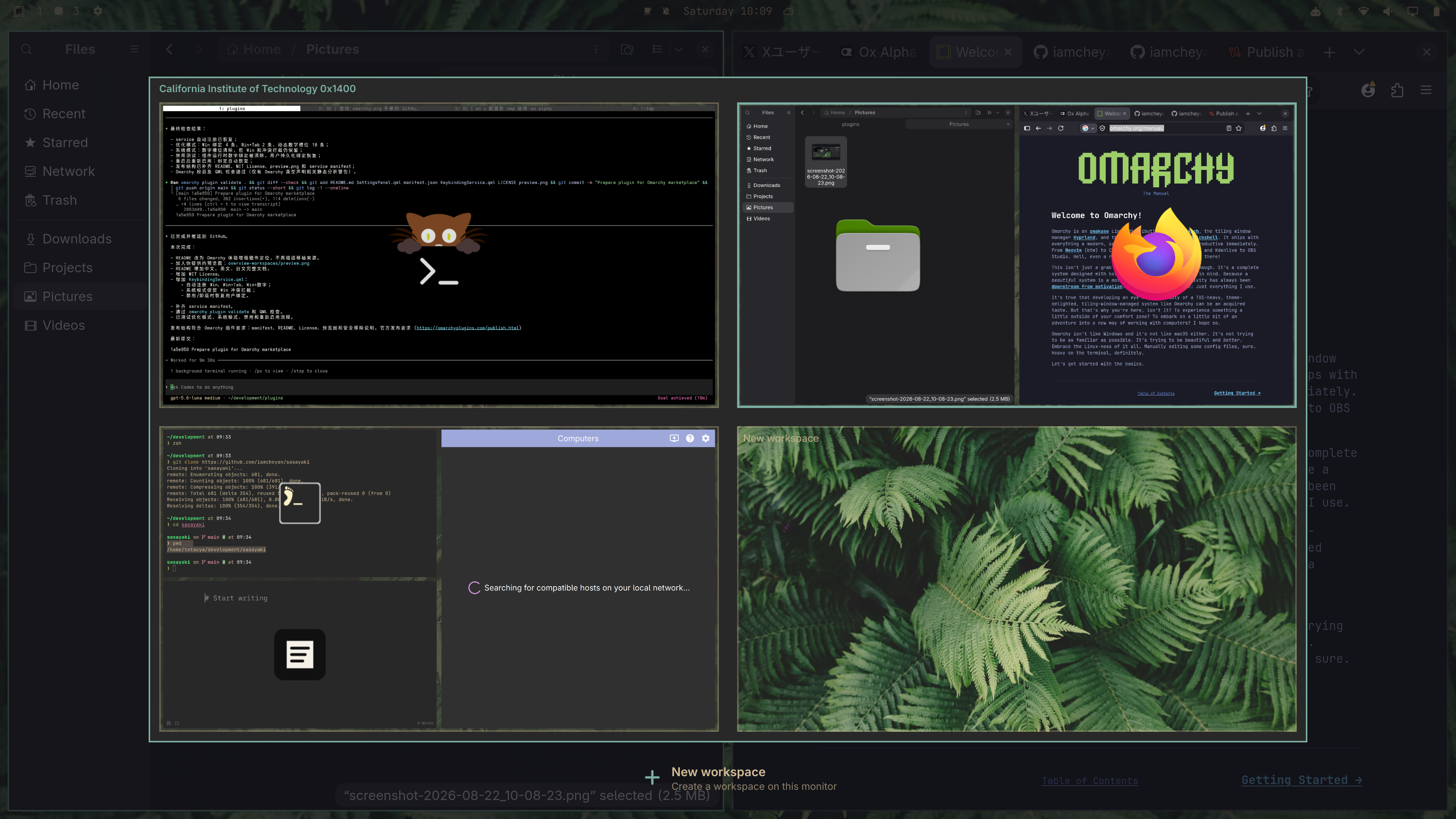
First image — Press Win/Super to open the Overview. / 第一张:按下 Win/Super 后出现的 Overview。 / 1枚目:Win/Super キーを押して表示した Overview。
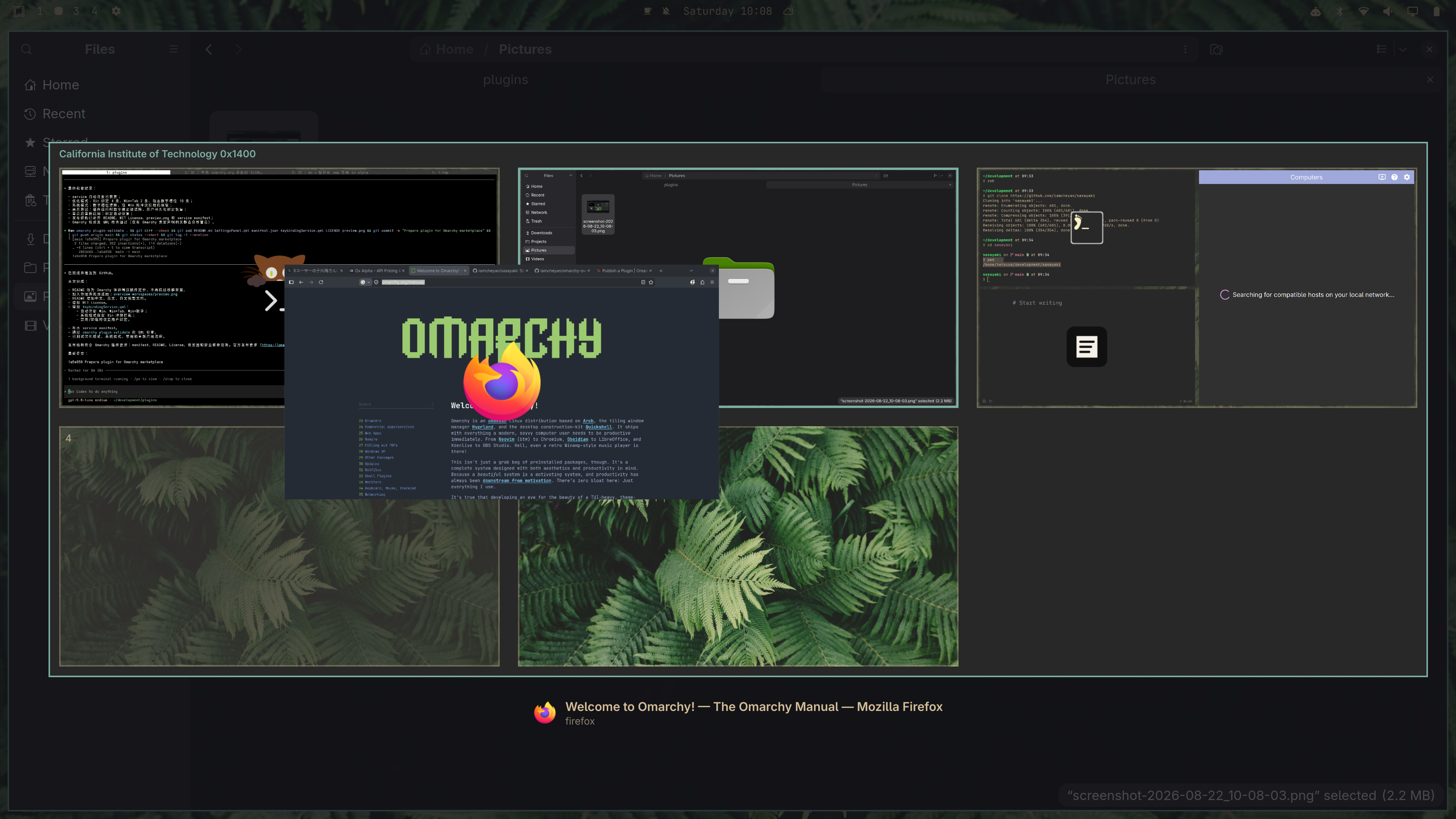
Second image — Click and drag windows freely inside Overview to move them between workspaces. / 第二张:可以在 Overview 中自由点击并拖拽窗口,在工作区之间移动。 / 2枚目:Overview 内でウィンドウを自由にクリック・ドラッグしてワークスペース間を移動できます。
Overview Workspaces is an Omarchy Quattro experience-enhancement plugin. It provides a full-screen workspace overview with live window previews, wallpaper-backed workspace cards, dynamic workspace ordering, native workspace ordering, drag-and-drop movement, and automatic keyboard integration.
Marketplace
Overview Workspaces has been approved and verified in the Omarchy plugin marketplace: open the published marketplace page.
English
Features
- Press the standalone Win/Super key to open or close Overview.
- Live
ScreencopyViewthumbnails for windows on every workspace. - Wallpaper-backed workspace cards, including an opaque New workspace card.
- Empty workspaces remain visible when using native ordering.
- A New workspace card always stays at the end of each monitor's list.
- Mouse selection, window focusing, drag-and-drop, and multi-monitor layouts.
- Cross-monitor drag-and-drop: move a window directly between workspace cards shown on different displays.
- Press
Ctrl+Shift+Xin Overview to arm force-kill mode; the cursor becomes a crosshair, and clicking a window kills only that client. PressEscapeor right-click to cancel without killing anything. - Keyboard navigation with arrows, H/J/K/L, Tab, Enter, Space, and Escape.
- Windows-style MRU ordering for workspaces across Overview, the top bar, Win+number, Win+Tab, and Win+Shift+Tab.
- Search for applications, open windows, and Omarchy menu actions from Overview.
- Per-monitor workspace previews, configurable from the gear panel.
- Right-click any part of the top-bar workspace widget to open Overview as a mouse fallback when the keyboard shortcut is unavailable.
- Re-registers its runtime bindings after a Hyprland configuration reload.
- Omarchy theme colors and configured icon font.
- No generic fallback icon is drawn over a window thumbnail when an app has no icon.
Install
omarchy plugin add https://github.com/iamcheyan/omarchy-overview-workspaces.git --enable
After enabling, the plugin registers its Hyprland bindings automatically. Users do not need to edit ~/.config/hypr/bindings.lua.
After updating an existing enabled installation, restart Omarchy Shell once so
the new keybinding service code replaces the preserved keepLoaded instance:
omarchy restart shell
A plugin rescan alone does not replace that service instance. Do not use a Hyprland reload as a substitute.
Enabling automatically replaces the built-in workspace indicator; disabling restores it through Omarchy's native replacement mechanism. Older hosts that injected the full shell configuration also retain the legacy duplicate-layout cleanup.
Ordering modes
Open the gear button in the top bar to choose a mode.
MRU workspace ordering ON
- Workspaces with windows are displayed in Windows-style MRU order.
- Win+1 through Win+0 follow those visual slots.
- The New workspace card always stays last.
- The top bar shows
WORKSPACErather than numbers, so it does not imply that an MRU slot is a permanent workspace ID.
MRU workspace ordering OFF
- Overview and the top bar use fixed numeric order.
- The top bar displays real workspace IDs such as
1 2 3 4 5. - Win+1 through Win+0 use the stable native workspace IDs.
- Empty workspaces 1–10 remain available, and real workspaces above 10 remain visible.
Changing the switch updates the top bar, Overview, and keyboard behavior together.
Search
Open Overview with the standalone Win/Super key, then press / to enter search.
Type an application name, window title, or Omarchy menu action and press Enter
to launch or focus the selected result. Use the arrow keys or Tab to move the
selection, and Escape to leave search.
H/J/K/L remain workspace navigation keys by default. To restore the older
behavior where any printable character starts search, turn off Keep h/j/k/l
for navigation in the gear panel. Prefix a query with > to run it as a
terminal command.
The search index reads Omarchy's menu through $OMARCHY_PATH, so it does not
assume /usr/share/omarchy and can be used on NixOS installations.
Keyboard integration and cleanup
The enabled plugin service registers standalone Win, Win+Tab, Win+Shift+Tab, optimized Win+number slots, and Super-interrupt guards for normal application shortcuts.
When the plugin is disabled or removed, the service removes the fixed shortcut
chords it manages and restores Omarchy's default workspace navigation and
Super+mouse move/resize. Hyprland's runtime unbind API has no plugin-owner
identity, so a custom user mapping on the same chord cannot be preserved by
this cleanup. The service never runs hyprctl reload or writes runtime binds
into the user's Hyprland configuration.
Manual summon and diagnostics
omarchy-shell shell summon hancore.overview-workspaces '{}'
hyprctl layers | grep -A3 -B2 'quickshell:overview'
omarchy plugin list --json | jq '.[] | select(.id == "hancore.overview-workspaces")'
Project files
Overview.qml— Overview layer-shell surface and lifecycle.OverviewWidget.qml— workspace grid, wallpaper, borders, selection, and drag targets.OverviewWindow.qml— window geometry, live thumbnails, and app icons.WorkspaceNavigation.qml— keyboard navigation, focus, and drag commits.OverviewSwitchingController.qml— Win+Tab switching and commit behavior.WorkspaceOrder.qml— persistent optimized workspace ordering.HyprlandData.qml— workspace, monitor, and window state mapping.SettingsPanel.qml— ordering-mode settings panel.KeybindingService.qml— automatic shortcut registration and cleanup.
Validation
The complete repeatable validation procedure is documented in
docs/validation.md. It covers automated tests, plugin
validation, QML checks, Shell IPC, layer checks, mouse fallback behavior,
stability cycles, and recovery isolation.
omarchy plugin validate .
qmllint -I "${OMARCHY_PATH:-/usr/share/omarchy}/shell" \
  Overview.qml OverviewWidget.qml OverviewWindow.qml \
  SettingsPanel.qml KeybindingService.qml bar/widget.qml
node --test
中文
插件作用
Overview Workspaces 是一个用于 Omarchy Quattro 的体验增强插件。它提供完整的全屏工作区概览,包括实时窗口缩略图、壁纸工作区卡片、动态工作区排序、系统原生排序、窗口拖拽以及自动快捷键集成。
功能
- 单独按 Win/Super 键打开或关闭 Overview。
- 使用
ScreencopyView显示每个工作区中的实时窗口缩略图。 - 工作区卡片显示壁纸,新工作区使用不透明背景。
- 系统原生排序模式下保留空白工作区。
- 每个显示器的最后始终保留一个“新工作区”。
- 支持鼠标选择、窗口聚焦、窗口拖拽和多显示器布局。
- 支持方向键、H/J/K/L、Tab、Enter、Space、Escape。
- Overview、顶栏、Win+数字、Win+Tab 和 Win+Shift+Tab 都按 Windows 式 MRU 顺序排列工作区;空工作区和新工作区不参与 MRU,并保持在后面。
- 可以在 Overview 中搜索应用、已打开的窗口和 Omarchy 菜单操作。
- 支持按显示器隔离工作区预览,并可在齿轮面板中配置。
- 右键点击顶栏工作区区域的任意位置都可以打开 Overview,作为快捷键失效时的鼠标回退入口。
- Hyprland 配置 reload 后会自动重新注册运行时快捷键。
- 使用 Omarchy 主题颜色和配置的图标字体。
- 应用没有图标时,不会在窗口缩略图上覆盖通用图标。
安装
omarchy plugin add https://github.com/iamcheyan/omarchy-overview-workspaces.git --enable
启用后插件会自动注册 Hyprland 快捷键,用户不需要手动修改 ~/.config/hypr/bindings.lua。
如果是更新已经启用的旧版本,请在更新后重启一次 Omarchy Shell,让新的快捷键
service替换Omarchy在插件rescan期间保留的keepLoaded旧实例:
omarchy restart shell
只执行插件rescan不会替换这个service实例;不要用Hyprland reload代替。
启用时会自动替换原生工作区指示器,禁用时由 Omarchy 恢复原生组件。仍注入完整 Shell 配置的旧版 Omarchy 会继续执行旧布局的重复项清理。
排序模式
点击顶部栏齿轮按钮选择模式。
优化排序(推荐)
- 有窗口的工作区获得动态视觉槽位
1、2、3...。 - Win+1 到 Win+0 按视觉槽位切换。
- 新工作区始终在最后。
- 顶部栏和 Overview 使用完全一致的顺序。
系统原生排序
- 按照 Omarchy 的原生工作区 ID 显示。
- 空白的 1–10 工作区保留显示。
- 已存在的 11、12、13 及更高工作区也保留显示。
- 不重新编号,不改变系统真实 ID。
- Win+数字恢复系统行为,同时 Overview 和 Win+Tab 仍然可用。
切换模式会同时更新顶部栏、Overview 和快捷键行为。
搜索
先单独按 Win/Super 打开 Overview,然后按 / 进入搜索。输入应用名称、
窗口标题或 Omarchy 菜单操作,按 Enter 启动应用、聚焦窗口或执行操作。
可以使用方向键或 Tab 移动选择,按 Escape 退出搜索。
默认情况下 H/J/K/L 仍然用于工作区导航。如果希望恢复“输入任意字符就
进入搜索”的旧行为,可以在齿轮面板中关闭 Keep h/j/k/l for navigation。
在查询前加 > 可以把内容作为终端命令执行。
菜单索引通过 $OMARCHY_PATH 读取 Omarchy 菜单,不假定路径必须是
/usr/share/omarchy,因此可以适配 NixOS 安装。
快捷键与清理
插件启用后,service 会自动注册单独 Win、Win+Tab、Win+Shift+Tab、优化模式的 Win+数字,以及防止普通应用快捷键误触发 Overview 的拦截绑定。
插件禁用或卸载时,service会删除自己管理的固定快捷键组合,并恢复Omarchy默认的
工作区及Super+鼠标移动/缩放绑定。Hyprland的运行时unbind API没有“插件所有者”
标识,因此如果用户在相同组合键上设有自定义映射,清理时无法保留该映射。
service不会执行hyprctl reload,也不会把运行时绑定写入用户的Hyprland配置文件。
手动启动和诊断
omarchy-shell shell summon hancore.overview-workspaces '{}'
hyprctl layers | grep -A3 -B2 'quickshell:overview'
omarchy plugin list --json | jq '.[] | select(.id == "hancore.overview-workspaces")'
主要文件
Overview.qml:Overview 的 layer-shell 界面和生命周期。OverviewWidget.qml:工作区网格、壁纸、描边、选择和拖拽目标。OverviewWindow.qml:窗口缩放、实时缩略图和应用图标。WorkspaceNavigation.qml:键盘导航、聚焦和拖拽提交。OverviewSwitchingController.qml:Win+Tab 切换逻辑。WorkspaceOrder.qml:优化排序的持久化。HyprlandData.qml:工作区、显示器和窗口数据映射。SettingsPanel.qml:排序模式设置面板。KeybindingService.qml:快捷键自动注册和清理。
验证
每次修改后的完整验收流程见
docs/validation.md,包括自动测试、插件校验、QML 检查、
Shell IPC、bar/Overview layer、右键鼠标回退、稳定性循环和卡死隔离恢复流程。
omarchy plugin validate .
qmllint -I "${OMARCHY_PATH:-/usr/share/omarchy}/shell" \
  Overview.qml OverviewWidget.qml OverviewWindow.qml \
  SettingsPanel.qml KeybindingService.qml bar/widget.qml
node --test
日本語
プラグインについて
Overview Workspaces は Omarchy Quattro の操作体験を強化するプラグインです。ライブウィンドウサムネイル、壁紙付きワークスペースカード、動的な並び順、システム標準の並び順、ウィンドウのドラッグ、ショートカットの自動統合を提供します。
主な機能
- Win/Super キー単独で Overview を開閉。
ScreencopyViewによるライブウィンドウサムネイル。- 壁紙付きのワークスペースカード。新しいワークスペースは不透明表示。
- システム標準モードでは空のワークスペースも表示。
- 各モニターの最後に常に「新しいワークスペース」を表示。
- マウス選択、ウィンドウのフォーカス、ドラッグ、マルチモニターに対応。
- 矢印キー、H/J/K/L、Tab、Enter、Space、Escape に対応。
- Overview、トップバー、Win+数字、Win+Tab、Win+Shift+Tab のすべてで Windows 風の MRU 順にワークスペースを表示。空のワークスペースと新しいワークスペースは MRU の対象外で後ろに残ります。
- Overview からアプリ、開いているウィンドウ、Omarchy メニュー操作を検索。
- モニターごとのワークスペースプレビューに対応し、歯車パネルで設定可能。
- トップバーのワークスペース領域を右クリックすると、キーボードショートカットの代替として Overview を開けます。
- Hyprland の設定 reload 後に実行時ショートカットを自動再登録。
- Omarchy のテーマカラーと設定済みアイコンフォントを使用。
- アプリアイコンがない場合、サムネイル上に汎用アイコンを表示しない。
インストール
omarchy plugin add https://github.com/iamcheyan/omarchy-overview-workspaces.git --enable
有効化後、Hyprland のショートカットは自動登録されます。~/.config/hypr/bindings.lua を手動編集する必要はありません。
有効化済みの旧バージョンを更新した場合は、更新後にOmarchy Shellを一度再起動し、
プラグインのrescan中も保持される古いkeepLoadedサービスを新しいコードに置き換えてください。
omarchy restart shell
プラグインのrescanだけではこのサービスは置き換わりません。代わりにHyprlandの reloadを使用しないでください。
有効化すると標準のワークスペース表示を自動的に置き換え、無効化すると Omarchy が標準表示を復元します。完全な Shell 設定を注入する旧版 Omarchy では、従来どおり既存レイアウトの重複も整理します。
並び順モード
トップバーの歯車ボタンからモードを選択します。
最適化された並び順(推奨)
- ウィンドウのあるワークスペースを動的な表示スロット
1、2、3...に並べます。 - Win+1 から Win+0 で表示スロットを切り替えます。
- 新しいワークスペースは常に最後です。
- トップバーと Overview は同じ順序を使用します。
システム標準の並び順
- Omarchy の実際のワークスペース ID を表示します。
- 空の 1–10 も表示します。
- 実在する 11、12、13 以降も表示します。
- 番号の振り直しは行いません。
- Win+数字はシステム標準に戻し、Overview と Win+Tab は引き続き利用できます。
モード変更時、トップバー、Overview、ショートカットが同時に更新されます。
検索
Win/Super キー単独で Overview を開き、/ を押すと検索モードになります。
アプリ名、ウィンドウタイトル、Omarchy メニュー操作を入力して Enter を
押すと、選択した項目を起動またはフォーカスできます。矢印キーまたは Tab
で選択を移動し、Escape で検索を終了します。
デフォルトでは H/J/K/L はワークスペース移動に使用します。以前のように
任意の文字で検索を開始する場合は、歯車パネルの Keep h/j/k/l for
navigation をオフにします。クエリの先頭に > を付けるとターミナル
コマンドとして実行できます。
メニューインデックスは $OMARCHY_PATH から Omarchy のメニューを読み込む
ため、/usr/share/omarchy 固定ではなく NixOS のインストールにも対応します。
ショートカットと後始末
有効化中、service が Win 単独、Win+Tab、Win+Shift+Tab、最適化モードの Win+数字、および通常のアプリショートカットとの競合を防ぐ割り込みバインドを自動登録します。
プラグインを無効化または削除すると、serviceは管理対象の固定ショートカットを
削除し、Omarchy標準のワークスペース操作とSuper+マウスの移動/リサイズを
復元します。Hyprlandの実行時unbind APIにはプラグイン所有者の識別子がないため、
同じキーに設定されたユーザー独自の割り当ては保持できません。serviceは
hyprctl reloadを実行せず、実行時バインドを設定ファイルへ書き込みません。
手動起動と診断
omarchy-shell shell summon hancore.overview-workspaces '{}'
hyprctl layers | grep -A3 -B2 'quickshell:overview'
omarchy plugin list --json | jq '.[] | select(.id == "hancore.overview-workspaces")'
構成ファイル
Overview.qml:Overview の layer-shell コンテナとライフサイクル。OverviewWidget.qml:ワークスペースグリッド、壁紙、枠線、選択、ドラッグ。OverviewWindow.qml:ウィンドウサイズ、ライブサムネイル、アプリアイコン。WorkspaceNavigation.qml:キーボード操作、フォーカス、ドラッグ確定。OverviewSwitchingController.qml:Win+Tab の切り替え処理。WorkspaceOrder.qml:最適化された並び順の永続化。HyprlandData.qml:ワークスペース、モニター、ウィンドウのデータ変換。SettingsPanel.qml:並び順設定パネル。KeybindingService.qml:ショートカットの登録と後始末。
検証
自動テスト、プラグイン検証、QML、Shell IPC、layer、マウス操作、安定性確認を
含む完全な手順は docs/validation.md にまとめています。
omarchy plugin validate .
qmllint -I "${OMARCHY_PATH:-/usr/share/omarchy}/shell" \
  Overview.qml OverviewWidget.qml OverviewWindow.qml \
  SettingsPanel.qml KeybindingService.qml bar/widget.qml
node --test