
AI Avatar
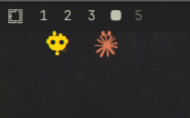
Little AI avatars that roam the edge of your screen, one per AI CLI that's running (Claude Code, Codex, aider, ollama…). They wander about with randomized paths, speeds and pauses, and vanish when their AI stops. Pure ambient presence: everywhere except the thin strip each avatar occupies stays transparent and click-through, so it never gets in your way.
How it works
A tiny pgrep runs on a timer (default every 1.5s) looking for the configured
process names. Each one that's running gets its own avatar, wandering back and
forth in a thin strip that hugs whichever edge your bar is on (top or bottom;
avatars fall back to the top if the bar is on the left/right, since walking is
horizontal-only). Each avatar's head is that AI's logo (tinted to your
theme, so it matches every theme), with drawn legs; it falls back to a robot
glyph for any AI without a logo. Claude and Codex reuse Omarchy's own shipped
logos.
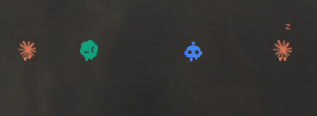
Claude, Codex, Gemini, and a sleeping Claude (the "z" means its AI is running but idle: it stops walking and stands still until there's work to do again).
Moving avatars
Every avatar can be repositioned independently:
- Drag along its strip to move it and pin it in place: it stops wandering and stays put until dragged again.
- Drag it off the strip (past its thin band, toward whichever screen edge is nearest) to relocate that one avatar to a different edge entirely (top, bottom, left, or right). It pops and fades slightly once it's "picked up" so it's clear it's about to jump edges, and a small ghost icon follows your cursor while you decide where to drop it. On a vertical edge the avatar turns 90° and wanders up and down instead of side to side.
- A plain click (no drag) focuses that AI's window instead.
Positions aren't saved: everything resets to following the bar on restart.
Custom AI logos
Drop an SVG named after the process into assets/ to give any AI its own head
(and to override the built-ins):
assets/ollama.svg
assets/gemini.svg
assets/aider.svg
The file name must match the process name in your processes setting. Monochrome
SVGs look best, since they're tinted to your theme color.
Install
omarchy plugin add https://github.com/hlasensky/omarchy-ai-avatar.git --enable
Plugins land disabled until you review them; --enable opts in. It drops
into the bar's right section; move it with
omarchy bar move hl.ai_avatar --section <left|center|right>.
Update
omarchy plugin update hl.ai_avatar
Uninstall
omarchy plugin remove hl.ai_avatar
This disables the widget, removes it from the bar (shell.json), and deletes
the plugin from ~/.config/omarchy/plugins/.
Requirements
pgrep(fromprocps-ng, ships with Omarchy).- A Nerd Font as the bar font (Omarchy default) for the robot fallback glyph.
- Hyprland (the Omarchy compositor): avatars live in
wlr-layer-shelloverlays.
On multi-monitor setups, avatars only appear on one screen (system-wide process activity doesn't map to a specific monitor, so showing one avatar per screen would just duplicate every AI).
Settings
Configure from Setup → Plugins, or edit the widget entry in
~/.config/omarchy/shell.json.
| Key | Type | Default | What it does |
|---|---|---|---|
processes |
multiselect | claude, codex, aider, ollama, gemini | Process names that count as "AI busy" |
pollIntervalMs |
integer | 1500 | How often to check (ms) |
walkSpeed |
integer | 6000 | Walk lap duration (ms); lower = faster |
Matching is by process name (pgrep -l), so merely opening a file that
mentions an AI name won't trigger it. A CLI launched under a wrapper whose
process name differs (e.g. node) won't match unless you add that name.
License
MIT, see LICENSE.