
Timers
systemd timers in the Omarchy bar: what runs next, what failed last time, and what is enabled but not actually running.
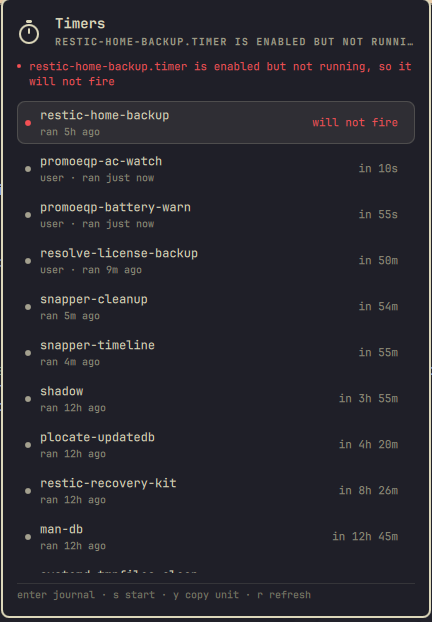
The case it exists for
systemd tracks "enabled" and "active" separately. A timer stopped by hand stays enabled, so it survives in every listing that checks whether it is supposed to run, while never firing again. systemctl is-enabled says enabled. systemctl list-timers shows it with no next run, in a column most people skim.
That is a backup that quietly stopped happening. This widget puts those timers at the top of the list and labels them will not fire.
What it shows
Both scopes, system and user, in one list:
- Problems first: a unit whose last run failed, then timers that are enabled but not running.
- Everything else by next run, soonest first.
- Per timer: unit name, scope, when it last ran, when it runs next, and the failure result when there was one.
- Units sitting in a
failedstate, whether or not a timer triggers them.
The bar turns urgent only for an actual failure. A stalled timer is a warning and gets the count badge.
Note that systemd reports Result=success for a unit that has never run, so "success" is not evidence that anything worked. The panel shows when a unit last ran alongside its result for that reason.
Actions
| Key | Action |
|---|---|
j / k or arrows |
move the cursor |
enter |
open the selected unit's journal in a terminal |
s |
start the selected timer (asks first) |
y |
copy the unit name |
r |
refresh |
esc |
close |
In the confirmation dialog, left/right/tab pick a button and enter activates it. It opens with Cancel selected.
On the bar icon: left click opens the panel, right click refreshes. In the panel, right click on a row offers to start it.
A user timer is started in place. A system timer needs root, so that runs in a visible terminal where the sudo prompt and result are on screen. The dialog shows the exact command either way.
What it reads
systemctl [--user] list-timers --all --output=json
systemctl [--user] list-units --failed --output=json
systemctl [--user] show -p Id -p Description -p ActiveState -p SubState \
                        -p UnitFileState -p Result -p ExecMainStatus <units>
All read-only and all unprivileged. One show call per scope covers every unit, so the cost does not grow with the number of timers.
Requires systemd 250 or newer for --output=json.
What it does not do
- Nothing is started, stopped, enabled or disabled except by
s, behind a confirmation that opens on Cancel. - No unit is masked, reset or reloaded.
- A unit name is checked before it becomes an argument. systemd does load a unit whose name begins with a dash, and
systemctlreads a leading dash as an option, so such a name is refused and every invocation terminates its options with--. Names are single-quoted for the terminal, because a unit name may legitimately contain a\x2d-style backslash escape that a shell would otherwise eat. - Nothing from systemd is rendered as markup. Unit descriptions and result strings are stripped of angle brackets, cleared of control characters and length-clamped as they enter the model, and every
Textitem is pinned toText.PlainText. QML's defaultAutoTextwould treat a description containing<img src="http://host/x">as rich text and make the shell fetch it.
Settings
| Setting | Default | Meaning |
|---|---|---|
refreshIntervalSec |
60 |
how often to re-read timer state |
showCount |
true |
show the count of timers needing attention beside the bar icon |
userScopeOnly |
false |
list only user timers |
Requirements
| Dependency | Needed for |
|---|---|
Omarchy Quattro (omarchy-shell) |
the plugin host |
systemd 250+ |
everything |
jq |
the status helper |
bash, coreutils |
date, awk |
wl-clipboard |
y |
Install
omarchy plugin add https://github.com/ianswope/omarchy-timers.git --enable
Remove
omarchy plugin remove ianswope.timers
That disables the widget, drops it from the bar layout and deletes ~/.config/omarchy/plugins/ianswope.timers. The plugin stores no state of its own.
Checking what the panel sees
~/.config/omarchy/plugins/ianswope.timers/bin/omarchy-timers-status | jq
License
MIT. See LICENSE.