
Panorama for Omarchy
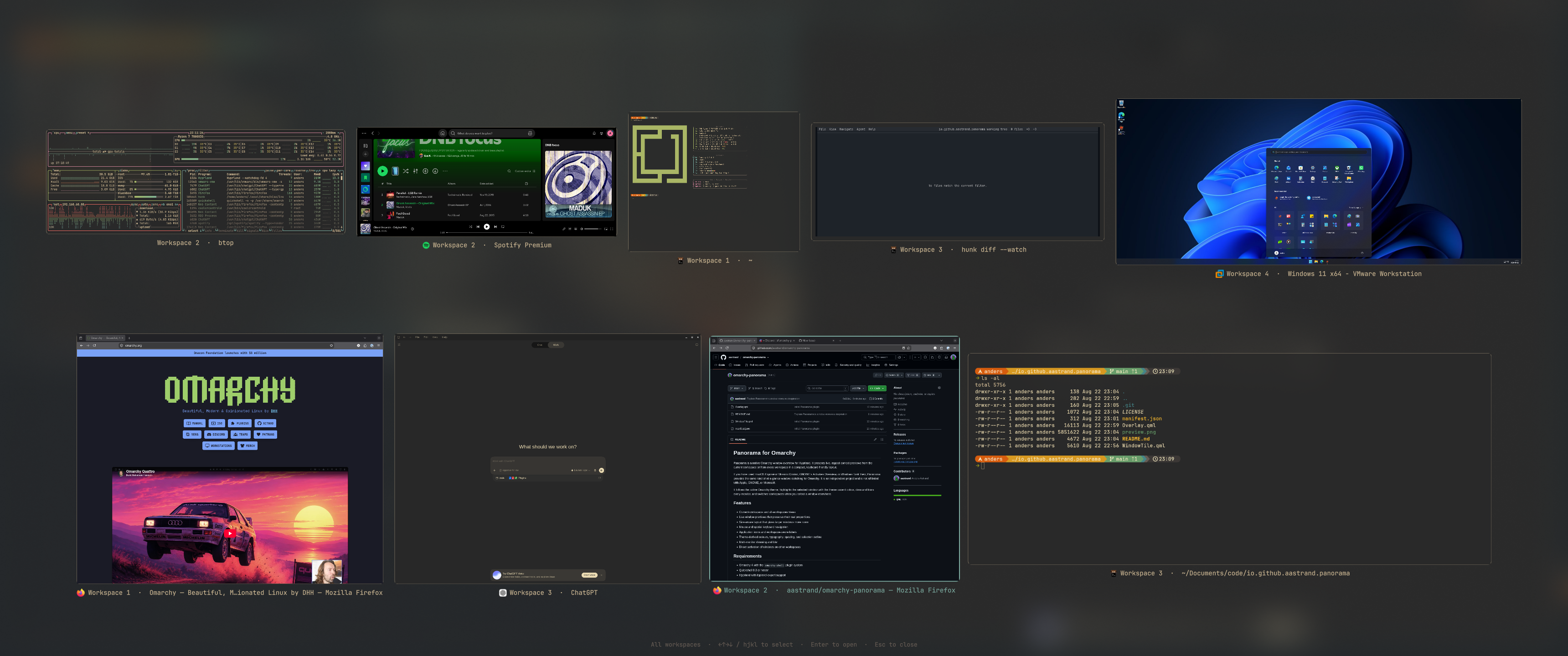
Panorama is a native Omarchy window overview for Hyprland. It presents live, aspect-correct previews from the current workspace or from every workspace in a compact, keyboard-friendly layout.
If you have used macOS Exposé or Mission Control, GNOME's Activities Overview, or Windows Task View, Panorama provides the same kind of at-a-glance window switching for Omarchy. It is an independent project and is not affiliated with Apple, GNOME, or Microsoft.
It follows the active Omarchy theme, highlights the selected window with the theme accent colour, dims every monitor while it is open, and switches workspaces when you select a window elsewhere.
Features
- Current-workspace and all-workspaces views
- Live window previews that preserve their real proportions
- Hidden application helper and tray windows are excluded
- Size-aware layout that gives larger windows more room
- Mouse and spatial keyboard navigation
- Application icons and workspace-aware labels
- Configurable overview display, dimming, and window labels
- Theme-derived colours, typography, spacing, and selection outline
- Dimming across every monitor, with optional background blur
- Direct activation of windows on other workspaces
Requirements
- Omarchy 4 with the
omarchy-shellplugin system - Quickshell 0.3 or newer
- Hyprland with toplevel-export support
Current Omarchy installations provide these components. Panorama has no other dependencies: it ships two QML files, bundles no third-party code, installs no binaries, and makes no network requests.
Installation
Install and enable Panorama with Omarchy's plugin manager:
omarchy plugin add https://github.com/aastrand/omarchy-panorama.git --enable
Omarchy displays its unsandboxed-plugin warning, clones the repository, validates the manifest, and enables the overlay. Panorama does not modify your Hyprland configuration or any other file on your system; the keybindings and blur rule below are optional steps you apply yourself.
Keybindings
Add the following to ~/.config/hypr/bindings.lua:
o.bind("CTRL + UP", "Panorama all workspaces", "omarchy-shell shell summon io.github.aastrand.panorama all")
o.bind("CTRL + DOWN", "Panorama current workspace", "omarchy-shell shell summon io.github.aastrand.panorama current")
Ctrl+Upshows windows from every workspace.Ctrl+Downshows windows from the current workspace.
You can also open or switch either view directly:
omarchy-shell shell summon io.github.aastrand.panorama all
omarchy-shell shell summon io.github.aastrand.panorama current
summon opens Panorama or switches its scope immediately; use Esc to close.
If you prefer a second key press to close the overview, replace summon with
toggle, but changing scope then requires closing it first. The final argument
is the scope, and anything other than all is treated as the current workspace.
Settings
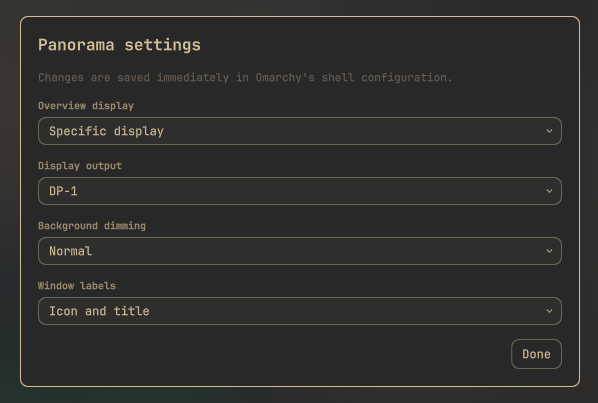
Panorama keeps configuration out of the window overview itself. Open its dedicated settings view from a terminal:
omarchy-shell shell summon io.github.aastrand.panorama '{"view":"settings"}'
You can bind that command in ~/.config/hypr/bindings.lua if you expect to
change settings frequently:
o.bind("CTRL + SHIFT + DOWN", "Panorama settings", "omarchy-shell shell summon io.github.aastrand.panorama '{\"view\":\"settings\"}'")
The settings view provides:
- Overview display: follow the focused display or use a specific connected
output such as
DP-1. If the selected output is disconnected, Panorama falls back to the display where it was invoked. - Background dimming: light, normal, or dark. This controls Panorama's translucent scrim; compositor blur remains the separate, optional Hyprland integration described below.
- Window labels: icon and title, title only, or hidden. The application and “Preview unavailable” fallback inside an uncapturable window remains visible even when the label beneath previews is hidden.
Changes are applied and saved immediately as inline fields on Panorama's entry
in ~/.config/omarchy/shell.json, which is Omarchy's standard storage model
for non-bar plugins. Panorama creates no separate settings or state file. The
current-workspace view always uses the workspace where Panorama was invoked,
even if the overview is configured to appear on another display.
Background blur
Add this layer rule to ~/.config/hypr/hyprland.lua. Panorama dims every
monitor on its own; this rule is what adds blur behind the dimming, and the
active Omarchy theme continues to control the blur strength:
hl.layer_rule({
  name = "panorama-background-blur",
  match = { namespace = "^io[.]github[.]aastrand[.]panorama([.]backdrop)?$" },
  blur = true,
  ignore_alpha = 0.1,
})
Reload Hyprland after changing the configuration:
hyprctl reload
hyprctl configerrors
Controls
- Click a preview to activate that window.
- Hover a preview to move the selection to it.
- Use the arrow keys or
h,j,k, andlto move the selection. - Press
Enterto activate the selected window. - Press
Escor click the background to close Panorama.
How it works
Panorama runs inside the existing omarchy-shell process. It uses Quickshell's
Hyprland model to enumerate windows and ScreencopyView to request live
per-window previews through Hyprland's toplevel-export protocol.
Capture is best-effort. If a client does not provide a capture handle, Panorama keeps the window selectable using its application ID and title. It does not write screenshots or preview caches to disk, and it reads no data beyond what the compositor already reports about your own windows.
Thumbnails are drawn on the configured overview display. Other monitors receive a dimming layer so the overview reads as a desktop-wide mode.
Source overview
| File | Purpose |
|---|---|
manifest.json |
Plugin metadata and the overlay entry point |
Overlay.qml |
Entry point: shell contract, window model, layout, keyboard handling, panel surfaces |
SettingsCard.qml |
Dedicated settings UI for display, dimming, and window labels |
WindowTile.qml |
One thumbnail: live capture, fallback text, icon and title label, hit testing |
preview.png |
Screenshot used in this README |
settings.png |
Settings-view screenshot used in this README |
The QML files carry inline documentation covering the omarchy-shell plugin
contract, settings persistence, the layout algorithm, and the theme tokens
they read.
Development
Validate the manifest after making changes:
omarchy plugin validate .
An installed plugin normally reloads automatically. To force rediscovery, run:
omarchy-shell shell rescanPlugins
Panorama logs a line to the shell journal each time it opens, which is the quickest way to confirm the scope and window count it received.
Removal
Remove the plugin through Omarchy:
omarchy plugin remove io.github.aastrand.panorama
If you added the optional integration, also remove the two Panorama entries
from ~/.config/hypr/bindings.lua and the panorama-background-blur layer rule
from ~/.config/hypr/hyprland.lua. Then reload Hyprland:
hyprctl reload
hyprctl configerrors
Panorama leaves nothing else behind: no state files, caches, or configuration of its own.
References
- Omarchy shell plugins
- Quickshell HyprlandToplevel
- Quickshell HyprlandWorkspace
- Quickshell ScreencopyView
License
Panorama is available under the MIT License. preview.png is an
original screenshot of Panorama and is covered by the same licence.
Exposé and Mission Control are trademarks of Apple Inc. Windows is a trademark of Microsoft Corporation. Other names may be trademarks of their respective owners.