
omarchy-yubikey
YubiKey for Omarchy: a bar widget that knows whether your key is plugged in, a panel of your codes ranked by what you are looking at, and menu entries for the applications on the key and the repairs that fix one that has stopped answering.
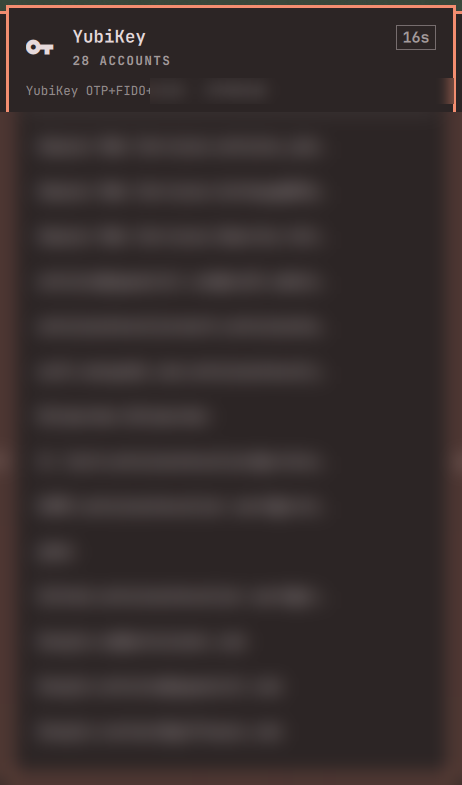
(account names and serial blurred — they are real)
In the bar
The key icon is bright when a YubiKey is plugged in, and swaps to a dimmed
alert glyph when it is not — so a missing key reads as a state, not an absence.
Presence is read from sysfs, so it costs nothing and updates the moment you
plug in or pull out — ykman is only run when there is something to ask it.
- Left click opens the panel
- Right click types a code into the focused field
- Middle click shows the key's info
The panel opens on the key's model, serial, and a countdown to the next code
rotation, then a KEY section (info, applications, troubleshoot) and an
ACCOUNTS section listing your OATH accounts with the ones matching the
focused window first. Type to filter, enter copies, tab or right-click
types, esc closes. With no key plugged in the panel says so and offers
nothing that cannot work.
The menu behaves the same way: the YubiKey row carries a ✓ while a key is present, the code and application rows hide themselves when it is not, and a No YubiKey Detected row takes their place.
What you get
Super+Space then type yubikey (or 2fa), or jump straight there:
omarchy menu summon yubikey
- 2FA Code — pick an OATH account, get the code on your clipboard, and it clears itself 30 seconds later. Prompts you to touch the key when the account requires it, and falls back to a terminal if the OATH application is password protected. Type in the picker to search — it matches the account name and the subtext alike.
- Type 2FA Code — the same, but typed straight into the field you were
looking at with
wtype, so the code never touches the clipboard at all. It is piped towtypeon stdin rather than passed as an argument. - Add Account — scan the setup QR straight off the screen, or type the
secret into a terminal. Either way the secret reaches
ykmanon stdin, never as an argument, so it stays out of the process list and out of shell history. Manual entry reads the secret with echo off, becauseykman's own prompt echoes it. The decoded QR is restored off the clipboard however the scan ends, including on failure, since that value is the secret. - Key Info — serial, firmware, and which applications are enabled
- OATH Accounts — what is stored on the key
- Authenticator — launches Yubico Authenticator, or focuses it if it is already open
- Applications — PIV, FIDO2, Passkeys, OpenPGP, and OTP slots
- Login With Key — hands off to Omarchy's own FIDO2 login setup
- Troubleshoot — enable the smart card daemon, or restart the GPG agent when the card stops answering after a suspend or a re-plug
Anything that needs a PIN, a password, or a long readout opens a floating terminal. Everything else reports back as a notification.
Install
The bar widget, as an Omarchy shell plugin:
omarchy plugin add https://github.com/achevalier-dev/omarchy-yubikey.git --enable
Then the menu rows and the CLI helper:
~/.config/omarchy/plugins/io.github.achevalier-dev.yubikey/install.sh
Menu rows and CLI without the bar widget: clone anywhere and run ./install.sh.
install.sh symlinks bin/yubikey-menu into ~/.local/bin and merges the menu
rows into ~/.config/omarchy/extensions/omarchy-menu.jsonc, backing the file up
first. It is safe to re-run — the block is replaced, never duplicated.
Requirements
-
Omarchy 4.x
-
yubikey-manager(ykman) -
pcscliteand a running pcscd — OATH, PIV and OpenPGP speak CCID and need it; FIDO and OTP go over raw HID and do not:sudo systemctl enable --now pcscd.socketThe menu's Troubleshoot → Enable Smart Card Daemon row does this for you, and hides itself once pcscd is running.
-
wtypefor typing codes (the clipboard is the fallback) -
Optional:
yubico-authenticatorfor the GUI row
GnuPG and pcscd
With pcscd running, GnuPG's scdaemon may fail to claim the reader —
gpg --card-status reports "selecting card failed: No such device". Tell
scdaemon to go through PC/SC instead of driving CCID itself:
echo disable-ccid >> ~/.gnupg/scdaemon.conf
gpgconf --kill scdaemon gpg-agent
Fastest path
Bind the panel to a key and skip the menu entirely:
o.bind("SUPER + SHIFT + Y", "YubiKey codes", "omarchy-shell io.github.achevalier-dev.yubikey toggle")
The panel lives inside omarchy-shell, so it opens in about 70ms with the
accounts already listed. The same list reached through a menu row costs ~0.5s,
because Omarchy dispatches menu actions through a login shell and then summons
and draws the picker.
Speed
The picker draws about half a second after the menu row is chosen, and most of
what remains is not this plugin: Omarchy runs menu actions through a login
shell, and summoning and drawing the picker costs its own fifth of a second. Presence is read from sysfs
rather than by asking ykman (8ms against 1.3s), and the account list is served
from a cache in $XDG_CACHE_HOME/yubikey-menu while the key is re-read in the
background, so enrolling an account elsewhere still shows up. Only the code
itself waits on the key.
Service detection
Both code actions read the focused window first — hyprctl activewindow gives
the class and title — and float the accounts that match to the top of the
picker. A login page almost always names its service ("Sign in to GitHub ·
GitHub" → Github:…, "Log in | MongoDB Cloud" → auth.mongodb.com:…), and
native apps name it in their window class. Domains inside an account name are
matched too, which covers the entries an authenticator app wrote as raw
hostnames.
Three signals feed the ranking: words from the window, any email address
visible in it — a Google or AWS sign-in page names the account you are signing
into, which is what separates three otherwise identical entries — and which
account you chose last time you were on this same page, remembered in
$XDG_STATE_HOME/yubikey-menu/choices. The memory only breaks ties between
accounts that already match; it never invents one.
Matching only ever reorders the list. Nothing is picked or typed for you, and every account stays reachable — a wrong guess costs you a keystroke, never a wrong credential. This machine's own hostname and username are ignored so a terminal window does not produce phantom matches.
What is never recorded
Codes are kept out of anything that persists. A copied code goes to the
clipboard with wl-copy --sensitive and clears after 30 seconds; the
notification says that a code was copied, never the code itself, because
Omarchy keeps the last ten notification bodies on disk as plaintext. Nothing
here writes a code or a secret to a file, a log, or a command line.
How it works
bin/yubikey-menu is a plain bash script — no daemon, no background process.
It draws its pickers with omarchy-menu-select, reports through
omarchy-notification-send, and opens omarchy-launch-floating-terminal-with-presentation
for anything interactive. Usable on its own:
yubikey-menu code        # pick an account, copy the code
yubikey-menu type        # pick an account, type the code into the focused field
yubikey-menu info        # ykman info in a floating terminal
yubikey-menu reset-gpg   # restart scdaemon and re-read the card
Uninstall
omarchy plugin remove io.github.achevalier-dev.yubikey
rm ~/.local/bin/yubikey-menu
Then delete the // >>> omarchy-yubikey … // <<< omarchy-yubikey block from
~/.config/omarchy/extensions/omarchy-menu.jsonc.
License
MIT