
Chroma
Chroma is a fast screen color picker and eyedropper for Omarchy, Hyprland and Wayland. Pick any pixel on screen, instantly copy HEX, RGB or HSL values, revisit your color history, generate palettes and inspect contrast.
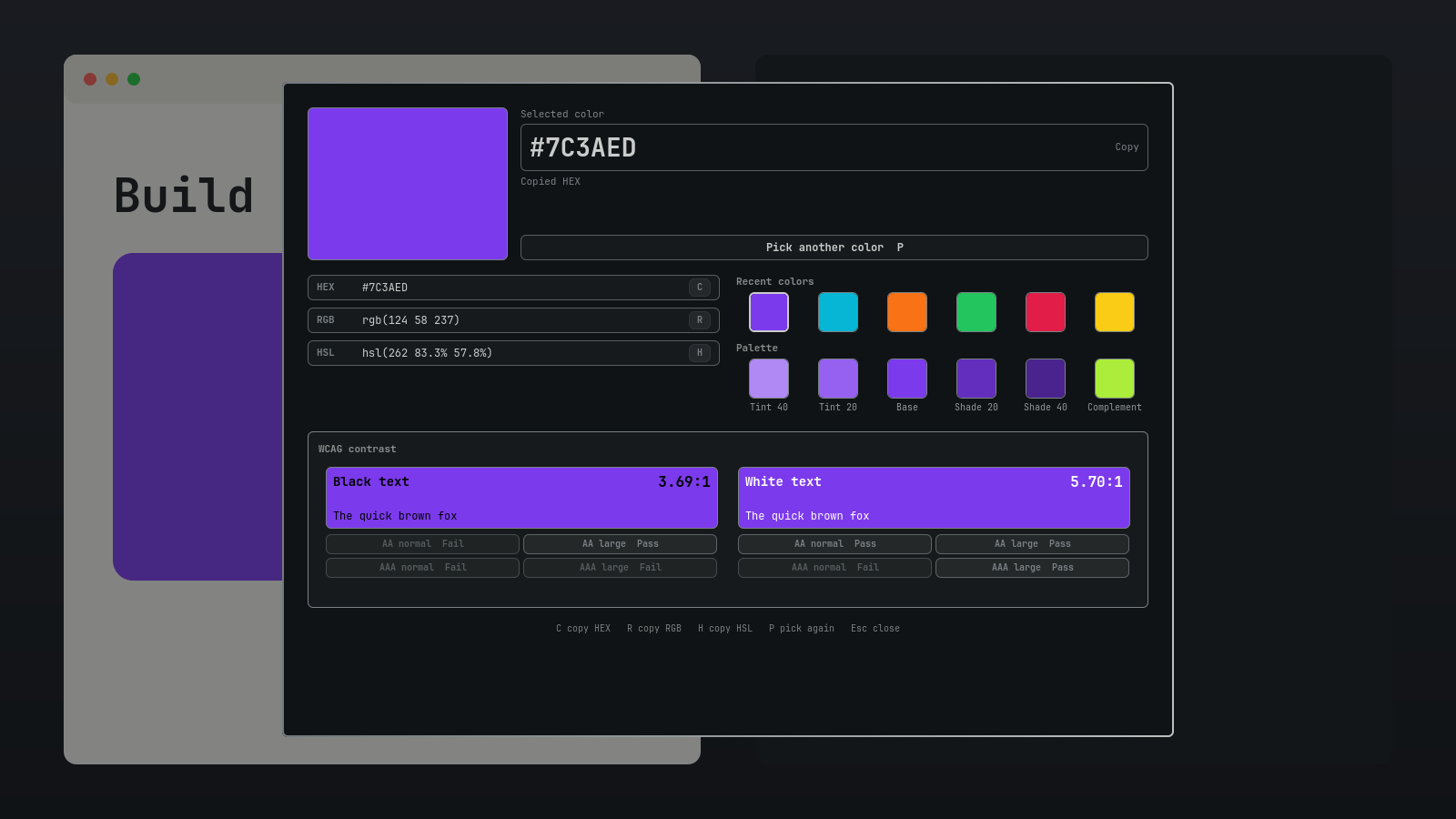
Watch the eight-second pick-to-paste demo.
The normal flow is deliberately short: press a shortcut, choose a pixel, and paste the copied HEX value. Chroma then gives you the useful developer context without turning the pick into a form-filling exercise.
Use it as a Wayland color picker or Hyprland color picker when you want the native eyedropper instead of a browser-only tool. The default HEX color picker output is uppercase and ready for CSS. Press R when the same screen sample is needed as an RGB color picker value.
What Chroma does
- Picks an exact screen pixel through Hyprpicker's native Wayland magnifier.
- Adds an eyedropper button to the Omarchy bar for one-click picking.
- Copies uppercase
#RRGGBBas soon as the selection succeeds. - Exposes CSS-ready HEX, RGB, and HSL values.
- Keeps a local, deduplicated 32-color history.
- Builds a compact tint, shade, and complementary color palette.
- Compares the current color with black and white using WCAG 2.2 contrast.
Chroma is an Omarchy color picker first. It uses the tools already present on a current Omarchy installation, so there is no online service, account, portal, or second screenshot pipeline.
Install
Chroma requires Omarchy Quattro, Hyprpicker 0.4.7 or newer, wl-clipboard, jq, and Python 3. Current Omarchy installations already provide these dependencies.
omarchy plugin add https://github.com/ajanraj/omarchy-chroma.git --enable
Chroma's eyedropper is placed on the right side of the bar.
Shortcut
Click the eyedropper in the bar. On first use, Chroma offers SUPER + ALT + C and checks it against your live Hyprland bindings before making any change. Use Left or Right to choose another free option, Enter to install it, or Tab to keep using the bar without a shortcut.
The available choices are SUPER + ALT + C, SUPER + ALT + P, SUPER + CTRL + SHIFT + C, and SUPER + CTRL + SHIFT + P. Chroma refuses to replace an occupied binding. Right-click the bar icon whenever you want to run shortcut setup again.
Omarchy's existing SUPER + PRINT color picker is left unchanged.
You can also start a pick from a terminal:
omarchy-shell shell summon io.github.ajanraj.chroma '{"action":"pick"}'
Keys
| Key | Action |
|---|---|
C |
Copy HEX |
R |
Copy RGB |
H |
Copy HSL |
P |
Pick another color |
Left / Right |
Move through recent colors |
Enter |
Select the highlighted recent color |
Esc |
Close Chroma or cancel Hyprpicker |
Clicking a palette color copies it without adding the generated value to sampled color history.
Color and contrast behavior
Hyprpicker returns the composited screen pixel as opaque sRGB. A screen pick cannot recover alpha or the source document's original color space, so Chroma does not pretend otherwise.
The palette uses fixed sRGB mixes for two tints and two shades. Its complementary swatch rotates HSL hue by 180 degrees. These colors are suggestions, not an accessible palette guarantee.
The contrast checker uses the WCAG 2.2 relative-luminance formula and its current 0.04045 breakpoint. Chroma evaluates WCAG contrast pass/fail before rounding the displayed ratio.
Local data
History stays on this machine at:
~/.local/state/chroma/history.json
Chroma stores only canonical HEX strings. It makes no network requests.
Before loading history, Chroma requires the file to be a small regular file owned by the current user. If validation fails, picking and copying continue with memory-only history until the unexpected file is moved aside.
If you install a shortcut, Chroma manages ~/.config/hypr/chroma.lua and a marked three-line loader block in ~/.config/hypr/bindings.lua. Choosing “Not now” creates ~/.local/state/chroma/shortcut-setup-skipped. It never changes unrelated bindings.
Remove
Remove Chroma's managed shortcut first, then remove the plugin:
~/.config/omarchy/plugins/io.github.ajanraj.chroma/scripts/shortcut remove
omarchy plugin remove io.github.ajanraj.chroma
Removal preserves color history. If you also want to discard it, move ~/.local/state/chroma to the trash after checking the path.
Troubleshooting
Could not start screen picker: runhyprpicker --versionand confirm you are in a Wayland session.Copy failed: runwl-copy --version, then pressCin Chroma to retry.- Chroma does not open: confirm the plugin is enabled with
omarchy plugin listand run the summon command above. - Shortcut setup reports a conflict: use
LeftorRight; Chroma only installs a binding that Hyprland reports as free. - History is memory-only: move the unexpected
~/.local/state/chroma/history.jsonfile aside, then restart the Omarchy shell. - A mixed-scale or multi-monitor pick is wrong: reproduce it with plain
hyprpicker --format=hex --no-fancyand include the monitor layout and scale in the bug report.
License
MIT