
Soundstage
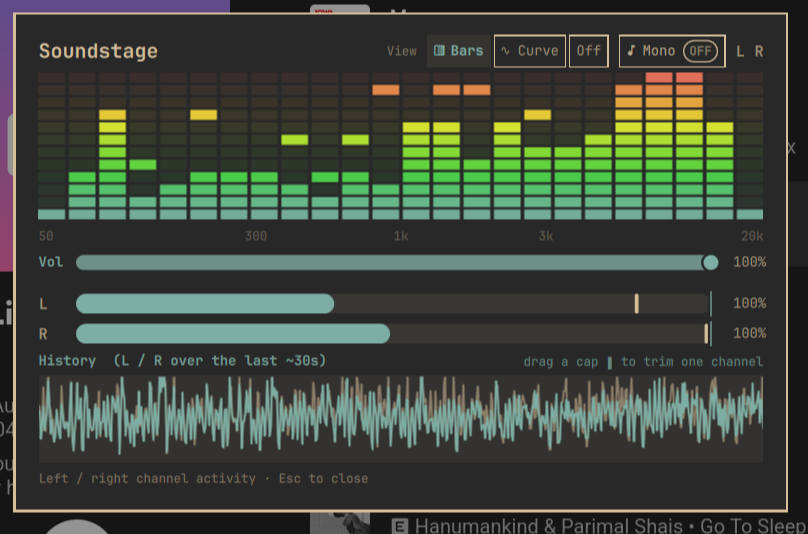
An audio output monitor and music visualizer for your bar. See your left and right channels separately — live in the bar, as VU meters with peak-hold, and as recent history — so you can tell when a sound really is panned to one side. Switch the output device (speakers, headphones, HDMI, Bluetooth) on the fly, set per-channel and master volume, watch a graphic equalizer (EQ) / frequency-response curve, and downmix to mono in one press.
Requires cava
Soundstage needs cava — install it first:
sudo pacman -S cava
That's the only extra dependency (it's in the Arch repos). pactl (pipewire-pulse) is already part of Omarchy. If cava isn't installed the plugin still loads — the bar icon sits idle and the overlay shows a one-line install hint — so nothing breaks; it just starts working the moment cava is present.
Install
omarchy plugin add https://github.com/alexdont/soundstage.git --enable
The bar widget (two little L/R bars) lands on the right side of your bar. Click it to open the full scope.
Optional keybindings (add to ~/.config/hypr/bindings.lua):
o.bind("SUPER + ALT + V", "Soundstage",   "omarchy-shell shell toggle io.github.alexdont.soundstage '{}'")
o.bind("SUPER + ALT + M", "Toggle mono",  "omarchy-shell soundstage toggleMono")
o.bind("SUPER + ALT + N", "Mute audio",   "omarchy-shell soundstage mute")
o.bind("SUPER + ALT + I", "Mute mic",     "omarchy-shell soundstage micmute")
o.bind("SUPER + ALT + O", "Cycle output", "omarchy-shell soundstage output next")
More IPC for scripting/keybinds:
omarchy-shell soundstage cycleViz            # Bars → Curve → VU → Off
omarchy-shell soundstage viz needle          # jump to a mode: bars|curve|needle|none
omarchy-shell soundstage toggleEqStyle       # Bars colours: fade gradient ⇄ solid
omarchy-shell soundstage volume master 60    # set overall volume to 60%
omarchy-shell soundstage volume L 80         # set the left channel to 80%
omarchy-shell soundstage volume both 50      # both channels at once
omarchy-shell soundstage mute                # mute / unmute the whole output
omarchy-shell soundstage nudge -5            # step the master volume by ±%
omarchy-shell soundstage output next         # cycle to the next output device
omarchy-shell soundstage output toggle       # flip back to the previous output
omarchy-shell soundstage output <sink-name>  # switch to a specific output (pactl sink name)
omarchy-shell soundstage micmute             # mute / unmute the microphone
omarchy-shell soundstage input next          # cycle to the next input (mic) device
omarchy-shell soundstage input <source-name> # switch to a specific mic (pactl source name)
omarchy-shell soundstage status              # JSON state (debugging)
Use
Bar widget — two live bars, one per channel, so you catch imbalance at a glance without opening anything. Scroll over it to change the volume, click to open the scope. The bars dim while the output is muted.
In the scope:
- VU meters — the two horizontal bars (left / right) show each channel's live level with a peak-hold pip that floats at the recent peak and drifts back slowly, like a hardware VU meter. In mono mode they merge into one larger combined bar.
- Output device — the Out selector shows where the sound is going; click it to expand the list of output devices (speakers, headphones, HDMI, Bluetooth…) and pick another. Switching sets it as the system default and moves whatever's already playing to it, so the audio follows immediately — and the visualizer re-points at the new device. Unplugged/unavailable outputs are hidden automatically, and the list stays in sync if you change output elsewhere.
- Input / microphone — the In selector mirrors the output side for your mic: click the mic icon to mute/unmute (it turns red), and expand it to switch input device and watch a live mic level bar (so you can check the mic is picking you up). The level meter only runs while the section is open, so it costs nothing the rest of the time.
- Volume — the Vol slider is the overall/master volume: it moves both channels together while keeping your balance, and it follows the system volume live (media keys, OS mixer). Scroll over it to nudge it, and click the speaker icon to mute/unmute (it turns red and the bar dims). Each meter also has a draggable cap that trims that one channel (balance) — drag it down and the bar physically stops short, so you can see it got quieter.
- Visualizer — a toggleable extra display above the meters. Use the View switch in the header to flip it between four modes — Bars, Curve, VU, or Off (none at all) — and your choice is remembered across restarts:
-
Bars — a graphic EQ across the frequency spectrum (~50 Hz → 20 kHz, low→high), each band lighting green → amber → red as it gets loud with a peak-hold segment on top.
The Bars button is also a two-mode colour switch: click it while Bars is already the active view to flip between the two styles, and the little square on the button shows which one you're in —
- Fade gradient (default) — a smooth theme-aware colour fade across each band.
- Solid colours — three discrete colour blocks (green / amber / red), antique car-stereo style.
-
Curve — the same spectrum as a smooth, live frequency-response line.
-
VU — two retro analog needle meters (left / right) that swing with the level, with a red zone up top. Pure eye-candy, theme-aware.
-
Off — just the meters and history, nothing extra rendering.
-
- Apps — a per-app mixer. The Apps (N) section lists every app currently playing audio; expand it to give each one its own volume slider, a mute toggle (the speaker icon), and a device chip — click the chip to send that app to a different output. So you can push the browser down (or mute it) while music stays up, or route a call to your headphones while everything else stays on the speakers. The list updates live as apps start and stop.
- History — this is the heart of the plugin. A scrolling ~30-second trace of both channels' levels side by side, so you can see where each channel spiked — right now or moments ago. Caught a sudden burst of sound and want to know which side it came from, or whether one channel is running hotter than the other? The history plots left and right as two separate lines, so a spike on one side is obvious even after it's gone. It records continuously — even while the scope is closed — so you can open it right after something happens and still catch it, instead of having to already be watching.
- Mono — one press downmixes both channels to mono (great for a badly-mixed track or a broken earbud); press again to restore stereo.
Everything is theme-aware and remembers your settings (visualizer, EQ style, mono volume) across restarts.
How the volume works
The volume sliders change your real system volume — they set the default sink's per-channel volume via pactl set-sink-volume @DEFAULT_SINK@, exactly like the OS mixer. This is all user-level: no root, no pkexec, no sudo.
The Vol slider is your system volume slider — it's kept in sync both ways. Drag Vol and your system volume moves with it; change the system volume anywhere else (media keys, the Omarchy volume widget, the OS mixer) and Vol tracks it live. So whatever the master reads is always the actual system level, and the per-channel caps just set the balance underneath it.
Mono downmix loads a user-level PipeWire remap sink (module-remap-sink) and is fully reverted when you turn it off; a stale one is cleaned up automatically on startup.
To keep it light, cava (the analyzer) only runs while there's actually audio playing and the bar or scope is visible — it pauses to zero CPU during silence or when the bar is hidden.
Remove
omarchy plugin remove io.github.alexdont.soundstage
The only state it keeps is a tiny settings file; delete it for a clean slate:
rm -rf ~/.local/state/omarchy/io.github.alexdont.soundstage
It touches no other configuration. (If you leave mono downmix on and remove the plugin, restart the shell or run pactl unload-module module-remap-sink once — the plugin normally cleans this up itself.)
License
MIT