
Todoist for Omarchy
A keyboard-first Todoist bar widget for Omarchy.



<a href="https://www.producthunt.com/products/todoist-for-omarchy?embed=true&utm_source=badge-featured&utm_medium=badge&utm_campaign=badge-todoist-for-omarchy" target="_blank" rel="noopener noreferrer"><img alt="Todoist for Omarchy - Your Todoist tasks, one keystroke away on Omarchy | Product Hunt" width="250" height="54" src="https://api.producthunt.com/widgets/embed-image/v1/featured.svg?post_id=1224750&theme=neutral&t=1786952170504"></a>
Part of the AROICE family of tools.
Features • Install • Usage • Contributing • Case Study
</div>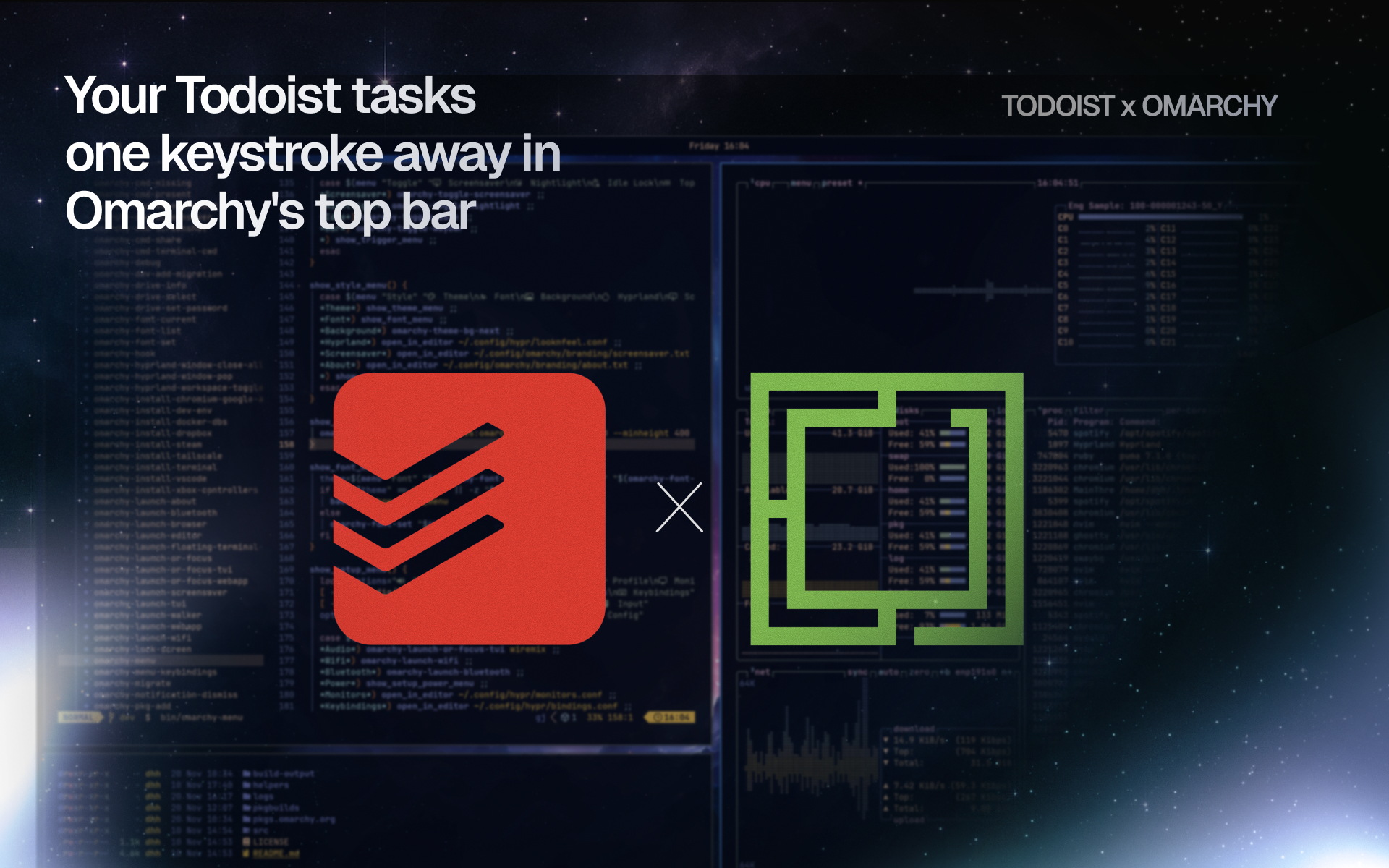
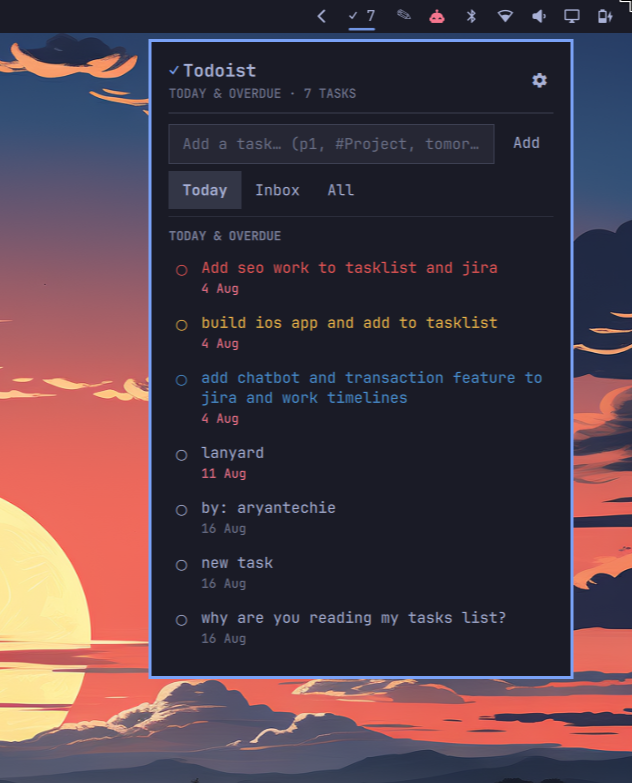
The bar shows how many tasks are due today or overdue; click it for a popup with the full list, a checkbox to complete each task, and a box to quickly add new ones — all without leaving the keyboard.
📖 Read the case study for the story behind this plugin — why it exists, the keyboard-first design constraints, and a few things that didn't work the first time.
Contents
- Features
- Install
- Setup
- Usage
- External dependencies and system-level modifications
- State files
- Uninstalling
- Todoist API
- Contributing
- Getting help
- Changelog
- License
- Author
Features
- Bar pill shows a theme-colored Todoist mark, matching the look of the built-in Wi-Fi/Bluetooth panels. Hover it for your current task count, or turn on Settings → Bar Count to show a live Today/Inbox/All count right on the icon.
- Panel lists matching tasks, sorted by due date then priority, color-coded by Todoist priority (p1 red, p2 yellow, p3 blue, p4 normal). The Today view splits into Overdue and Today sections so you can tell at a glance what's actually late.
- Each task shows its #Project and any @labels under the due date (toggle off in Settings → General if you'd rather keep the list bare).
- The header's rotating status phrases ("Counting boxes", "Chasing deadlines", …) can be turned off from Settings → General if you find them distracting — the subtitle line just stays blank instead.
- Click the circle next to a task to mark it complete (updates instantly, syncs to Todoist in the background).
- Quick-add box uses Todoist's own Quick Add parser —
p1–p4priority,#Project,@label, and natural-language due dates (tomorrow at 5pm,next Monday) all work exactly like typing into Todoist itself. A bare task with no date in it (Buy milk) defaults to due today. - Today / Inbox / All quick-view tabs above the list, plus a custom
Todoist filter
field in Settings for anything more specific (defaults to
today | overdue). - Settings view (gear icon) to paste your API token and manage the above.
- Optional global keyboard shortcut (Ctrl+Super+Y by default, or record your own) to toggle the panel from anywhere — no mouse required.
- Refreshes immediately whenever you open the popup, and whenever you add, complete, edit, or delete a task — not just on a timer. Otherwise polls every 2 minutes while the popup's open, or every 20 minutes in the background while it's closed (never both at once). Overlapping refresh requests are coalesced into one, so nothing fires twice.
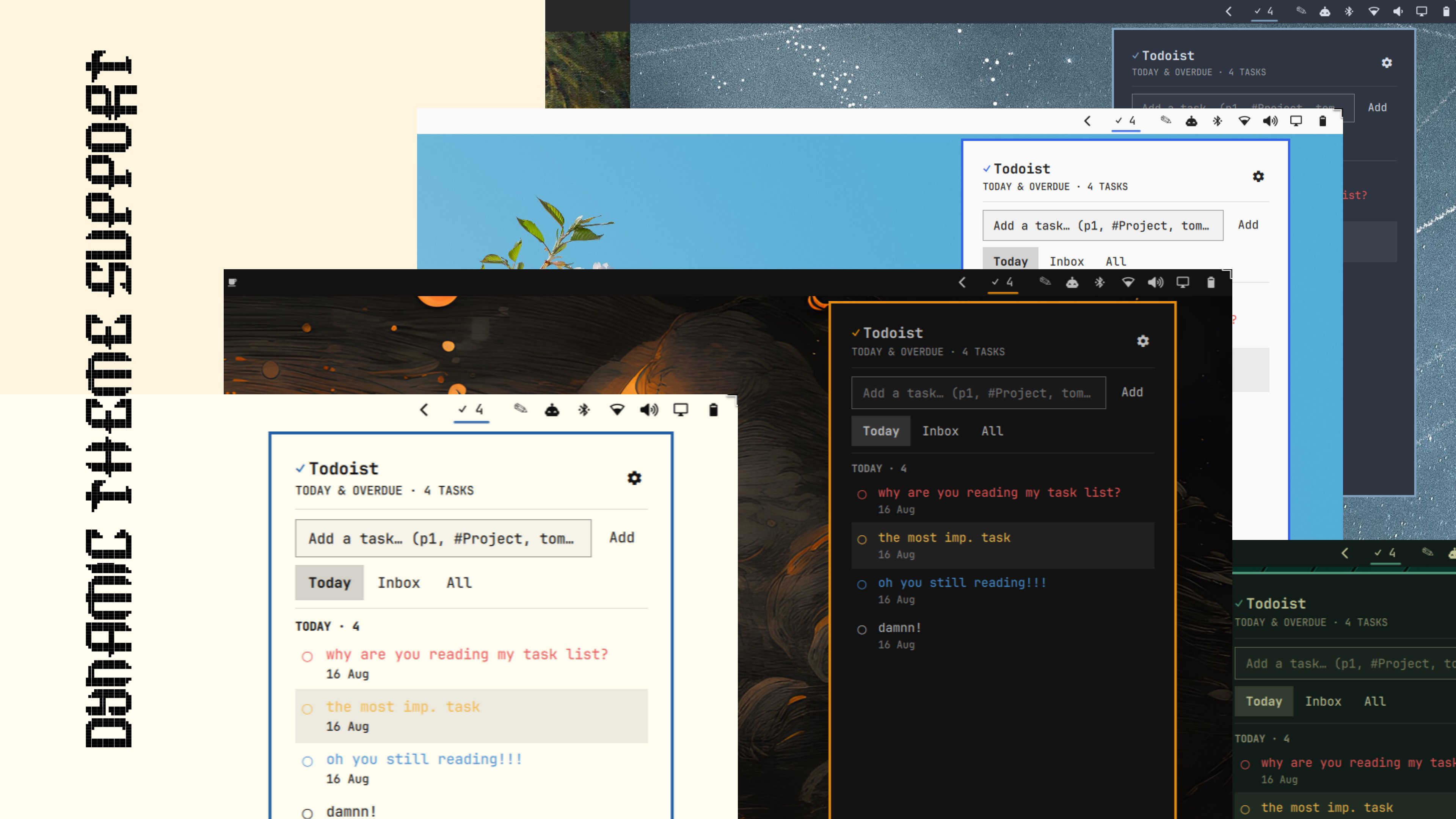
- Matches whatever Omarchy theme you're running — the panel pulls its colors from the shell's own theme system, so it looks native under light, dark, or any custom accent color, with no separate config to keep in sync.
Install
omarchy plugin add https://github.com/aryan-techie/omarchy-todoist.git --enable
Add the bar icon (skip this if --enable already placed it):
omarchy bar put io.github.aryan-techie.todoist --section right
Setup
- Open the panel (click the bar icon) — with no token saved it opens straight to Settings.
- In Todoist, go to Settings → Integrations → Developer and copy your personal API token.
- Paste it into the field and click Save token.
That's it — the panel switches to your task list and the bar icon lights up.
The panel drops right below its bar icon (not centered on the bar), at a fixed size you control — see Settings → Advanced below. Content that doesn't fit scrolls inside the panel instead of resizing it. The bar icon itself is a fixed-size slot regardless of task count, so the panel's anchor point never shifts as your count changes.
Usage
- Open/close: click the bar icon, your keyboard shortcut (see below), or
omarchy-shell shell toggle io.github.aryan-techie.todoist. - Click Today, Inbox, or All to switch views.
- Click a task's circle to mark it complete.
- Type in the box at the top of the list and press Enter (or click Add)
to create a task — see Quick Add syntax above (
p1,#Project, dates). - The gear icon (or
p) opens Settings, organized into Account, Default filter, Keyboard shortcut, General (Refresh now, Keyboard shortcuts, Show #project & @labels, Rotating status phrases), and Advanced (popup size) sections. - Middle-click the bar icon to refresh without opening the panel, or press
rwhile the panel's open.
Keyboard controls
The whole panel is operable without a mouse:
| Key | Action |
|---|---|
Escape |
Back out of Settings to the task list (works from any Settings field too); press again to close the panel. While the Add-a-task box has focus, just leaves the box instead |
Tab / Shift+Tab |
Cycle Today → Inbox → All. Inside Settings, instead walks every control in order — token field, Save/Remove token, filter field + Apply, keybind buttons, and the General/Advanced buttons and steppers — scrolling as needed to keep the focused control in view |
t / i / a |
Jump straight to the Today, Inbox, or All view. Inside Settings, t opens Todoist in the browser instead |
p |
Toggle Settings open/closed |
↑/↓ or k/j |
Move the selection up/down the task list |
Enter |
Open the selected task on the Todoist website, then close the panel |
Space |
Complete the selected task |
e |
Edit the selected task's title in place |
x |
Delete the selected task (asks for confirmation first) |
q |
Jump into the Add-a-task box |
r |
Refresh |
? |
Toggle a shortcuts cheat-sheet overlay (also a button in Settings) |
Completing a task strikes it through and dims it for a moment before it disappears from the list, so the click reads as "done" rather than "vanished."
Typing in the token, filter, or quick-add fields (or recording a shortcut)
temporarily suspends these so normal typing works. x for delete matches
this shell's own convention (see Ui/PanelKeyCatcher.qml) rather than the
physical Delete key, which has no printable character for a panel's key
handler to see.
Keyboard shortcut
In Settings, click Ctrl+Super+Y to use that shortcut, or Record
custom… to press your own combo (any number of Super/Ctrl/Alt/Shift plus
one key). Applying it edits ~/.config/hypr/bindings.lua — the file is
backed up first, Hyprland is reloaded, and if the reload reports any config
error the backup is restored automatically. Remove takes the line back
out the same safe way. No shortcut is set until you explicitly choose one
here; the plugin never touches your Hyprland config on its own.
Note: pressing the shortcut again while the panel is open closes it — that's the built-in way to close the panel from the keyboard. Your existing "close window" keybind is untouched and still closes whatever app window is focused, not this panel (that's a Hyprland layer-shell limitation shared by every panel in the shell, not something specific to Todoist).
External dependencies and system-level modifications
This plugin runs curl, mkdir, chmod, bash, awk, cp, xdg-open
(only when you press Enter on a task, to open it in your browser), and
(only for the optional keyboard shortcut) hyprctl via Quickshell's
Process — all standard on any Omarchy install, no extra packages required.
curl is the only thing that talks to the network; every request goes
straight to https://api.todoist.com/api/v1/ with your token in an
Authorization: Bearer header. Nothing else is contacted, and nothing runs
with elevated
privileges.
The only system file this plugin can modify is
~/.config/hypr/bindings.lua, and only if you set a keyboard shortcut from
Settings. set-keybind.sh then:
- Backs up
bindings.luatobindings.lua.bak.<unix-timestamp>(not auto-deleted — clean these up yourself periodically if you change the shortcut often). - Adds or rewrites the one
o.bind(...)line that toggles Todoist, identified by matching the exactomarchy-shell shell toggle io.github.aryan-techie.todoistcommand string — no other line is ever touched. - Runs
hyprctl reloadand checkshyprctl configerrors. - If the reload reports any config error, restores the backup and reloads again — a bad shortcut can't leave Hyprland in a broken state.
This never happens automatically — only when you click Ctrl+Super+Y,
Record custom… + Apply, or Remove in Settings. Adding/removing
the bar icon itself only touches your own ~/.config/omarchy/shell.json bar
layout, the same as any other bar widget you add or remove through
omarchy bar.
State files
~/.local/state/omarchy/io.github.aryan-techie.todoist/settings.json— your Todoist API token, filter, quick-view, keyboard shortcut, and popup size. Created on first save; the file ischmod 600'd right after writing since it holds a secret. Delete it (or use Remove token in Settings) to disconnect the plugin from your account.~/.config/hypr/bindings.lua.bak.<timestamp>— backups from every keyboard-shortcut change (see above). Safe to delete once you're happy with your shortcut.
Uninstalling
omarchy plugin remove io.github.aryan-techie.todoist removes the plugin
files but does not touch the two locations above — if you set a keyboard
shortcut, remove it from Settings first (or delete the matching o.bind
line from bindings.lua yourself), and delete the state directory if you
want your token gone too.
Todoist API
Uses the Todoist API v1:
GET /tasks/filter (or plain GET /tasks for the All view), POST /tasks/quick (Quick Add, natural-language parsing) for new tasks, POST /tasks/{id} to edit a task's title, POST /tasks/{id}/close to complete,
DELETE /tasks/{id} to delete. Enter opens
https://app.todoist.com/app/task/{id} in your default browser. The older
REST API v2 was retired by Todoist in February 2026, so this plugin only
supports the current API.
Contributing
Contributions are welcome — see CONTRIBUTING.md for the project layout, conventions, and how to test a change locally before opening a PR. This project follows a Code of Conduct.
Getting help
- Found a bug? Open an issue using the bug report template — it'll ask for the couple of details (plugin version,
qs logoutput) that make it fixable quickly. - Want a feature? Open a feature request.
- Found a security issue? Please don't open a public issue — see SECURITY.md for how to report it privately.
Changelog
See CHANGELOG.md for what's changed in each version.
License
MIT — see LICENSE. The Todoist icon used above is a third-party asset under a separate license — see assets/NOTICE.md.
Author
Aryan Techie (Aryan Jangra)
- 🌐 Website: aryan.aroice.in
- 📧 Email: aryan@aroice.in
- 🐙 GitHub: @Aryan-Techie
- 🏢 Organization: AROICE
<div align="center">
Made with ❤️ by AROICE
Clear tools for a clear mind.
</div>