
X Panel
Opera-GX style always-on X (Twitter) side panel for Omarchy (Quickshell / Hyprland).
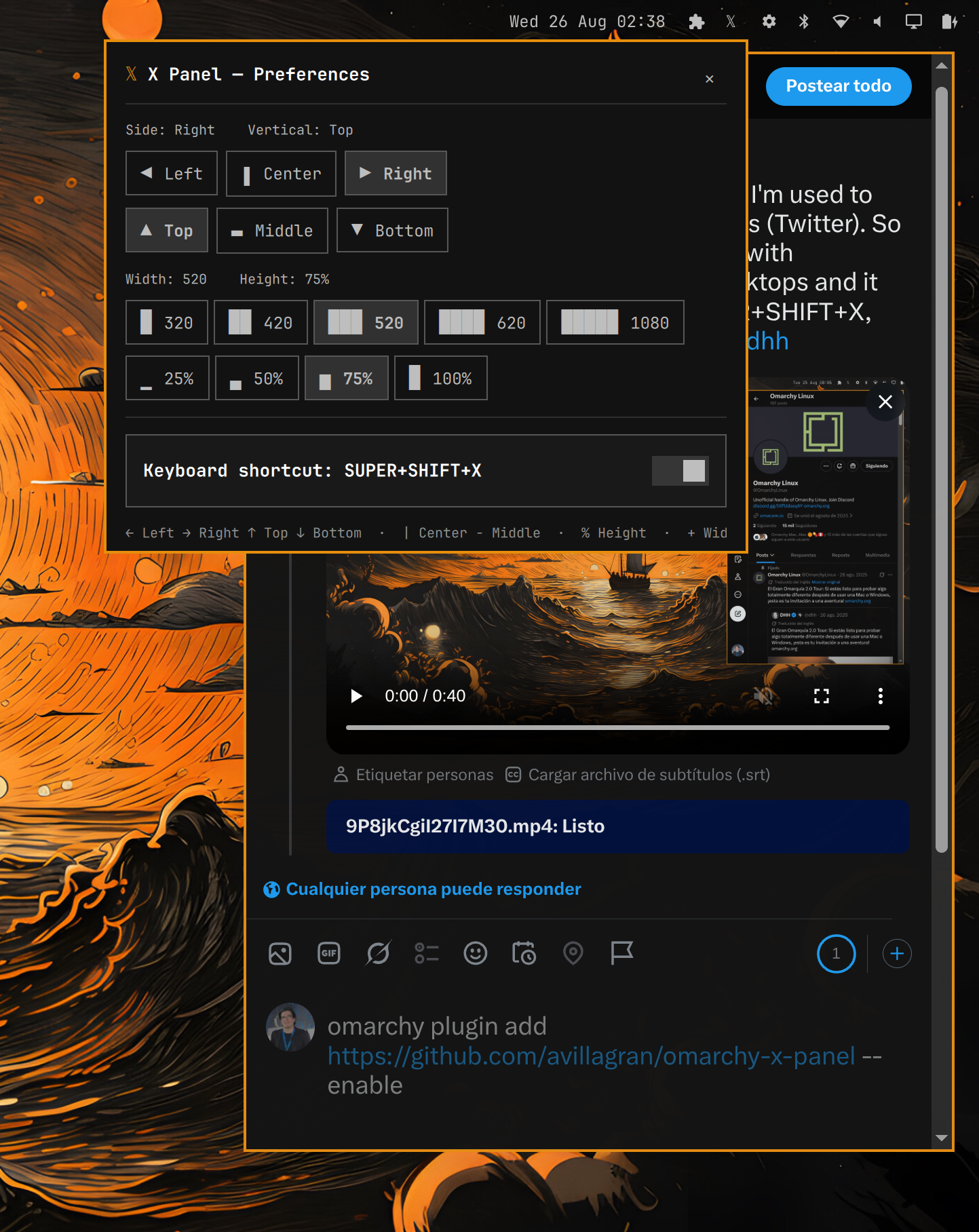
The panel is your existing X window — it is never a second Chromium instance. If an X window is already open it is reused; otherwise one is launched with your native profile. It is pinned (visible on every workspace) and floating at a configurable position and size, toggled from the bar icon or SUPER+SHIFT+X without ever closing the window, so the session and scroll position are preserved.
Screenshot
Features
- One persistent, always-on X window (your real session, not a separate login).
- Toggle show / hide from the bar icon or
SUPER+SHIFT+X— hiding keeps the session alive. - Pinned + floating on all workspaces.
- Preferences panel (right-click the bar icon) anchored under the icon, with live apply:
- Side: Left / Center / Right
- Vertical: Top / Middle / Bottom
- Width: 320 / 420 / 520 / 620 / 1080 px
- Height: 25% / 50% / 75% / 100% of the safe area
- Multi-language UI — 19 languages (en, es, pt, fr, de, it, nl, pl, ru, ja, ko, zh, ar, tr, sv, da, no, fi, cs), auto-detected from the OS locale (
localectl). - UI matching the Omarchy Control Panel style (header, sections, separators).
Installation
omarchy plugin add https://github.com/avillagran/omarchy-x-panel --enable
That is all. The plugin (including its helper script under bin/) is resolved relative to its own location, so it works on any machine with no extra steps. Reload the shell if it does not pick up the new widget immediately:
omarchy-restart-shell
Keyboard shortcut
The plugin can bind SUPER+SHIFT+X to toggle the panel, replacing Omarchy's
default X webapp bind (which relaunches a fresh window every time). This is
opt-in: the plugin never touches your Hyprland config on install or load.
Open the preferences panel (right-click the bar icon) and switch on Keyboard
shortcut — only then does the plugin write ~/.config/hypr/x-panel-bindings.lua
and append a single require("x-panel-bindings") line to
~/.config/hypr/hyprland.lua (idempotent, atomic writes). Switching it off
removes both and restores Omarchy's default bind.
Usage
- Left-click the
𝕏bar icon (orSUPER+SHIFT+X): toggle the X window. - Right-click the
𝕏bar icon: open the preferences panel (position / size), applied live. - The preferences panel stays open and on top while you pick options, so you can preview each change live (the X window sits behind it) — close it with the
✕in the top-right corner.
How it works
- Identity is tracked as
address|pidin$XDG_RUNTIME_DIR/x-panel.state. - Layout is computed against the safe area (the monitor minus the Quickshell bar strip), so the panel never covers the bar.
- Preferences are persisted at
$XDG_RUNTIME_DIR/omarchy-x-panel.prefs.json(outside the plugin directory, so writing them never triggers a plugin reload) and applied live via the bundled helper script. All state writes use exclusivemktemp+ atomicmv, and every external read is opened once withO_NOFOLLOW | O_NONBLOCK, verified viafstat, and capped at 256 KiB. - Launching uses the same
.desktopentry asSUPER+SPACE→ Apps → X (uwsm-app -- X.desktop), so a cold start opens the real X webapp — never a plain browser window.
Uninstall
omarchy plugin remove io.github.avillagran.omarchy-x-panel
Then delete the generated keybind file and its require line to restore Omarchy's default X bind:
rm -f ~/.config/hypr/x-panel-bindings.lua
sed -i '/require("x-panel-bindings")/d' ~/.config/hypr/hyprland.lua
hyprctl reload
License
MIT — see LICENSE.