
How it looks
Click the Omacore icon (right side of the bar) to open the panel above — see What it shows below for what's in it.
The main page keeps daily controls together: battery levels, sound mode, contextual ANC controls or transparency type, and Sound Effects. The gear in the top-right opens Advanced Settings: audio quality, connections, earbud controls, preferences, preset management, and device information. Only supported features appear.
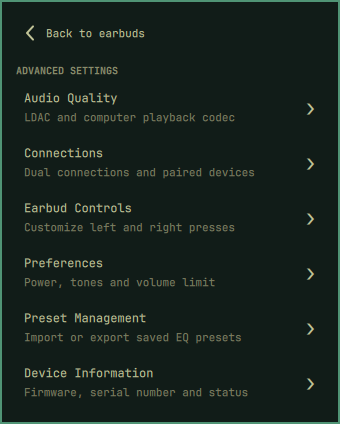
The device picker appears when multiple devices are available or a preferred
device needs recovery. Choosing Automatic clears the preference.
Back or Esc returns to the parent page and restores its scroll position.
Hover Sound Mode for keyboard shortcuts.
Install
Your earbuds must be paired over Bluetooth (omarchy bluetooth device or
the stock Bluetooth panel) and registered with OpenSCQ30 (step 2 of
Setup below). Then:
omarchy plugin add https://github.com/birajdotdev/omacore.git --enable
That's it. The widget auto-detects the first connected Soundcore device. If more than one is connected, the panel shows a Device picker. Picking one saves it as the preferred device; Automatic follows the first connected device.
If openscq30 isn't on PATH yet, the bar icon shows in the alert color and
the panel offers an Install OpenSCQ30 CLI button (or press i). Installation
is never automatic: the button opens a floating terminal with clickable Yes
and No actions before downloading the pinned official OpenSCQ30 release
into ~/.local.
OpenSCQ30 also needs your earbuds registered with it (a MAC → model row in
its own database, separate from Bluetooth pairing — see Setup). When the
widget detects the buds paired over Bluetooth but not registered yet, the bar
icon again shows in the alert color and, if the device's name uniquely
identifies a model in openscq30 list-models, the widget registers it
automatically and notifies you. An ambiguous name leaves a model dropdown +
Register this device button in the panel instead.
What it shows
- Which earbuds — the panel title shows the friendly Bluetooth device name (e.g. "Soundcore R60i NC") that the discovery script finds, not a generic "Soundcore". With multiple connected Soundcore devices, a Device picker switches between them and saves the choice in Omarchy's widget settings. The picker also stays available when the preferred device is away but another registered Soundcore device is connected.
- Battery for the left earbud, the right earbud and the case. Soundcore's hardware only reports ten discrete steps, so the widget shows a rounded percent rather than a raw sensor value. By default the bar also shows the lowest known earbud percentage (or the case percentage when neither bud reports one). Right-click cycles icon only, one percentage, and all three percentages with circled L/R and case icons, and saves the choice. Each battery on the home page has an compact row with a circled L/R or case icon, label, thin theme-colored bar, and right-aligned percentage. A low reading colors the bar indicator with the theme's alert color.
- Sound mode — ANC, Transparency or Normal — uses circular person icons above the labels in the Sound Mode section, with
n/t/oshortcuts. Manual ANC intensity and transparency type stay on the main page. Selecting ANC also reveals its algorithm (Manual / Adaptive / Multi-Scene), scene selection, real-time adaptive ANC, and wind suppression.wtoggles wind suppression while ANC is active. - Sound Effects — one row on the main panel shows the active selection.
Open it for a dedicated view with three choices:
- Default: choose a built-in EQ preset using the device's own labels. Selecting Default or a preset turns spatial audio off.
- Spatial Audio: Music / Movie / Gaming. Selecting a mode enables spatial audio; the EQ preset selector is hidden while it is active.
- Custom EQ: edit the device's supported frequency bands, reset to flat, and save or load named presets. Custom EQ disables spatial audio. Bands, gain limits, and precision come from the device schema (the R60i NC has eight bands, 100 Hz–12.8 kHz). Dragging applies on release; left/right on a focused band adjusts by 1 dB. Presets are saved in OpenSCQ30's database and survive shell restarts. An existing name shows Update preset.
- Advanced Settings → Preset Management: copy all saved EQ presets as OpenSCQ30 JSON to the
clipboard, or import JSON from the clipboard. Import requires a second
click because matching preset names are replaced. The plugin validates
the current model's band count and gain range before sending the import.
The back arrow or
escreturns to the parent page. Opening the panel starts on the main view. Only features reported by the device are shown. - Advanced Settings → Audio Quality — when OpenSCQ30 reports an LDAC toggle, this page
shows LDAC on earbuds and the codec negotiated by the computer's
Bluetooth playback sink (for example, AAC or LDAC). The earbud setting and
the computer's codec are separate: enabling LDAC on the earbuds does not
force PipeWire to select it. On devices that expose both LDAC and Spatial
Audio, enabling either turns the other off; the panel explains this before
enabling LDAC. Soundcore documents this restriction for the P31i/R60i NC.
omacore-ldacchecks fresh device sessions for up to 15 seconds during the codec switch and restores the previous Spatial Audio mode if LDAC does not stick.omacore-codecreads the computer's codec frompactl, updating while the panel is open. It displays Unavailable if the sink orpactlcannot provide a codec. - Advanced Settings → Preferences — Auto Power-Off uses the choices and display labels reported by the connected model. Choose Disabled or a supported timer to control the earbuds' automatic power-off delay. On the R60i NC, the available timers are 10, 20, 30, and 60 minutes. When supported, the High-Volume Limit page provides an on/off switch, the device's threshold choices, and its refresh-rate choices. The R60i NC reports 75–100 dB in 5 dB steps and Real Time / 10 seconds / 1 minute refresh rates. The page also controls touch tones and the low-battery prompt, and shows firmware, serial number, connection, host earbud, and ANC diagnostics reported by OpenSCQ30.
- Button Controls — remap the left and right earbuds' single, double, triple, and long presses. Each gesture shows its current action and the choices reported by OpenSCQ30; Disabled removes an assignment. A two-click Reset to defaults restores every button to the earbuds' factory mapping. The reset action appears only when the device reports it.
- Update feedback — setting changes are queued in click order, without loading or success indicators. Only failures show a text message. Reads and writes do not overlap. A failed write cancels the remaining queue and refreshes device state.
- Connection feedback — temporary read failures retain the last known values with a warning instead of generating a false disconnect alert.
Device controls appear only when OpenSCQ30 reports them for the connected model and firmware. On one R60i NC with firmware 03.89, OpenSCQ30 2.12.0 reported LDAC as available, but writes did not persist: the earbuds advertised only SBC/AAC. Enabling LDAC once through More Settings → Sound Mode → Preferred audio quality → LDAC in the Soundcore Android app installed firmware 04.89. The plugin could then enable LDAC on Linux, and PipeWire negotiated LDAC after the earbuds reconnected. The panel waits for the codec switch and verifies a fresh readback before reporting success. If a different device still rejects LDAC, it restores the previous Spatial Audio setting.
How it works
Unlike omapods (AirPods, which
speaks Apple's own BLE protocol via a background daemon), there is no
background daemon here. OpenSCQ30's
CLI opens a fresh Bluetooth connection on every invocation, so this widget
polls — the bundled omacore-status script discovers the first matching
paired Soundcore device currently connected over Bluetooth (cross-referencing
bluetoothctl devices Connected with OpenSCQ30's paired-devices list),
reads the device's capability schema via list-settings --json, then fetches
the current value of every relevant setting. The wrapper script omacore-set
writes a setting back. Discovery runs on every poll; the panel picker sets
deviceMatch when several Soundcore devices are connected.
omacore-codec matches the local Bluetooth sink by MAC address and reads its
negotiated codec without changing audio settings.
Requirements
-
OpenSCQ30's CLI,
openscq30, onPATH. It is free/open-source (GPL-3.0-or-later) and not written by or affiliated with this plugin's author — it just happens to be the CLI this widget shells out to.If it's missing, use the explicit install action described above. The
omacore-installscript downloads Oppzippy/OpenSCQ30 v2.12.0 from its immutable release URL, enforces a 50 MiB download limit, verifies the architecture-specific SHA-256 digest, and only then installs the executable into~/.local. Reviewomacore-installbefore accepting the Yes action; to opt out, choose No or installopenscq30yourself first.Version matters for newer devices. R60i NC / P31i support landed in OpenSCQ30 v2.10.0. The
openscq30-cli-binAUR package may lag behind (it was pinned to v2.7.0 at the time this was written) — ifopenscq30 list-modelsdoesn't list yourSoundcore...id, skip the AUR package and grab the official binary release instead, linking it ontoPATH:mkdir -p ~/.local/opt/openscq30 gh release download v2.12.0 -R Oppzippy/OpenSCQ30 \ -p 'openscq30-cli-linux-x86_64' -D ~/.local/opt/openscq30 chmod +x ~/.local/opt/openscq30/openscq30-cli-linux-x86_64 ln -sf ~/.local/opt/openscq30/openscq30-cli-linux-x86_64 ~/.local/bin/openscq30(Substitute the latest release tag for
v2.12.0if a newer one exists.) -
pactlfor the computer's playback codec indicator. The earbud controls still work if it is absent; the codec indicator shows Unavailable. -
wl-clipboard(wl-copyandwl-paste) for saved EQ preset transfer. -
Earbuds paired over the normal Bluetooth flow first (
omarchy bluetooth deviceor the stock Bluetooth panel).
Setup
The plugin itself needs no configuration once installed. The only prerequisite is that your earbuds are paired over Bluetooth and registered with OpenSCQ30 (OpenSCQ30 keeps its own small database mapping MAC address → model, separate from BlueZ's pairing):
-
Install
openscq30(above, picking whichever path gets you a build new enough for your model) and pair your earbuds over Bluetooth as usual. -
Register the device with OpenSCQ30. Most of the time you don't need to do this by hand at all: once the buds are paired over Bluetooth and connected, the widget notices they're not registered and — because the device's name usually matches exactly one model in
openscq30 list-models(e.g. the R60i NC shows up as "soundcore R60i NC") — registers them itself and tells you what it did. If the name is ambiguous, open the widget's panel: it shows a model dropdown preselected to nothing plus a Register this device button.The equivalent manual command is:
openscq30 paired-devices add -a AA:BB:CC:DD:EE:FF -m SoundcoreD1202CUse
SoundcoreD1202Cfor the R60i NC,SoundcoreD1202for the P31i. Runopenscq30 list-modelsto see every supported model id — the exact id string (and whether it's prefixedSoundcore...) has changed between OpenSCQ30 versions, so trustlist-modelsover any id written down here.
Once the device is paired and openscq30 paired-devices add-registered, the
widget finds it automatically whenever it's connected over Bluetooth. If more
than one is connected, choose one from the panel's Device picker.
Update / Remove
omarchy plugin update io.github.birajdotdev.omacore
omarchy plugin remove io.github.birajdotdev.omacore
openscq30 and its paired-device database are untouched — remove them
separately with your AUR helper and openscq30 paired-devices remove -a <mac> if you no longer want them.
Keyboard
| Key | Action |
|---|---|
j / k, ↓ / ↑ |
move between rows |
← / → |
adjust the focused Manual ANC level or Custom EQ band |
enter / space |
activate the current row |
n |
Noise Cancellation |
t |
Transparency |
o |
Normal |
w |
toggle wind noise suppression (while in Noise Cancellation, if supported) |
r |
refresh |
tab |
move to the next panel |
esc |
return to the parent page; close from the main page |
Every other setting (scene, transparency mode, sound effect) is reached by
moving the cursor to its row and pressing enter/space, or by clicking it
directly. The ANC Mode dropdown works the same way to open it; once open, its
own j/k/↓/↑ and enter pick an option and esc closes it without
closing the panel. For a toggle row (wind noise suppression, real-time
adaptive ANC), a mouse click only registers on the switch itself, not the
row's label — keyboard enter/space on the row still works either way.
The Device picker uses the same dropdown keys.
Left click opens the panel. Right click cycles the bar battery display: icon only → icon with lowest percentage → three battery icons with percentages → icon only. Hover Sound Mode for mode and refresh shortcuts.
Settings
| Setting | Default | Notes |
|---|---|---|
| Poll interval (seconds) | 30 | How often the widget re-runs omacore-status. |
Preferred Soundcore device (deviceMatch) |
empty | The panel picker writes the selected MAC address here. Empty uses the first connected registered Soundcore device. A case-insensitive name or MAC substring also works when set from the CLI: omarchy bar set io.github.birajdotdev.omacore deviceMatch 'R60i NC'. |
Bar battery display (batteryDisplayMode) |
1 | 0: icon only; 1: lowest earbud percentage (case fallback); 2: left, right and case percentages. Right-click cycles and saves it. Set directly with omarchy bar set io.github.birajdotdev.omacore batteryDisplayMode 2 --json. Existing showBatteryPercent preferences apply until a display mode is saved. |
| Hide when unreachable | on | Leaves the bar entirely rather than sitting there with nothing to say. Kept visible (in the alert color) when the issue is fixable — a missing openscq30 CLI, or a device connected but not yet registered with OpenSCQ30 — so the install/register controls stay reachable. |
| Desktop notifications | on | Notifies on disconnect and when a bud/case battery drops to 20% or below (once per drop, via omarchy-notification-send). |
See CHANGELOG.md for the 0.6.0 release notes.
Development checks
Run node tests/regression.cjs, node tests/navigation.cjs, and bash tests/test_eq_transfer.sh from the project root. The tests cover model
parsing, queued setting writes, transient read errors, numeric ANC settings,
and custom EQ ranges, saved-profile commands, and value settling
using fake CLI commands (no earbud settings are changed).
Credits
The hard part is not this panel. It is OpenSCQ30 by Oppzippy, which reverse-engineered Soundcore's BLE/RFCOMM control protocol across dozens of devices. This panel only shells out to its CLI and draws what comes back.
Licence
MIT. See LICENSE. This plugin vendors no OpenSCQ30 code — it only
invokes the separately-installed openscq30 binary, which is GPL-3.0-or-later
under its own project.
Dual Connections device controls
The Dual Connections page refreshes every three seconds while open. Current and History rows have individual connection switches on the P31i (D1202) and R60i NC (D1202C). With two devices connected, disconnect one before enabling another. Turning off the computer's own connection also disconnects Omacore until the earbuds reconnect. Manage replaces History switches with explicit Forget buttons; switching a device off does not forget it.
omacore-connection uses the system /usr/bin/python and python-gobject
(Gio/BlueZ) for these two models, working around the OpenSCQ30 2.12.0 CLI's
multi-select parsing bug. Its wire commands follow the protocol implemented in
OpenSCQ30's common/packet/outbound/dual_connections.rs. It reads the live device
list before sending a command for one known host, and never replaces the other
connection. Other models keep read-only connection status. General settings and
Forget continue to use OpenSCQ30. Run helper checks with
/usr/bin/python tests/test_connection.py; these do not access Bluetooth.