
Proton VPN Control Center for Omarchy
A native Omarchy bar widget for the official Proton VPN Linux CLI.
Connect, disconnect, choose locations, manage VPN settings, save favorite targets, and inspect the active exit IP without leaving the Omarchy bar.
[!IMPORTANT] This is an unofficial community plugin. It is not affiliated with, sponsored by, or endorsed by Proton AG or Omarchy.
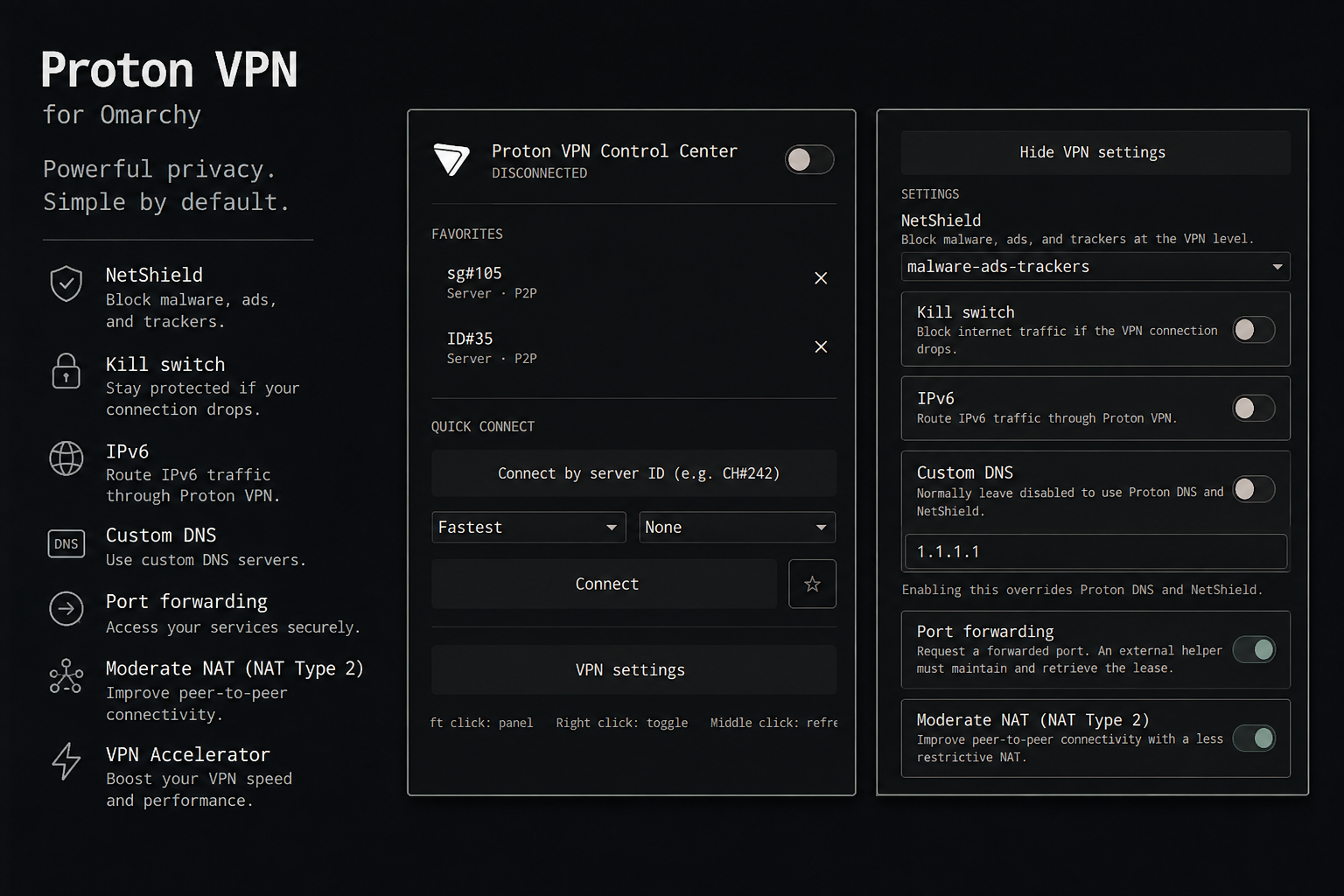
Preview
Install
omarchy plugin add https://github.com/bramvera/omarchy-proton-vpn.git --enable --yes
omarchy bar move io.github.bramvera.proton-vpn --section right
This installs and enables the plugin non-interactively, then explicitly places its widget in the right section of the bar. The manifest also defaults to the right section.
First run
The plugin checks whether the official protonvpn CLI is available.
If it is missing, open the panel and select Install Proton VPN CLI. Omarchy opens a floating terminal and installs the Arch package with:
omarchy install app 'Proton VPN CLI' proton-vpn-cli
The terminal owns the sudo prompt. The plugin never reads or stores your system password.
After installation, authenticate through either the plugin UI or the official CLI. Both routes use the same local Proton VPN CLI session.
Account sign-in and sign-out
From the plugin UI
To sign in:
- Open the Proton VPN panel.
- Enter your Proton username and select Sign in with Proton.
- Complete the password and 2FA prompts in the terminal opened by Omarchy.
- Wait for the terminal to close. The plugin checks the new session automatically; Refresh sign-in status remains available as a manual fallback.
The plugin pauses its automatic status polling while this terminal is open and does not impose a timeout. Your password and 2FA code are entered directly into the official CLI—the plugin never reads, receives, or stores them.
To sign out or switch accounts:
- Disconnect the VPN. Account sign-out is disabled while connected.
- Open VPN settings, scroll to ACCOUNT, and select Sign out.
- Select Confirm sign out within six seconds.
- The plugin runs
protonvpn signout, clears its displayed connection and account-specific settings state, and returns to the sign-in form.
Favorite server targets remain available because they contain no Proton credentials.
Directly from a terminal
The plugin UI is optional. To sign in without it, run:
protonvpn signin USERNAME
Enter your password and 2FA code when the CLI prompts for them. To sign out directly, disconnect first and then clear the local Proton credentials:
protonvpn disconnect
protonvpn signout
After a direct terminal sign-in or sign-out, middle-click the bar icon or reopen the panel and refresh if you want the UI to synchronize immediately. Otherwise, the next automatic status check will update it.
[!WARNING] The official Proton VPN CLI cannot run alongside the Proton VPN GUI. Headless use is also unsupported. Read Proton's official Linux CLI guide before replacing an existing GUI installation.
Dependencies
Required:
- Omarchy with shell-plugin support
- The official Proton VPN Linux CLI (
protonvpn); the guided installer uses Omarchy'sproton-vpn-clipackage - NetworkManager and a supported secret store, as documented by Proton's Linux CLI installation guide
Runtime helpers:
curlfetches the exit IPv4 through the Proton interfaceresolvectldetects whether Proton's internal DNS is activenmcliapplies the optional, user-approved DNS-over-TLS exception to the activeproton0devicewl-copycopies a revealed exit IP to the Wayland clipboardomarchy launch browseropens the AbuseIPDB check page
External network services:
- ipify returns the exit IPv4 after a new VPN server is detected
- AbuseIPDB displays an IP reputation page only when Check IP reputation is selected; this plugin does not use its API
Features
Connection
- Live status, server, location, load, protocol, and public exit IPv4
- Connect or disconnect from the bar icon or panel switch
- Fastest-server and random-server quick connect
- Searchable countries loaded directly from the signed-in CLI
- Cascading, searchable city lists for the selected country
- Manual connection to a known server ID, such as
CH#242 - P2P, Secure Core, and Tor server filters
- Favorite quick-connect targets that persist across shell restarts
Privacy and diagnostics
- Exit IP fetched once per detected VPN server through
proton0 - Exit IP masked by default with compact reveal, hide, and copy controls
- AbuseIPDB reputation page opened on demand without an API key
- Exit-IP requests fail closed if
proton0disappears instead of falling back to the normal route - Proton-only DNS-over-TLS compatibility for systems that enforce strict global DoT
- Custom DNS remains optional so Proton DNS and NetShield work normally
VPN configuration
- NetShield: off, malware-only, or malware, ads, and trackers
- Kill switch
- IPv6
- Custom DNS with multiple comma-separated servers
- Port forwarding
- Moderate NAT (NAT Type 2)
- VPN Accelerator
- Anonymous crash reports
- Paid-plan and connected-state restrictions surfaced directly from the CLI
Omarchy integration
- Theme-native Proton VPN icon, typography, colors, switches, and buttons
- Automatic CLI detection with a guided Omarchy package installer
- Guided terminal sign-in without handling the Proton password
- Confirmed account sign-out for switching Proton accounts after disconnecting
- Configurable CLI path, default country, and refresh interval
- Persistent favorites and custom DNS input through Omarchy widget settings
- Argument-array process execution without interpolating user values into a shell command
Controls
- Left click: open or close the panel
- Right click: connect to the fastest server or disconnect
- Middle click: refresh status
T: toggle the connection while the panel is focusedR: refresh while the panel is focused
Locations and servers
Countries and cities come directly from the official CLI. Select a country first, then search its available cities.
The CLI does not currently expose a browsable list of individual servers. City connections therefore ask Proton VPN to choose the fastest eligible server in that city. If you already know a server ID, select the visible Connect/Switch by server ID shortcut, enter an ID such as CH#242, and connect directly. This also lets an active connection switch away from a server with an undesirable exit IP.
VPN settings
Open VPN settings to manage every configuration option exposed by the current CLI:
- NetShield
- Kill switch
- IPv6
- Custom DNS
- Port forwarding
- Moderate NAT (NAT Type 2)
- VPN Accelerator
- Anonymous crash reports
Settings are read from protonvpn config list and changed through argument-array calls equivalent to:
protonvpn config set SETTING VALUE
The plugin never interpolates setting values into a shell command.
Custom DNS
Custom DNS is optional and normally should remain disabled so Proton DNS and NetShield can work. Enabling it overrides Proton's DNS service.
On systems that enforce DNS-over-TLS globally, Proton's internal DNS server does not accept DoT. After a connection appears, the plugin performs a read-only check of proton0. If an exception is needed, the panel explains why and waits for you to select Allow Proton DNS. That explicit action disables DoT for the active Proton device only; global DoT settings, persistent NetworkManager profiles, and third-party DNS links are not changed.
Configuration changes and consent
The plugin does not overwrite user configuration automatically. Status polling, country and city discovery, configuration reads, and DNS compatibility detection are read-only.
State changes happen only after an explicit control is selected:
- Connect, disconnect, and VPN setting controls invoke the corresponding
protonvpncommand. - The favorite star and custom-DNS enable control save only this widget's values in Omarchy's shell entry.
- Install Proton VPN CLI and Sign in with Proton open an interactive terminal.
- Allow Proton DNS applies
nmcli device modify proton0 connection.dns-over-tls 0to the active Proton device. It is never run by detection alone. - Check IP reputation opens the public AbuseIPDB page for the displayed exit IP.
The plugin does not edit files under /usr/share/omarchy or replace unrelated user configuration.
Setting limitations
- Proton does not allow kill-switch configuration changes while connected, so that control remains disabled until the VPN disconnects.
- Paid-plan settings remain unavailable when the CLI reports
Upgrade to enable. - Enabling port forwarding requests a forwarded port, but a separate helper must maintain and retrieve the lease. See Proton's Linux CLI documentation for the current example.
Exit-IP reputation
When a new VPN connection or server is detected, the plugin makes one HTTPS request to ipify through proton0 and displays the public exit IPv4 in the connection details. It is masked by default; use the small reveal or copy controls beside it. The plugin does not repeat the lookup during normal status polling.
Select Check IP reputation to open https://www.abuseipdb.com/check/<exit-ip> in your default browser.
The reputation action does not use an AbuseIPDB API key. AbuseIPDB describes its service in its FAQ. If proton0 disappears, exit-IP discovery fails instead of falling back to your normal connection.
Configure the bar widget
Omarchy's widget settings expose:
- CLI executable name or absolute path
- Default country code
- Status refresh interval
To reposition the widget later, rerun the omarchy bar move command from the installation steps with left, center, or right.
Update
omarchy plugin update io.github.bramvera.proton-vpn --yes
The --yes flag applies the update non-interactively. Omit it when you want Omarchy to show the complete plugin diff and wait for confirmation before updating.
Updates reuse the Git remote recorded when the plugin was installed. The official install URL uses HTTPS and does not require a GitHub SSH key. If an older or manually cloned checkout reports Host key verification failed, restore its public HTTPS origin and retry:
git -C "$HOME/.config/omarchy/plugins/io.github.bramvera.proton-vpn" remote set-url origin https://github.com/bramvera/omarchy-proton-vpn.git
omarchy plugin update io.github.bramvera.proton-vpn --yes
If Git still attempts SSH, inspect machine-level URL rewrites with git config --show-origin --get-regexp '^url\..*\.insteadof$'.
Remove
omarchy plugin remove io.github.bramvera.proton-vpn
Removing the plugin does not uninstall the Proton VPN CLI or alter your Proton account.
VPN settings you explicitly changed through the panel remain Proton VPN CLI settings after removal. Revert them in the panel before removal or later with protonvpn config set. The optional DNS exception targets only the active proton0 device.
Development
Clone the repository and validate it against the installed Omarchy shell:
git clone https://github.com/bramvera/omarchy-proton-vpn.git
cd omarchy-proton-vpn

omarchy plugin validate .
/usr/lib/qt6/bin/qmllint -I "${OMARCHY_PATH:-/usr/share/omarchy}/shell" \
  Panel.qml Service.qml ProtonVpnIcon.qml
node --test tests/*.test.js
For local development, link the checkout into Omarchy's user-owned plugin directory:
ln -s "$PWD" "$HOME/.config/omarchy/plugins/io.github.bramvera.proton-vpn"
omarchy restart shell
Do not start a second Quickshell process. Omarchy plugins share the existing long-running shell process.
IPC
The widget exposes these methods on io.github.bramvera.proton-vpn:
open, close, show, hide, toggle, refresh, refreshLocations, loadCities, locationStatus, refreshConfig, configStatus, checkExitIp, exitIpStatus, up, disconnect, and status.
License
Credits and trademarks
- Proton VPN and its official Linux CLI are products of Proton AG. The Proton VPN name and mark belong to Proton AG. The connected gradient logomark is sourced directly from the Proton media kit; the disconnected monochrome silhouette is adapted from the Streamline Simple Icons Proton VPN mark. This project is unofficial and does not imply endorsement.
- AbuseIPDB provides the public reputation page opened by the optional check. No AbuseIPDB logo, code, API key, or API response is bundled by this plugin.
- ipify provides the public IPv4 lookup endpoint used through
proton0. - The preview screenshots were captured from this plugin. Third-party names and marks shown in them remain the property of their respective owners.
Marketplace approval lists the plugin; it is not a security review. Review the source and the documented commands before installing it.