
Git Actions Status for Omarchy
An Omarchy Quattro bar widget for monitoring GitHub Actions, Forgejo Actions, Gitea Actions, and GitLab CI/CD pipelines across selected repositories. GitHub and any number of self-hosted Forgejo, Gitea, or GitLab instances can be connected and monitored at the same time.
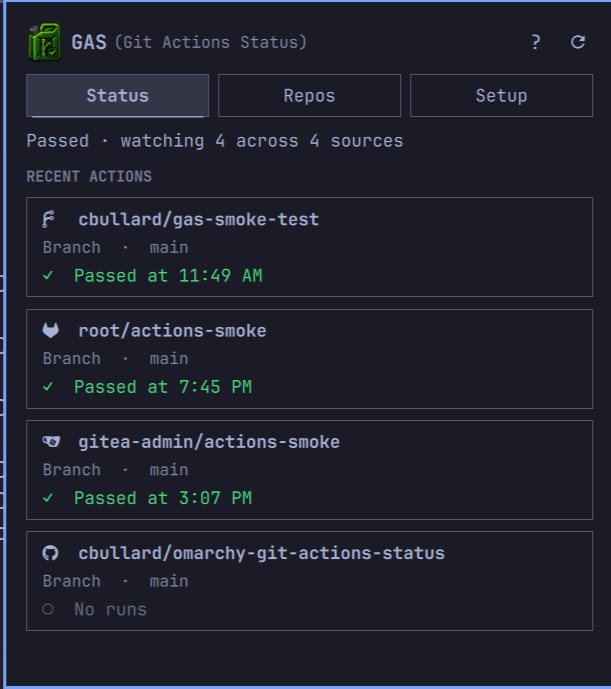
Screenshot
Features
- Theme-aware fuel-can status indicator in the Omarchy bar
- Status, Repos, and Setup tabs with mouse and keyboard navigation
- Simultaneous GitHub CLI, GitHub token, Forgejo, Gitea, and GitLab sources
- Local Git repository discovery, multi-remote matching, and current-branch awareness
- Searchable repository selection across all connected sources
- Per-repository pause and resume without losing the selection
- Desktop notification when an observed running workflow completes
- Once-daily update availability indicator that never installs code automatically
- Optional
Super+Spacelauncher entry searchable by GAS or Git Actions Status
Status indicators
The fuel-can icon in the Omarchy bar changes color to show what GAS is doing:
| Indicator | State | Meaning |
|---|---|---|
| <img src="assets/status-indicators/idle.png" alt="Neutral fuel-can icon" width="24" height="24"> | Idle | No action is currently being checked or run. |
| <img src="assets/status-indicators/checking.png" alt="Cyan fuel-can icon" width="24" height="24"> | Checking | GAS is refreshing or waiting for a pushed workflow to appear. |
| <img src="assets/status-indicators/running.png" alt="Amber fuel-can icon" width="24" height="24"> | Running | A monitored workflow is in progress. |
| <img src="assets/status-indicators/passed.png" alt="Green fuel-can icon" width="24" height="24"> | Passed | A workflow succeeded. The green indicator remains for five minutes or until the bar icon is clicked. |
| <img src="assets/status-indicators/failed.png" alt="Theme-urgent fuel-can icon" width="24" height="24"> | Failed | A monitored workflow failed. Opening GAS acknowledges the red bar indicator while the failed run remains visible in Status. |
Idle uses the theme's foreground color and Failed uses its urgent color. Passed uses a brighter green on dark themes and a darker green on light themes so it remains readable. Theme-dependent colors may differ from the examples above.
Requirements
- Omarchy Quattro
gh, when using the built-in GitHub CLI sourcegitsecret-toolwhen adding token, Forgejo, Gitea, or GitLab sources (provided by libsecret on Omarchy)
Selected repositories must have an Actions workflow before a push can progress from the cyan checking state to amber running and a completed state.
Authentication
Authenticate GitHub CLI before using the widget:
gh auth login
You can instead add one or more named GitHub token sources. Fine-grained tokens
are recommended: select the repositories to monitor and grant Actions:
Read-only repository permission. Classic tokens are supported for
compatibility, but accessing private repositories requires the broad repo
scope, which includes write access. The workflow scope is not required.
Forgejo and Gitea sources use an access token for their instance. GAS stores it in the desktop keyring and uses it only to read repositories and workflow runs.
GitLab sources use a personal access token with the read_api scope. Enter the
GitLab server address, including https://gitlab.com for GitLab.com or the base
URL of a self-managed instance. GAS stores the token in the desktop keyring and
uses it only to read projects and pipelines.
Install
omarchy plugin add https://github.com/cbullard/omarchy-git-actions-status.git --enable
GAS includes verified Linux backends for x86-64 and ARM64 and manages them automatically. No separate compiler or build step is required.
If needed, place it on the right side of the bar:
omarchy bar put io.github.cbullard.github-actions --section right
Launcher
Open Setup and use the Launcher control at the top of the page. Select
Install launcher to add a Super+Space entry searchable by GAS or
Git Actions Status. This also installs the gas terminal command.
The control changes to Remove launcher after installation. If a plugin update includes newer launcher files, it changes to Update launcher.
<p align="center"> <img src="gas-launcher.png" alt="GAS in the Omarchy launcher" width="438"> </p>Update
omarchy plugin update io.github.cbullard.github-actions
Updates keep your connected sources, selected repositories, tokens, and monitoring settings. When an updated plugin is installed but the running shell still has the previous version loaded, GAS shows RELOAD in its header. Open Help, review the loaded and installed versions, and select Reload GAS. The Omarchy bar briefly disappears while the shell restarts. After an update, Setup offers Update launcher when the installed launcher files have changed.
When GAS reports an available update, press U to open its details. Click the
displayed update command or press Ctrl+C / Super+C to copy it; GAS confirms
when the command is on the clipboard.
Usage
- Open the fuel-can icon and select Setup. Optionally install the launcher, choose a local project folder, select a monitoring option, and add any GitHub token, Forgejo, Gitea, or GitLab sources. An authenticated GitHub CLI account is available automatically.
- Open Repos and select the repositories to monitor. Pause a selected repository to stop its polling and push checks temporarily; resume it to continue without selecting it again.
- Open Status to view workflow runs. Select a run to open it on GitHub or Forgejo, Gitea, or GitLab.
GAS can monitor GitHub, Forgejo, Gitea, and GitLab sources together, including multiple GitHub accounts and self-hosted instances. Repositories with the same namespace and name remain separate when they come from different sources. Local repositories show the checked-out branch; remote-only repositories show their latest run or pipeline.
Open ? in the panel for keyboard shortcuts. Right-click the bar icon to refresh without opening GAS.
Monitoring options
Choose a monitoring option in Setup:
| Option | Behavior |
|---|---|
| On push | Checks after you push from this computer. |
| Scheduled | Checks periodically for runs started anywhere. |
| Push + scheduled | Combines immediate push detection with background checks. |
Polling intervals and the push detection timeout are configurable. On-push
monitoring uses a managed Git pre-push hook and follows the remote you push
to, so repositories with remotes on different providers can monitor each one.
GAS never replaces an existing hook; Setup reports conflicts. Disabling push
monitoring removes only hooks created by GAS.
Data and security
What GAS can access
GAS runs with the same permissions as your signed-in Linux user. It does not run as root, but Omarchy plugins are not isolated in a sandbox. Only install plugins from sources you trust.
GAS uses its locally built backend together with gh, git, secret-tool,
and Omarchy's notification command. It reads repository paths, remotes,
branches, and workflow status. GAS does not upload your source code. A normal
Git push still sends code only to the remote configured in that repository.
How credentials are protected
If you connect through GitHub CLI, gh continues to manage and protect that
login. Adding a token-based GitHub connection does not change the account
currently used by GitHub CLI.
GitHub, Forgejo, Gitea, and GitLab tokens entered in GAS are passed directly to its backend over standard input. They are not placed in process arguments or written to the GAS configuration file. Tokens are stored in your desktop keyring through the Linux Secret Service.
What is stored locally
GAS stores non-secret settings such as project folders, source names and addresses, watched repositories, and polling options in:
~/.config/omarchy/github-actions.json
Access tokens are not stored in this file.
Recent workflow information and local push timestamps are stored in:
~/.local/state/omarchy/github-actions/
This state lets GAS recognize changes and decide when to send a notification. It also caches the time, version, URL, and short highlights from the most recent published-plugin-release check. It does not contain access tokens.
Network connections
Token-based GitHub sources connect directly to api.github.com. Forgejo,
Gitea, and GitLab sources connect to the server address entered during setup.
HTTPS certificates are validated normally. GAS warns before saving a non-local
source that uses plain HTTP because its access token would not be protected by
TLS. Local test servers can use HTTP because their traffic does not leave the
machine; remote servers should use HTTPS.
At most once every 24 hours, GAS reads the public repository's latest stable
GitHub Release and the manifest.json stored at that release tag. A notification
appears only when the published release version is newer than the installed
version and the tag and manifest versions agree. The check uses no GitHub
credentials, downloads no executable code, and never installs an update.
Network failures are ignored until the next scheduled check. The Help dialog's
Check for updates button performs the same read-only check immediately and
explicitly bypasses the 24-hour cache.
Remove
plugin_dir="$HOME/.config/omarchy/plugins/io.github.cbullard.github-actions"
"$plugin_dir/backend" uninstall &&
  "$plugin_dir/gas" uninstall-launcher &&
  omarchy plugin remove io.github.cbullard.github-actions
The backend command removes only pre-push hooks managed by GAS, and the
launcher command removes the terminal command, desktop entry, and icon.
Existing Git hooks are never altered. Removing GAS does not delete its
configuration or state files, so settings are retained if it is installed
again.
Trademark
GitHub and the GitHub logo are trademarks of GitHub, Inc. This independent plugin integrates with GitHub but is not affiliated with, sponsored by, or endorsed by GitHub.
License
MIT