
Spaces
Create named Spaces for any project or activity, then switch every workspace and running app together.
Create as many Spaces as you need and give each one any name. Every Space gets its own use of workspaces 1–10, without closing a single application when you switch.
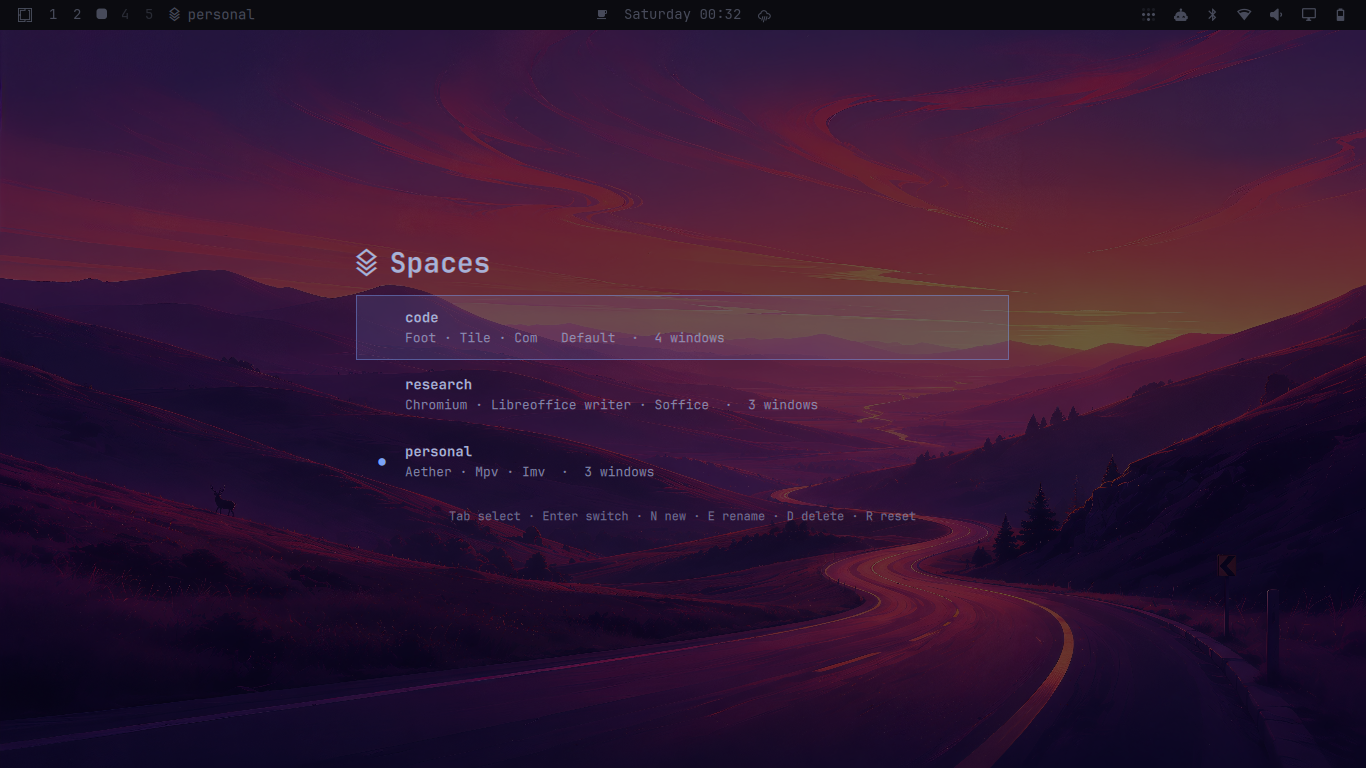
One desktop, your own Spaces
A normal Hyprland session gives you numbered workspaces. Spaces lets you create and name complete sets of those workspaces for whatever matters to you.
The screenshot uses three examples:
- Code can hold your editor, terminals, and development browser.
- Research can hold articles, notes, and documents.
- Personal can hold music, messages, and everything outside work.
These are examples, not predefined categories. You choose every Space name and what belongs inside it.
Open the switcher, select a Space, and press Enter. The current set moves out of the way and the selected set returns exactly as you left it.
What you get
- Switch every workspace at once — move between complete desktop setups in one action.
- Keep every application running — Spaces never closes and relaunches your apps.
- Preserve your layout — tiling trees, split ratios, floating windows, fullscreen state, and focus stay intact.
- See where you are — the Omarchy bar always shows the active Space name.
- Stay keyboard-first — create, switch, rename, delete, and reset without on-screen buttons.
- Recover safely — interrupted switches roll back automatically on the next operation.
Install
Install and enable Spaces with Omarchy's standard plugin command:
omarchy plugin add https://github.com/chinofmaya/omarchy-spaces.git --enable
omarchy restart shell
Add a shortcut
Spaces does not change your keybindings. You choose how to open it.
Add this to ~/.config/hypr/bindings.lua:
o.bind(
"SUPER + ALT + P",
" Spaces",
"omarchy-shell shell toggle io.github.chinofmaya.spaces '{}'"
)
Apply the change:
hyprctl reload
hyprctl configerrors
You can replace SUPER + ALT + P with any unused binding. Check your current bindings with:
hyprctl binds
Avoid SUPER + ALT + S: Omarchy already uses it to move the focused window to the scratchpad. Hyprland runs duplicate bindings instead of replacing the old action.
You can also open Spaces directly:
omarchy-shell shell toggle io.github.chinofmaya.spaces '{}'
Use Spaces
Create your first Space
- Arrange your applications across workspaces 1–10.
- Open the Spaces switcher.
- Press
Enter, type a name, and pressEnteragain.
Your current desktop is now captured as a Space. The bar shows <name>.
Create another Space
- Open the switcher.
- Press
N. - Name the new Space.
- Open applications normally in the empty context.
Switch Spaces
Open the switcher, select a Space with Tab or the arrow keys, and press Enter.
Spaces swaps the complete working context. Applications in the other Space keep running.
Controls
| Key | Action |
|---|---|
Tab, ↑, ↓ |
Select a Space |
Enter |
Capture the first Space or switch to the selected Space |
N |
Create a new Space |
E |
Rename the selected Space |
D, then D again |
Remove a Space without closing its windows |
R, then R again |
Reset Spaces and restore all parked workspaces |
Esc |
Close or cancel |
The switcher is buttonless. Every action is available from the keyboard.
What appears in Omarchy
Spaces switcher
The switcher lists your named Spaces and the applications currently kept inside each one. The selected row is the Space that opens when you press Enter.
Bar indicator
The top bar shows the Spaces icon followed by the active Space name:
Work
It updates after captures, switches, renames, deletes, resets, and recovery.
How it works
Spaces groups live Hyprland workspaces into named contexts.
When you switch:
- The current Space's occupied workspaces are moved to collision-free reserved workspace IDs.
- The selected Space's complete workspace objects return to their original slots.
- Focus and workspace state are restored.
Applications are never closed or relaunched. Because whole workspace objects move together, Hyprland keeps their tiling layout and split ratios.
State is stored in ~/.local/state/omarchy-spaces/. Every switch uses an atomic state file and transaction journal so an interrupted operation can be rolled back.
Spaces are session-bound. After a logout or reboot, Spaces starts with an empty list and does not reopen applications.
Reset and remove
Before disabling or removing Spaces, restore all parked workspaces:
- Open Spaces and press
Rtwice, or run:
omarchy-shell spaces reset RESET
- Then remove the plugin:
omarchy plugin disable io.github.chinofmaya.spaces
omarchy plugin remove io.github.chinofmaya.spaces
If reset reports an error, stop and resolve it before removing the plugin.
Requirements
- Omarchy 4 with Lua-based Hyprland configuration
- Hyprland 0.56 or newer
- Quickshell 0.3
jqflockfrom util-linux- One active monitor
Spaces currently manages workspace slots 1–10. It is a workspace context switcher, not an application launcher or reboot/session restore system.
Development
Keep the development checkout in ~/Work/omarchy-spaces. Do not edit packaged files under /usr/share/omarchy.
Run the validation suite without installing the plugin:
omarchy plugin validate ~/Work/omarchy-spaces
/usr/lib/qt6/bin/qmllint -I /usr/share/omarchy/shell Service.qml Spaces.qml SpaceIndicator.qml RecoveryGate.qml
env -u QT_QPA_PLATFORMTHEME QT_QPA_PLATFORM=offscreen /usr/lib/qt6/bin/qmltestrunner -input tests
bash -n scripts/spacesctl scripts/remap-probe.sh
bash tests/test-ui-safety.sh
bash tests/test-service-boundary.sh
bash tests/test-spacesctl.sh
bash tests/test-spacesctl-recovery.sh
License
MIT