
GA4 Traffic for Omarchy
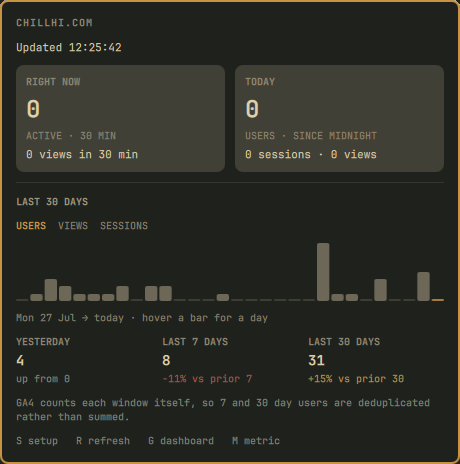
A bar widget for a Google Analytics 4 property: who is on the site right now, what today has done so far, and a daily column chart with yesterday, 7 day and 30 day comparisons.
Install
omarchy plugin add https://github.com/CodeFoundryZA/omarchy-ga4.git --enable
The widget arrives showing "setup required" because it has no credentials yet.
Click it and press S, or run the setup directly:
~/.config/omarchy/plugins/io.github.codefoundryza.ga4/bin/ga4-traffic-setup
Setup asks for three things: a service account key file, which property to watch, and optionally which stream inside it. It lists the properties your key can actually read, so there is nothing to look up or paste by hand.
Requirements
- Omarchy 4 (Quattro) with the Quickshell shell
curl,jqandopenssl, all of which ship with Omarchy
No gcloud, no browser login after setup, and no Google password.
Getting a key
The widget authenticates as a service account, which is a read-only identity you grant to one Analytics property.
- Open the Google Cloud console and pick or create a project.
- Enable the Analytics Data API and the Analytics Admin API. The Data API reads the numbers; the Admin API is what lets setup list your properties instead of asking you for an ID.
- IAM & Admin → Service Accounts → Create service account. It needs no project roles at all.
- On the new account: Keys → Add key → Create new key → JSON.
- In Google Analytics → Admin → Property access management, add the service account email as a Viewer.
Setup copies the key to
~/.local/state/omarchy/ga4-traffic/service-account.json with mode 0600, and
you can delete the download afterwards. The key signs a JWT locally; Google
exchanges it for an access token that lives an hour and is cached in the same
directory. No token ever appears in a command line or an environment variable.
Where credentials can be sent, and how much is read back
A service account key file names its own token_uri, which is the address the
signed JWT assertion gets posted to. The plugin does not take that field on
trust. Before anything is signed, the URI must be https on either
oauth2.googleapis.com or accounts.google.com, the two hosts Google itself
writes into service account keys. Anything else, including a lookalike domain,
a URL with embedded userinfo, a non standard port, or plain http, is refused
and setup will not install the key. Every request is made with
--proto '=https' and redirects are never followed, so a bearer credential
cannot be walked off to another host.
The property and stream IDs in config.json are checked to be digits before
they are placed in a request URL, because those requests carry the access token.
Responses are bounded rather than read to completion. Each one is capped at
1 MiB by --max-filesize and again by a hard truncation, a reply that is not
complete JSON after that is reported as an error instead of parsed in pieces,
Google's own error text is clipped to 300 characters before being displayed,
and historyDays is clamped to 365. The snapshot the widget reads is itself
capped at 2 MiB. This matters because the QML side collects the fetcher's
output with a StdioCollector, which has no size limit of its own, so the
fetcher never emits an unbounded amount; Service.qml re-checks the size as a
second gate.
What it shows
The bar shows active users in the last 30 minutes. The panel adds:
- Right now: active users and page views in the last 30 minutes.
- Today: users since midnight, with sessions and views.
- Daily history: one column per day over
historyDays(default 30). Hover a column for that day's numbers. - Yesterday / last 7 / last 30, each against the period before it.
Press M or click a metric name to plot users, views or sessions; the three
comparison figures follow whichever you pick.
The 7 and 30 day figures come from GA4's own report for those windows, not from adding up the bars. GA4 deduplicates users inside a date range, so a visitor who came back on three days counts once in the weekly figure.
Settings
~/.local/state/omarchy/ga4-traffic/config.json:
{
  "label": "example.com",
  "propertyId": "123456789",
  "streamId": "",
  "historyDays": 30,
  "refreshSeconds": 300
}
streamId empty reports the whole property. Set it to watch one website or app
inside a property that has several. Setup writes both for you.
Re-run setup at any time to switch property, stream, or key.
Removal
omarchy plugin remove io.github.codefoundryza.ga4
That removes the plugin itself. Your credentials and settings live outside the plugin folder and are deliberately left behind, so reinstalling picks up where you left off. To delete them as well:
rm -rf ~/.local/state/omarchy/ga4-traffic
That directory holds the service account key, so remove it if you are done with the widget for good. Deleting the key file does not revoke the key: delete the key in the Google Cloud console too if it should stop working everywhere.
Controls
- Left click: open the panel
- Middle click: refresh
- Right click: open the Google Analytics dashboard
- Panel keys:
Ssetup,Rrefresh,Gdashboard,Mcycle metric
The bar label can be reduced to the icon alone in the widget's settings.
Related
Clarity Traffic is the same widget for a Microsoft Clarity project.
Licence
MIT