
OpenVPN + cert-pass for Omarchy
An Omarchy Shell bar widget for managing NetworkManager OpenVPN profiles that
require a VPN username, VPN password, and private-key password (cert-pass).
All three credentials can optionally be saved per profile in the desktop
Secret Service keyring and reused without exposing them to the interface.
This project is based on Dimitar Dimov's OpenVPN plugin, distributed and modified under the MIT License.
The widget shows the current VPN state in the bar and provides a keyboard-aware popup for connecting, disconnecting, importing, renaming, and deleting profiles.
Screenshots
| Bar status | Profile management |
|---|---|
 |
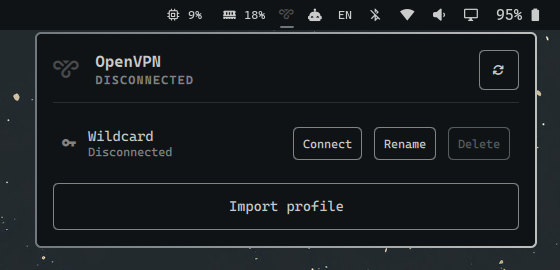 |
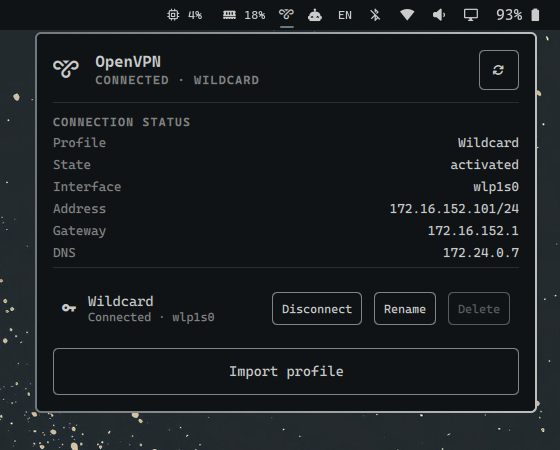
Features
- Shows connected, connecting, disconnected, and unavailable states
- Lists NetworkManager VPN profiles
- Connects using a username and password supplied through standard input
- Supplies
cert-passto NetworkManager without placing it in command-line arguments - Optionally saves all three credentials per VPN profile in the desktop keyring
- Lets the user forget saved credentials from the connection dialog
- Disconnects active VPN sessions
- Displays the active interface, IPv4 address, gateway, and DNS server
- Imports
.ovpnand.confprofiles using Omarchy's file picker - Renames and deletes profiles
- Supports keyboard dismissal and Omarchy panel switching
- Provides configurable profile filtering and refresh intervals
Requirements
- NetworkManager and
nmcli - NetworkManager's OpenVPN plugin (
networkmanager-openvpnon Arch Linux) libsecret(secret-tool) for secure credential storage
Installation
Install and enable the plugin directly from its Git repository:
omarchy plugin add https://github.com/denisdmarques/omarchy-openvpn-certpass.git --enable
The widget uses the manifest's default right-side placement. To put it at a specific position instead, move it after installation—for example:
omarchy bar move io.github.denisdmarques.openvpn-certpass --before omarchy.agents
Saved plugin changes are normally reloaded automatically. If the widget does not appear, restart the shell:
omarchy restart shell
Omarchy can subsequently update or remove the git-managed plugin with
omarchy plugin update io.github.denisdmarques.openvpn-certpass and
omarchy plugin remove io.github.denisdmarques.openvpn-certpass.
Usage
Left-click the VPN icon to open the panel.
- Select Connect and enter username, VPN password, and
cert-pass. - Enable Salvar credenciais neste dispositivo to keep them in the desktop keyring.
- On later connections, leave the fields empty and select Conectar to reuse them.
- Select Esquecer to remove all credentials saved for that profile.
- Select Disconnect to stop an active connection.
- Use Rename or Delete to manage an existing profile.
- Select Import profile to import an OpenVPN configuration through the Omarchy file picker.
- Press
Rwhile the panel has focus to refresh it. - Press
Escapeto close the panel or credential dialog.
Configuration
Widget settings are stored in the widget's entry in
~/.config/omarchy/shell.json.
| Setting | Default | Description |
|---|---|---|
connection |
Empty | Exact profile name to display. Empty displays all VPN profiles. |
refreshIntervalSec |
5 |
Status refresh interval, clamped between 2 and 300 seconds. |
Settings can be changed with Omarchy's bar command:
omarchy bar set io.github.denisdmarques.openvpn-certpass refreshIntervalSec 10
omarchy bar set io.github.denisdmarques.openvpn-certpass connection "Work VPN"
Credential and connection behavior
Passwords are passed to the bundled helpers over standard input and then to
nmcli through its password-file input. They are never placed in command-line
arguments. When saving is enabled, the values are stored per profile UUID by
the user's Secret Service keyring; otherwise they remain only in process memory.
The supplied username is also saved in the NetworkManager connection profile.
When switching profiles, the plugin disconnects other active VPN connections before activating the selected profile. If the new connection fails, the old VPN is not restored automatically. Users who require continuous VPN coverage should account for this non-atomic switch behavior.
Imported VPN profiles can change routes and DNS configuration. Only import profiles from sources you trust.
License
Licensed under the MIT License.