
Network Scanner — Omarchy bar plugin
See who is on your network, straight from the bar. One click sweeps the local subnet and lists every device found — compact (IP and latency) or extended (mDNS name, MAC address, vendor, reverse DNS).
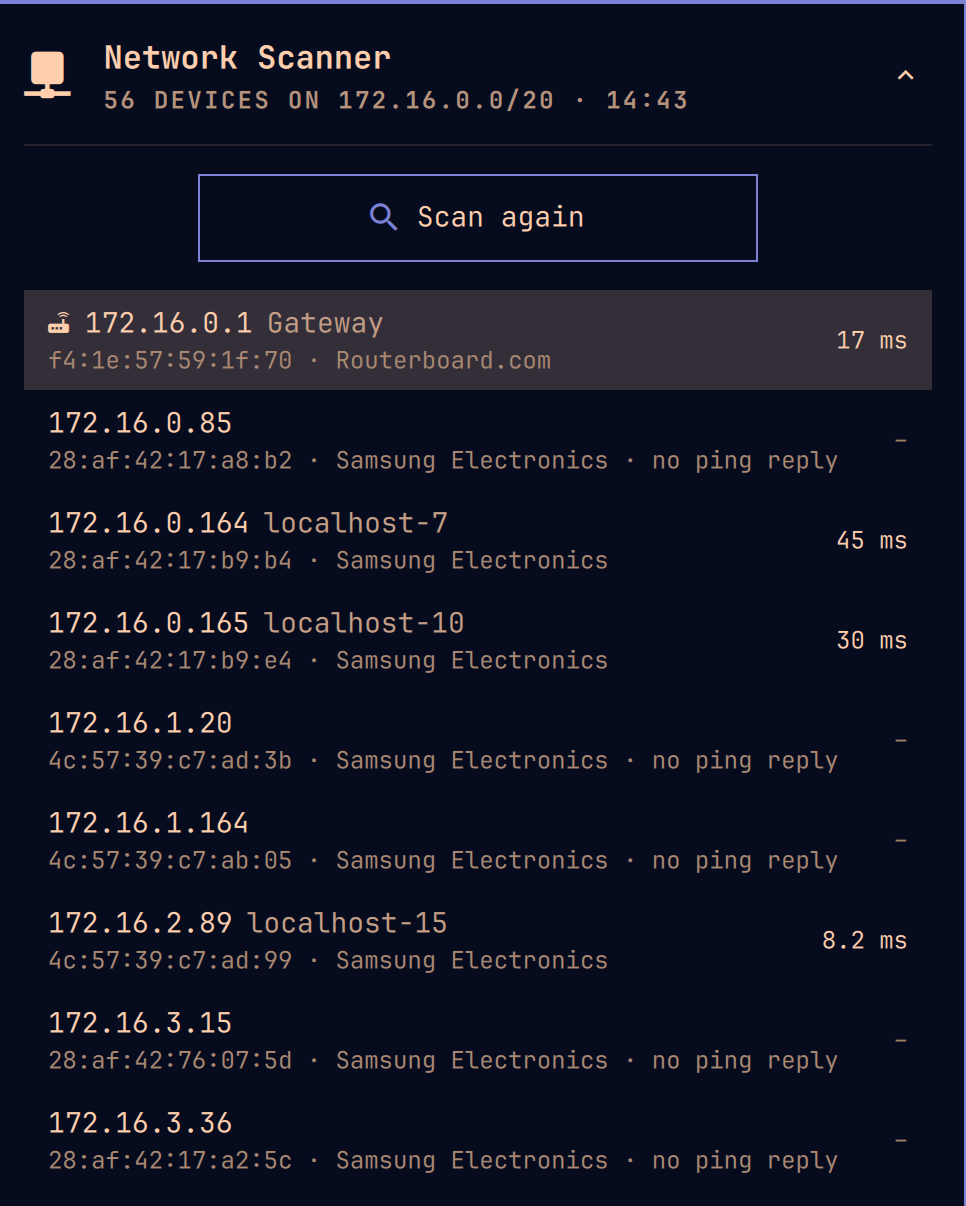
What it does
- On-demand scan — nothing runs periodically. The panel has one button; the sweep takes a few seconds and touches only your own subnet.
- Compact view: one line per device — IP on the left, ping latency on the
right. Extended view (toggle in the panel, key
v): adds the device's mDNS name, MAC address, vendor from the OUI registry, and reverse DNS. - Finds quiet devices too: a device that filters ping but answers ARP is
listed with a
–latency instead of being missed. - Wide networks handled honestly: a /24 or smaller is swept whole; a wider subnet would mean thousands of probes, so the scan covers your own /24 plus every device the kernel's neighbour table and mDNS already know about across the full subnet. The panel says which mode applies.
- Your own machine and the gateway are badged; clicking a device (or
Enter) opens a small menu to copy its IP or MAC address to the clipboard, showing the exact value before it is copied.
How it works
Everything runs unprivileged: ping for the sweep and latency, ip neigh
for MAC addresses, avahi-browse/avahi-resolve for mDNS names (skipped if
Avahi is absent), getent for reverse DNS, and nmap's OUI table for vendor
names when it is installed. No root, no raw sockets, no packet capture, and
no traffic beyond the link you are already on.
The QML panel is a thin renderer: every probe lives in bin/netscan-ctl,
a bash script you can run and debug in a terminal:
bin/netscan-ctl network   # what would be scanned: cidr, iface, own ip, mode
bin/netscan-ctl scan      # TSV, one line per discovered device
Settings
- Open in extended view — start on the detailed list instead of the compact one.
- Show device count in the bar — paint the last scan's device count next to the bar icon (a snapshot, not a live figure).
Keys
s scan · v toggle compact/extended · arrows move · Enter open the
copy menu (IP or MAC) · Esc close
IPC
omarchy-shell ipc call io.github.dicemans.network-scanner toggle
omarchy-shell ipc call io.github.dicemans.network-scanner scan
Requirements
iproute2 and ping (both ship with Omarchy). For the full experience the
plugin also uses avahi (mDNS device names), nmap (the vendor table) and
wl-clipboard (copying). On a machine where any of these are missing — or
avahi-daemon is not running — the panel shows a setup card that installs
and activates everything behind a single polkit authorization; the scan
itself works either way, just with fewer columns filled.
A note on etiquette
A ping sweep is ordinary, low-volume traffic, but on a network you do not own it can still be unwelcome. Scan networks you administer or have leave to probe.
License
MIT — see LICENSE.