
Grok Usage
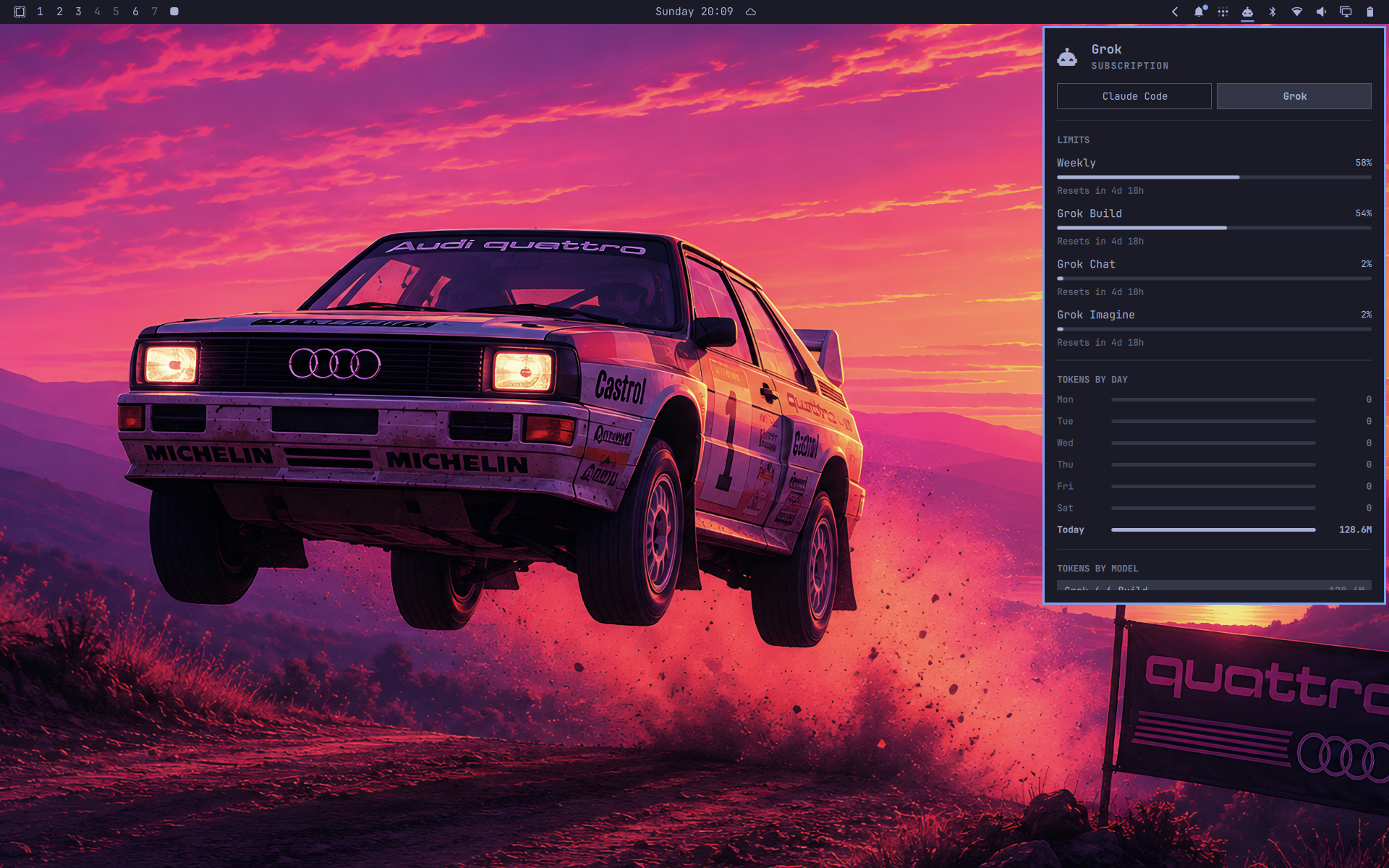
Adds Grok to Omarchy's existing AI toolbar widget — the AI icon already on the top bar. It does not add a second icon.
After install, click that same AI button. You get a Grok chip next to Claude Code (and Codex / Fireworks if you use them): weekly SuperGrok pool, Grok Build vs Chat vs Imagine, and local token stats from ~/.grok/sessions.
Install
omarchy plugin add https://github.com/dougfour/omarchy-grok-usage.git --enable
Requires:
- Omarchy with the stock AI widget enabled (
omarchy.agents, on by default) - Python 3 on
PATH(stdlib only) - Grok Build signed in (
grok login) so weekly limits can load
Leave the built-in AI icon where it is. After the first scan, click it and switch to Grok.
Usage
- Left click the existing AI icon: usage panel
- Switch to Grok with the chip in the panel (or middle-click the icon)
ror Enter in the panel: refresh (Grok follows the stock update)- Grok also refreshes about every 5 minutes
This plugin is a headless service. It only writes a Grok usage record for the stock panel to display.
Weekly percent comes from https://cli-chat-proxy.grok.com/v1/billing?format=credits using the token in ~/.grok/auth.json. Token charts come from ~/.grok/sessions/**/updates.jsonl.
Remove
omarchy plugin remove io.github.dougfour.grok-usage
Removal deletes the plugin checkout and drops ~/.local/state/omarchy/agents/usage/grok.json, so the Grok chip leaves the stock AI panel. It does not change ~/.grok/auth.json or session files.
Privacy
The collector reads local Grok session files and the saved Grok login, then calls xAI's billing endpoint. It never logs tokens. Expired tokens are not refreshed; run grok login (or start Grok) to renew them.
License
MIT. See LICENSE.