
Omasync
Omasync securely pushes an Omarchy setup from one main laptop to one or more paired laptops. Themes, shell settings, selected Hyprland files, and trusted plugins can move together without reusing your personal SSH keys.
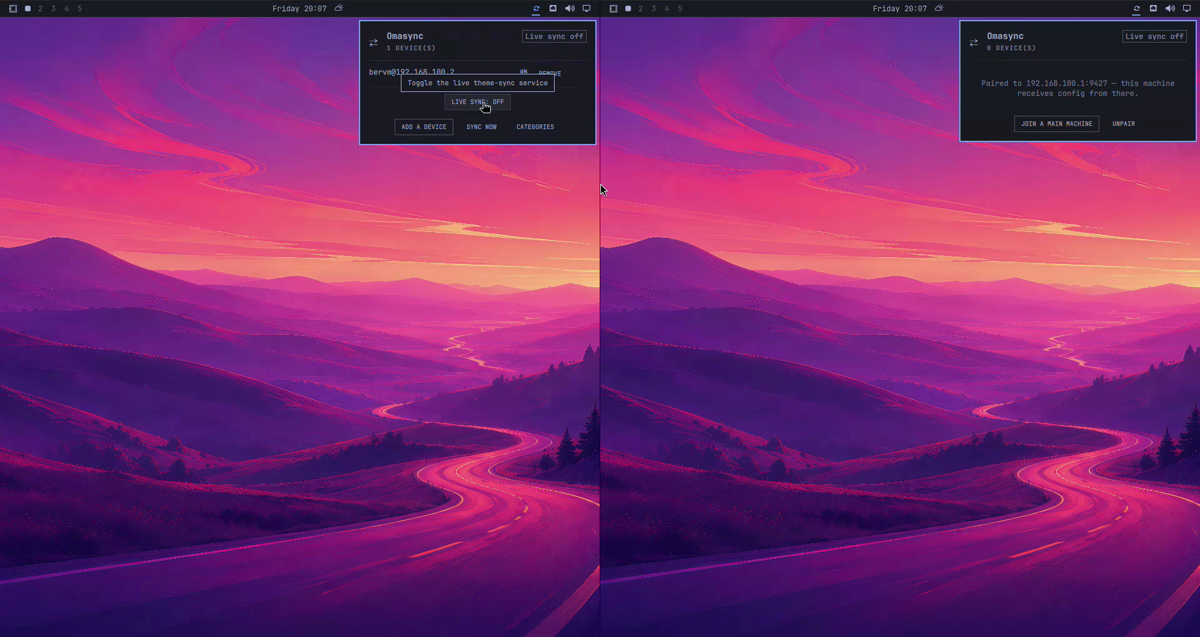
Install on both laptops
omarchy plugin add https://github.com/dupontbertrand/omasync --enable --yes
Omasync's CLI is intentionally not installed globally. When a terminal command is needed, use its installed path:
OMASYNC="$HOME/.config/omarchy/plugins/io.github.dupontbertrand.omasync/bin/omasync"
The panel itself always invokes that absolute plugin path.
Pair a laptop
The normal flow needs no terminal.
- On the laptop that will receive settings, install Omasync and enable Setup > Security > SSHD in Omarchy. This starts SSH and opens its firewall rule.
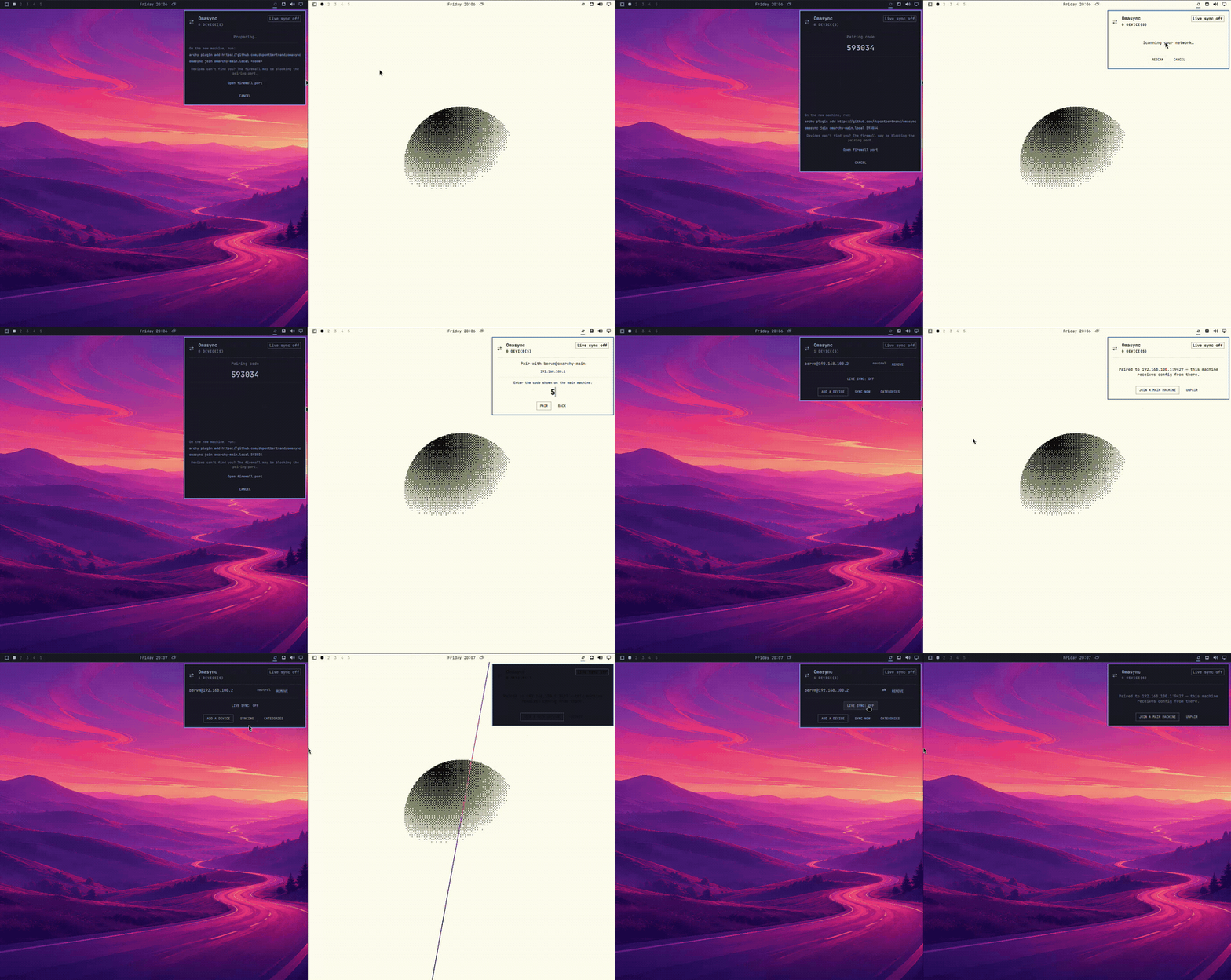
- On the main laptop, install Omasync, open its panel, and click Add a device. A single-use six-digit code appears for 120 seconds. The QR and copyable command only help install Omasync on the new laptop; pairing itself stays in the graphical panel.
- On the receiving laptop, open the Omasync panel, click Join a main machine, select the discovered main laptop, enter the code, and click Pair.
- Back on the main laptop, choose categories and click Sync now.
If discovery is blocked on the main laptop, the pairing screen can open port 9427 through Omarchy's authorization dialog. UDP 9427 provides LAN discovery; when a receiving firewall drops its broadcast reply, Omasync retries discovery through an outbound TCP probe to already-seen LAN neighbors. TCP 9427 also carries the authenticated pairing exchange.
The receiving laptop must keep SSHD enabled after pairing: regular sync traffic uses SSH port 22. join checks this before modifying any pairing state, so a fresh Omarchy install cannot appear paired and then immediately be unreachable. The main laptop does not need SSHD for this direction of trust; during pairing it listens on port 9427 instead.
Roles and revocation
Trust is one-way: the main laptop receives SSH access to each device restricted by a forced command plus restrict. A paired device cannot add downstream devices, push categories, or enable live sync.
Prefer Remove on the main laptop when disconnecting a device. It remotely removes the exact Omasync authorization first, then forgets the device locally.
An Unpair started on the device cannot automatically notify the main laptop because the device has no reverse SSH access. If the device was unpaired first, use Forget anyway on the main laptop; its old private key no longer works on that device. The terminal equivalents are:
"$OMASYNC" remove user@device
"$OMASYNC" remove --force user@offline-device
"$OMASYNC" unpair
unpair is idempotent. Very early Omasync builds did not store the exact authorized-key record. If such a legacy state reports paired key record missing, the panel changes its action to Forget stale pairing. Inspect and remove the old Omasync line from ~/.ssh/authorized_keys, then use that action (or run "$OMASYNC" unpair --force) to clear the stale local role.
What syncs
Each category is opt-in from the panel. With no category selected, Sync now is disabled.
| Category | Data | Application on the device |
|---|---|---|
| Themes | User themes, active theme, managed background | omarchy-theme-set, then background selection |
| Bar & shell | ~/.config/omarchy/shell.json and/or shell.toml |
Omarchy shell reload |
| Hyprland | ~/.config/hypr/ except monitors* |
hyprctl reload in the active session |
| Plugins | IDs, Git origin URLs, and full commits of locally cloned plugins, excluding Omasync | Validate and install that exact commit, then enable |
monitors.lua, legacy monitors.conf, and matching migration backups are excluded because output names, resolutions, scale, and placement are hardware-specific. User choices such as bindings, input, appearance, and autostart remain portable.
App configs are not available in this release; syncing arbitrary application config paths is deferred pending a receiver-side approval flow.
Plugin security
Omarchy plugins execute unsandboxed code. Plugin sync therefore stages, validates, installs, and enables plugins only when this category is explicitly enabled. Enable it only when every local plugin's Git remote is trusted. A private or SSH Git remote also needs working credentials on each receiving laptop.
Omasync itself is never included in plugin sync, which keeps repeated syncs idempotent. For every other plugin, the main sends the full commit ID of its local checkout alongside the origin URL. The device clones without checkout, verifies that exact object is published by the origin, checks out and validates it while disabled, and only then installs or enables it. Existing plugins move to the same detached commit instead of running omarchy plugin update; a branch, tag, or remote HEAD changing during sync cannot change the code that executes. Uncommitted local plugin edits are not transferred, and a receiver checkout with tracked local changes is left untouched with an error.
What the main laptop can do on a device
The device installs the main laptop's key behind a forced command
(command="…/bin/omasync-remote",restrict …). That key cannot open a shell,
run arbitrary commands, read arbitrary files, or upload files off the device
(rsync --sender is refused). SSH only ever runs omasync-remote, which
accepts a fixed vocabulary — reachability, the anti-loop marker, an rsync
receive into five fixed paths only (installed themes, ~/.config/hypr,
shell.json/shell.toml, ~/Omasync), the named apply operations (set
theme/background, reload shell, reload Hyprland, add/update the listed
plugins at the supplied full commits), and self-revocation — and rejects and
logs everything else, including path traversal and any symlinked destination.
Category selection is ergonomic, not a security boundary — pair only a fully trusted main laptop. A forced command stops arbitrary command execution, but two of the sync operations legitimately carry executable content: the main can install and enable any published Git commit, and replace Hyprland config that can launch programs. The device applies these when the main asks; unchecking a category on the main is a convenience, not a wall a stolen key must respect. If a main key is compromised, unpair that device immediately.
Both laptops must run this plugin version before the next sync: the main now speaks the validated-verb protocol and an un-migrated device would reject it.
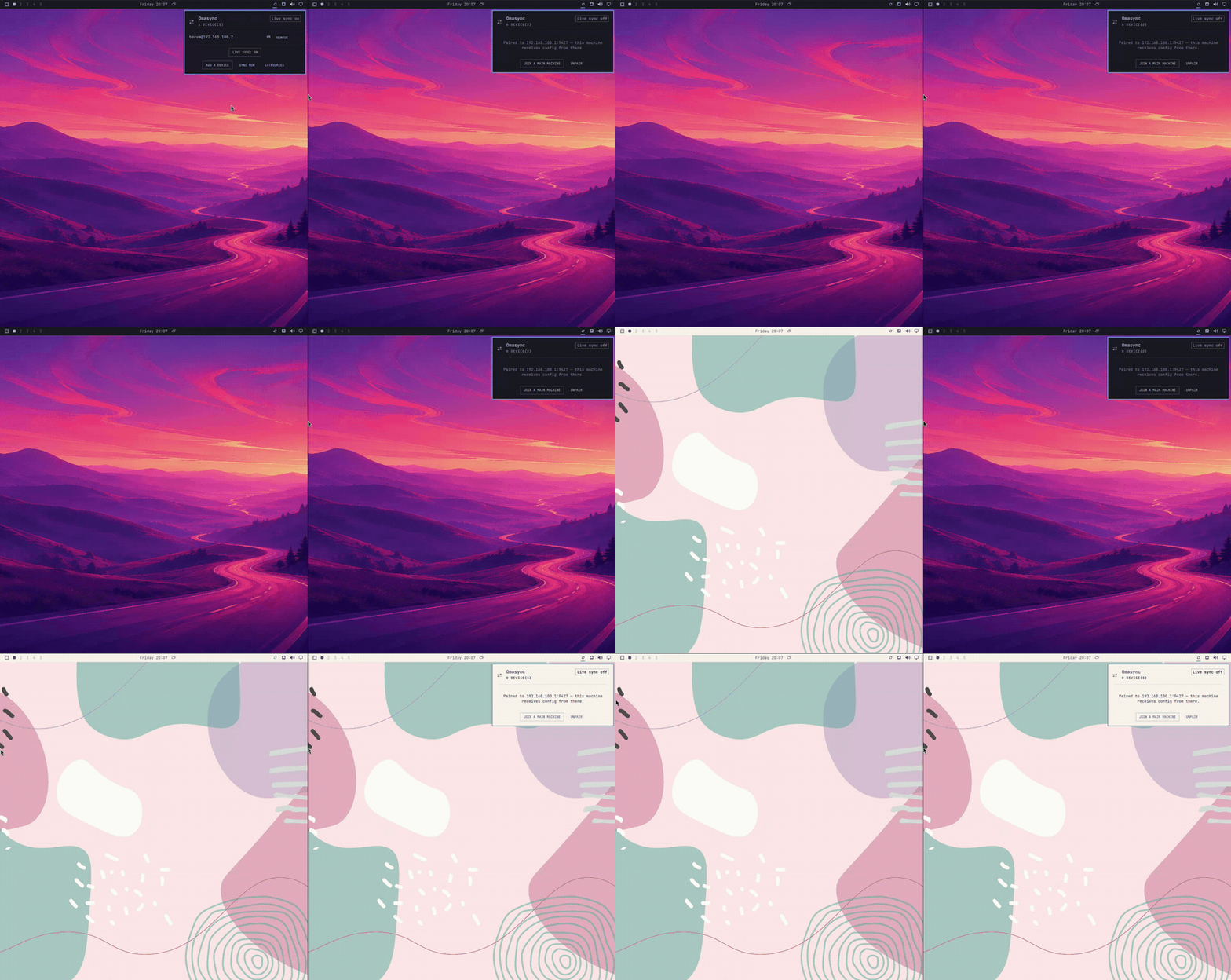
Live theme sync
Live sync enables a hardened systemd user unit on the main laptop. It watches the current Omarchy theme state with inotifywait, debounces event bursts for two seconds, and pushes Themes to all paired devices. Turning it on requires at least one paired device; a live sync that is already running can always be turned off.
Pushes are serialized, and a short suppress marker prevents a remotely applied theme from bouncing back through another watcher.
Send files
"$OMASYNC" send notes.md screenshot.png
"$OMASYNC" send notes.md --host user@device
Files are copied one-way to ~/Omasync/. Directories are rejected. Omasync still attempts every target if one is offline, but returns a non-zero status for any partial failure.
Pairing and SSH security
The six-digit code never crosses the network. The two sides derive a short-lived key with memory-hard scrypt, then authenticate the device identity, nonces, main public key, and device SSH host key with HMAC. The main laptop saves the device record before it sends the final authenticated success response.
Omasync creates a dedicated Ed25519 key instead of using personal keys. The device stores it in authorized_keys behind a forced command plus OpenSSH's restrict option, and the main laptop pins the authenticated host key in a private known_hosts file with strict checking. Config, state, pairing artifacts, and logs are user-only. See What the main laptop can do on a device for exactly what that forced command accepts and refuses.
Discovery responses are not authenticated and grant no access. A LAN attacker could appear in the list or disrupt/relay an attempt, so pair on a trusted LAN and verify the displayed IP. The authenticated exchange prevents silent key substitution, but a six-digit secret is not enterprise enrollment.
Requirements and firewall
- Omarchy Quattro 4.0 or newer on both laptops. Omarchy 3.x config formats are unsupported.
- Stock tools:
python3withhashlib.scrypt,inotify-tools,jq,rsync,git, OpenSSH,flock,timeout,qrencode, andwl-copy(fromwl-clipboard). - On every receiving laptop, enable Setup > Security > SSHD. Omarchy starts the service and opens port 22.
- On the main laptop, open port 9427 only if the pairing screen reports that discovery is blocked. The panel's button runs the equivalent one-time UFW allow rule.
- App configs are not available in this release; only themes, shell, Hyprland, and plugins can be paired/synced.
Pairing works across a normal local broadcast domain. Discovery does not cross routed/segmented networks. A QEMU guest can discover its host through the 10.0.2.2 user-network gateway. Two guests with separate user-mode NATs cannot discover each other through those NATs; their shared virtual NICs must have IPv4 addresses on the same subnet.
Uninstall safely
Omarchy has no plugin uninstall hooks, so cleanup must run while the plugin still exists.
- With devices online, run cleanup on the main laptop. It stops live sync and revokes every remote authorization before deleting the dedicated private key and Omasync state.
- Run cleanup on each receiving laptop to remove any remaining local authorization/state.
- Remove the plugin on each laptop.
OMASYNC="$HOME/.config/omarchy/plugins/io.github.dupontbertrand.omasync/bin/omasync"
"$OMASYNC" cleanup
omarchy plugin remove io.github.dupontbertrand.omasync
If a device is permanently offline, "$OMASYNC" cleanup --force forgets it and destroys the main laptop's private Omasync key, making any unreachable leftover public authorization unusable. Without --force, cleanup fails closed and preserves the key/state so it can be retried.
If the pairing firewall rule was opened, inspect sudo ufw status numbered and delete the Omasync/9427 rule by its number after uninstalling.
Development
Tests use bats-core:
bats tests
shellcheck --severity=warning -x -e SC1091 lib/core.sh bin/* tests/helpers/*
Operational errors are appended to ~/.local/state/omasync/omasync.log. After QML edits, clear Quickshell's compiled cache and restart the shell before visual testing.
MIT licensed.