
OmaIMAPMail
A multi-account IMAP unread-mail plugin for the Omarchy shell bar. One icon, any number of accounts — Gmail, iCloud, Fastmail, Outlook, or any other IMAP provider — each with its own color, its own desktop notifications, and its own entry in a built-in settings form. No config file editing, no separate plugin per account.
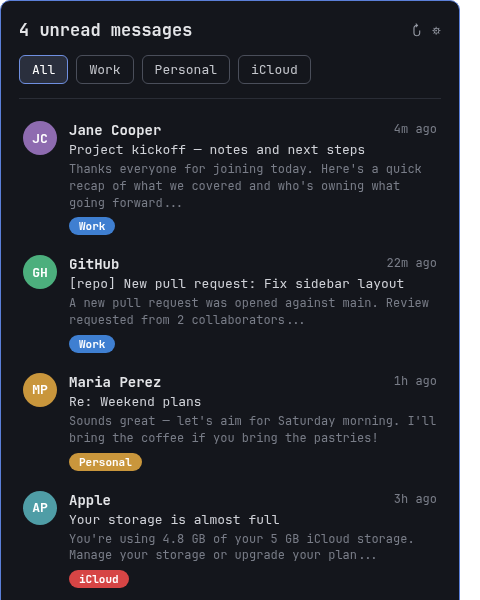 (illustrative mockup with placeholder mail — not a real inbox)
Fork notice: OmaIMAPMail started as a fork of keithnyc/omafmail (MIT licensed), which pioneered the read-only IMAP IDLE watcher and notification design this plugin still builds on. It has since been substantially rewritten into a multi-account plugin with an in-shell settings UI — see
CHANGELOG.mdfor the full list of what changed and why, andLICENSEfor attribution.
Features
- Any number of IMAP accounts, one bar icon. Combined unread count in the bar; the popup lists every account's mail together.
- Add, edit, or remove accounts from the shell itself. Click the gear
icon in the popup — no config files, no new plugin folders, no
omarchy plugin enable. - Per-account color coding. Pick a color when you add an account; every message row carries a colored badge for the account it came from.
- Filter by account. Buttons above the message list narrow the view to one account or show everything combined.
- Desktop notifications, per account, only for genuinely new mail. No notification flood on first install or reconnect — each account tracks its own "already seen" baseline.
- Passwords never touch a config file. App passwords go straight into
your system keyring via
secret-tool, written over a pipe, never to argv, disk, or a log line. - Read-only, always. Every IMAP session is
SELECT ... READONLYwithBODY.PEEK[]fetches — this plugin cannot mark your mail as read or modify it in any way, on any account. - Click a message to open that account's webmail inbox in your browser. Right-click the bar icon (or use the popup's refresh button) to reconnect every account immediately.
Requirements
- Omarchy with a shell that supports third-party
service+bar-widgetplugins - Python 3, standard library only — no
pip installneeded secret-tool(part oflibsecret) and a running Secret Service provider (GNOME Keyring is already active on most Omarchy installs)omarchy-notification-send(ships with Omarchy)
Install
omarchy plugin add https://github.com/eddownes/omaimapmail.git --enable
This clones the plugin into ~/.config/omarchy/plugins/io.github.eddownes.omaimapmail
and enables its bar icon. If you'd rather do it in two steps:
omarchy plugin add https://github.com/eddownes/omaimapmail.git
omarchy plugin enable io.github.eddownes.omaimapmail right
Install for local development
git clone https://github.com/eddownes/omaimapmail.git
ln -s "$PWD/omaimapmail" ~/.config/omarchy/plugins/io.github.eddownes.omaimapmail
omarchy-shell shell rescanPlugins
omarchy plugin enable io.github.eddownes.omaimapmail right
Setup
No config file to create by hand — everything happens in the shell.
-
Click the mail icon in the bar to open the popup (it starts empty with no accounts configured).
-
Click the gear icon (top right of the popup) to open account management.
-
Click "+ Add account" and fill in:
Field What to enter Label Any name you want shown in the UI, e.g. "Work Gmail" Account email Your full email address — also the IMAP username IMAP host Your provider's IMAP server (see table below) Port 993for essentially every provider (IMAP over TLS)Fetch limit Max unread messages to fetch/display per account (default 20) Mailbox Which folder to watch (default INBOX)Webmail URL Opened when you click a message from this account (optional) App password See provider notes below — not your regular login password for most providers Color Pick a swatch to color-code this account's badge -
Click Save. The account connects within a few seconds; a red banner in the popup tells you immediately if sign-in failed.
Provider notes
Most providers require an app-specific password, not your normal account password, once two-factor authentication is on (which is standard almost everywhere now). Using your regular password will fail with an "Invalid credentials" / "Sign-in failed" error.
| Provider | IMAP host | App password |
|---|---|---|
| Gmail | imap.gmail.com |
Enable 2-Step Verification, then generate one at myaccount.google.com/apppasswords. Also enable IMAP: Gmail Settings → See all settings → Forwarding and POP/IMAP → Enable IMAP → Save Changes. |
| iCloud Mail | imap.mail.me.com |
Generate at appleid.apple.com → Sign-In and Security → App-Specific Passwords. |
| Fastmail | imap.fastmail.com |
Settings → Privacy & Security → App passwords → create one with IMAP access. |
| Outlook / Microsoft 365 | outlook.office365.com |
Requires an app password if Security Defaults / MFA is on — generate from Microsoft account security settings. |
| Other IMAP providers | check your provider | Look for "app password" or "app-specific password" in their account security settings. |
Storing the password: when you type it into the Add/Edit form and click
Save, OmaIMAPMail runs secret-tool store for you — you never need to run
it yourself. (If you ever want to store or update one manually instead:
secret-tool store --label="OmaIMAPMail: you@example.com" service omaimapmail-<account-id> account you@example.com,
where <account-id> is the slug shown for that account — see
Configuration below.)
Usage
- Left-click the bar icon to open/close the popup.
- Right-click the bar icon to reconnect every account immediately (same as the refresh button inside the popup).
- Use the All / [Account name] buttons at the top of the popup to filter the message list.
- Click a message row to open that account's webmail (if a webmail URL was set for it).
- Gear icon → manage accounts: pencil to edit (leave the password field blank to keep the existing one), trash to remove (asks for confirmation first).
Configuration
Everything lives in two places:
~/.config/omaimapmail/accounts.json          # account list (no secrets)
~/.local/state/omaimapmail/<account-id>/state.json   # per-account "seen mail" baseline
accounts.json is a JSON object with an accounts array; each entry:
{
  "id": "work-gmail",
  "label": "Work Gmail",
  "color": "#3f7fd1",
  "host": "imap.gmail.com",
  "port": 993,
  "account": "you@gmail.com",
  "mailbox": "INBOX",
  "secretService": "omaimapmail-work-gmail",
  "fetchLimit": 20,
  "inboxUrl": "https://mail.google.com/mail/u/0/",
  "enabled": true
}
You can hand-edit this file if you prefer — OmaIMAPMail watches it and
reconnects automatically on save. id should be a short, unique, URL-safe
slug (the settings UI generates one from the label automatically). Setting
"enabled": false on an entry disables that account without deleting it.
secretService is the service attribute secret-tool uses to look up
that account's password — it must match whatever you used with
secret-tool store.
Passwords are never stored in this file — only in your system keyring.
Uninstall
omarchy plugin remove io.github.eddownes.omaimapmail
This removes the plugin code and disables the bar icon, but leaves your configuration, keyring entries, and local state intact so re-enabling later picks up right where you left off. To remove everything:
rm -rf ~/.config/omaimapmail ~/.local/state/omaimapmail
and clear each account's keyring entry:
secret-tool clear service omaimapmail-<account-id> account you@example.com
Privacy & security
- OmaIMAPMail connects to your IMAP server(s) directly from your machine — no relay, no third-party service in between.
accounts.jsonnever contains a password.- App passwords live only in your system keyring; they're written to the password-store process over a pipe and never appear in argv, a file, or a log line.
- Every IMAP session is opened read-only (
SELECT ... READONLY) and every fetch usesBODY.PEEK[]— this plugin cannot mark mail as read, delete it, or otherwise modify your mailbox, on any account, ever. - Plugins run unsandboxed inside
omarchy-shell, with your full user permissions, same as any other Omarchy plugin. Read the source (it's not large) before you enable it, same as you should for anything else that runs with your credentials.
Limitations
- "Click a message" opens the account's general inbox view, not a deep link to that exact message — IMAP UIDs don't map to most webmail providers' internal message IDs.
- The preview is the plain-text part of the message; HTML-only mail without a plain-text alternative may show a rough or empty snippet.
- Editing
accounts.json(by hand or through the settings form) restarts the watcher process for every account, not just the one that changed — expect a brief (~1-2 second) reconnect blip across all accounts whenever you add, edit, or remove one.
Contributing / issues
Issues and pull requests welcome at github.com/eddownes/omaimapmail.
License
MIT — see LICENSE. Originally forked from
keithnyc/omafmail (MIT licensed);
see CHANGELOG.md for what's changed since, and
NOTICE.md for the external tools this plugin shells out to
at runtime and their licenses.