
Boomux for Omarchy
Monitor interactive Boomux Agents, manage native-terminal workspaces, and operate recurring Agent Schedules without leaving the Omarchy bar.
Features
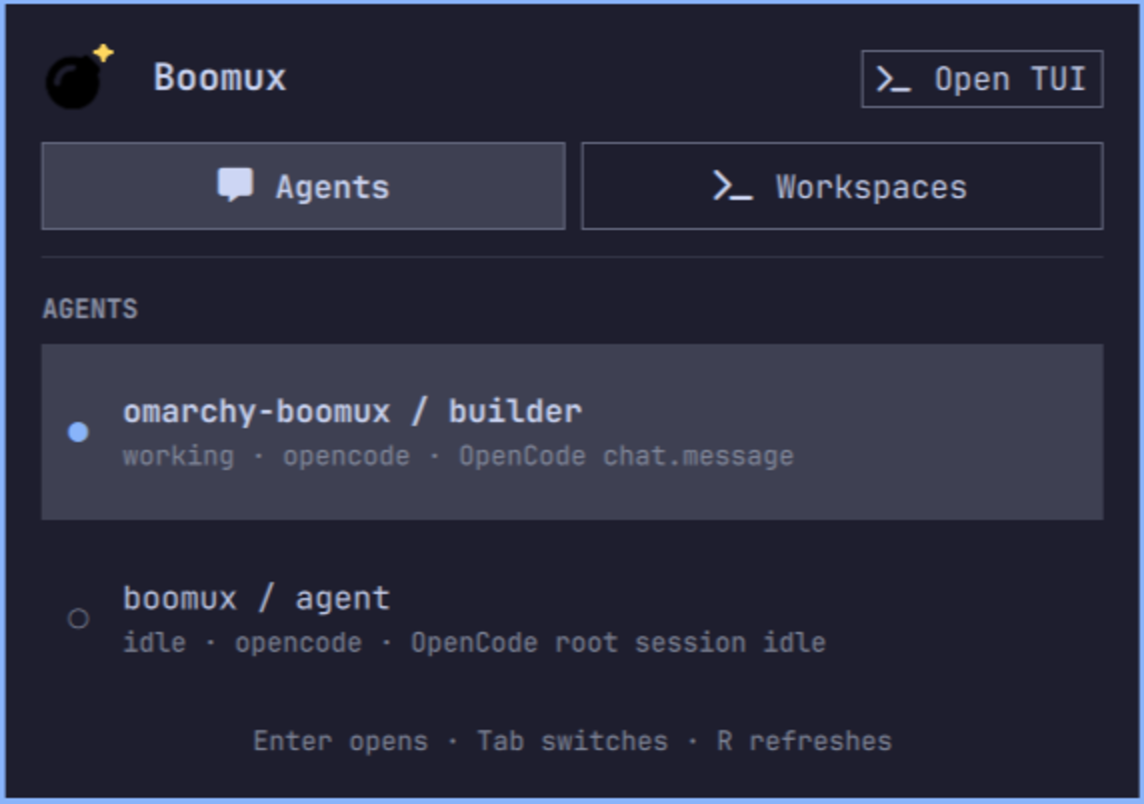
- Keeps active Agents in a dedicated status tab
- Excludes schedule-owned Agents handled by Boomux scheduling
- Shows live
working,idle, andblockedAgent states - Highlights finished work and blocked attention in the bar
- Keeps finished markers visible until you open the corresponding Agent
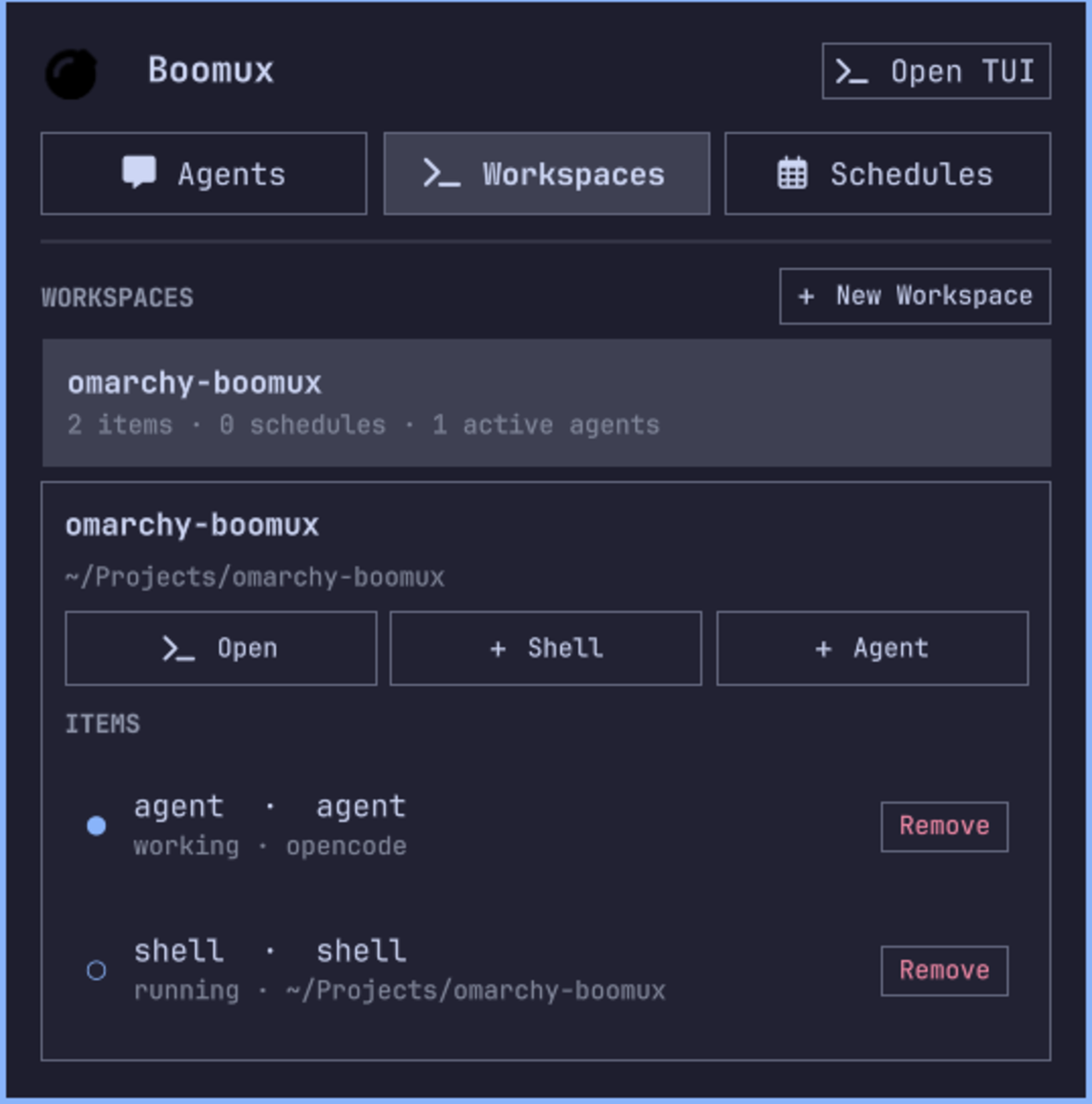
- Lists workspaces and their Agent, shell, command, and launcher items
- Opens complete workspaces or individual managed items
- Removes individual workspace items after confirming their specific impact
- Creates workspaces from configured project suggestions or a custom directory
- Opens an in-panel directory picker for workspace, shell, and Agent directories
- Prefills editable shell and Agent names from Boomux suggestions
- Starts new OpenCode or Pi command shells and lets their lifecycle integration register the Agent
- Acknowledges current durable attention when you open its Agent
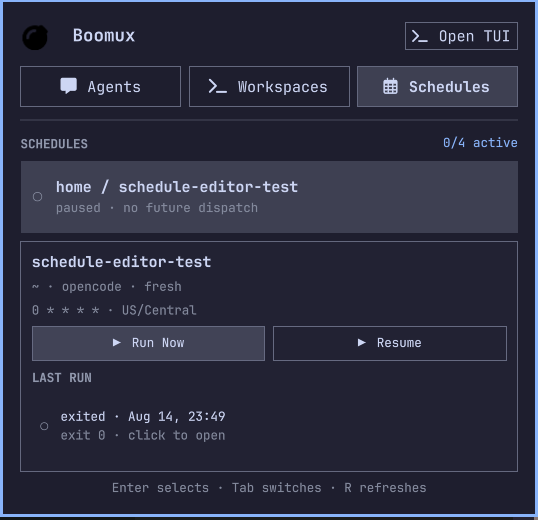
- Lists Schedules across workspaces with scheduler status and their latest run
- Runs Schedules immediately and pauses or resumes future timed dispatch
- Launches the full Boomux TUI in a new native terminal
- Supports mouse and keyboard navigation and follows the active Omarchy theme
- Polls local Boomux state once per second for responsive updates
Requirements
- Omarchy with the Quattro shell plugin system
- Boomux
0.18.0or newer available onPATH - A configured native terminal supported by
xdg-terminal-exec
Workspace management works with Boomux alone. Agent states and Agent creation require the corresponding coding-agent executable and Boomux lifecycle integration. For OpenCode or Pi, run:
boomux integration setup opencode
# or
boomux integration setup pi
The plugin does not automatically start a stopped Boomux daemon. Launch Boomux or open a managed workspace before using the panel.
Follow the setup command's restart and verification guidance. See the
Boomux installation instructions
if boomux is not installed yet.
Install
Review the source before installing. Omarchy plugins run as unsandboxed code inside the long-running shell process.
omarchy plugin add https://github.com/gardnmi/omarchy-boomux.git --enable
The widget defaults to the right bar section. If you installed it without
--enable, enable it later with:
omarchy plugin enable io.github.gardnmi.boomux --section right
Use
| Input | Action |
|---|---|
| Left click | Open or close the panel |
| Right click | Refresh immediately |
Tab or 1 / 2 / 3 |
Switch between Agents, Workspaces, and Schedules |
| Up / Down | Select an Agent, workspace, or Schedule |
| Enter | Open a selected Agent or select a workspace or Schedule |
D |
Dismiss the selected Agent notification |
N |
Create a workspace |
R |
Refresh immediately |
| Escape | Close the panel |
The Open TUI button launches the Boomux dashboard in a new native terminal window. New Workspace is a global action. Selecting a workspace shows its directory, items, and scoped Open, Shell, and Agent actions below the workspace list. Clicking a shell, command, or Agent opens its managed terminal; clicking a launcher invokes that detached command. Opening a managed terminal takes over its writable controller so the new window receives the authoritative terminal size and input stream.
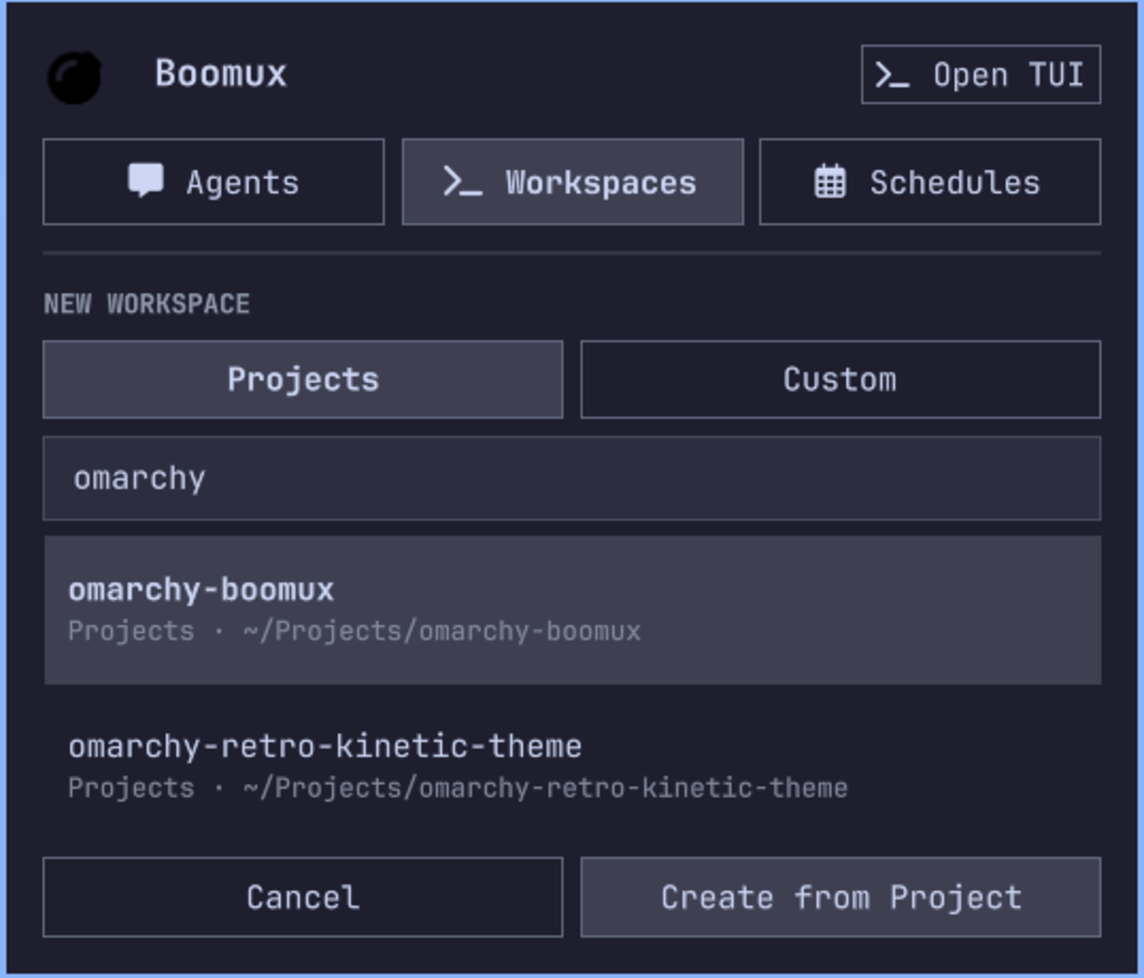
New Workspace opens with the same projects Boomux discovers from configured
[projects].roots. Search and select a project to use its canonical name and
path, or choose Custom to enter an unrelated workspace name and optional
default directory. Browse opens a bounded local directory browser and fills
the exact selected path; manual path entry remains available. Choosing a project
or directory does not create or start anything until Create is pressed.
Configure the suggestions in Boomux, for example:
[projects]
roots = ["~/Projects", "~/Work"]
max_depth = 3
Each workspace item has a Remove button. Removing a shell, command, or Agent item closes its exact backing shell, terminates it if running, and deletes its shell definition and retained terminal state. Durable Agent history may remain available for acknowledgement. Removing a launcher deletes only that launcher definition; applications it already launched keep running. Both operations ask for confirmation before changing the workspace.
Opening a complete workspace starts immediately. Boomux invokes its launchers, takes over active terminal controllers, and restarts exited shells. Workspace restore is non-transactional, so some items can open even if another item fails. Opening an individual exited shell or command restarts its stored process.
Agent creation records and opens a command-backed shell whose exact command is
opencode or pi. The installed lifecycle integration creates the authoritative
Agent record after the coding-agent host starts; the plugin does not fabricate
Agent lifecycle state.
Shell and Agent forms request an unreserved generated name from Boomux for the exact selected workspace. The field remains editable, and typing is never overwritten by a delayed suggestion. Another client can claim the suggested name before creation; Boomux remains authoritative and reports that collision.
The bomb icon changes with Agent state. Blocked work uses the urgent color;
finished work uses the accent color. The spark turns yellow while either alert
is active. Use the Agent row's Dismiss button or press D to clear a local
finished marker and acknowledge durable attention without opening the terminal.
Durable attention is acknowledged with the exact Agent ID and observation
revision. Blocked attention is also acknowledged when that Agent reports it is
working again. Failed acknowledgements remain visible for manual dismissal.
The Schedules surface activates only when the installed CLI advertises the required JSON commands and the running daemon supports protocol 25 or newer. Schedule rows show their durable paused or enabled state and next occurrence. The detail surface shows prompt-free configuration and the latest retained run. Clicking that run asks Boomux to open its exact active shell run or resume its exact linked Agent Session; it never restarts the private Schedule runner shell or substitutes a later run. Run Now can start an Agent and its permitted tool, filesystem, and network activity even while a Schedule is paused. Pause prevents future timed dispatch but does not cancel active work; Resume plans future occurrences without catching up paused time. Execution failures do not change the bomb's Agent-attention spark.
Update
omarchy plugin update io.github.gardnmi.boomux
Omarchy rescans plugins after an update; a shell restart is not normally needed.
Remove
omarchy plugin remove io.github.gardnmi.boomux
Removal deletes only the plugin checkout and its bar entry. It does not remove Boomux, stop or delete Boomux workspaces, or remove Boomux Agent integrations and data.
Data And Privacy
- The plugin checks local daemon status once per second without starting it. If Boomux is already running, it polls Agent, shell, and workspace state once per second and inspects the selected workspace. Schedule definitions and the prompt-free latest run are polled only while the Schedules tab is open.
- The passive
boomux capabilities --jsoncheck gates Schedule support. The plugin never requests or displays persisted Schedule prompts. When New Workspace opens, the advertised passiveboomux project list --jsoncommand scans configured roots without contacting or starting the daemon. - It makes no network requests and does not read or store credentials.
- The directory browser reads names of local readable subdirectories only while it is open; it does not read file contents or send paths elsewhere.
- It does not modify Boomux or Omarchy configuration directly.
- After an Agent terminal opens successfully, its notification is explicitly
dismissed, or a blocked Agent reports
workingagain, the plugin can run the local, revision-conditionalboomux attention acknowledgecommand. Attention for an Agent whose shell was removed can also be dismissed directly from its row. - Opening the dashboard or a managed shell launches a native terminal process.
- Workspace actions can create or open workspaces, create or remove shells, and invoke or remove existing launchers. Shell removal can terminate a running process and deletes retained terminal state. Launcher removal does not stop applications already launched. Workspace restore can run commands, open native terminals, disconnect existing writable terminal controllers, and restart exited shells.
- Schedule actions can start Agent processes and pause or resume future timed dispatch. Opening the latest run can attach its exact active run or launch its harness to resume the exact linked session. Schedule actions do not edit prompts, cancel executions, or remove Schedules.
Troubleshooting
Boomux is unavailable
Confirm Boomux is installed and healthy:
command -v boomux
boomux doctor
boomux list --json
Agents appear as terminals
Confirm a lifecycle integration is installed and reporting:
boomux integration status
boomux agent list --json
Restart the coding-agent host after installing or updating its integration.
The panel looks stale
Right-click the bomb or press R. If plugin code was just updated but did not
reload, request a plugin rescan:
omarchy-shell shell rescanPlugins
Development
Deploy the complete working tree while Quickshell is stopped, then restart it:
mise run restart
This makes the installed plugin checkout dirty. Restore or remove local test
changes before using omarchy plugin update again.
Validate the repository with:
omarchy plugin validate .
qmllint -I /usr/share/omarchy/shell Panel.qml
xmllint --noout assets/bomb.svg assets/bomb-spark.svg
License
The plugin code is licensed under the MIT License. The bomb icon is adapted from Font Awesome Free under CC BY 4.0. See THIRD_PARTY_NOTICES.md.