
Omarchy Minimize
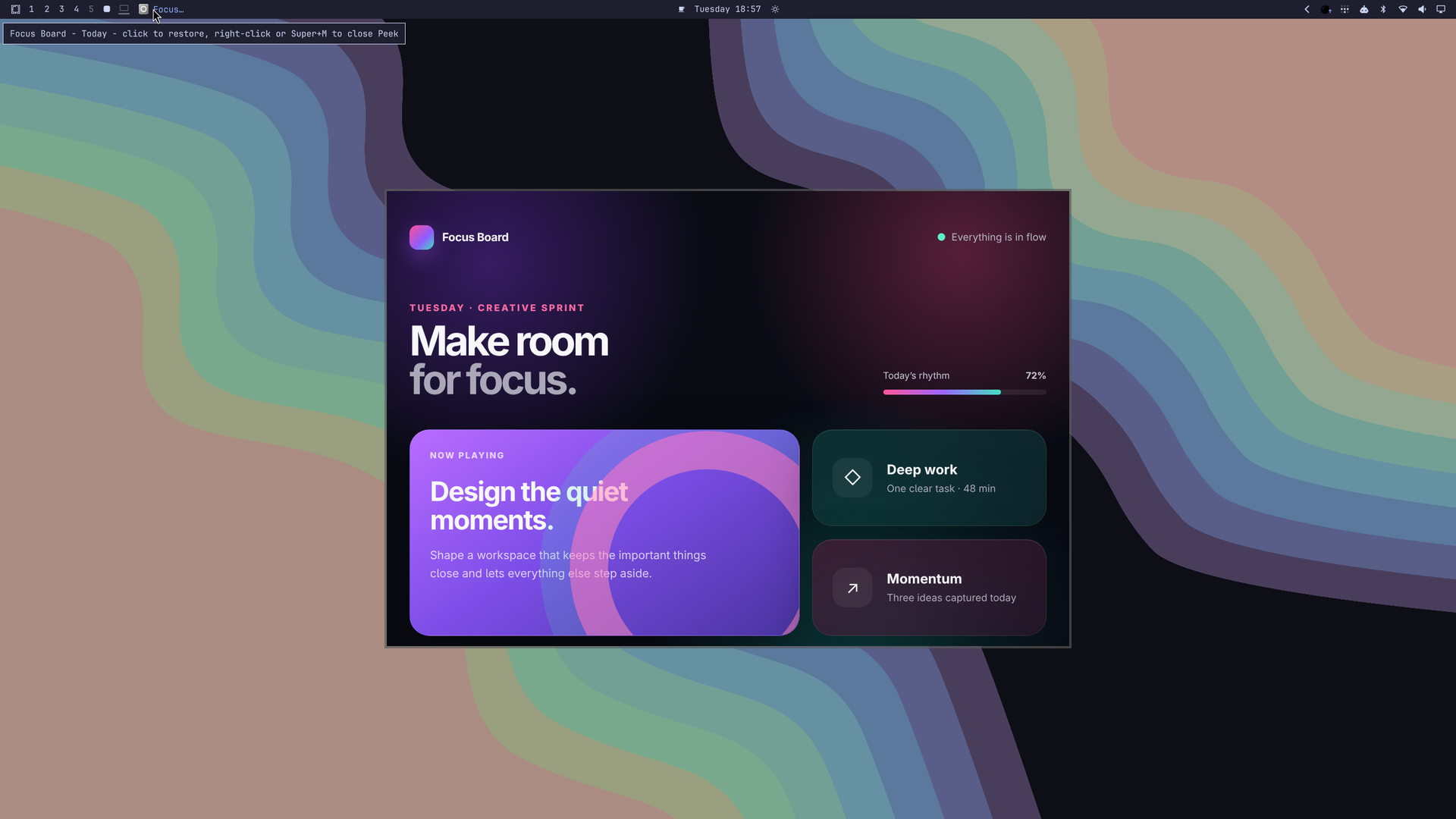
Minimize Hyprland windows into compact, clickable title chips in the Omarchy bar. Clicking a chip restores that exact window onto the workspace you are currently viewing.
Hyprland does not provide conventional desktop minimization. Omarchy Minimize
implements the behavior by parking windows on the private
special:omarchy-minimized workspace and using Hyprland's window addresses to
restore the correct client.
Features
- Adds a mouse-accessible minimize button to the Omarchy bar
- Shows every minimized window as an individual application icon and title chip
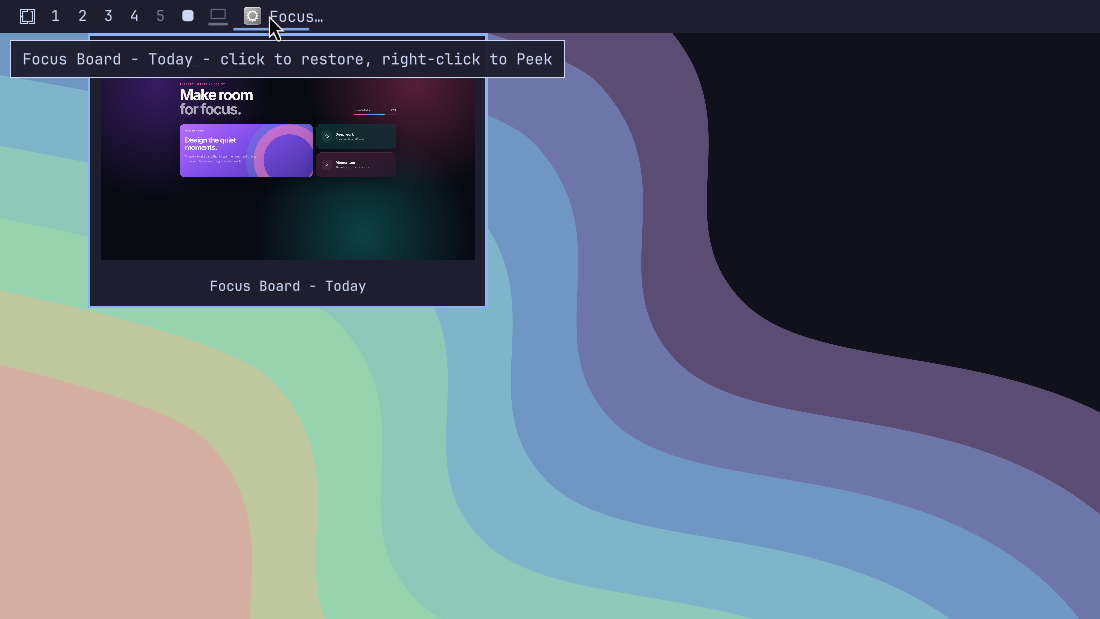
- Displays a live, non-interactive window preview after hovering a chip briefly
- Opens the real window as a centered, interactive Peek on right-click
- Restores a window onto the currently focused workspace
- Tracks windows reactively through Quickshell without polling
- Reconstructs its state after shell restarts from the Hyprland workspace
- Supports horizontal and vertical Omarchy bars
- Uses the active Omarchy theme, spacing, typography, and tooltips
- Stores no separate state and starts no background processes
Requirements
- Omarchy with the Quattro shell plugin system
- Hyprland running in Lua configuration mode
- Quickshell
0.3.0or newer
Install
Review the source before installing. Omarchy plugins run as unsandboxed code inside the long-running shell process.
omarchy plugin add https://github.com/gardnmi/omarchy-minimize.git --enable
The widget defaults to the left bar section. If you installed it without
--enable, enable it later with:
omarchy plugin enable io.github.gardnmi.window-shelf --section left
Quick Start
The plugin works immediately with the mouse: click the minimize glyph to send the active window to the shelf, then click its chip to restore it.
For keyboard control, first confirm SUPER + M is not already assigned:
omarchy menu keybindings --print
Then add this optional binding to ~/.config/hypr/bindings.lua:
o.bind("SUPER + M", "Minimize window", hl.dsp.window.move({
  workspace = "special:omarchy-minimized",
  follow = false,
}))
Apply and validate the change:
hyprctl reload
hyprctl configerrors
If SUPER + M is already assigned, choose another unused key instead of
silently replacing its existing action. Installing Omarchy Minimize never
modifies Hyprland bindings automatically.
Use
| Input | Action |
|---|---|
| Left click the minimize glyph | Minimize the active window |
| Left click a title chip | Restore that window on the current workspace |
| Hover a title chip | Show a live preview and the complete window title |
| Right-click a title chip | Open or close a centered, interactive Peek |
SUPER + M from Peek |
Return the window to the shelf and restore its layout state |
The window list is global. On a multi-monitor setup, every live bar instance reflects windows parked on the shelf, and restoring uses the workspace focused at the time of the click.
Interactive Peek temporarily moves one exact client onto
special:omarchy-window-peek, floats it at the configured size, and centers it
over the current workspace. It is the real application window, so pointer and
keyboard input work normally after you click it. Right-click its chip again or
press SUPER + M while the Peek window is active to return it to the shelf.
Switching normal workspaces also dismisses Peek. Left-click the chip while Peek
is open to restore it permanently. Tiled windows return to tiled state;
previously floating windows recover their prior size and position.
Configuration
Title chips default to 18 characters. Set maxTitleLength on the bar entry to
change the limit. maxChipWidth controls the rendered chip width and
previewDelay controls the hover delay in milliseconds. peekWidth and
peekHeight control the centered interactive window size:
{
  "id": "io.github.gardnmi.window-shelf",
  "maxTitleLength": 24,
  "maxChipWidth": 220,
  "previewDelay": 350,
  "peekWidth": 960,
  "peekHeight": 640
}
Update
omarchy plugin update io.github.gardnmi.window-shelf
Omarchy rescans plugins after an update; a shell restart is not normally needed.
Remove
Restore any windows you still need before removing the plugin, then run:
omarchy plugin remove io.github.gardnmi.window-shelf
Removing the plugin does not close parked applications or move them out of the special workspace. If the plugin is unavailable while windows remain parked, reveal the shelf with:
hyprctl dispatch 'hl.dsp.workspace.toggle_special("omarchy-minimized")'
Move or close those windows normally before hiding the special workspace again.
Data And Privacy
- The plugin reads Quickshell's in-process Hyprland toplevel and workspace models, including window addresses, application IDs, and titles.
- While a chip is hovered, Quickshell requests a local live compositor export of that exact window to render its preview. The frame remains in the shell process and is discarded when the preview closes.
- Minimizing, restoring, and interactive Peek issue only local Hyprland Lua dispatchers. Peek temporarily changes the exact client's workspace, floating state, size, and position, then restores its prior layout state when closed.
- Desktop-entry metadata and icons are resolved from the local application database and icon theme.
- The plugin does not save screenshots, access application files, use the network, execute a shell, or persist state.
- Window titles are rendered locally in the bar and may contain application or document names supplied by those applications.
Troubleshooting
The widget does not appear
Confirm Omarchy discovered and enabled it:
omarchy plugin list
omarchy plugin enable io.github.gardnmi.window-shelf --section left
omarchy-shell shell rescanPlugins
A window is still hidden
Show the private special workspace:
hyprctl dispatch 'hl.dsp.workspace.toggle_special("omarchy-minimized")'
If the window appears there, move it to a normal workspace or restore it after reenabling Omarchy Minimize.
The keyboard shortcut does nothing
Confirm the binding exists and Hyprland has no configuration errors:
omarchy menu keybindings --print
hyprctl configerrors
Development
Deploy the complete working tree while Quickshell is stopped, then restart it:
mise run restart
This replaces the installed local plugin copy. Keep repository work in this
directory rather than editing ~/.config/omarchy/plugins/ directly.
Validate the repository with:
omarchy plugin validate .
qmllint -I /usr/share/omarchy/shell BarWidget.qml
bash -n deploy-local.sh
mise run test
git diff --check
License
Omarchy Minimize is licensed under the MIT License.