
A bar widget that gives the Microsoft Teams web app the behaviour the Linux desktop client never had: a Dock-style icon with an unread badge, hide instead of quit, microphone control, and automatic do-not-disturb while you are in a call.
Teams on Linux is a browser tab. This makes it feel like an application.
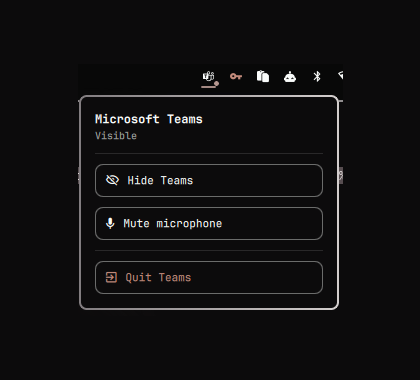
What it does
- Dock-style icon. Always present. Click to show or focus Teams; click again while it is focused to hide it, the way clicking a Dock tile does on macOS.
- Unread badge. The count comes from the window title, which Teams keeps
current (
(3) Chat | … | Microsoft Teams). - Hide instead of quit. Hiding parks the window on a special workspace, so Teams stays signed in, connected and warm. Reopening is instant instead of a cold start of the whole web app.
- Presence dot. Accent when Teams is running, and while you are in a call it
turns urgent, grows and pulses. It deliberately does not rely on colour alone:
plenty of themes resolve
accentandurgentto near-identical hues, and a 7px dot cannot carry the difference. - Microphone toggle. Middle-click the icon, or use the menu.
- Automatic do-not-disturb. Notifications are silenced when a call starts and restored when it ends. A do-not-disturb you switched on is left alone — the widget only undoes what it did itself.
- A menu, on right-click, holding show/hide, mute, and quit.
Install
omarchy plugin add https://github.com/haripako/plugin-microsoft-teams-omarchy.git --enable
The command above works today and needs nothing else. There is also a marketplace listing (submission), which is awaiting maintainer approval — until it is approved that page will say the plugin was not found.
Then add the widget to your bar, if it did not land there automatically:
omarchy bar put io.github.haripako.teams --section right
omarchy restart shell
You also need Teams itself as a web app. If you do not have one yet:
omarchy webapp add Teams https://teams.microsoft.com
Settings
Set these on the widget's entry in ~/.config/omarchy/shell.json, or through
omarchy bar set io.github.haripako.teams <key> <value>.
| Key | Default | What it does |
|---|---|---|
autoDnd |
true |
Silence notifications while a call is in progress. |
homeWorkspace |
"" |
Workspace to return Teams to when unhiding. Empty follows the active workspace. Set it if a window rule pins Teams somewhere. |
url |
https://teams.microsoft.com |
Opened when Teams is not running. |
matchClass |
chrome-teams |
Substring matched against the window class to find the Teams window. |
pollInterval |
2000 |
How often the window state is re-read, in milliseconds. |
launchCommand |
"" |
Command that starts Teams when it is not running. Empty launches the Chromium web app. |
micApp |
chromium |
Process a capture stream must belong to before it counts as a call. |
notificationsPlugin |
"" |
Empty auto-detects the notification service. Set it only if detection picks the wrong one. |
About micApp
A call is detected by looking for a live microphone capture stream. Filtering by process matters: without it any application touching the microphone — a recorder, another meeting app, OBS — would read as "Teams is in a call" and force do-not-disturb on.
Teams runs inside Chromium, and Chromium keeps its audio in a separate process from the window, so the window's PID cannot be used for matching. The process name is the reliable signal. If you run Teams in something other than Chromium, set this to that browser's binary name.
Using a native client instead of the web app
Everything except launching works against whatever window matchClass finds,
because hide, show and quit act on a window address. So the widget itself needs
three settings. For teams-for-linux:
omarchy bar set io.github.haripako.teams matchClass    teams-for-linux
omarchy bar set io.github.haripako.teams micApp        teams-for-linux
omarchy bar set io.github.haripako.teams launchCommand teams-for-linux
Those three cover the widget. If you also pasted the optional workspace
snippet from hypr/hyprland.snippet.lua, its o.window(...) pattern is
matched against the window class and has to name the client you actually run
— Hyprland evaluates that rule when the window is mapped, so nothing the widget
does can substitute for it. The shipped example covers both classes; keep the
one you use.
Nothing else needs editing. The keybindings snippet routes SUPER+SHIFT+T
through the widget rather than naming a launch command of its own, and
omarchy-teams-close reads matchClass back out of shell.json. Earlier
versions hardcoded the web app in both places, which made switching to a native
client half-work: the bar icon drove the native client while SUPER+SHIFT+T kept
opening the web app, and SUPER+W stopped recognising Teams and closed it for
real instead of hiding it.
Running both at once is worth avoiding for a reason beyond tidiness: each one registers its own notifications, so every message arrives twice — measured at about 70 ms apart, the web app's copy tagged critical by Chromium and carrying a link body, the native client's carrying the message text.
matchClass is whatever hyprctl clients -j reports for the window — with
teams-for-linux that depends on how it was started, since its multi-profile
wrappers pass --class. micApp is the binary name, not the application name:
Electron announces itself to PipeWire as "Chromium input", so matching on the
name would be wrong.
Two things worth knowing about teams-for-linux specifically, neither of them this widget's doing:
- It disables the GPU by default on native Wayland, so the interface is
composited on the CPU. Check with
--use-gl=disabledin its gpu-process arguments. Put{"disableGpu": false}in itsconfig.jsonto get hardware rendering back — in its--user-data-dirif a wrapper overrides that. The default exists to avoid blank windows on some compositors, so undo it if you get one. - Closing the window does not quit it — it stays in the tray, which is rather the point. Configuration changes need the process itself to restart.
About notificationsPlugin
The notification service is found by capability rather than by id, because
omarchy plugin clone gives a clone a new id and disables the original —
so looking up a fixed omarchy.notifications returns nothing on any machine
whose owner has cloned it, and auto-DND would silently do nothing. Leave this
empty unless you have several notification services and detection picks wrong.
Controls
| Input | Action |
|---|---|
| Left click | Show or focus Teams; hide it if it is already focused |
| Middle click | Toggle the microphone |
| Right click | Open the menu |
h / m / q in the menu |
Hide-show / mute / quit |
Esc in the menu |
Close the menu |
Quitting lives inside the menu on purpose. It is the one action that actually kills the app rather than parking it, and a right-click that closes your chat client without asking is not something anyone expects.
IPC
omarchy-shell teams toggle     # show or hide the window
omarchy-shell teams show
omarchy-shell teams hide
omarchy-shell teams quit       # actually close Teams
omarchy-shell teams menu       # open the widget's menu
omarchy-shell teams refresh    # re-read window state now
Optional: keybindings
hypr/bindings.snippet.lua in this repository can be appended to
~/.config/hypr/bindings.lua. It adds:
SUPER + SHIFT + T— open or focus TeamsSUPER + H— hide/show toggleSUPER + W— hides Teams instead of closing it, while closing every other window normally
The last one goes through bin/omarchy-teams-close, which needs to be on your
PATH (install.sh puts it in ~/.local/bin). It reads the active window's
class and either hides Teams or closes the window.
Note that it calls hl.unbind("SUPER + W") first. Binding the same key twice
does not replace the old binding, it stacks — without the unbind, Teams
would be hidden and closed.
Removal
omarchy plugin remove io.github.haripako.teams
rm -f ~/.local/bin/omarchy-teams-close
omarchy restart shell
Then, if you added them by hand:
- delete the appended block from
~/.config/hypr/bindings.lua, and the one from~/.config/hypr/hyprland.luaif you used the workspace pinning - run
hyprctl reload
Delete the bindings block before removing omarchy-teams-close, or in the
same pass. That block contains hl.unbind("SUPER + W"), so leaving it behind
while deleting the script it points at leaves SUPER + W bound to something
that no longer exists — that is, no way to close any window.
If Teams is parked on the hidden workspace when you remove the widget, bring
it back first with omarchy-shell teams show, or afterwards with:
hyprctl dispatch 'hl.dsp.focus({ workspace = "special:teamshidden" })'
Requirements
- Omarchy 4 (the widget uses the Lua
hl.dspdispatch API) - Teams running as a Chromium web app
- PipeWire, for call and microphone detection
Limitations
- Teams web cannot share system audio on Linux. Screen video and microphone work; playing a video with sound into a meeting does not. That is Microsoft's limitation, not this widget's.
- Switching chats refetches from the network. The Teams web client keeps no local message store, so returning to a chat you just left reloads its history and attachments. No setting here changes that.
- Presence is derived, not real. The dot reflects whether a microphone
stream is live, not your actual Teams status. Reading and setting real
presence needs Microsoft Graph (
Presence.Read/Presence.ReadWrite), which needs an app registration in your tenant — often something only IT can create. The widget is structured so a presence service can be added later without disturbing anything else.
License
MIT. See LICENSE.