Roku Remote for Omarchy

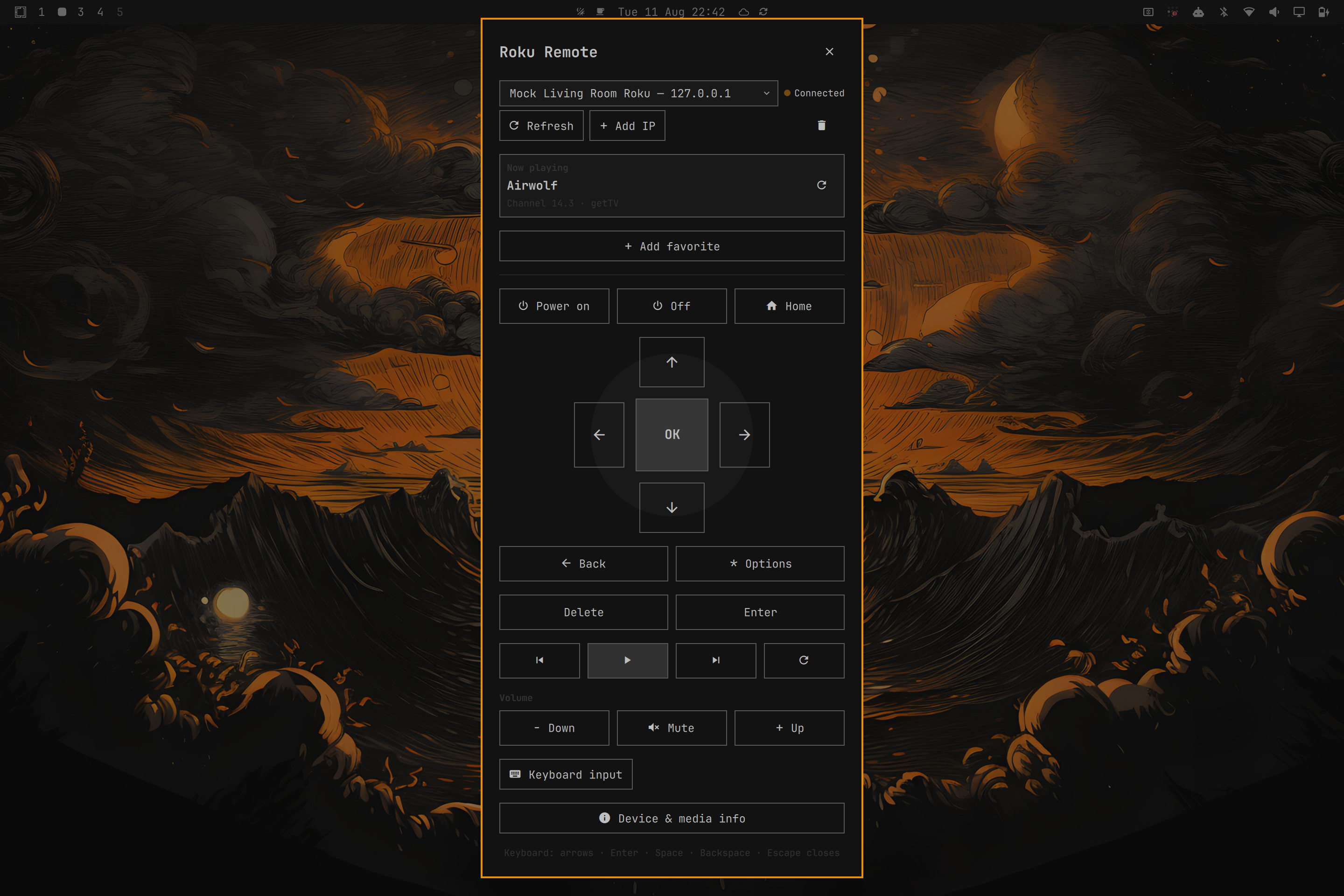
A native Omarchy Quattro/Quickshell panel for controlling Roku TVs and Roku streaming players over the local-network External Control Protocol (ECP). There is no cloud account, telemetry, browser, Electron runtime, or listening server.
Features
- SSDP discovery using
ST: roku:ecpon239.255.255.250:1900, with a bounded local-subnet8060fallback when multicast replies are filtered - Manual private IPv4 addresses when multicast discovery is unavailable
- Multiple-device selector with friendly names from
/query/device-info - Immediate direct reconnect to the last-used Roku while broader discovery runs
- Home, Back, Info/Options, full navigation, playback, replay, power, volume, and mute where the Roku supports them
- Mouse/touch long-press for directional buttons through ECP
keydownandkeyup, with an automatic safety release - Focused-panel keyboard control and optional Roku literal text input
- Per-device favorite apps and TV channels in one visual tile grid; installed apps use Roku-provided artwork, channels use numbered TV tiles, and new app favorites come from a single queried installed-app dropdown. New favorites are shared across Rokus by default, with an optional This device only box; a global Icons preference shows or hides artwork for all app favorites
- On-demand media and active-TV-channel details; no background polling
- URL-encoded app deep links plus opt-in developer diagnostics through IPC or the dependency-free helper
- Native
Color,Style,BorderSurface,Button,Dropdown,TextField, andPanelToolTipintegration; colors, borders, type, spacing, focus, hover, pressed states, and tooltips follow the active Omarchy theme - Persistent selected/manual devices in
~/.local/state/omarchy/settings/roku-remote.json
Requirements
- Omarchy 4 (Quattro) with
omarchy-shell - Quickshell 0.3 or newer
- Python 3 (standard library only)
- A Roku with Settings → System → Advanced system settings → Control by
mobile apps → Network access set to Enabled. Roku OS 14.1 and newer
requires this for
keypress,keydown, andkeyupcommands (see Roku's official ECP documentation). - The Linux machine and Roku on the same LAN; client isolation must not block
multicast or TCP port
8060
Installation
Install directly from the public GitHub repository:
omarchy plugin add https://github.com/Jalv13/omarchy-roku-remote.git --enable
When prompted, choose where the Roku Remote icon should appear in the bar. The right section is the recommended default. After installation, click the Roku Remote icon in the bar to open or close the panel.
Installation uses Omarchy's standard plugin manager. It clones this repository
into the plugin-specific directory and changes the shell layout only because
--enable was explicitly supplied. The plugin has no installer script and
does not overwrite Hyprland bindings or other user configuration.
Update or remove it later with:
omarchy plugin update io.github.jalv13.roku
omarchy plugin remove io.github.jalv13.roku
For local development, copy this directory without symlinks and rescan:
cp -a ./roku-remote ~/.config/omarchy/plugins/io.github.jalv13.roku
omarchy-shell shell rescanPlugins
omarchy plugin enable io.github.jalv13.roku --section right
Validate a checkout before installation:
omarchy plugin validate ./roku-remote
Open the remote
If the plugin was installed without --enable:
omarchy plugin enable io.github.jalv13.roku --section right
Click the Roku Remote icon in the bar to toggle the panel. The icon follows the active Omarchy bar theme and can be moved later with the standard bar controls.
As a power-user alternative, toggle, explicitly open, or hide the panel through Omarchy IPC:
omarchy-shell shell toggle io.github.jalv13.roku '{}'
omarchy-shell shell summon io.github.jalv13.roku '{}'
omarchy-shell shell hide io.github.jalv13.roku
The keep-loaded plugin also exposes a small direct IPC target:
omarchy-shell roku refresh
omarchy-shell roku sendKey Home
omarchy-shell roku launchApp 837
omarchy-shell roku launchDeepLink 837 1234 movie
omarchy-shell roku launchChannel 5.1
omarchy-shell roku iconUrl 837
omarchy-shell roku refreshStatus
omarchy-shell roku diagnostic chanperf
omarchy-shell roku exitApp dev true
omarchy-shell roku addFavorite app 837 YouTube
omarchy-shell roku removeFavorite app 837
omarchy-shell roku forget 192.168.1.50
omarchy-shell roku state
Keyboard shortcut
Check the current bindings first:
omarchy menu keybindings --print
On a standard Quattro install, SUPER + R is free. Add this to
~/.config/hypr/bindings.lua:
o.bind("SUPER + R", "Roku Remote", "omarchy-shell shell toggle io.github.jalv13.roku '{}'")
Hyprland reloads Lua configuration automatically. Validate after saving:
hyprctl reload
hyprctl configerrors
If your current configuration already binds SUPER + R, place
hl.unbind("SUPER + R") immediately before the new o.bind(...), or choose a
different shortcut.
Using the remote
Open the panel and wait briefly for discovery. The plugin sends two bounded
SSDP searches and deduplicates replies. If there are no replies, it checks only
the directly connected IPv4 subnet (at most 512 addresses, with short TCP
timeouts) for ECP port 8060. It then queries candidates' device-info XML. It
does not poll continuously; reopening after a minute or pressing Refresh
starts a new scan.
Panel keyboard mappings:
| Key | Roku action |
|---|---|
| Arrow keys | Up / Down / Left / Right |
| Enter | Select / OK |
| Backspace | Back |
| Home | Home |
. (period) |
Volume up |
, (comma) |
Volume down |
| Space | Mute / unmute |
| H | Home |
| P | Play / Pause |
| R | Instant Replay |
| I | Info / Options |
| ? | Show / hide shortcut help |
| Escape | Close panel |
Directional buttons support holding with either the pointer or keyboard. A
safety timer always schedules keyup even if the release event is lost. Roku
buttons briefly highlight when their keyboard shortcut is used.
Manual IP configuration
Choose Add IP, enter a private/local IPv4 address such as
192.168.1.50, and press Add. Public addresses and hostnames are rejected.
The Roku remains in the selector while offline and can be removed with the
trash button. No account credentials are stored.
Text input
Choose Keyboard input, focus a text box on the Roku itself, type up to 256
characters, and press Send. The helper emits one URL-encoded ECP
Lit_<character> keypress per character. Roku screens that do not accept
literal input simply ignore it.
Favorite apps and TV channels
Choose Add favorite. If Roku allows its installed-app list, search for an
app such as YouTube in the autocomplete picker; its name and ID fill automatically.
Otherwise enter a short name and the app ID shown by Roku's local
/query/apps endpoint, then choose Add app.
For a Roku TV tuner, enter a label and channel number such as 5 or 5.1,
then choose Add TV channel. Favorite buttons use Roku's local
POST /launch/<app-id> and POST /launch/tvinput.dtv?ch=<channel> endpoints.
They are stored per Roku device, capped at 12, and follow a device when DHCP
changes its IP. Saved favorites appear directly below the directional pad in
full-width rows of up to four evenly sized buttons.
Open Add favorite to reveal the remove buttons.
The current Roku Network access policy may block app discovery or launching. Manual entry remains available, and the panel reports a launch failure without hanging or sending navigation presses.
Media information and power-user tools
The compact Now playing section refreshes when the panel opens or the selected Roku changes. It shows the current app or live-TV program, playback state, and position when supported. Use its refresh button for another on-demand snapshot; the plugin does not poll in the background.
Open Device & media info for the same playback snapshot alongside Roku model and software details.
Developer-mode queries stay out of the normal remote UI. Run one through IPC,
then read its structured result from omarchy-shell roku state, or call the
helper directly:
./scripts/roku_ecp.py status --ip 192.168.1.50
./scripts/roku_ecp.py query --ip 192.168.1.50 --name chanperf
./scripts/roku_ecp.py query --ip 192.168.1.50 --name graphics-frame-rate
./scripts/roku_ecp.py query --ip 192.168.1.50 --name r2d2-bitmaps
./scripts/roku_ecp.py query --ip 192.168.1.50 --name sgnodes
./scripts/roku_ecp.py query --ip 192.168.1.50 --name registry
./scripts/roku_ecp.py exit-app --ip 192.168.1.50 --id dev --force
These diagnostic endpoints and exit-app require Roku Developer Mode and
mobile-app network access. Helper output remains a single JSON object so it is
easy to inspect or script without another dependency.
Testing
Run the unit/integration suite:
./tests/run-tests
It covers SSDP parsing and deduplication, malformed responses, no-result discovery behavior, ECP key and launch URL generation, device-info and installed-app XML parsing, mock app/TV-channel launches, actionable HTTP 403 handling, refusal, timeout, invalid input, and device disappearance.
For interactive network testing without a Roku:
./tests/mock_roku.py
./scripts/roku_ecp.py info --ip 127.0.0.1
./scripts/roku_ecp.py control --ip 127.0.0.1 --action keypress --key Home
The mock binds only to loopback by default.
Troubleshooting
- No Roku found: verify both devices are on the same subnet, disable Wi-Fi client/AP isolation, check Roku's mobile-app network-access setting, then use Add IP if multicast is filtered.
- Offline: verify
curl http://ROKU_IP:8060/query/device-infoworks from the Linux machine. Refresh after a DHCP address change; stable device IDs let the plugin follow a rediscovered device to its new IP. - Volume works but navigation gets HTTP 403: the Roku is in Limited network-access mode. On Roku OS 14.1+, set Control by mobile apps → Network access to Enabled using the physical remote. Device discovery/info and TV volume can work while Roku still blocks navigation and playback commands.
- Power/volume does nothing: these commands are device-dependent. The plugin reports an unsupported HTTP response without freezing or closing.
- Panel does not load: run
omarchy plugin validateand inspect shell logs withjournalctl --user -u omarchy-shell -n 100 --no-pager. - Theme looks stale: run
omarchy restart shell; the panel otherwise binds directly to live Omarchy theme tokens.
Dependencies and license
The source is licensed under the MIT License. It contains no vendored libraries, fonts, icons, binaries, or copied Roku assets. Runtime dependencies are limited to the Omarchy/Quickshell APIs already present on Omarchy 4 and Python 3's standard library; the test suite also uses only the standard library.
Roku is a trademark of Roku, Inc. This is an unofficial local-network client and is not affiliated with or endorsed by Roku, Inc.
For data handling, vulnerability reports, and troubleshooting help, see Privacy, Security, and Support.
Uninstallation
Use Omarchy's standard remover for a Git-installed plugin:
omarchy plugin remove io.github.jalv13.roku --yes
This unloads the plugin, removes its bar registration, and deletes only its
installed checkout at
~/.config/omarchy/plugins/io.github.jalv13.roku. The plugin has no removal
script and does not delete unrelated configuration.
The small state file is intentionally retained so an update or reinstall does not unexpectedly erase selected devices or favorites. To erase that data too, remove this exact file separately:
rm -- ~/.local/state/omarchy/settings/roku-remote.json
Remove any Roku shortcut line you added to ~/.config/hypr/bindings.lua, then
run hyprctl reload and hyprctl configerrors.