
Oma2FA
Oma2FA is a privacy-first Omarchy picker for short-lived verification codes. It recognizes likely one-time codes in messages received locally, keeps only a minimal expiring record, and copies or pastes a code only after you select it.
This is an alpha. The Omarchy picker, deterministic detector, runtime store, BlueFerry adapter, and authenticated phone webhook are usable now. It is not a replacement for passkeys, security keys, or authenticator apps; prefer those when a service offers them.
Quick start
This path installs Oma2FA from GitHub and uses an authenticated iPhone Shortcut over Tailscale. BlueFerry users can install the plugin the same way and then skip to BlueFerry for iPhone.
1. Install the plugin
You need a current Omarchy installation and Python 3.12 or newer. In a terminal, run:
omarchy plugin add https://github.com/jondkinney/oma2fa.git --enable
The plugin appears in the right side of the Omarchy bar. This Git-managed installation does not add a keyboard shortcut or start a network listener. Click the Oma2FA bar icon to open it. If the icon does not appear, run:
omarchy-shell shell rescanPlugins
omarchy plugin list
2. Connect the computer and phone with Tailscale
Install Tailscale on both devices, sign in to the same tailnet, and verify that
both appear online. The computer must have a working tailscale command and
tailscale ip -4 must print its 100.x.y.z address. See the official
Tailscale quickstart if either device
is not connected.
Oma2FA deliberately does not expose its HTTP listener over ordinary Wi-Fi, Ethernet, port forwarding, or the public internet. The setup button is enabled only when it detects an active Tailscale IPv4 address.
3. Let Oma2FA configure the computer
- Open Oma2FA from the bar.
- Click the transport summary in the upper-right corner.
- Choose Manage phone webhook….
- Choose Set up securely with Tailscale.
- Wait for the status to read Ready.
That one action creates a private bearer token, writes the webhook environment
file, installs the hardened oma2fa-webhook.service user unit, reloads the
user service manager, and enables and starts the listener. Everything runs at
user scope. The manager can later copy the connection values, disable or
re-enable the service, and rotate its token. Its built-in iPhone walkthrough
provides a separate Copy action for each value that must be typed or pasted.
Token rotation requires confirmation and the phone must be updated afterward.
After the webhook becomes ready, Oma2FA opens the iPhone setup guide automatically after initial provisioning. You can also open it from the connected picker's empty state with iPhone setup guide, or from the connection screen with iPhone setup guide →. Manage phone webhook… always opens the connection controls.
The guide has persistent navigation for Preparation, Create shortcut, Configure request, and Automation & test. Returning from the connection controls restores your reading position. Header and JSON names and values are grouped together; Copy changes to Copied ✓ on the field you copied. Menu choices appear as arrow rows, and the Shortcut Input variable is highlighted separately. Use Enlarge image to inspect screenshots, then collapse them to continue. The final section includes a test message and troubleshooting steps.
4. Create the iPhone Shortcut and automation
Apple's Message automation can filter by sender or text, and Message automations can run without asking. Names can vary slightly between iOS releases. Keep Oma2FA's Phone webhook screen open while you build this: the walkthrough there shows these same screens and gives every value that must be typed or pasted its own Copy button. iOS menu choices remain visible as instructions without unnecessary Copy actions. Copy a field on the computer, then send it to the phone with LocalSend, KDE Connect, or another local transfer tool.
4a. Build Send to Oma2FA
- In Shortcuts → Library, tap + and name the new shortcut
Send to Oma2FA.
- Configure its input block as Receive Text from Nowhere. For no input, choose Stop and Respond.
-
Add Get Contents of URL. Paste the value from the walkthrough's URL row directly into that action, expand its options, and select POST. Apple documents the action in its Shortcuts API guide.
-
Add these headers. The Header 1 · value Copy button supplies the complete
Bearer <generated token>value, so there is no prefix to assemble by hand:Header Value AuthorizationBearer <generated token>from Header 1 · valueContent-Typeapplication/json -
Set the request body type to JSON and add exactly:
Key Value senderFixed text SMSbodyThe blue Shortcut Input magic variable—not the literal words sourceThe fixed text ios-shortcutssenderandbodyare required. After creating thebodyrow, tap its value and insert the blue Shortcut Input variable. That row is intentionally not copyable because Shortcut Input must be selected as a magic variable rather than pasted as plain text.timestampandmessage_idare optional; omit them unless the automation has trustworthy values. The complete action should look like the screenshot below. Its address and credential are deliberately replaced with placeholders; use the values copied from your own Oma2FA installation.
- Save the shortcut and confirm that its pink Send to Oma2FA card appears in the Library as shown in step 1.
4b. Attach it to incoming Messages
- Open Shortcuts → Automation, tap +, and add a personal automation using the Message trigger.
- Set Message Contains to
code. Add a Sender filter only if you know every sender that delivers your codes. You can create additional automations for phrases such asverificationorone-timeif needed. - Select Run Immediately (or disable Ask Before Running, depending on the iOS version), continue, and choose Send to Oma2FA.
- Save the automation and confirm that Tailscale remains connected on the phone. The Automation tab should look like this:
All copied setup values use a sensitive desktop clipboard offer that expires after about 60 seconds, so copy a row again if necessary. The raw-token button is retained for troubleshooting, but normal setup should use the complete Header 1 · value row.
5. Verify receipt
Trigger the automation with a test message containing an obvious phrase such
as Your verification code is 123456. A generic desktop notification should
appear, the bar icon should show a badge, and the code should appear in the
picker. The notification intentionally contains no sender, service, message,
or code.
On the computer, these commands confirm the listener without printing its token:
systemctl --user status oma2fa-webhook.service
journalctl --user -u oma2fa-webhook.service --since today
How it works
BlueFerry (Bluetooth MAP) ─┐
Phone webhook (VPN) ───────┼─> local detector ─> short-lived runtime store
Manual/test ingestion ─────┘                         │
                                                     ▼
                                  Omarchy service + bar icon + picker
                                                     │
                                      chosen code only: clipboard
                                                     │
                                verified prior window: optional paste
The Omarchy shell keeps Service.qml loaded and starts
bin/oma2fa-bridge. The bridge speaks JSON Lines over its private stdin and
stdout; it is not a network service. Picker.qml displays the minimal records
returned by that bridge. The UI/BlueFerry path needs no separate systemd unit,
which avoids two bridge processes competing for the same transport. An
independent user unit, provisioned by the setup UI, runs only the standalone
phone webhook so messages can arrive while the picker is closed.
Code detection is deterministic and local. It scores 4–8 digit and supported alphanumeric candidates against phrases such as “verification code” and “one-time password,” while rejecting common order numbers, phone numbers, dates, prices, and URLs. It does not send message content to an LLM or remote classifier.
Choosing sources
Every transport except manual entry has an on/off switch. Open the transport summary in the picker's title bar and use the switch on each row, or from a terminal:
oma2fa sources                       # list
oma2fa sources --disable blueferry   # persist a change
oma2fa sources --enable tether
Choices persist in ~/.config/oma2fa/sources.json (mode 0600; only the values
you set are written), and a running bridge applies an edit on its next
maintenance tick (15 s) without a restart. oma2fa bridge --disable-source NAME and --enable-source NAME pin a source for one run and win over the
file; --no-blueferry remains as an alias for --disable-source blueferry.
The phone webhook's switch controls its systemd user unit, exactly like the
Enable webhook button in its manager, so it answers "Set up the phone
webhook first" until the webhook exists.
Defaults: BlueFerry and Blip on (each only does anything when its bridge is installed), Tether and KDE Connect off until explicitly enabled.
Transport status
BlueFerry for iPhone: available now
BlueFerry connects a paired iPhone over
Bluetooth Message Access Profile (MAP). Oma2FA's current adapter consumes
BlueFerry's /usr/bin/blueferry-quickshell-bridge and blueferry.client
locally. A bounded Events1 receive query is the authoritative code path;
conversation history is an independent compatibility fallback. Both paths
immediately reduce matching messages to a code, service label, source,
timestamps, and confidence. Full SMS bodies are not written to Oma2FA's store.
The adapter has been exercised end to end against pristine BlueFerry v0.7.7
and upstream commit dee0b097. Those releases omit receive-only short codes
from their conversation projection, but retain them in Events1, where Oma2FA
detects them. Local BlueFerry changes that display short codes in BlueFerry's
own UI are useful but are not required by Oma2FA. If Events1 is unavailable,
Oma2FA reports the transport as degraded instead of claiming it is ready.
BlueFerry is the practical local iPhone experiment today, but it is still experimental. Pair and verify your phone in BlueFerry before troubleshooting Oma2FA. Granting MAP access allows the paired computer to read messages, not just verification codes, while the connection is active.
Blip for iMessage: available now
Blip puts iMessage in the Omarchy bar by
polling a Mac you own over ssh. Oma2FA does not poll the Mac a second time:
Blip's collector hands each new inbound message to a message_hook= program,
and Oma2FA ships that program. Add one line to ~/.config/blip/bridge.conf:
message_hook=/home/you/.config/omarchy/plugins/io.github.jondkinney.oma2fa/bin/oma2fa-blip-hook
(an absolute path — Blip parses the file and expands neither ~ nor
$HOME). From the next poll, every new inbound message — every sender, not
only Blip's toast allowlist, which is the point — reaches oma2fa blip-hook
with the text on stdin and the sender, timestamp, and chat.db row id in
BLIP_HOOK_* environment variables. The hook runs the same detector as every
other source, stores only the derived record, dedupes on the row id, raises the
usual desktop notification when a code is found, and exits quietly otherwise.
The picker's Blip row reads Ready once the hook line is present, Hook
not configured while it is missing, and Not installed without Blip's
bridge.conf. Turning the Blip source off makes the hook a no-op without
touching Blip's configuration.
The picker learns about a hooked code on the bridge's next maintenance tick (within 15 s); the notification is immediate. Blip reports the Mac's local time, which the TTL treats as this computer's local time.
Tether: experimental
Tether bridges an iPhone to Linux over
Bluetooth MAP and mirrors messages to a local daemon. Oma2FA's adapter
subscribes to tetherd's event feed on $XDG_RUNTIME_DIR/tether/tetherd.sock
({"command":"subscribe"}), reduces bt_message and bt_messages events as
they arrive, and re-reads threads active inside the code TTL on connect so a
code that landed while Oma2FA was down is still collected. The adapter was
written against tether's source rather than exercised against a running
daemon, so it ships off; enable it with oma2fa sources --enable tether
once tether is paired and report what its row says.
iPhone
Apple does not provide Messages for Linux, an iCloud Messages web client, or a public SMS inbox API. Apple's Text Message Forwarding support targets Apple devices, so entering iCloud credentials into an unofficial Linux client is deliberately out of scope.
The authenticated, disabled-by-default webhook is the network alternative for iOS Shortcuts: the phone can filter a received-message automation and send only a candidate to the computer. See the CLI help and webhook section below for the listening address, token, and payload contract.
Android: KDE Connect SMS
Oma2FA can now collect incoming Android SMS through
KDE Connect. Open Android setup guide in the
picker or its connections menu for the setup steps and an enable/disable button.
This connection is off by default and requires no new Python dependency.
The desktop needs KDE Connect and systemd's busctl; the plugin does not install
packages, start KDE Connect, pair phones, or change phone permissions for you.
- Install and open KDE Connect on this computer and your Android phone.
- Put both on the same reachable network and pair them, accepting the request on the phone.
- Allow KDE Connect's SMS and Phone permission prompts on Android. Enable its SMS/messages plugin on the computer. Notification-reading permission is not needed for this connection.
- Enable KDE Connect (Android) in Oma2FA's connections list or guide, or run
oma2fa sources --enable kdeconnect. - Send the phone a fresh SMS such as “Your Example verification code is 123456”. Oma2FA should show a generic notification; clicking it opens the picker.
The source reports Not installed, No paired devices, Phone not connected, or SMS unavailable when a setup step is missing. Connected means that a paired reachable device exposes its SMS plugin; a test SMS confirms that Android's permissions and delivery policy allow codes through. All paired, reachable devices with SMS enabled participate (up to 16 devices), and message IDs are scoped to the phone so codes from two phones do not collide.
The adapter subscribes to KDE Connect's direct SMS events on the local session bus. On connection it requests the latest message from each thread—KDE Connect requires this request to start forwarding SMS events—and immediately ignores outgoing, expired, malformed, or non-code messages. This snapshot can include old messages; Oma2FA does not request entire conversations or attachments. It keeps only the derived code record and deduplication hashes. KDE Connect itself may retain message history independently of Oma2FA. Restarting Oma2FA checks the latest cached message from each thread; this is not a guarantee of recovering every message received while Oma2FA was closed.
This covers SMS exposed by KDE Connect, not RCS or codes inside other apps. It avoids Android 15's OTP notification redaction. Android 17 can delay access to some OTP SMS for apps without a qualifying exemption. Pairing alone does not establish that KDE Connect has that exemption on your phone. Oma2FA does not bypass those protections. If a test message never appears, first verify that it appears in KDE Connect's own SMS window and check the app's SMS/Phone permissions and background restrictions.
The wire integration is verified against upstream KDE Connect source and a
private D-Bus simulation with the real busctl. A physical Android phone has
not yet been tested with this implementation.
Android transport boundaries
SMS is consumed only from conversationCreated and conversationUpdated from
KDE Connect's current unique bus owner and the paired device allowlist. Minimal
device lifecycle signals trigger rechecking pairing and SMS availability. A monitor-ready
handshake completes before requesting SMS events. Device discovery repeats every
five seconds, and cache checks run every 30 seconds or when opening the picker.
Subprocess replies and individual event frames are capped at 512 KiB before
JSON parsing, with a three-second deadline for replies and incomplete frames.
The snapshot is capped at 4,096 entries and message bodies at 16,384 characters;
oversized or malformed events report a source error without logging their content.
Oversized optional snapshots are skipped while live capture continues; a monitor
restart does not repeatedly request the same snapshot from the phone.
Helpers stop on disable and restart with capped backoff after daemon failures.
The implementation follows KDE Connect's conversation interface, message serialization, and Android SMS subscription behavior.
Authenticated phone webhook
The recommended setup is available in the picker: open the transport summary,
choose Manage phone webhook…, then choose Set up securely with
Tailscale. Oma2FA detects the computer's active Tailscale IPv4 address,
creates a random bearer token, installs and starts the hardened user service,
and then offers a field-by-field iPhone walkthrough with privacy-safe reference
screenshots. Every value that must be typed or pasted is individually copyable,
including the full Bearer <token> header value; iOS menu choices and magic
variables are shown without Copy buttons. The token itself never enters QML.
The manager can also enable or disable the listener and rotate its token.
Rotation requires a second confirmation because the phone must be updated
afterward.
The setup UI deliberately supports only the direct Tailscale path. Connect the computer and phone to the same Tailscale network before opening it. Advanced loopback/HTTPS-proxy and other WireGuard configurations remain manual so the UI cannot accidentally assert that an arbitrary network interface is encrypted.
The webhook inside the UI bridge is disabled unless
OMA2FA_WEBHOOK_ENABLED=1 is set or the bridge is started with --webhook.
The standalone oma2fa webhook command enables only the listener. Its defaults
are 127.0.0.1:8765; a phone cannot reach that loopback address. The built-in
server is HTTP and rejects non-loopback and wildcard binds unless you explicitly
declare an exact VPN address. Never expose it directly over ordinary Ethernet,
Wi-Fi, port forwarding, or the public internet: both the reusable bearer token
and the message body would be visible to network observers.
There are two supported remote-access patterns:
- Bind to the computer's exact Tailscale/WireGuard address and set
OMA2FA_WEBHOOK_TRANSPORT=vpn. Encryption is then supplied by the VPN. - Keep Oma2FA on
127.0.0.1and put an HTTPS reverse proxy on the same computer in front of it. The phone must use the proxy'shttps://URL.
The vpn setting is an explicit security assertion, not VPN detection. Set it
only when the bind address belongs exclusively to an active encrypted tunnel.
Configuration is file/environment-based so the secret never appears in process arguments or QML state. The setup UI manages these files:
$XDG_CONFIG_HOME/oma2fa/webhook.env(normally~/.config/oma2fa/webhook.env) contains only the bind, port, transport, and absolute token-file path.$XDG_CONFIG_HOME/oma2fa/webhook-tokenis the mode-0600bearer-token file.$XDG_CONFIG_HOME/systemd/user/oma2fa-webhook.serviceis the hardened user unit copied from the plugin.
The underlying variables are:
| Variable | Meaning |
|---|---|
OMA2FA_WEBHOOK_ENABLED |
Set to 1 to enable the listener in bridge mode. |
OMA2FA_WEBHOOK_BIND |
Listen address; defaults to 127.0.0.1. |
OMA2FA_WEBHOOK_PORT |
Listen port; defaults to 8765. |
OMA2FA_WEBHOOK_TRANSPORT |
Must be vpn for a non-loopback bind; omit for loopback/TLS-proxy mode. |
OMA2FA_WEBHOOK_TOKEN_FILE |
Preferred path to a mode-0600 bearer-token file. |
OMA2FA_WEBHOOK_TOKEN |
Direct token fallback; avoid persistent environment files containing it. |
Generate a token without printing it:
install -d -m 0700 ~/.config/oma2fa
(umask 077; openssl rand -hex 32 > ~/.config/oma2fa/webhook-token)
For an interactive foreground listener on the loopback default:
OMA2FA_WEBHOOK_TOKEN_FILE="$HOME/.config/oma2fa/webhook-token" \
  ./bin/oma2fa webhook
The only accepted endpoint is POST /v1/ingest, with
Authorization: Bearer <token> and Content-Type: application/json:
{
  "sender": "Example",
  "body": "Your verification code is 123456",
  "source": "ios-shortcuts",
  "timestamp": "2026-08-21T12:00:00Z",
  "message_id": "phone-generated-stable-id"
}
sender and body are required; source, timestamp, and message_id are
optional. Omit timestamp unless the automation supplies the message's actual
receive time. Requests are capped at 16 KiB, unauthenticated requests and
other methods/paths are rejected, and request bodies are not logged. Records
appear as webhook/<source> in the picker.
For advanced manual setup, the repository includes the same hardened user unit
installed by the UI. It runs the standalone webhook process, not another UI
bridge. First create ~/.config/oma2fa/webhook.env with an absolute token path
and your chosen bind address:
OMA2FA_WEBHOOK_BIND=127.0.0.1
OMA2FA_WEBHOOK_PORT=8765
OMA2FA_WEBHOOK_TOKEN_FILE=/home/your-user/.config/oma2fa/webhook-token
Keep that file private (chmod 0600 ~/.config/oma2fa/webhook.env). In an iOS
Shortcut or trusted Android automation, configure a JSON POST to either
http://<vpn-address>:8765/v1/ingest over the VPN or the reverse proxy's
https://<hostname>/v1/ingest URL. Add the bearer token as the Authorization
header. Prefer extracting or pre-filtering on the phone when the automation
system permits it.
For direct VPN access, use an exact address rather than 0.0.0.0, ::, or a
hostname:
OMA2FA_WEBHOOK_BIND=100.64.0.10
OMA2FA_WEBHOOK_TRANSPORT=vpn
OMA2FA_WEBHOOK_PORT=8765
OMA2FA_WEBHOOK_TOKEN_FILE=/home/your-user/.config/oma2fa/webhook-token
Then install and enable the unit explicitly:
install -Dm0644 systemd/oma2fa-webhook.service \
  ~/.config/systemd/user/oma2fa-webhook.service
systemctl --user daemon-reload
systemctl --user enable --now oma2fa-webhook.service
Check it with systemctl --user status oma2fa-webhook.service. The UI bridge
and standalone webhook share the owner-only runtime store; the picker refreshes
that store whenever it opens. The standalone listener also publishes a minimal
owner-only heartbeat so the picker can report it as an active transport. That
heartbeat contains only a format version, timestamp, and random process-instance
identifier; it contains no bind address, token, sender, message body, or code.
Hover the connections button in the picker to preview each transport's derived
health, or click it to keep the details open and enter the webhook manager.
Arbitrary backend detail is never rendered in that disclosure. Token-copying
happens entirely in the Python backend through an expiring sensitive clipboard
offer; the token is never returned across the bridge.
Requirements
- A current Omarchy installation with
omarchy plugincommands. - Python 3.12 or newer.
jq,hyprctl,wl-copy,wtype, and coreutilstimeout(normally supplied by Omarchy).- Tailscale on the computer and phone when using the guided phone-webhook
setup. The computer's
tailscale ip -4command must report an active address. - BlueFerry
v0.7.7or newer and a paired iPhone for automatic local SMS ingestion. The backend package must provide both/usr/bin/blueferry-quickshell-bridgeand theblueferry.clientPython module. Alternatively, use a trusted phone automation with the authenticated webhook.
The Python core uses the standard library. You do not need a virtual environment for the copied plugin.
Install
Review the source first: Omarchy plugins execute unsandboxed inside the long-running shell process.
Marketplace/Git installation
Install and enable the public repository with Omarchy's native lifecycle:
omarchy plugin add https://github.com/jondkinney/oma2fa.git --enable
This creates a Git-managed checkout at
~/.config/omarchy/plugins/io.github.jondkinney.oma2fa and enables the bar
widget. It does not modify Hyprland keybindings; click the bar icon or use the
manual toggle command below. Omarchy manages updates and removal for this path.
Development checkout with optional hotkey
From a reviewed development checkout, run:
./scripts/install.sh
For non-interactive use:
./scripts/install.sh --yes
The installer:
- stages a copy under
~/.config/omarchy/plugins/; - refuses symlinks and validates the staged plugin with
omarchy plugin validate; - atomically installs it as
io.github.jondkinney.oma2fa, enables it with the official Omarchy command, and places its widget in the right bar section; and - checks the live keybinding list before adding a clearly marked
SUPER+ALT+Vblock to~/.config/hypr/bindings.lua.
Existing bindings are never overridden. If SUPER+ALT+V is occupied, the
plugin is still installed and the installer prints the manual open command.
Every binding edit is backed up, reloaded, and checked with
hyprctl configerrors. Symlink-managed binding files are deliberately not
edited; use --no-bind and add the shown binding to the symlink target yourself.
The install is a real copy, not a symlink, because Omarchy's plugin validator rejects symlinks. Re-run the installer after changing a development checkout; it preserves the previous managed copy in a hidden, timestamped backup. Reinstalling leaves an existing widget wherever you moved it. Upgrading from the original hotkey-only release performs a one-time migration from its old service entry to the new bar entry.
Use
Click the Oma2FA bar icon or press Super+Alt+V. The badge is only a count of
available codes; the bar never displays a code or message content. Search is
active when the picker opens, while the newest matching code remains the
default Enter action. When a new code is accepted, Oma2FA also shows a generic
desktop notification; it contains no code, sender, service, or message text.
Click the notification to open the Oma2FA picker.
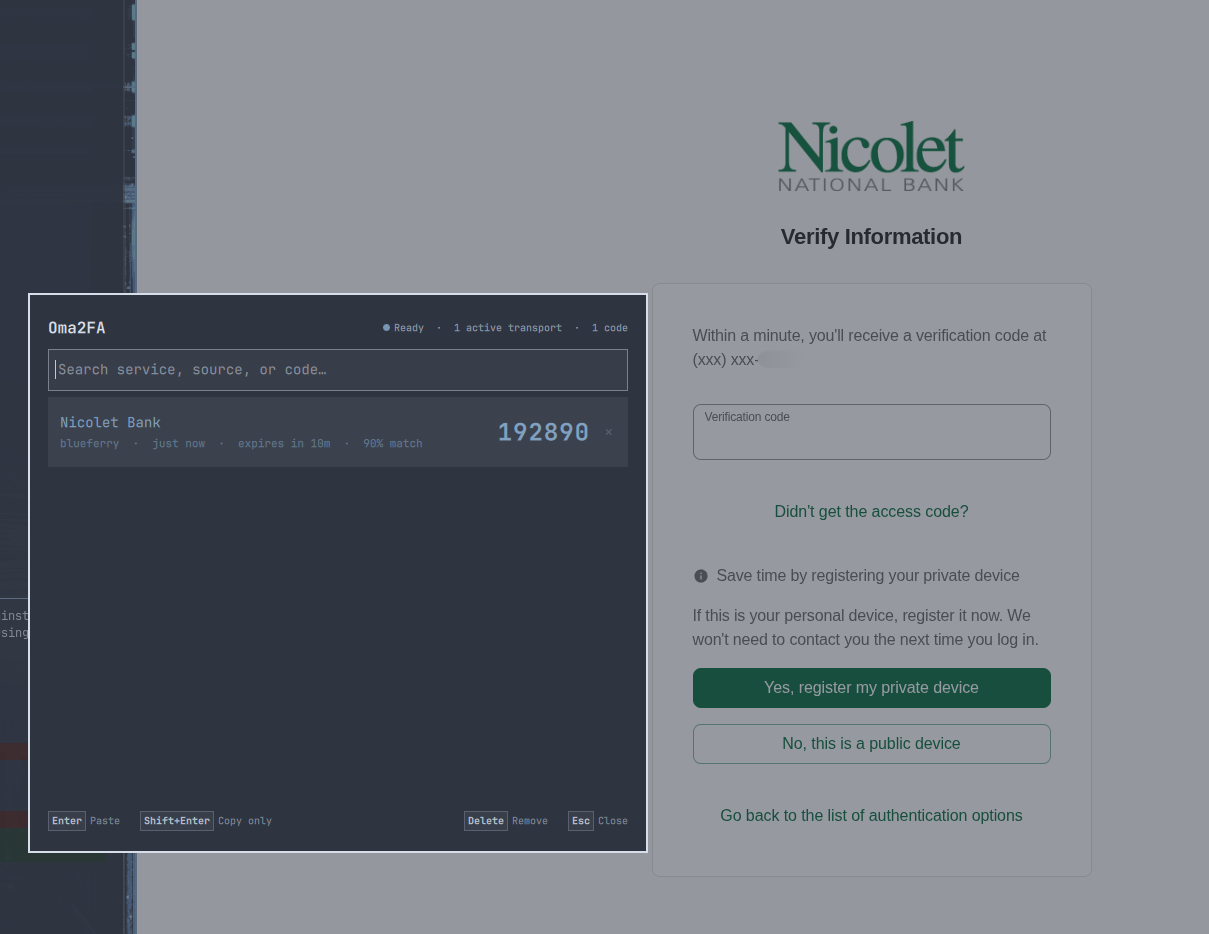
The empty picker stays compact and shows Ready for your next code when a connection is active. Without an active connection, Set up connections opens the connection choices. The window grows as codes arrive, up to a fixed maximum; code action hints appear only when there are matching codes. The connections button shows the active count, and connections keep their fixed list order when toggled.
- Type to filter by service, source, or code.
- Press Down to enter the results at the newest code, or Up to enter at the oldest; then use Up/Down, Page Up/Page Down, Home, or End to browse. Pressing Up from the newest result returns to the search input.
- Press Enter to copy and request a paste into the window that was focused before the picker opened.
- Press Shift+Enter to copy only.
- Press Delete to remove the selected record.
- Press Escape to close without touching the clipboard.
A successful copy consumes that record so it cannot be selected twice. The sensitive clipboard offer expires after about 60 seconds.
The paste path captures the active Hyprland window before opening the overlay. After selection, it closes the overlay and verifies that the same window is active before typing. If focus cannot be verified, it fails closed: the code remains on the clipboard, but Oma2FA does not type it.
You can always open the picker without a keybinding:
omarchy-shell shell toggle io.github.jondkinney.oma2fa '{}'
Update
Git-managed installations can be updated with:
omarchy plugin update io.github.jondkinney.oma2fa --yes
The Omarchy shell reloads the plugin code. If the standalone phone webhook is configured, restart that long-running process so it uses the updated Python code:
systemctl --user restart oma2fa-webhook.service
CLI and manual ingestion
The checkout-local launcher resolves its own directory, so it works from any current working directory:
./bin/oma2fa --help
./bin/oma2fa status
./bin/oma2fa list
printf '%s\n' 'Example verification code is 123456' | \
  ./bin/oma2fa ingest --sender Example --source manual --message-id docs-example-1
ingest deliberately accepts the body only on stdin, keeping a real OTP out of
shell history and process arguments. It also accepts --timestamp as ISO time
or epoch seconds. Global --runtime-dir PATH, when needed for an isolated
test, must appear before the subcommand. The CLI's help remains the
authoritative source for flags while the project is alpha.
The UI-facing bin/oma2fa-bridge is not intended for interactive use. Its
normal channel contains derived records and allowlisted webhook status, not
original BlueFerry message bodies or the webhook bearer token. Token-copy
requests are completed inside the backend and return only success or failure.
Security and privacy model
- Processing happens under your Linux user account and does not call a cloud classification service.
- Original message bodies are processed in memory and discarded. The runtime store contains derived records only.
- Records live below
$XDG_RUNTIME_DIR/oma2fa(or a per-user runtime fallback), with mode-0700directory and mode-0600files. Codes expire after ten minutes by default. - A code enters the clipboard only after explicit selection. Oma2FA uses the Wayland sensitive-data hint and limits clipboard lifetime where supported.
- Automatic paste is conditional on matching the window captured before the picker opened. Copy-only remains available when that check is unavailable.
- Codes and message bodies must never be written to application logs, notifications, command-line arguments, or analytics. New-code notifications are intentionally generic.
These controls reduce exposure; they cannot make the desktop clipboard a secret enclave. Other processes running as your user may be able to observe clipboard contents or inspect process memory. BlueFerry/MAP also grants the computer broader message access before Oma2FA performs its filtering.
Troubleshooting
The Tailscale setup button is disabled
Confirm the Linux client is installed, authenticated, and online:
tailscale status
tailscale ip -4
The second command must print a 100.x.y.z address. Also confirm the phone is
online in the same tailnet. Tailscale's
device-connectivity guide
covers ACL and reachability problems.
The picker says the webhook is disabled or not responding
Open Manage phone webhook… and use Enable webhook, then inspect the unit if it does not become ready:
systemctl --user status oma2fa-webhook.service
journalctl --user -u oma2fa-webhook.service -n 100 --no-pager
The service runs as the current user. Its configuration is normally at
~/.config/oma2fa/webhook.env; its token is in the separate owner-only
~/.config/oma2fa/webhook-token file. Do not paste either file into an issue.
The Shortcut reports unauthorized
Use Header 1 · value → Copy in the walkthrough again and ensure the header
is exactly Authorization: Bearer <token>, including the space after Bearer.
If the token was rotated, every phone automation using the old value must be
updated.
The service is ready but no code appears
- Verify the Shortcut ran and that its Message trigger filters match.
- Confirm
bodyreceives the incoming message rather than a literal label. - Use a clear test phrase with a 4–8 character candidate, such as
Your verification code is 123456. - Check that the phone's Tailscale connection is active when the message arrives.
- Remember that duplicates are intentionally ignored and codes expire after ten minutes.
BlueFerry is disconnected or degraded
Pair the iPhone in BlueFerry first and verify BlueFerry can receive current
messages. Oma2FA requires both /usr/bin/blueferry-quickshell-bridge and the
blueferry.client Python module. A degraded state means the receive-event path
is unavailable, even if conversation history can still be read.
The bar widget or notification does not appear
omarchy-shell shell rescanPlugins
omarchy plugin list
omarchy restart shell
The bar badge and desktop toast are intentionally generic; open the picker to see the derived record. If the plugin is enabled but absent from the bar, use Omarchy's bar settings to place the Oma2FA widget in a visible section.
Development and tests
Run the core tests and validate the Omarchy manifest from the repository root:
python -m unittest discover -s tests -v
omarchy plugin validate .
bash -n bin/oma2fa bin/oma2fa-bridge scripts/install.sh scripts/uninstall.sh \
  scripts/test-install.sh scripts/test-marketplace-install.sh \
  scripts/test-bar-widget.sh \
  scripts/test-qml-bar-widget.sh scripts/test-qml-picker-status.sh \
  scripts/test-qml-picker-shortcuts.sh
./scripts/test-bar-widget.sh
./scripts/test-qml-bar-widget.sh
./scripts/test-qml-picker-status.sh
./scripts/test-qml-picker-shortcuts.sh
./scripts/test-install.sh
./scripts/test-marketplace-install.sh
Optional static checks configured by pyproject.toml:
ruff check .
mypy oma2fa
To use a different interpreter without installing the package, set
OMA2FA_PYTHON to one executable path:
OMA2FA_PYTHON=/path/to/python ./bin/oma2fa --help
Uninstall
If you installed the optional webhook unit, stop and remove it first:
systemctl --user disable --now oma2fa-webhook.service
rm ~/.config/systemd/user/oma2fa-webhook.service
systemctl --user daemon-reload
The private environment and token files are intentionally preserved so an accidental plugin removal does not silently destroy credentials. After the service is stopped, remove them too if you want a complete cleanup:
rm ~/.config/oma2fa/webhook.env ~/.config/oma2fa/webhook-token
rmdir ~/.config/oma2fa 2>/dev/null || true
For a marketplace/Git installation, use Omarchy's native removal command:
omarchy plugin remove io.github.jondkinney.oma2fa --yes
For a copy installed by scripts/install.sh, use its matching uninstaller:
./scripts/uninstall.sh
Use --yes for non-interactive confirmation. --keep-plugin or
--keep-binding can preserve one part. The uninstaller removes only the exact
binding marker block and a plugin directory carrying Oma2FA's installer
ownership marker. It refuses an unmarked directory at the same path. Omarchy's
official removal command deletes a Git-managed checkout. For a non-Git copy,
the custom uninstaller preserves the plugin as a hidden backup, and the
Hyprland binding file receives its own timestamped backup.