
Omasnip
Omasnip turns clipboard text, stdin, or a source file into an editable,
Omarchy-themed code image. It opens fullscreen by default so the transition to
the configured screenshot annotator feels like one continuous workflow; press
Ctrl+W at any time to move the same draft into a normal floating window.
An open draft follows Omarchy theme changes live, including syntax colors,
card chrome, editor selections, and the surrounding fullscreen backdrop.
The final card starts on Omasnap's Aurora mesh gradient and can cycle through
the other mesh gradients, a custom cover-fit image, the active Omarchy theme
background, and transparent Off. Its drop shadow is controlled independently.
Omasnip deliberately stops rendering at the PNG boundary. It edits source and card presentation, then copies, saves, or hands the flattened image to Omasnap, Tensaku, or whichever screenshot editor the user's Omarchy session configures. When that editor is Omasnap, Omasnip also retains Omasnap's adjacent operation log so an annotated card can return to source editing and be sent back with its vector annotations still editable. It does not duplicate screenshot annotation tools inside a general code editor.
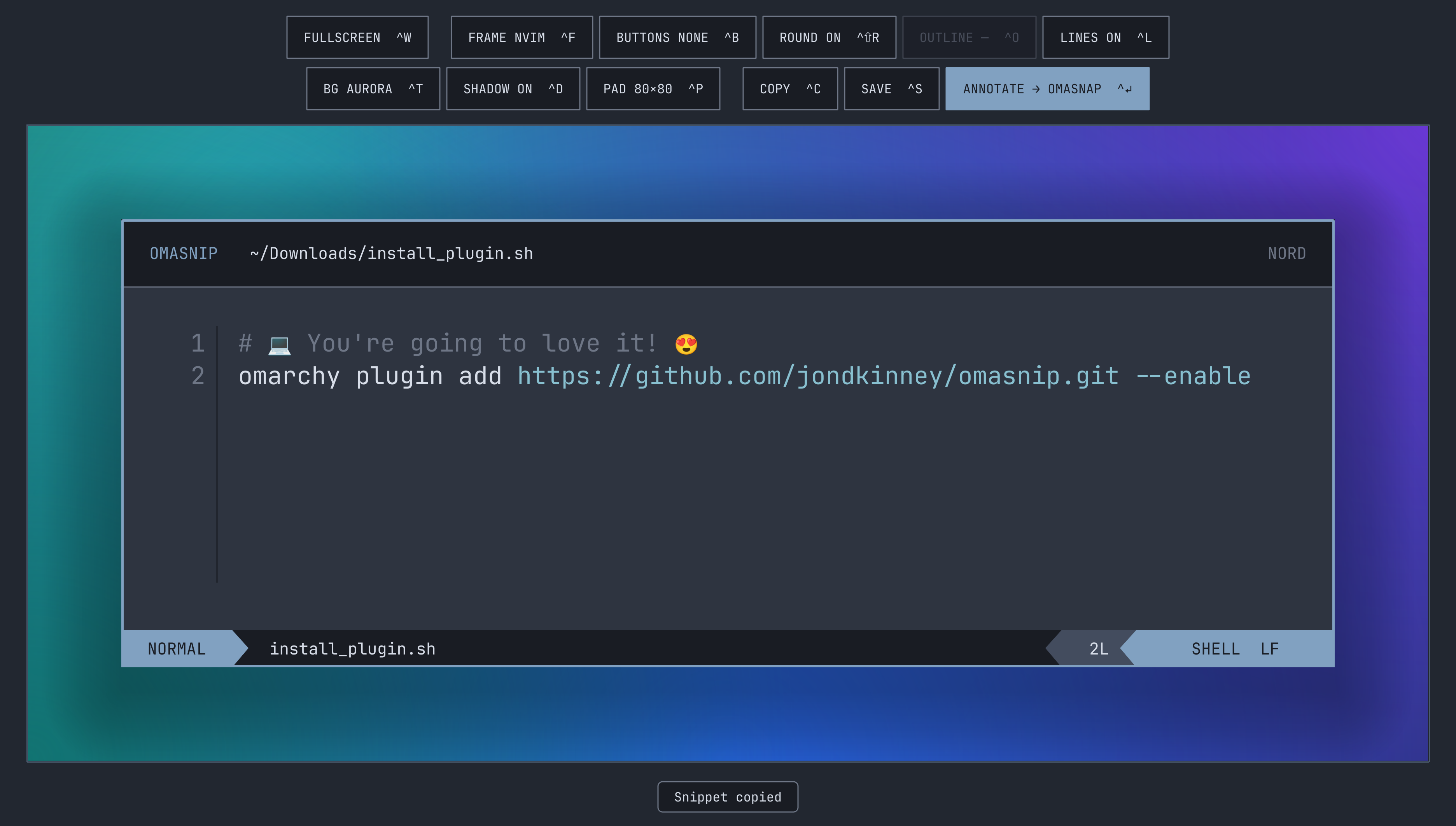
Style combinations
The same snippet can switch frames, window controls, rounding, outlines, line numbers, backdrops, shadows, and padding without leaving the editor.
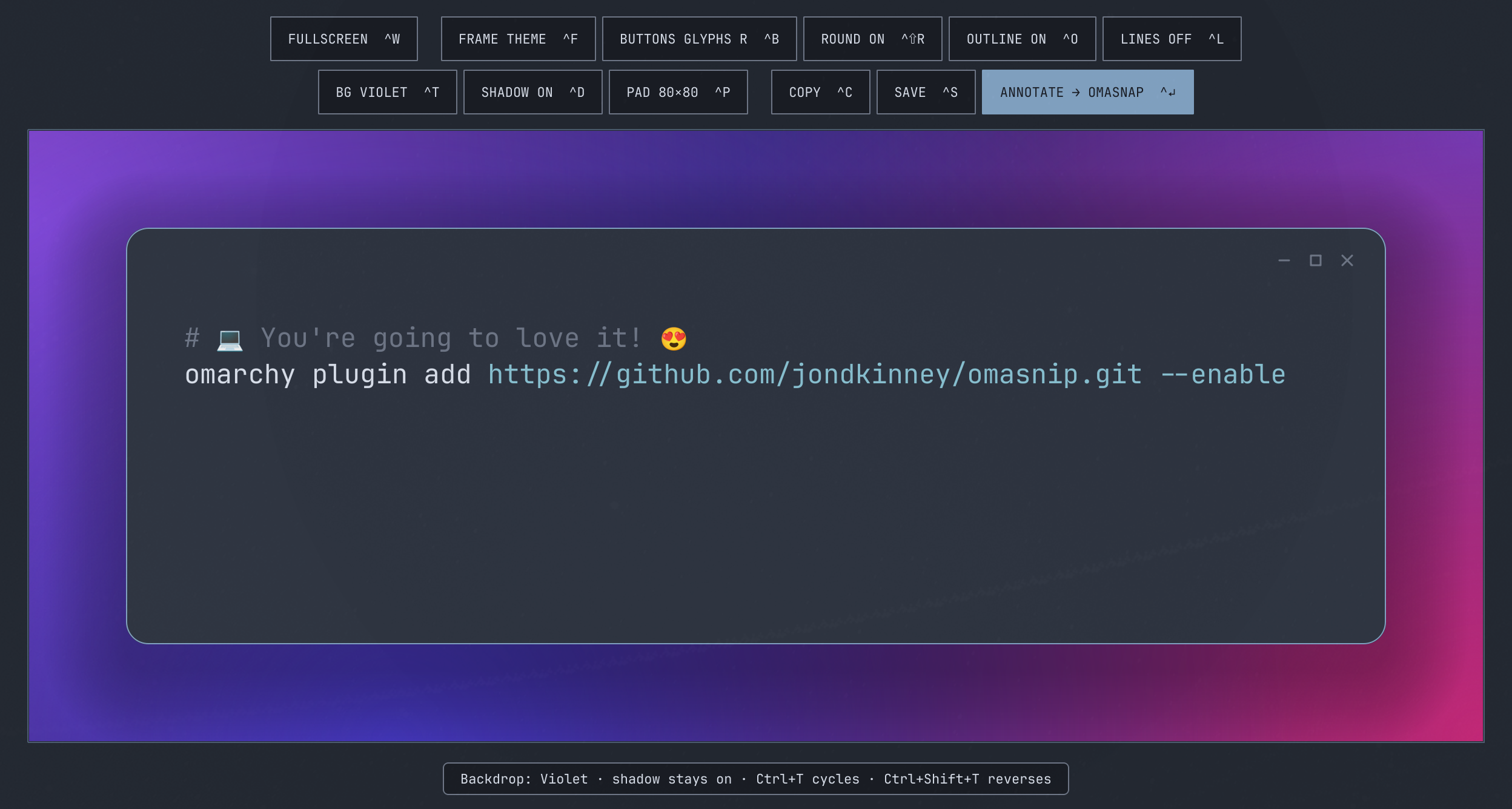
Theme frame, right-side glyph controls, and the Violet backdrop.
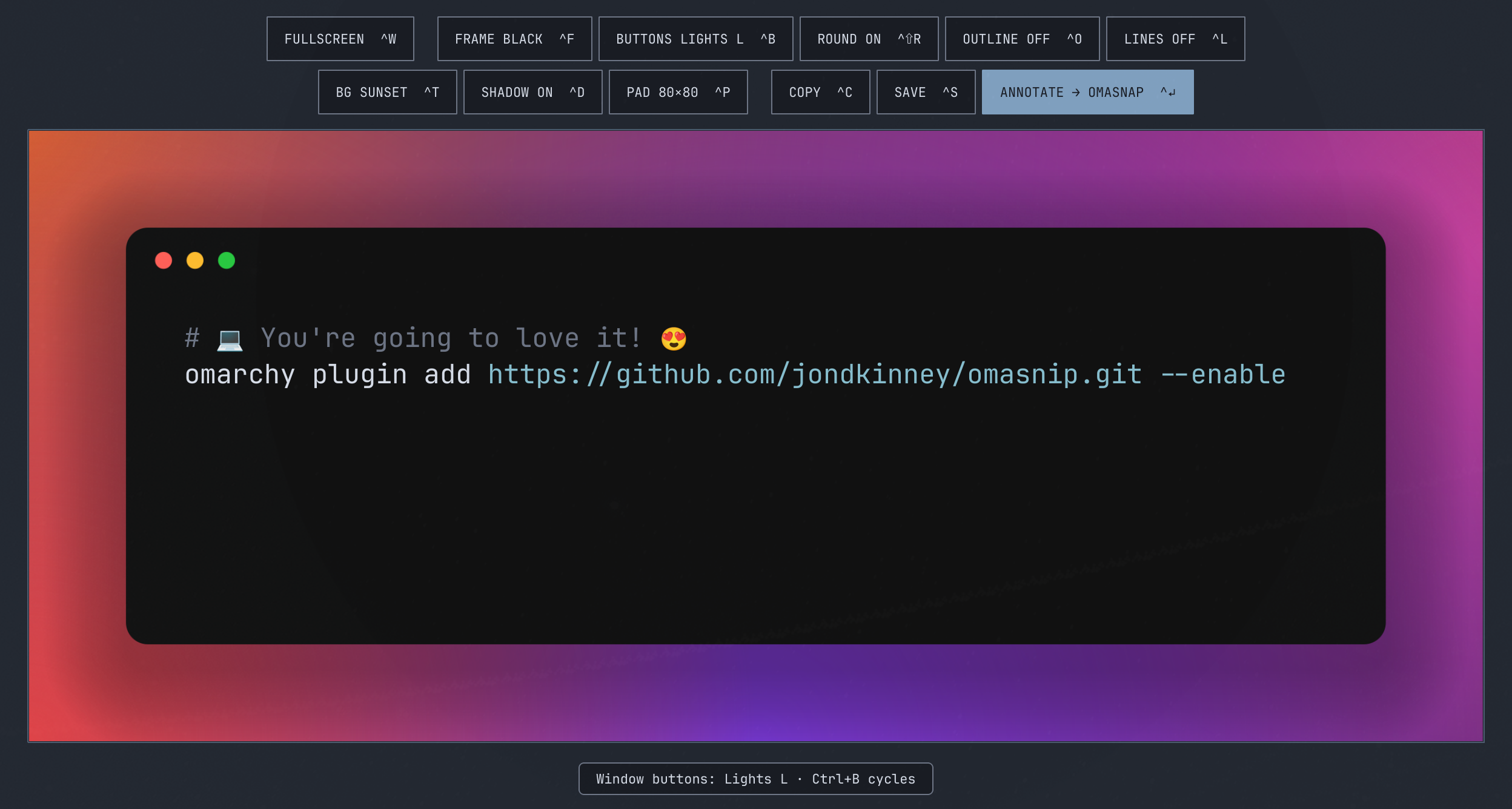
Black frame, left-side stoplight controls, and the Sunset backdrop.
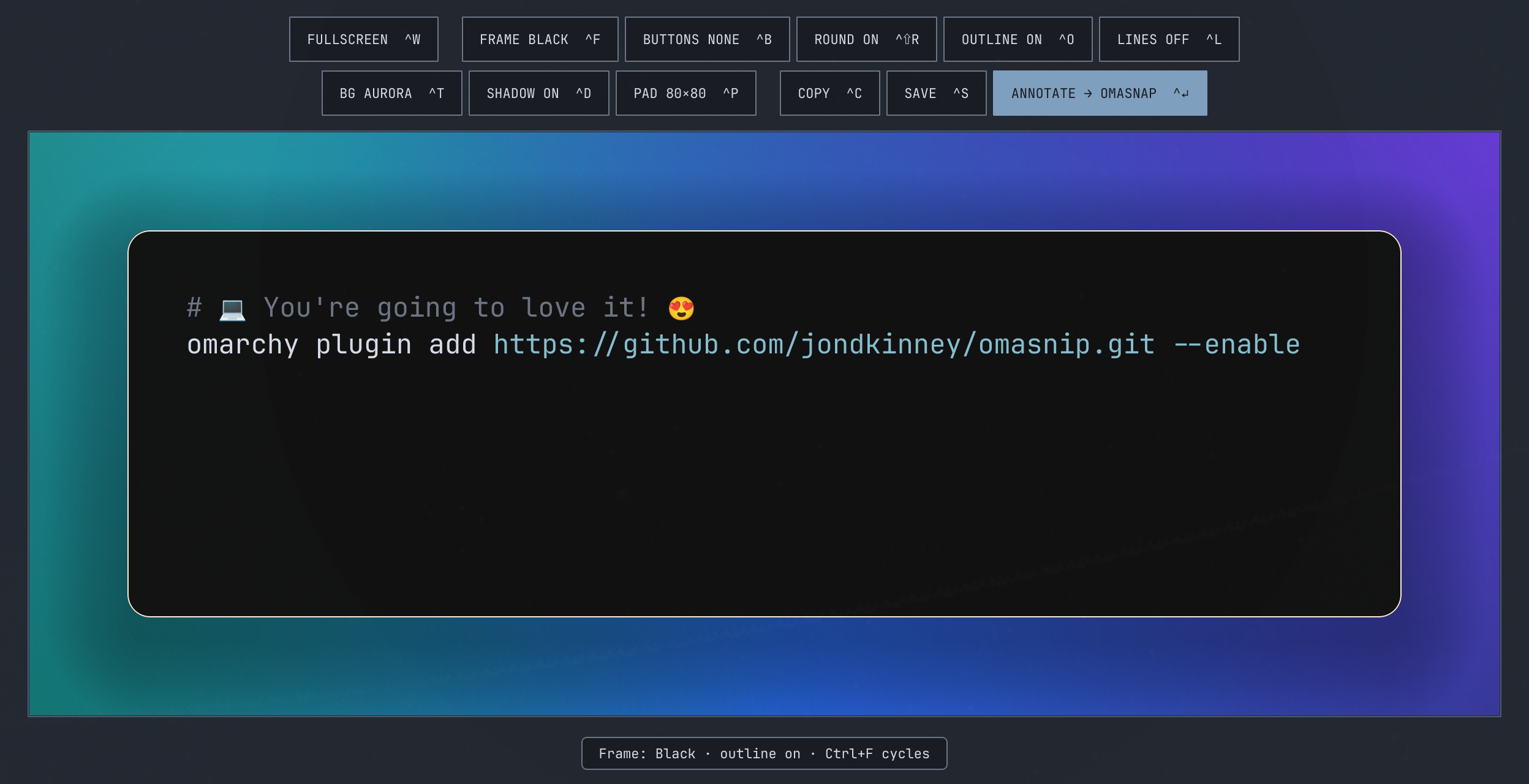
Black frame without window controls, an enabled outline, and the Aurora backdrop.
Install on Omarchy
cd /path/to/omasnip
./install-omarchy
The installer uses omarchy-pkg-add for the small runtime/build dependency set
and installs under ~/.local by default. It also installs and enables the
bundled Omasnip bar companion on the right side of omarchy-shell. To build
directly:
make check
make install
Runtime dependencies are Qt 6, LayerShellQt, hyprctl, wl-copy, wl-paste,
and jq for the companion's clipboard-history launcher. Omasnip is
Wayland/Hyprland-only and designed for Omarchy.
Omarchy Shell companion
The repository is also a valid Omarchy plugin. Its QML bar widget is a small launcher companion, not a second editor: Omasnip's native executable still owns the entire snippet workflow. Left-click opens a theme-native action card, middle-click launches a normal window directly, and the action card shows the live Hyprland shortcut assigned to Omasnip when one is configured. Below those actions, the card shows the ten newest text-only entries from Omarchy's clipboard history as single-line hints. Click a hint to open a fullscreen editor populated with that entry's complete text; selecting one does not replace the current clipboard. A short-lived bounded helper opens and validates one regular-file descriptor, then reduces its bounded snapshot to ten sanitized hints before QML sees or parses it. Links, FIFOs, and pathname swaps are rejected.
Once this repository is published, the companion can be installed directly:
omarchy plugin add https://github.com/jondkinney/omasnip.git --enable
If the native executable is missing, the action card offers an explicit
Install Omasnip action in a visible terminal. Disable only the bar
companion with omarchy plugin disable io.github.jondkinney.omasnip; the
desktop entry, hotkey, and executable continue to work.
Remove the companion
Remove a plugin-manager installation with:
omarchy plugin remove io.github.jondkinney.omasnip
That removes only the Omarchy Shell companion. A native executable installed
through Install Omasnip remains under ~/.local; its installed files are
listed by the install manifest at ~/.cache/omasnip/build/install_manifest.txt
so they can be reviewed and removed separately. Omasnip never overwrites the
user's Omarchy configuration as part of plugin installation.
Use it
Copy code and run:
omasnip
If the clipboard is empty or currently contains only a non-text type such as an image, Omasnip still opens with a blank editable draft.
Installation also adds an Omasnip desktop entry, so the same clipboard workflow is available by searching the Omarchy Apps menu. An optional mnemonic Hyprland binding can launch it through Omarchy's normal app scope:
o.bind("SUPER + ALT + C", "Omasnip", { launch = "omasnip" })
Open a source file, a file URL, or a pipeline:
omasnip src/main.cpp
omasnip file:///home/me/Code/example.rs
git show | omasnip --stdin --title change.diff --language diff
Fullscreen is the default. Both modes use the same editor and produce the same final PNG:
omasnip --fullscreen
omasnip --window
Useful overrides and non-interactive output:
omasnip example.ts --language typescript --title retry-worker.ts
omasnip example.ts --copy
omasnip example.ts --save --output ~/Pictures/retry-worker.png
omasnip example.ts --copy --save
omasnip example.ts --annotate --editor omasnap
Input is capped at 32 KiB, 120 lines, and 240 characters per line to keep the result readable as a share card. Syntax detection uses the source filename, then recognizable content. Clearing the displayed filename keeps its last extension as a private syntax hint, so the label can be hidden without changing highlighting. It never executes source or reads project-local editor configuration.
Controls
The editor starts in Vim-style Normal mode.
| Input | Action |
|---|---|
Ctrl+Enter |
Flatten and open the configured annotator; Omasnap Copy/Save returns to this draft |
Ctrl+W |
Switch between fullscreen and window presentations |
Toolbar Copy / Ctrl+C |
Copy the flattened PNG |
Toolbar Save / Ctrl+S |
Save the flattened PNG |
Toolbar Frame / Ctrl+F |
Cycle only the Nvim, Theme, and Black editor surfaces |
Toolbar Buttons / Ctrl+B |
Cycle no controls, stoplights left/right, rings left, and window glyphs right |
Toolbar Round / Ctrl+Shift+R |
Toggle rounded corners on a plain Theme or Black surface |
Toolbar Outline / Ctrl+O |
Toggle the outline on a plain Theme or Black surface; disabled on Nvim |
Toolbar Lines / Ctrl+L |
Override the frame defaults with one shared line-number setting |
Toolbar BG / Ctrl+T |
Cycle Aurora, Sunset, Lagoon, Violet, configured Custom, the Omarchy theme background, and transparent Off |
Ctrl+Shift+T |
Cycle those backdrops in reverse |
Toolbar Shadow / Ctrl+D |
Toggle the code card's silhouette-matched drop shadow independently |
Toolbar Pad / Ctrl+P or Ctrl+G |
Cycle shared horizontal/vertical canvas-padding presets (G for grow) |
Alt+← / Alt+→ |
Decrease/increase horizontal canvas padding |
Alt+↓ / Alt+↑ |
Decrease/increase vertical canvas padding |
Alt+0 |
Restore exact 80×80 canvas padding |
F or Shift+Tab |
Edit the displayed filename; clear it to hide it |
i, a, o / Esc |
Enter Insert mode / return to Normal mode |
h j k l, w b e, 0 $, gg G |
Move in Normal or Visual mode |
v, V, Ctrl+V |
Character, line, or block Visual mode |
d, c, y, p, r, x |
Vim-style edit and register operations |
u, Ctrl+R, . |
Undo, redo, repeat last change |
+, -, Ctrl+0 |
Adjust font size / return to auto-fit |
Alt+Z |
Toggle wrapping and edge clipping |
Keypad 2 / 4 |
Use two- or four-space tab stops |
q |
Close; edited drafts require a second press |
Hyprland-level bindings take precedence over application shortcuts. If
Ctrl+D is globally rebound, signal the focused Omasnip process with
SIGUSR1 instead of synthesizing another key chord. Hyprland's synthetic-key
dispatchers clear the focused client's modifier state after sending a key,
which breaks subsequent shortcuts while physical Ctrl remains held. Fullscreen
Omasnip uses an exclusive layer that does not appear in hyprctl activewindow,
but its omasnip layer metadata includes the owning PID. Omasnip relays the
signal onto Qt's event loop and toggles the shadow without touching keyboard
state.
Switching presentation uses a private state file under the user's runtime directory and starts a successor process with the other Wayland surface role. Text, filename and its syntax hint, cursor, yank register, font, wrap, tab width, frame surface, window controls, corners, outline, line numbers, canvas padding, backdrop, shadow, and discard confirmation survive. The in-memory undo stack intentionally does not cross the process boundary.
Editor frames and canvas padding
The default Nvim frame follows the live Omarchy theme and keeps Omasnip's header, line-number gutter, and powerline status. The toolbar uses two centered rows: presentation and frame styling above; canvas styling and output actions below. Larger gaps separate those sections without wasting a full row per group. Frame choices are independent so the surface cycle stays short:
- The Frame button or
Ctrl+Fcycles Nvim → Theme → Black. Theme is the active Omarchy editor color; Black is#111111with syntax colors corrected for readability. - The Buttons control or
Ctrl+Bcycles None → stoplights left → stoplights right → rings left → minimize/maximize/close glyphs right. Every choice is available on both plain surfaces. - Both plain surfaces start with rounded corners; Nvim keeps its structural
square frame. The Round control or
Ctrl+Shift+Rtoggles the retained plain surface corner choice without changing the selected surface or buttons. - The Outline control or
Ctrl+Oindependently toggles the edge on either plain surface. Theme uses the live Omarchy accent. Black chooses a readable color from the active outer backdrop, including a configured Custom image, and changes that color as the backdrop changes. - Before Lines is changed, Nvim defaults to line numbers on while Theme and
Black default to them off. Using the Lines control or
Ctrl+Lcreates one explicit global on/off choice that remains enabled while frames change.
Using Buttons or Round while Nvim is selected moves directly to the Theme surface so the requested change is immediately visible. Outline is visibly disabled on Nvim because its border is structural; it becomes enabled on Theme and Black. Button, corner, and outline choices are retained when switching between the two plain surfaces.
The toolbar Pad button, Ctrl+P, or its mnemonic Ctrl+G (grow) cycles useful
equal-padding presets plus the legacy 80×A minimum-height canvas. Fresh
snippets and Alt+0 use exact 80×80 padding. Alt+arrows tune the horizontal
and vertical axes independently in 16px steps from 24–192px. A floating window
resizes around each selected level, and the live canvas uses the same exact
padding as the copied, saved, or annotated PNG. In window mode, a subdued
preview-only outline marks the exact saved canvas boundary; it is never part of
Copy, Save, or Annotate output.
Backdrops
The app stage and Nvim frame follow the active Omarchy theme; the exported
share backdrop defaults to Aurora. One Ctrl+T step uses the active Omarchy
theme background and names it directly in the toolbar (BG NORD, for
example). The other steps are the colorful Omasnap meshes, configured Custom,
and transparent Off. Ctrl+Shift+T walks the same cycle backwards. Backdrop
changes do not change the shadow; the toolbar
Shadow button or Ctrl+D toggles it separately. Off keeps the area around the
code card transparent while retaining the current shadow choice, so rounded
cards keep a rounded shadow without a rectangular backdrop. The shadow profile
matches Carbon's exported
0 20px 68px 0 rgba(0,0,0,0.55) box shadow.
To add Custom to the cycle or select a different starting style, create
~/.config/omasnip/omasnip.conf:
[background]
# Centered cover-fit, like a desktop wallpaper.
image = ~/Pictures/backdrops/desk.jpg
# theme, off, aurora, sunset, lagoon, violet, or custom
default = custom
Every key is optional. An unreadable custom image falls back to Aurora, and Custom is skipped in the cycle when no readable image is configured. Image loading runs off the UI thread.
Annotator handoff
Omasnip resolves the screenshot editor in the same order as Omarchy:
--editor PROGRAMOMARCHY_SCREENSHOT_EDITORtensaku-edit
To make Omasnap the annotator for both Omasnip and Omarchy screenshots, set:
export OMARCHY_SCREENSHOT_EDITOR=omasnap
The annotator receives exactly one flattened PNG path—no shell evaluation and
no editable source. With a configured executable named omasnap, the
interactive Ctrl+Enter workflow becomes a round trip:
- Omasnip keeps the live source editor in memory and hides it while Omasnap is open.
- Copy or Save in Omasnap commits its editable operation log and brings
the same Omasnip editor back with an explicit next-step prompt. Choose
Done — close Omasnip (
Q) to return to your work and paste or share the finished image, or Edit snippet (Enter,E, orEscape) to keep working.Escapefrom Omasnap itself returns without changing the last committed annotations or showing the prompt. - Edit the source and press
Ctrl+Enteragain. Omasnip renders the new code card beside that retained log, and Omasnap restores the annotations and its undo history over the new image.
Annotations are pixel-anchored in this first round-trip format. Text-only edits
that preserve the card layout line up naturally; changing padding, font size,
frame geometry, or inserting lines above an annotation can require repositioning
it in Omasnap. Other configured annotators, and non-interactive --annotate,
retain the ordinary one-way PNG handoff.
Handoff PNGs and round-trip JSON are owner-only files under
$XDG_RUNTIME_DIR/omasnip (with a private /tmp fallback), and stale sessions
are removed after 24 hours. Omasnip never places source text in Omasnap's
operation log; its own private session sidecar holds the source and card state.
Save uses OMASNIP_OUTPUT_DIR, then OMARCHY_SCREENSHOT_DIR, then the XDG
Pictures directory. The default filename is
code-snippet-YYYY-MM-DD_HH-MM-SS.png.
Why this is separate from Omasnap
Omasnap's product boundary is screenshot, annotate, output. Source editing and code-card layout are useful, but they are a separate job. Omasnip owns that job and hands the result back at the cleanest possible seam: a normal PNG that any configured screenshot editor already knows how to open.
The initial renderer, modal editing behavior, JetBrains Mono asset, and several
Omarchy integration patterns were extracted from the MIT-licensed Omasnap code
at commit 61560f7. The mesh backdrops and cover-fit custom image follow
Omasnap v1.20.1; the card shadow follows Carbon's exported CSS profile.
File/clipboard input, active-window filename hints, strict
share-card limits, explicit language/title controls, and quick output were also
informed by Omasnap pull request #81.
Omasnip keeps the useful ideas while providing a live native editor without a
Neovim runtime dependency.
See docs/architecture.md for the extraction boundary.
License
MIT. JetBrains Mono is redistributed under the SIL Open Font License; its
notice is in assets/JetBrainsMono-OFL.txt.