
AirPlay Audio for Omarchy
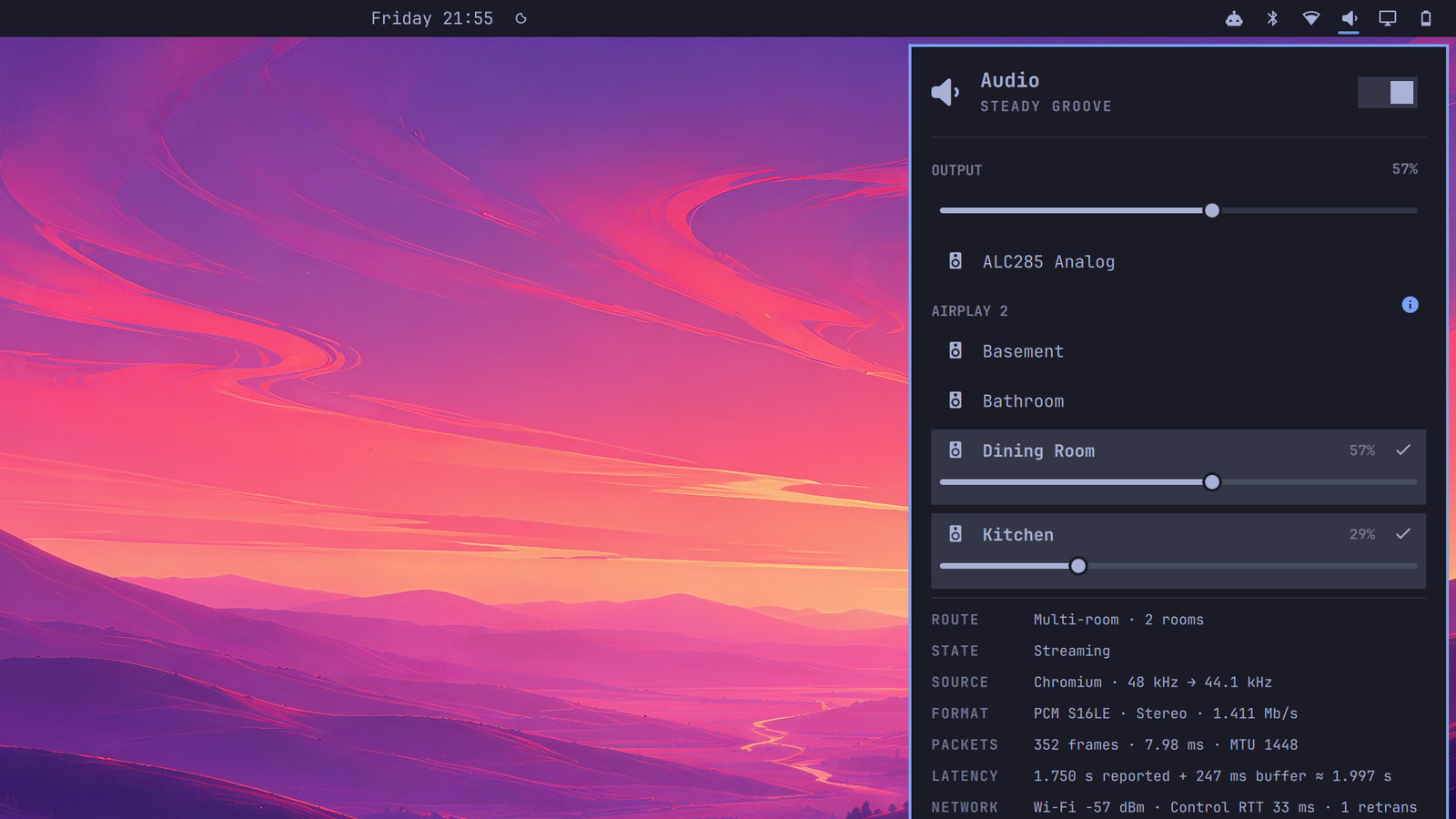
Omarchy's stock audio panel chooses one output at a time. AirPlay Audio adds multi-room AirPlay without giving up the local controls: select any mix of speakers, set each room independently, or move the whole group with one master slider that preserves their relative levels.
Features
- Select multiple AirPlay speakers directly in the audio panel
- Per-room sliders plus proportional master volume
- Direct single-room routing for receiver-aware audio/video synchronization
- Latency-compensated PipeWire grouping for multiple rooms
- Seamless room addition and removal during playback
- Immediate master and per-room volume controls
- Live updates from media keys and external mixers
- Collapsed stream diagnostics for routing, format, latency, and receiver links
- Local outputs, inputs, mute controls, and per-application volume
- Persistent room selection across receiver reconnects and DHCP address changes
Requirements
- Omarchy Quattro 4.0 or newer
- PipeWire with
libpipewire-module-raop-discover - AirPlay receivers advertising RAOP over mDNS on the same network
bash,jq,pactl,pw-dump,flock, and standard POSIX text tools
These tools are part of a normal Omarchy installation. No elevated privileges, background service, external download, or cloud account is required.
Stream info
Select an AirPlay room, then open Stream info at the bottom of the panel (or
press i). It reports the active route and source, PCM format and rate,
PipeWire's reported and buffered latency, packet sizing, receiver firmware, and
available connection metrics. Each selected receiver gets its own status card.
Use the copy button to put the complete JSON snapshot on the clipboard.
The latency values describe PipeWire's transport target, not a microphone
measurement of sound in the room. Receiver metadata and network details degrade
cleanly when optional system tools such as avahi-browse, iw, ip, ss, or
pw-top are unavailable.
Install
Add and enable the plugin:
omarchy plugin add https://github.com/KyleKincer/omarchy-airplay-audio.git --enable
Enable native AirPlay discovery. This is an explicit, user-owned PipeWire configuration change; the plugin does not make it automatically:
PLUGIN_DIR="$HOME/.config/omarchy/plugins/io.github.kylekincer.airplay-audio"
install -Dm644 \
  "$PLUGIN_DIR/extras/50-omarchy-airplay-audio.conf" \
  "$HOME/.config/pipewire/pipewire.conf.d/50-omarchy-airplay-audio.conf"
omarchy restart audio
Replace the built-in widget after the AirPlay Audio panel appears:
omarchy plugin disable omarchy.audio
omarchy bar move io.github.kylekincer.airplay-audio --section right
Receivers can take several seconds to appear after restarting audio. They must be on the same network and visible through mDNS.
Media keys
The panel works without custom keybindings. For multi-room playback, the stock
volume bindings adjust the combine sink's buffered software gain. To get the
same immediate, proportional receiver-volume behavior as the panel's master
slider, add this block to ~/.config/hypr/bindings.lua:
local airplay_audio = os.getenv("HOME") ..
  "/.config/omarchy/plugins/io.github.kylekincer.airplay-audio/bin/omarchy-airplay-multiroom"

hl.unbind("XF86AudioRaiseVolume")
hl.unbind("XF86AudioLowerVolume")
hl.unbind("XF86AudioMute")
hl.unbind("ALT + XF86AudioRaiseVolume")
hl.unbind("ALT + XF86AudioLowerVolume")

o.bind("XF86AudioRaiseVolume", "Volume up", airplay_audio .. " volume-action raise", { locked = true, repeating = true })
o.bind("XF86AudioLowerVolume", "Volume down", airplay_audio .. " volume-action lower", { locked = true, repeating = true })
o.bind("XF86AudioMute", "Mute", airplay_audio .. " volume-action mute-toggle", { locked = true })
o.bind("ALT + XF86AudioRaiseVolume", "Volume up precise", airplay_audio .. " volume-action +1", { locked = true, repeating = true })
o.bind("ALT + XF86AudioLowerVolume", "Volume down precise", airplay_audio .. " volume-action -1", { locked = true, repeating = true })
Then reload and inspect Hyprland's configuration:
hyprctl reload
hyprctl configerrors
How synchronization works
With one room selected, applications route directly to PipeWire's native RAOP sink. That exposes receiver transport timing to the media graph, allowing video players to compensate for the AirPlay buffer.
With multiple rooms selected, the plugin creates a PipeWire combine sink with latency compensation and keeps that sink at unity gain. The master control changes the receivers themselves, preserving each room's volume ratio.
This is synchronized host-side RAOP, not Apple's native AirPlay 2 group-control protocol. Multi-room alignment depends on accurate latency reporting from each receiver, the network, and PipeWire. It works especially well with receivers of the same family, but no plugin can promise sample-perfect alignment for every mix of AirPlay hardware.
State and security
The helper stores only receiver selection and the last local sink under
${XDG_STATE_HOME:-$HOME/.local/state}/omarchy-airplay. It talks to the local
PipeWire server and does not contact any internet service. The plugin runs with
your normal user permissions, like every Omarchy shell plugin.
Remove
First leave AirPlay while the helper still exists:
PLUGIN_DIR="$HOME/.config/omarchy/plugins/io.github.kylekincer.airplay-audio"
"$PLUGIN_DIR/bin/omarchy-airplay-multiroom" reset
Remove the media-key block above from ~/.config/hypr/bindings.lua, then remove
only this plugin's discovery file and restore Omarchy's widget:
rm -f "$HOME/.config/pipewire/pipewire.conf.d/50-omarchy-airplay-audio.conf"
omarchy restart audio
omarchy plugin remove io.github.kylekincer.airplay-audio
omarchy plugin enable omarchy.audio
omarchy bar move omarchy.audio --section right
hyprctl reload
Optional saved selection state can be removed afterward:
rm -rf "$HOME/.local/state/omarchy-airplay"
Troubleshooting
Validate the checkout and QML against the installed shell:
PLUGIN_DIR="$HOME/.config/omarchy/plugins/io.github.kylekincer.airplay-audio"
omarchy plugin validate "$PLUGIN_DIR"
qmllint -I "$OMARCHY_PATH/shell" "$PLUGIN_DIR/Panel.qml"
If no rooms appear, confirm mDNS discovery and native sinks:
pactl list short sinks | grep '^.*raop_sink\.'
If a receiver disconnects, the panel preserves its stable mDNS identity and routes back to it when it returns. Network isolation, multicast filtering, or a password-protected receiver can still prevent PipeWire from connecting.
Development
omarchy plugin validate .
qmllint -I "$OMARCHY_PATH/shell" Panel.qml
bash -n bin/omarchy-airplay-multiroom
Most installed-plugin edits hot-reload. Run omarchy restart shell after
changing a panel component that is already open in the bar.
License
MIT. The UI began as a modification of Omarchy's built-in audio widget; see THIRD_PARTY_NOTICES.md.