
omarchy-asus
A tabbed ASUS laptop control panel for the Omarchy bar,
built on asusctl. Power profiles, keyboard RGB,
editable fan curves, and firmware limits — organized like
G-Helper, scoped to what your specific
model actually supports.
| Main | RGB |
|---|---|
 |
 |
| Fan | Advanced |
|---|---|
 |
 |
Why
The stock single-scroll ASUS panel dumps every asusctl feature into one
column regardless of whether your laptop supports it — wattage sliders with
no context, keyboard RGB effects that silently no-op on unsupported hardware,
a fan curve toggle for the master enable that never appears in the UI. This
plugin detects what your specific model reports supporting and only shows
that.
Features
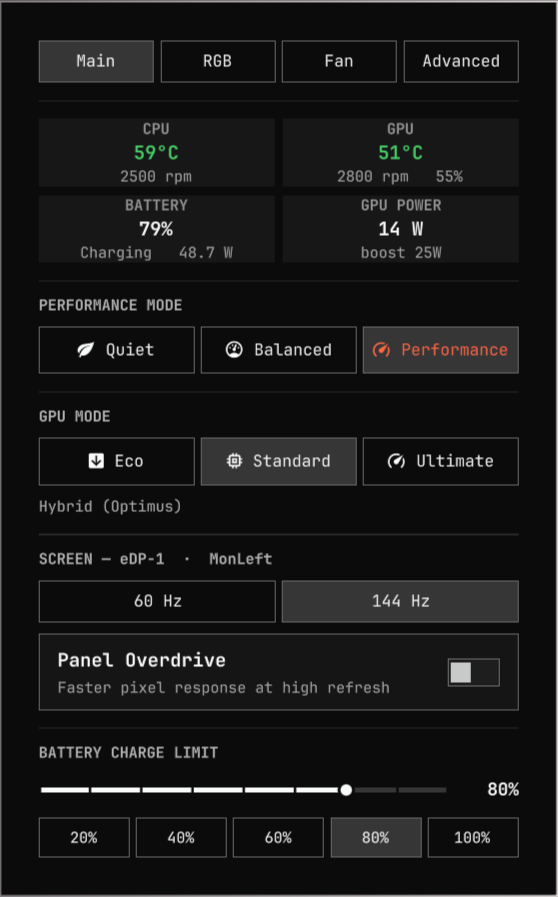
- Live sensors — CPU and GPU temperature, both fan speeds, GPU draw and utilisation, battery charge and charge rate, refreshed every 2 seconds while the panel is open. The same readings appear in the bar icon's tooltip, so "how hot is it right now" needs no click.
- Main — performance mode (Quiet/Balanced/Performance, tinted by mode), GPU mode (Eco/Standard/Ultimate), screen refresh rate and panel overdrive, battery charge limit.
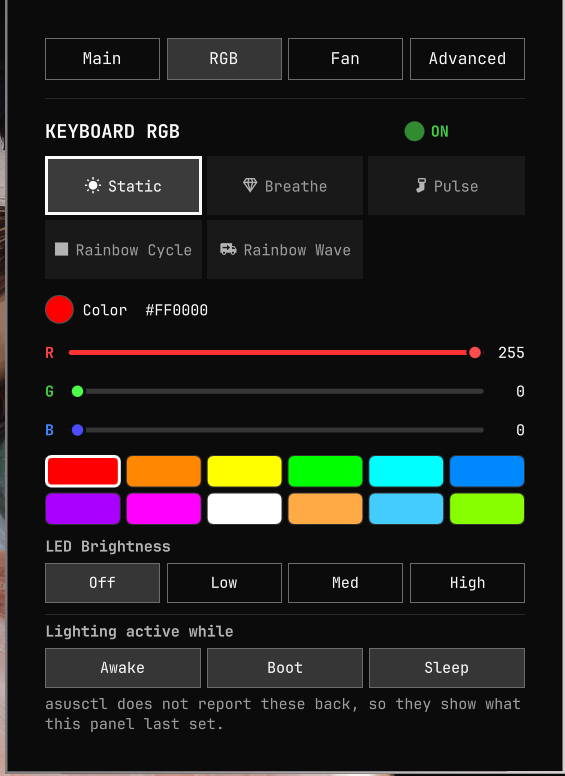
- RGB — keyboard lighting, filtered to the aura effects your laptop
actually reports (
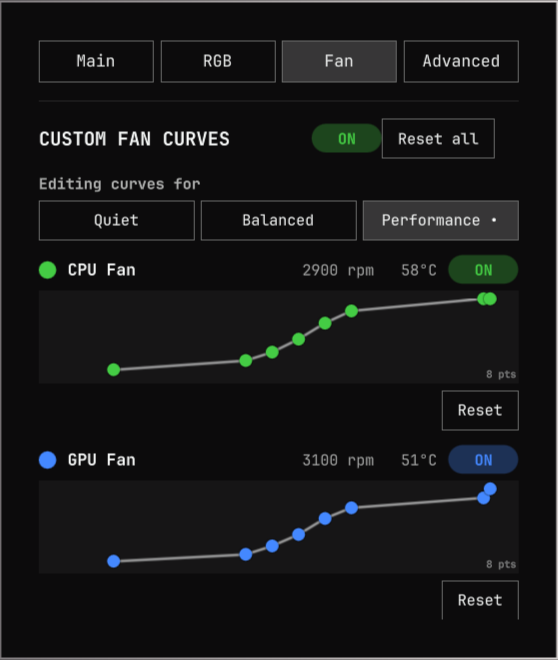
asusctl info --show-supported), not a fixed list of twelve, plus brightness and the awake/boot/sleep power states. - Fan — a master "Custom Fan Curves" switch, a per-profile curve editor (curves are stored per power profile, so you pick which profile you are tuning), draggable curves per fan (CPU/GPU, plus Mid on laptops with a third fan) with the live RPM and temperature for that fan alongside, and a one-click reset.
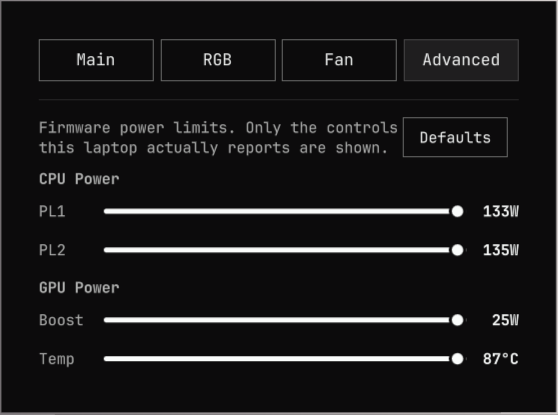
- Advanced — firmware power limits (PL1/PL2, GPU dynamic boost, GPU temp
target) with ranges read from the firmware and a "Defaults" button that
replays the values
asusctlreports as default. Each control appears only ifasusctl armoury listsays your laptop exposes it. - Bar icon — scroll over it to cycle performance modes without opening the panel.
G-Helper parity
This mirrors G-Helper's layout and feature set where Linux tooling allows it. What is deliberately absent:
| G-Helper feature | Status here |
|---|---|
| Anime Matrix / Slash display | Not implemented (no such hardware to test against) |
| CPU boost toggle | Needs root writes to intel_pstate/cpufreq; asusctl exposes no equivalent |
| AutoTDP, FPS limiter, overlay | Windows-only mechanisms |
| Per-key / per-zone RGB | asusctl exposes zones only on some models; single-colour effects only for now |
| Automatic AC/battery profile switching | asusctl applies its own AC/battery profiles; not duplicated here |
Screen refresh rate
asusctl has no display controls, so the refresh buttons drive Hyprland
directly. The built-in eDP-* panel is preferred over external monitors, since
this is a laptop-screen feature.
Two details worth knowing:
-
Hyprland 0.56 parses its config as Lua, and
hyprctl keyword monitoris rejected against a non-legacy parser. The mode change goes throughhyprctl eval "hl.monitor({ ... })"instead — the same callomarchy-hyprland-monitor-scalinguses. Position and scale are always repeated, becausehl.monitorreplaces the whole rule. -
If hyprmoncfg is installed and its daemon is running, it owns monitor configuration and re-applies its active saved profile a few seconds after any runtime change — a plain
hl.monitorcall silently reverts. The plugin detects this (hyprmoncfg status --json) and follows the mode change withhyprmoncfg save <active profile>so it sticks and survives a reboot. The Screen header shows the profile name when this is in effect.Note that
hyprmoncfg savesnapshots the whole current monitor state, not just the refresh rate, so it also refreshes that profile's workspace-to-output assignments. Without the daemon, the runtime change stands on its own and lasts until the Hyprland config is reloaded.
Development
node test-model.js # parser regression checks against real asusctl output
Prerequisites
# From AUR
yay -S asusctl

# Or from the OGC Arch repo — see https://asus-linux.org for setup
sudo pacman -S asusctl

sudo systemctl enable --now asusd.service
Install
omarchy plugin add https://github.com/moneytosms/omarchy-asus.git --enable
Or clone manually into ~/.config/omarchy/plugins/io.github.moneytosms.asus
and enable it via the Omarchy plugin menu.
Remove
omarchy plugin remove io.github.moneytosms.asus
Nothing is written outside the plugin folder and the plugin's own settings
block in ~/.config/omarchy/shell.json, which Omarchy drops with the plugin.
Configuration
~/.config/omarchy/shell.json, under the plugin's settings:
| Key | Type | Default | Description |
|---|---|---|---|
showBatteryLimit |
boolean | true |
Show the battery charge limit section on Main |
refreshIntervalSec |
integer | 10 |
Poll interval while the panel is open (5–60s) |
Compatibility
Works with any laptop asusctl supports (ROG, TUF, ProArt, Zenbook). Every
section — RGB effects, fan curves, individual firmware attributes — is gated
on what asusctl reports for your specific model; unsupported controls don't
appear rather than sitting there doing nothing.
Troubleshooting
# Verify the plugin is detected
omarchy plugin validate ~/.config/omarchy/plugins/io.github.moneytosms.asus

# Check asusd is running
systemctl status asusd

# Check what your model supports
asusctl info --show-supported
asusctl armoury list
License
MIT