
Press & Hold
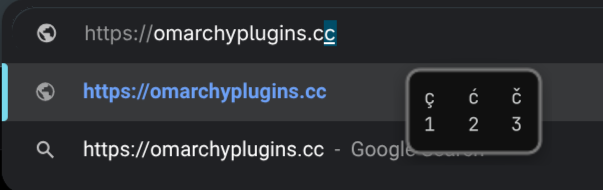
A macOS-style press-and-hold accented character picker for Omarchy.
Hold down a key like a and a popup lets you pick an alternate like á, à, â, ã... just like on macOS.
This plugin does not reimplement press-and-hold from scratch. Fcitx5's keyboard-us (and compatible) engine already has native long-press support — this plugin is a thin, portable layer that toggles it on/off from the bar, lets you reorder each key's accents, and writes Fcitx5's config the way Fcitx5 itself expects.
What it does
- Adds a small icon to the bar showing whether Press & Hold is on or off.
- Click it to open a toggle. Turning it on sets
EnableLongPressandChoose Modifierthrough Fcitx5's own config API — only those two keys, every other setting you already have is left untouched — and takes effect immediately, with no restart. - Turning it on also sets
Choose Modifier=None, so pressing a plain number (1-9) selects a candidate. Fcitx5 defaults this toAlt(requiringAlt+1,Alt+2...); without overriding it, a bare number press isn't intercepted at all and gets typed into the field instead of picking a character. - Before that first write it records what those keys were set to, so turning the toggle back off restores them instead of just switching long-press off.
- The first time you turn it on, it also installs the theme-matching hook (
extras/theme-set.d/fcitx5-theme.sh) into~/.config/omarchy/hooks/theme-set.d/, so the popup matches your Omarchy theme out of the box — no manual step needed. It never overwrites a copy that's already there, so any edits you've made to it are left alone. - Customize accents › opens a keyboard picker where a key's accents can be dragged into whatever order you want —
ãahead ofàona, say. - The icon always reflects the real state of
keyboard.conf, even if you edit it by hand outside the plugin.
Install
omarchy plugin add https://github.com/msouza10/omarchy-presshold.git --enable
Local checkout:
omarchy plugin validate .
omarchy plugin add "$PWD" --enable
Remove
~/.config/omarchy/plugins/io.github.msouza10.presshold/scripts/uninstall.sh
omarchy plugin remove io.github.msouza10.presshold --yes
The first line undoes everything the plugin ever wrote outside its own folder, so the second leaves nothing behind:
- the keyboard engine's
EnableLongPressandChoose Modifiergo back to the values recorded before the first time you turned the toggle on — not to a guess, and not merely to "off"; - the candidate popup's ClassicUI settings go back to what they were before the theme hook first ran;
- the generated Fcitx5 theme and the
theme-set.dhook are removed. That hook matters: left behind, it keeps regenerating a theme for a plugin that is no longer installed, on everyomarchy theme set. If you have edited your copy of it, it is kept and you are told so, rather than having your edits deleted.
Everything else is left alone: Fcitx5 itself, its service, and any setting this plugin never wrote. So is the candidate order you set through the keyboard picker — that is Fcitx5's own data and stays meaningful without this plugin.
Why this isn't automatic: Omarchy's plugin manifest has no uninstall hook. omarchy plugin remove disables the plugin in the shell, deletes or backs up the folder, and rescans — there is no point at which it can call into the plugin being removed. So a revert has to be triggered by hand; what the plugin can do is make it one exact command instead of a list of manual steps.
Just turning the toggle off in the bar also reverts the keyboard settings completely (that is what the snapshot is for) — it just leaves the theme hook and the generated theme in place.
The snapshots live in ~/.local/state/io.github.msouza10.presshold/, outside the plugin folder on purpose: omarchy plugin remove deletes the plugin, and a record of what to undo is worth nothing if it goes with it. Only the keys this plugin writes are recorded, never a copy of the whole keyboard.conf — restoring a whole-file backup would also roll back any unrelated Fcitx5 setting you changed in the meantime.
If you installed the plugin before this existed, there is no snapshot to restore from; the revert falls back to Fcitx5's own defaults (EnableLongPress=False, Choose Modifier=Alt).
Requirements
- Omarchy Quattro shell.
- Fcitx5 with the
keyboard-us(or another Fcitx5 Keyboard-engine-based) input method active. This is the default on a stock Omarchy install. bash,sed,grep(present on any Omarchy system).python3withpython-dbus, used to talk to Fcitx5's config API. Also present on any Omarchy system — it comes in transitively withuwsm, a hard dependency of theomarchypackage. If it were missing, the on/off toggle falls back to editing~/.config/fcitx5/conf/keyboard.confand restarting Fcitx5; the keyboard picker needs D-Bus and has no fallback.
How it works
Bar icon click
      ↓
scripts/toggle-longpress.sh enable|disable
      ↓
scripts/fcitx5_config.py → D-Bus SetConfig on fcitx://config/addon/keyboard
      ↓                     (EnableLongPress=True|False, Choose Modifier=None on enable)
the live Fcitx5 process applies it, then persists keyboard.conf itself
      ↓
Fcitx5 Keyboard Engine's native long-press / candidate list
Fcitx5 stays fully responsible for input handling, key repeat, the candidate list, and committing text. This plugin only manages configuration and the bar UI.
Reordering accents: the keyboard picker
Fcitx5 ships a fixed candidate order per key: holding a offers à first, then á, ã, and so on. If you write Portuguese, having ã first saves a keystroke every single time — and the ones you never use are worth pushing to the end. The popup's second view rearranges that list.
Click Customize accents › in the bar popup and you get a drawing of a US keyboard:
- Keys that have long-press candidates are lit, and print the character they currently offer first underneath the legend. Click one to see its whole list.
- Keys that don't stay dim and inert. The board still draws the full keyboard — it just doesn't pretend every key is customizable.
- ⇧ Shift swaps every legend for its shifted twin. Fcitx5 keeps uppercase (
A→À Á Â) and shifted-symbol (!→¡,$→¢ € £) entries separately from their unshifted ones, so this puts each one under the key you would physically press for it. - Other scripts, below the board, holds what no US key can reach: Fcitx5 also ships entries for Cyrillic, Hebrew and Arabic.
Picking a key lays its candidates out in order, numbered, with the current default marked:
- Drag a character anywhere in the sequence and drop it there. The others shuffle around it as you go and the numbers count up live, so the arrangement you see mid-drag is the one you get —
ãto third place is a drag to third place, not four separate promotions. - Tap a character to send it straight to the front. It is the move most people came for, so it keeps a shortcut.
The order is re-read from Fcitx5 after every change rather than patched locally, so what you see is always the real order. Changes made while a save is still in flight are queued, not dropped.
Keyboard picker click
      ↓
scripts/reorder-candidates.py --set <key> <c1> <c2> ...
      ↓
D-Bus SetConfig on fcitx://config/addon/keyboard/longpress
      ↓
the live Fcitx5 applies the new order, then persists keyboard-longpress.conf itself
The same commands are available from the installed plugin directory:
scripts/reorder-candidates.py --keys        # every long-press key and its candidates
scripts/reorder-candidates.py --status a    # one key's current order, one per line
scripts/reorder-candidates.py a ã           # promote ã to the front of a
scripts/reorder-candidates.py --set a ã á â ā à ä æ å   # write the whole order
Two things worth knowing about that config:
SetConfigon the longpress URI is a full replace, not a merge. Sending back only the key you changed silently wipes every other key's candidates. So every write fetches the complete ~87-entry table, rearranges one key's list within it, and sends the rest back untouched.--setonly ever rearranges. The characters it is given have to be a permutation of the ones the key already has, or it writes nothing and says why. The picker sends a list it read moments earlier, and if Fcitx5's table changed underneath it in between, writing that list would quietly drop or resurrect candidates instead of just moving them.- Reordering needs Fcitx5 running (the script exits
3otherwise). Unlike the on/off toggle, it has no edit-the-file-instead fallback: writing this table by hand would mean reimplementing Fcitx5's serialization for a ~87-entry nested structure, and if Fcitx5 is down there is no long-press to reorder in the first place. Start it and retry. See the note on writing Fcitx5's config for why the toggle does have that fallback.
Known limitations (v0.2)
- Terminal emulators may behave differently — you may genuinely want
aaaa...there instead of a popup. Fcitx5's own app-exclusion settings can be used for that; this plugin does not yet expose them. - Of the engine's own settings, only
EnableLongPressandChoose Modifierare managed — both are restored on disable, from the values recorded before the first enable. - The revert has to be run by hand (
scripts/uninstall.sh) because Omarchy's plugin manifest has no uninstall hook foromarchy plugin removeto call. - The keyboard picker reorders a key's candidates; it does not change which characters a key offers. Adding or removing candidates, and per-app blacklists (Fcitx5 ships with
konsoleexcluded by default), are configured in Fcitx5 itself, not by this plugin, in this version. - The picker draws a US layout. Keys that only exist on other physical layouts still reach their candidates through the Other scripts strip, but they aren't placed on the board.
A note on writing Fcitx5's config
Config changes go through Fcitx5's own D-Bus API (org.fcitx.Fcitx.Controller1.SetConfig), not by editing ~/.config/fcitx5/conf/*.conf behind its back.
Fcitx5 owns those files while it runs: it rewrites them from its in-memory state on a periodic autosave (roughly every 30 minutes) and again on shutdown — including the shutdown half of a systemctl restart issued to apply an edit. An edit written straight to the file therefore races Fcitx5's own save, and is silently reverted whenever it loses. That race is what made the toggle work only sometimes, and what could leave the candidate popup on Fcitx5's stock theme after a theme change. Going through SetConfig updates the live process, which then persists the file itself: no race, and no restart needed for a pure config change.
Writing the file directly is still the right move when Fcitx5 is not running — nothing is up to overwrite it, and Fcitx5 reads it on its next start — so that is exactly the fallback path the scripts take (and the only path that restarts anything).
A note on restarting Fcitx5
The theme hook is the one place that still restarts Fcitx5, once, after regenerating the theme: the theme name never changes, only the PNGs behind it, and a running ClassicUI keeps the images it has already loaded. Nothing else restarts, so an enable that also installs the theme hook no longer restarts twice in a row — back-to-back restarts leave a window with no input method bound at all (Fcitx5's Wayland handshake takes ~10s) and can trip the unit's StartLimitBurst.
On a stock Omarchy install, Fcitx5 runs under a systemd user service (omarchy-fcitx5.service, Restart=always). This plugin restarts Fcitx5 with systemctl --user restart omarchy-fcitx5.service — never a detached fcitx5 -r &. A detached replace process steals Fcitx5's D-Bus name out from under the service; the service's own process then fails to reacquire that name, exits, and systemd immediately restarts it, forever, in a silent fast crash-loop that leaves the orphan as the only working instance. systemctl restart stops the managed process first, so there's no name collision. If the unit isn't present, the script falls back to the detached replace.
Extra: matching the candidate popup to your Omarchy theme
extras/theme-set.d/fcitx5-theme.sh regenerates a Fcitx5 ClassicUI theme ("omarchy") from your active Omarchy theme's colors (omarchy-theme-color): matching background/accent/foreground, rounded corners with a soft drop shadow (generated as 9-patch PNGs, since Fcitx5's theme format only takes flat colors or images — no border-radius), the system font (JetBrainsMono Nerd Font), UseAccentColor=False (ClassicUI otherwise resolves a system accent color from the desktop portal asynchronously, repainting the popup a while after it is already up, with a color unrelated to your Omarchy theme), and native compositor blur via Fcitx5's own EnableBlur (the KDE blur protocol, which Hyprland also implements — this does not touch Hyprland's own decoration:blur:enabled, so it works even on themes that keep window blur off).
The plugin installs this automatically into ~/.config/omarchy/hooks/theme-set.d/ the first time you turn Press & Hold on — no manual step needed. To install or reapply it by hand instead:
mkdir -p ~/.config/omarchy/hooks/theme-set.d
cp extras/theme-set.d/fcitx5-theme.sh ~/.config/omarchy/hooks/theme-set.d/
chmod +x ~/.config/omarchy/hooks/theme-set.d/fcitx5-theme.sh
~/.config/omarchy/hooks/theme-set.d/fcitx5-theme.sh   # apply immediately
Once installed (by the plugin or by hand), Omarchy re-runs it automatically on every omarchy theme set (via the theme-set.d hook contract), so the popup keeps matching whichever theme you switch to.
Optional dependency: rounded corners and the drop shadow are generated with ImageMagick (magick), which is not part of a stock Omarchy install — only omarchy-theme-color is guaranteed present. If magick isn't found, the hook still applies colors, font, and blur, just with a flat rectangle (Color/BorderColor) instead of rounded corners. Install imagemagick if you want the rounded version.
Known limitation: the popup's position relative to the text cursor (Fcitx5 anchors near the cursor rect it's given, extending right/down — not centered above the character like macOS) is not configurable; Fcitx5's ClassicUI doesn't expose an anchor/gravity setting for the panel itself, only for decorative overlays within the theme images.
License
MIT